Linking a supplier to a product
Guide for linking a supplier catalogue to a product. Linking to a supplier catalogue makes it possible to calculate profit margin, define cost price, and make purchases.
TABLE OF CONTENTS
Overview
On the product card you can see the supplier for a product, link one, or remove one.
A linked supplier with a price registered in the catalogue will at all times show the registered purchase price, profit margin in percent, and, if relevant, exchange rate.



Guide
To link a supplier to a product, click 'Add' on the product card.
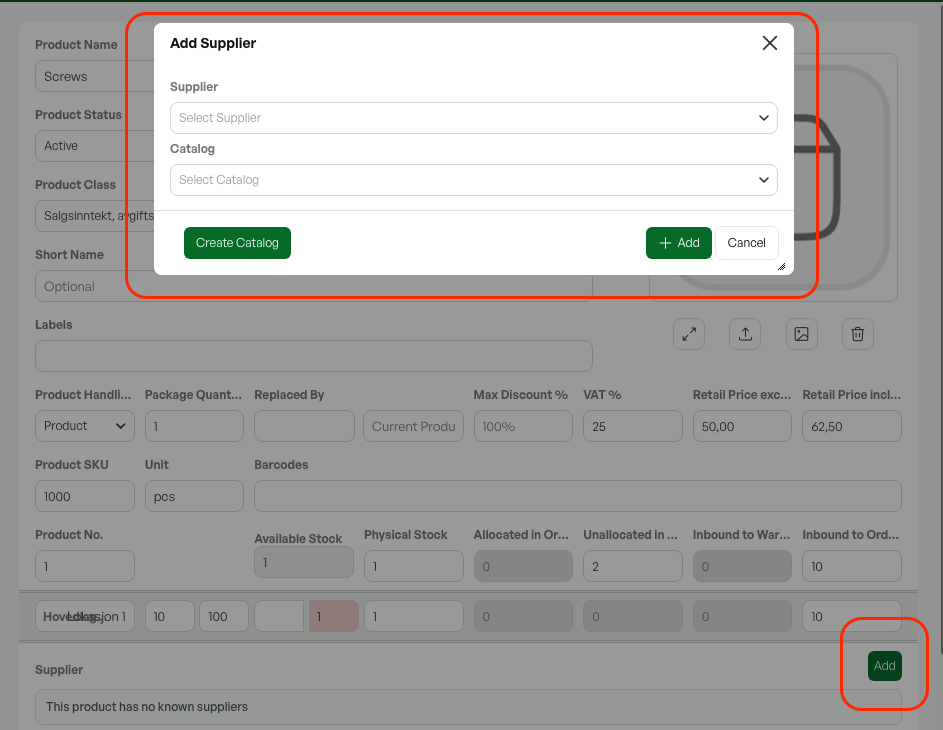
This button opens a dialog box for choosing the desired supplier with its associated catalogue. For a supplier with several catalogues, you must also choose the correct catalogue.
A product can in principle be added to any catalogue and supplier; if the product exists in the catalogue, the purchase price is linked to it. If there is no purchase price, it becomes 0,-
A fully linked product will show the supplier with information on the product card.

To see the catalogue information for the product, click the line, and the dialog box for the product's catalogue information opens.
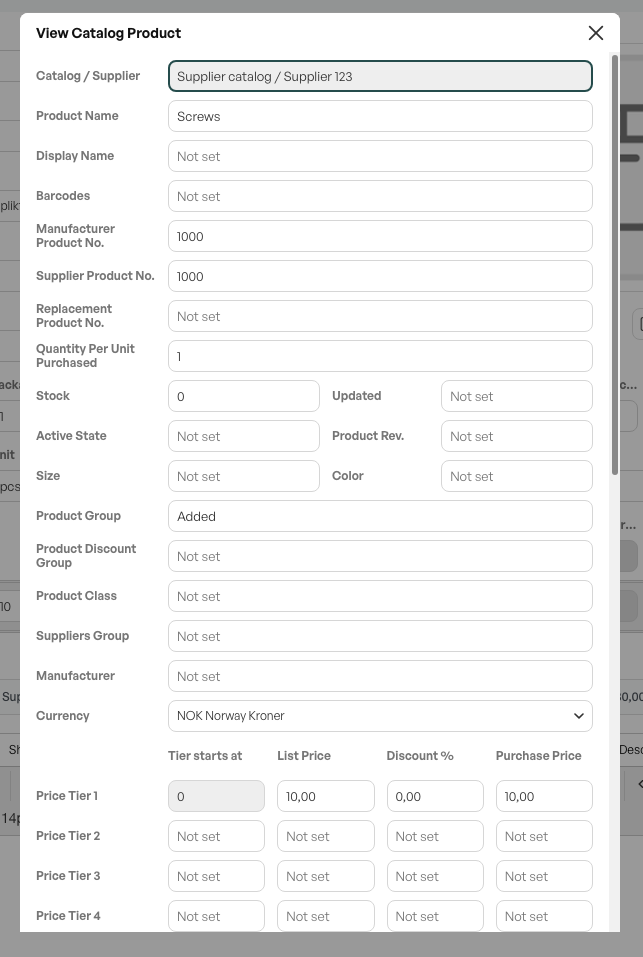
Tip: A product can have several suppliers and be linked to several catalogues.

Was this article helpful?
That’s Great!
Thank you for your feedback
Sorry! We couldn't be helpful
Thank you for your feedback
Feedback sent
We appreciate your effort and will try to fix the article