Catalogue import / Price lists
Import of catalogues / price lists, guide to the procedure.
NB: Importing catalogues can be a complicated task. Consult Telaris before importing if test results are wrong. All further handling of an incorrectly imported catalogue by Telaris will be invoiced on time spent.
INNHOLDSFORTEGNELSE
The purpose of catalogues
Catalogues are the term for a collection of products from a supplier. In catalogues you find product numbers, prices and other relevant information such as weight, dimensions, customs tariff codes and barcodes.
A well-maintained collection of catalogues gives quick lookup of products and prices from suppliers.
A supplier can have several catalogues, and you can create several catalogues for the same supplier
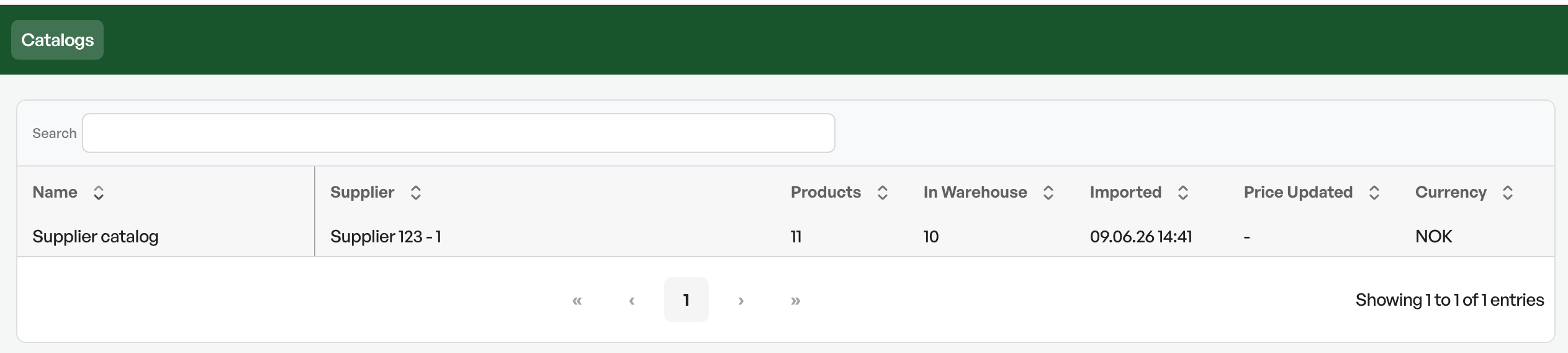
Located from the hamburger menu, or from a shortcut on the dashboard
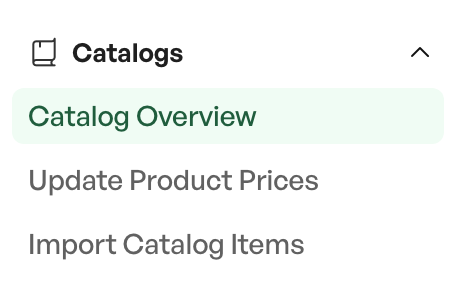
Guide: importing a catalogue / price file
Below is a guide for importing a catalogue / price file.
Note that the necessary tool for importing is Microsoft Excel or Numbers
Setting up the import file
The first step in a successful catalogue import is setting up the import file in Excel.
When you receive a catalogue from a supplier, these are usually delivered in Excel format, XLSX or similar
Ask the supplier for an Excel file if they are delivered in another format.
The minimum requirement for columns in the import file varies with the price method in the catalogue setup. The most common method is a purchase price and a sales price.
More about catalogue methods
The most common way to set up the price file. The product number column is duplicated to have two columns. The first column is used as the reference field when importing in Telaris.
There is support for several columns such as barcode, dimensions and weight, customs tariff codes, replacement number etc.
| Product number | Product number | Product name | Purch. price excl. VAT | Sales price excl. VAT |
| 100001 | 100001 | Anode | 100 | 300 |
Import format: CSV file (semicolon-separated) in UTF-8 format
NOTE: The import format with file type CSV and UTF-8 is essential and cannot be deviated from
Importing the file
After you have structured the file with the necessary and desired fields for import, as in the example below, save the file as a CSV in UTF-8 format.

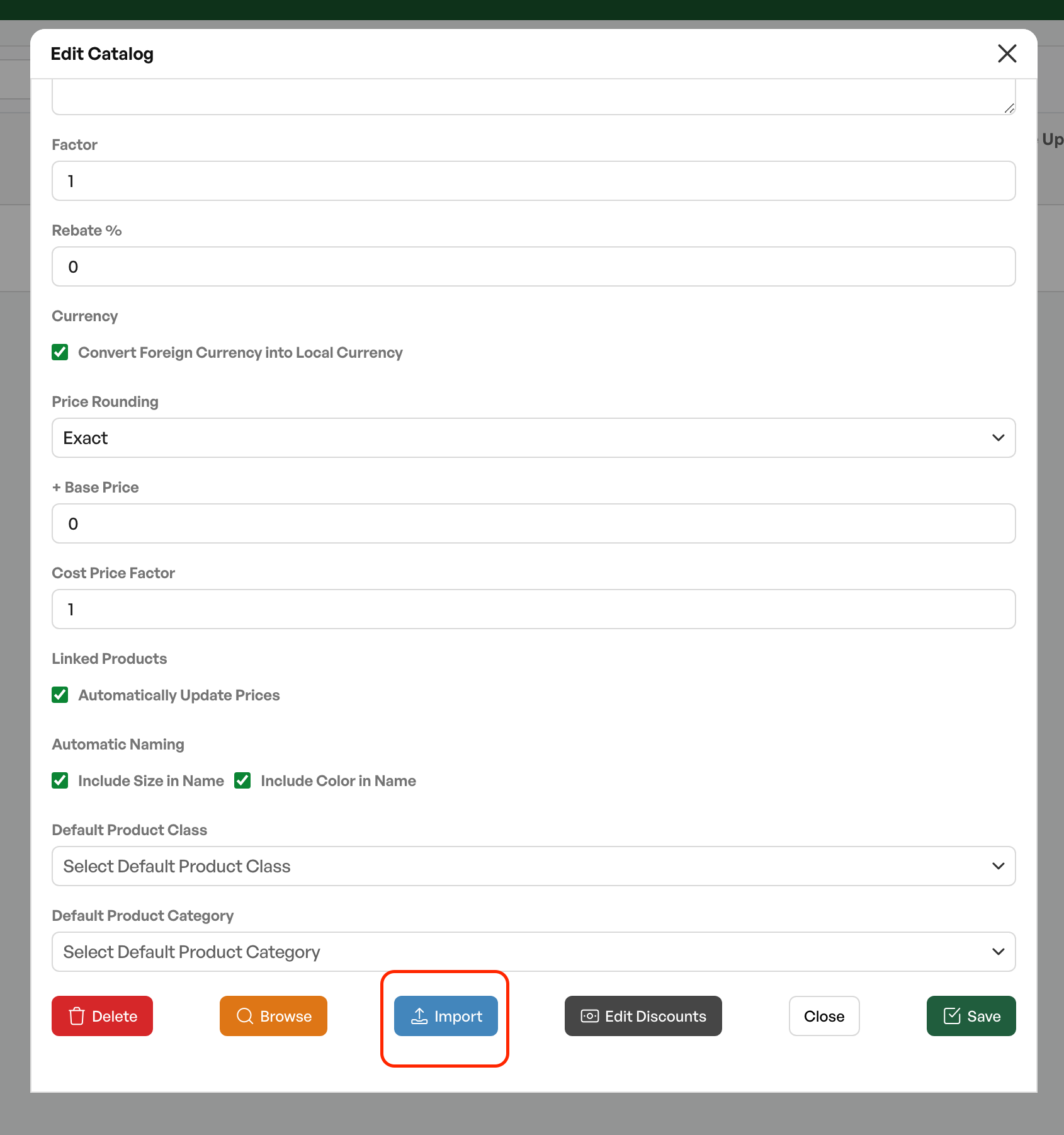
Then navigate to the catalogue overview, find the desired catalogue and click the line. This opens the catalogue settings. Go to 'import' and click the button.
You are then taken to a dialog menu for import
Import - Dialog view
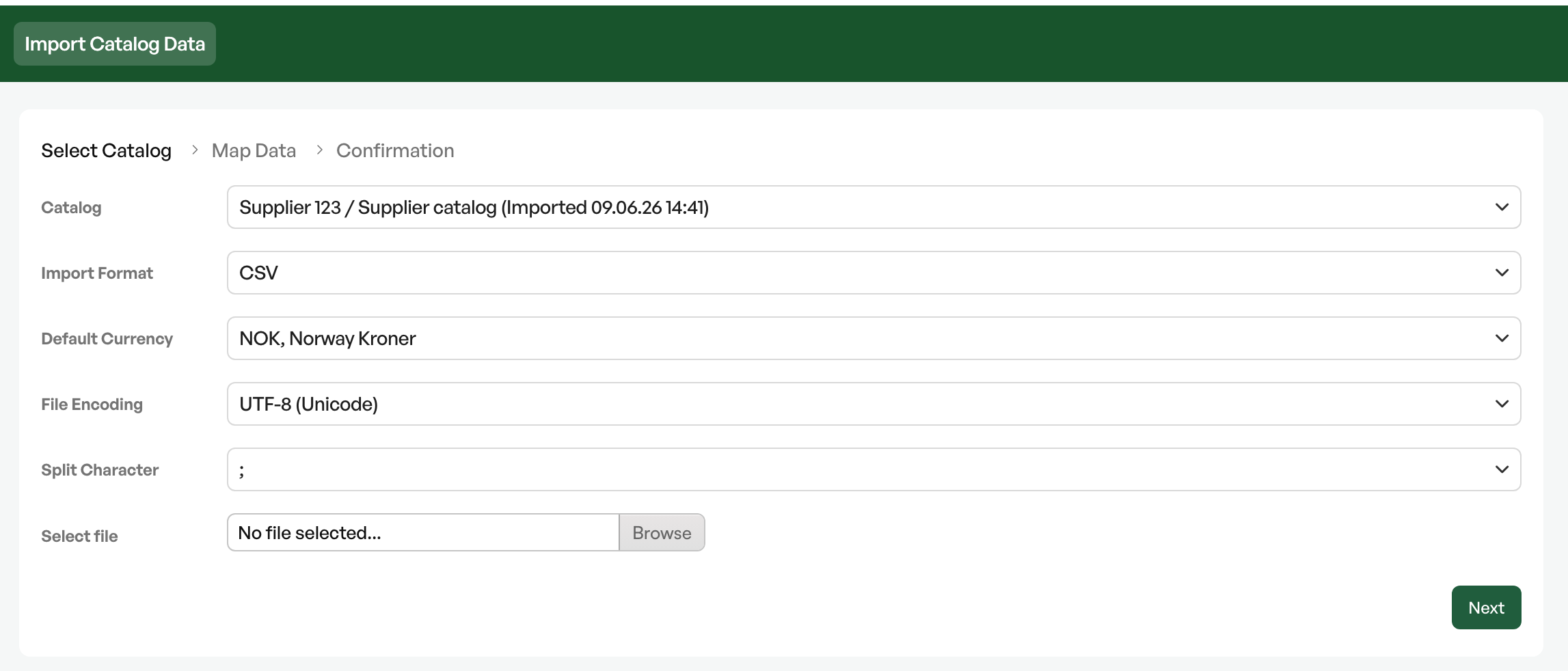
The dialog view contains the setup for import. Here it is important to make sure that currency and file encoding are set correctly. Catalogues can be in other currencies, but the file encoding must be UTF-8, the separator a semicolon.
Then select the file you have prepared for import. After upload you reach the mapping dialog
Import - Mapping
TIP: Copy out 5-6 lines of the catalogue to be imported into a separate test import to run a test before the final import
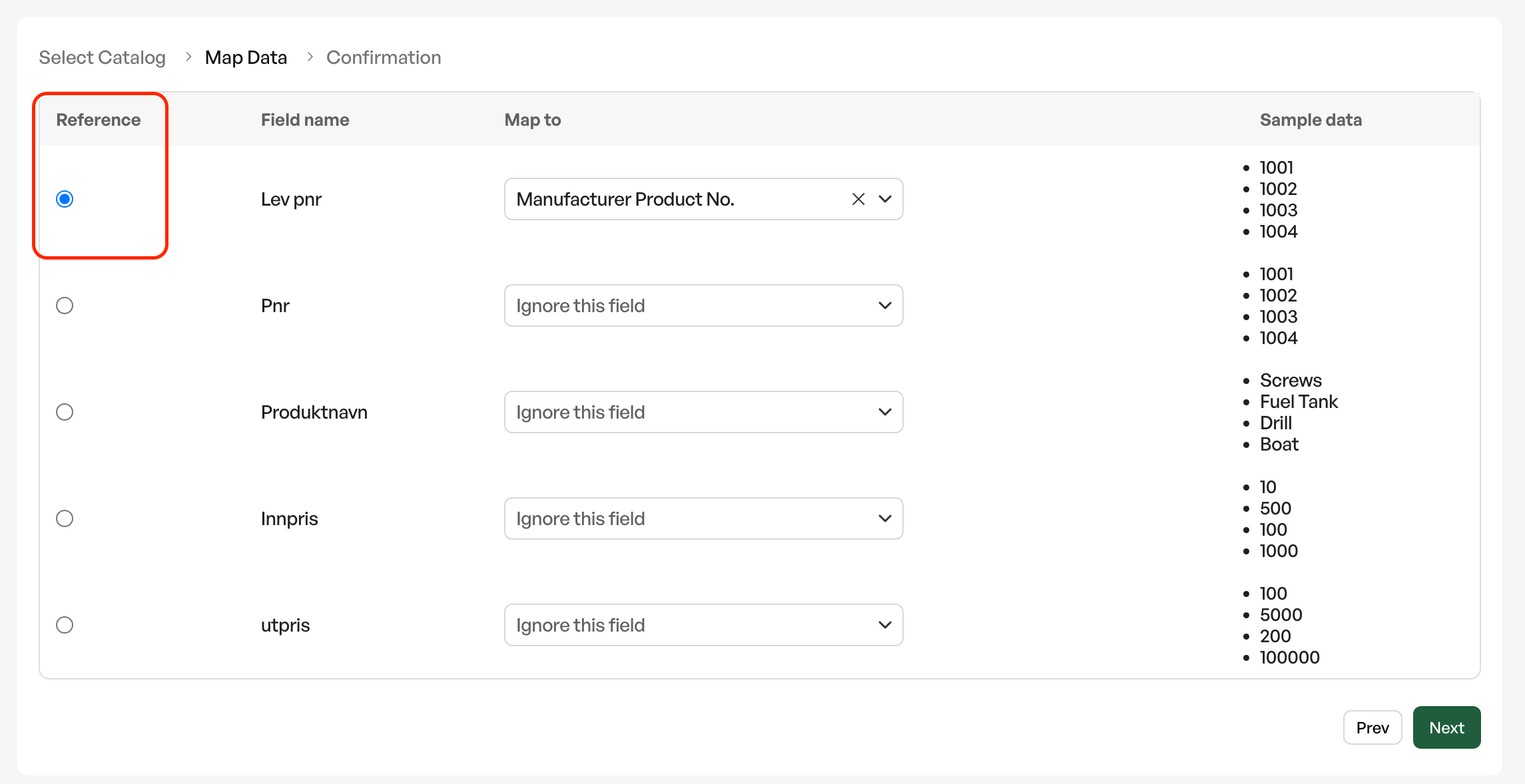
In the mapping step you link fields from the import file to fields in Telaris.
Here comes the reason for the step of duplicating the product number field into two columns in the import file. For a correct import you must set the reference to the supplier's product number, called 'Lev PNr.' in the mapping.
Tip: After an import, the mapping is saved for the next import, so you only need to review the fields to check they are correct. The reference field is also saved
After the reference and Lev. PNr. are set, you continue mapping by linking fields. In cases where the price method is based on discount groups and list price, often only the purchase price is needed.
More about pricing methods under 'Pricing methods' in the article.
'Product number' to 'Prod Pn.r',
'Product name' to 'Produktnavn'.
'Purchase price' to 'Innpris eks MVA'
'Sales price' to 'Utsalgspris'
Completed mapping
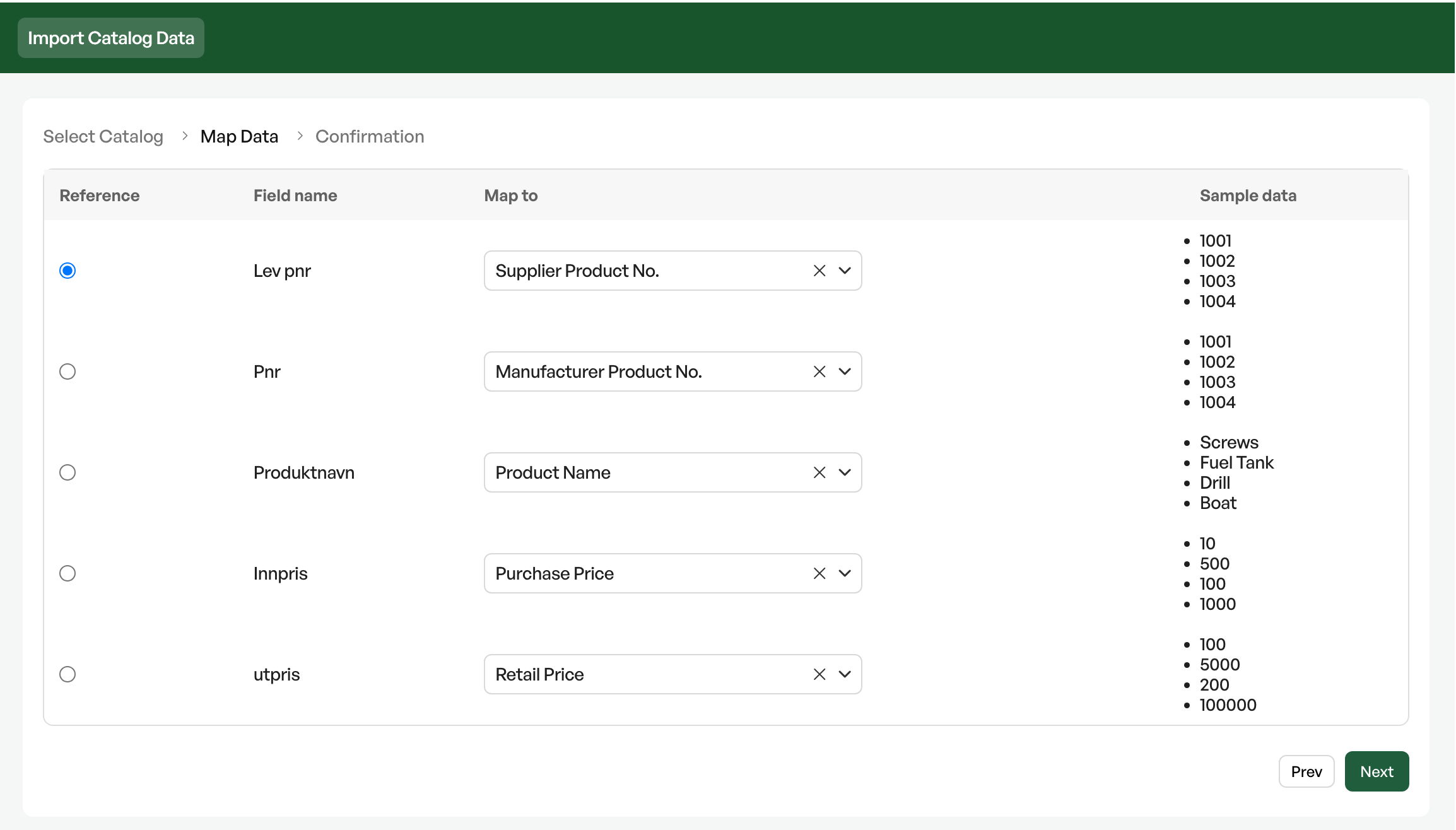
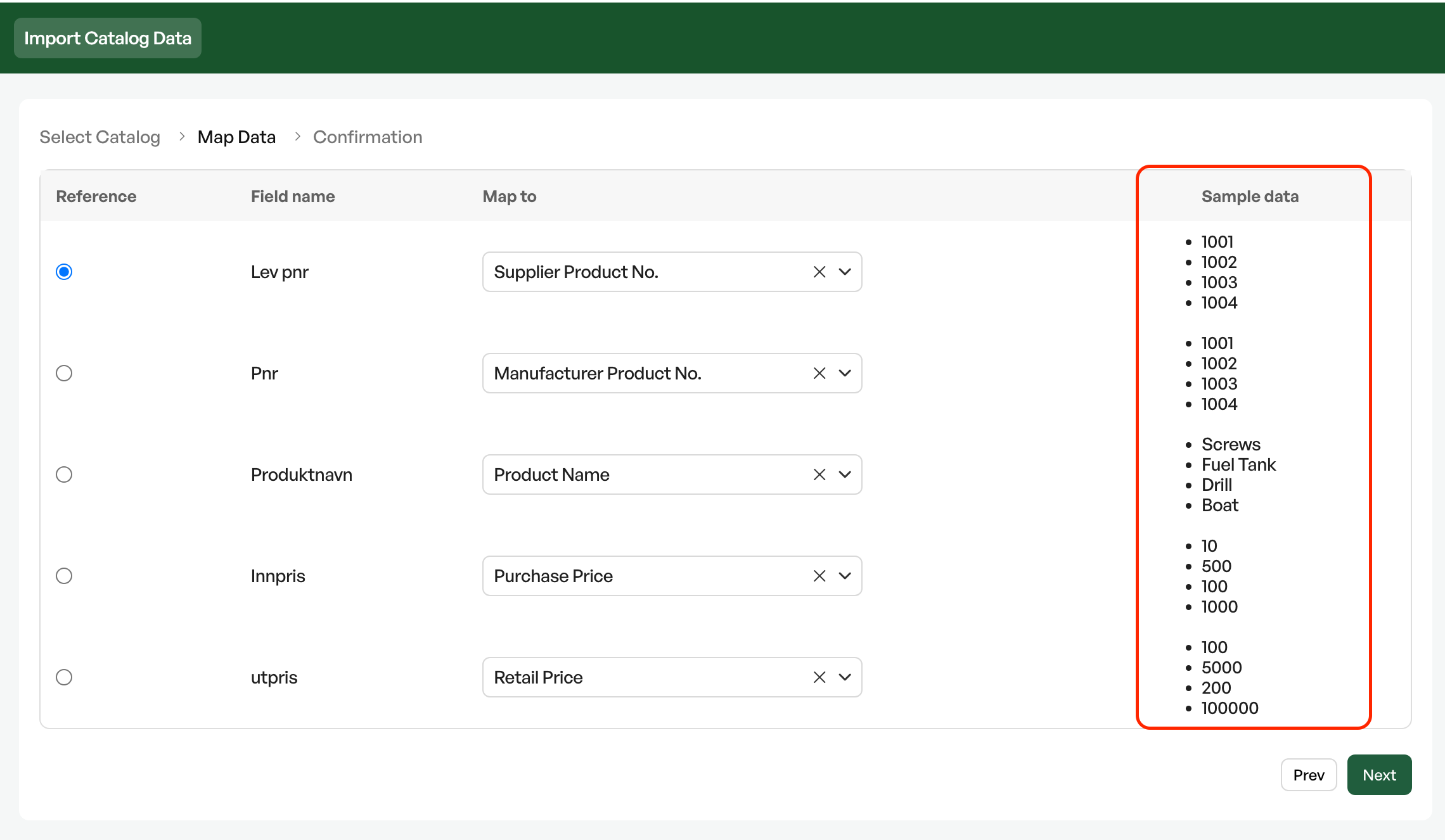
Throughout the mapping process, the first five rows from the import file are shown as examples on the far right
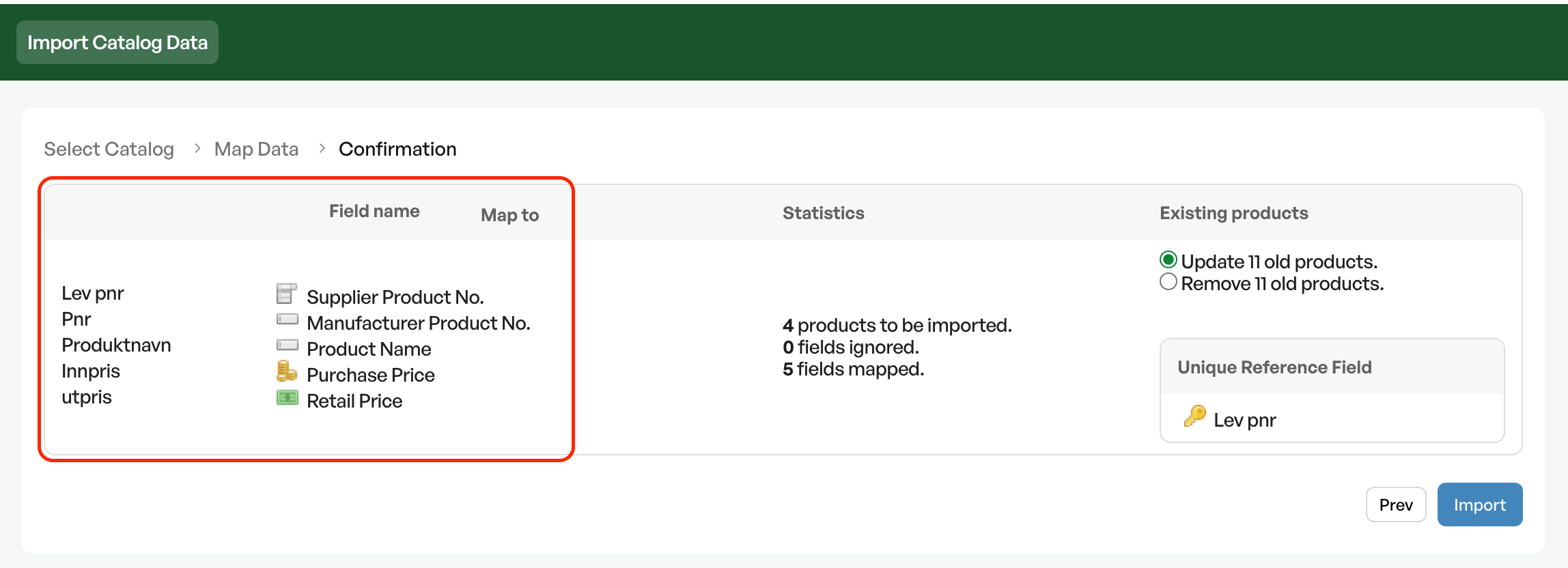
Import - Checkpoint before the final import
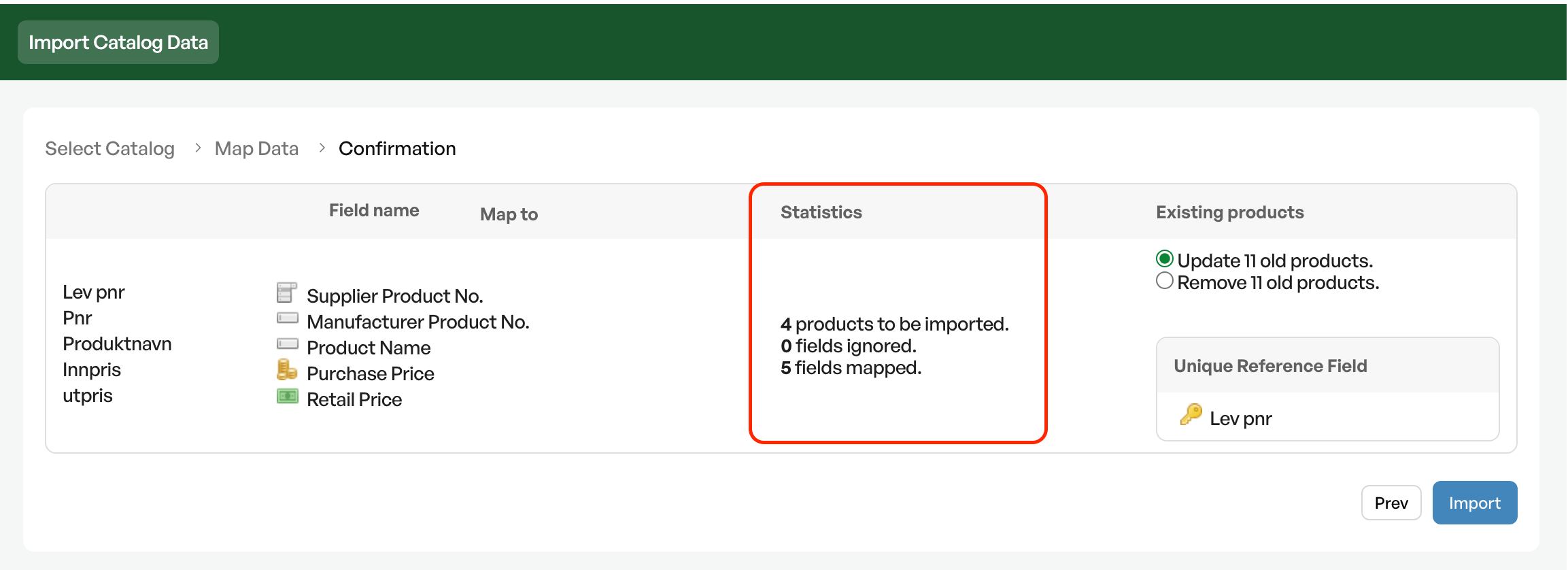
After the mapping process, a summary of the import is shown, before import. Linked fields in the mapping are shown as marked in the image below
Shows the number of products to be imported into the catalogue. The number should match the number in the import file. In case of large discrepancies there is an error in the import file, so check the file for formatting errors
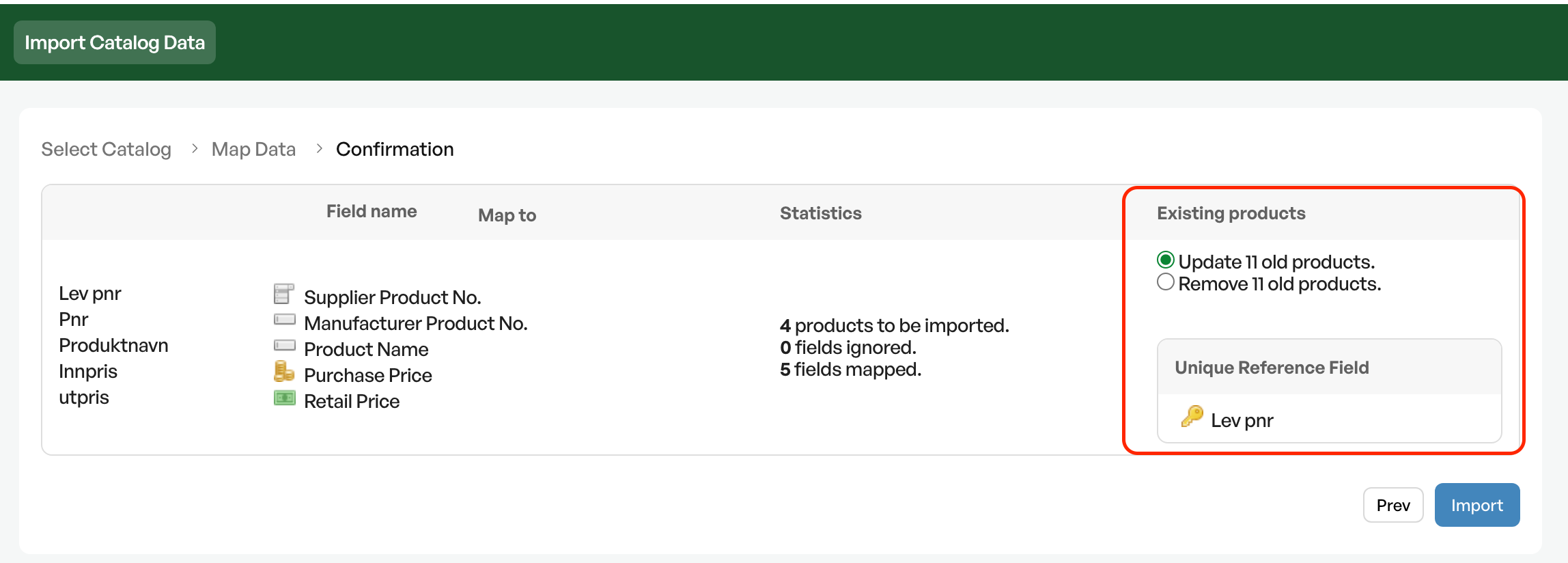
Shows the number of products in the catalogue, with the option to either update or replace products.
The update option keeps all unaffected products, and updates products that match existing Lev PNr.
When the number and mapping have been checked, start the file import by clicking 'Import'. This starts the import of the file.
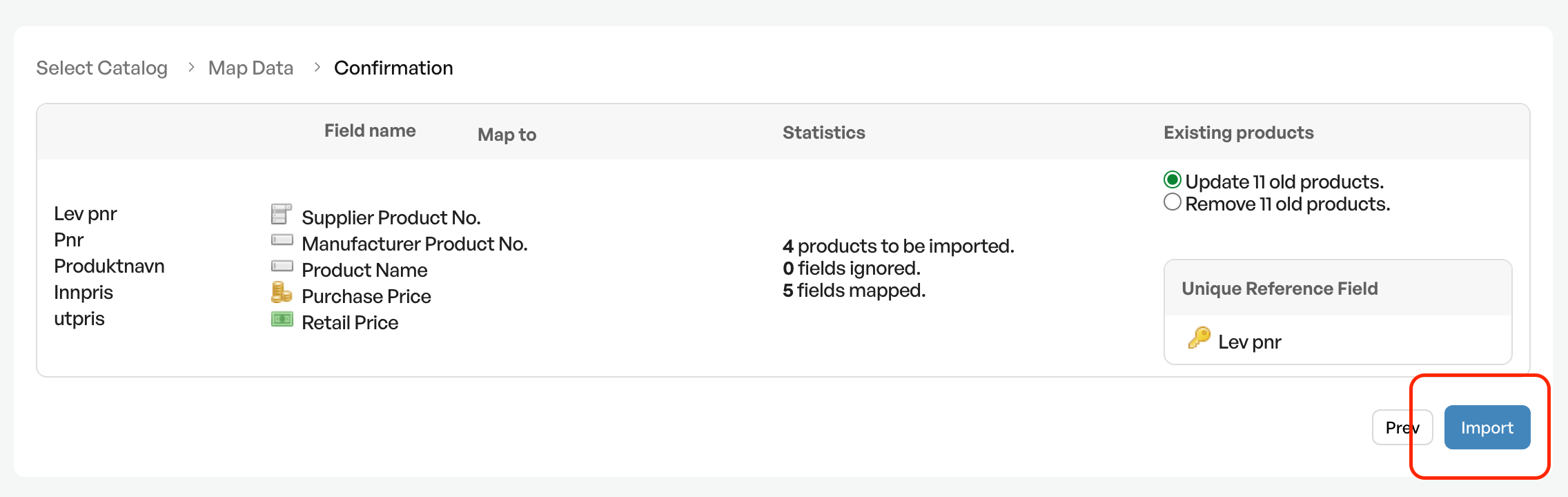
NOTE: Once the import has started, it cannot be stopped. Any errors must be corrected after import
After import - Check
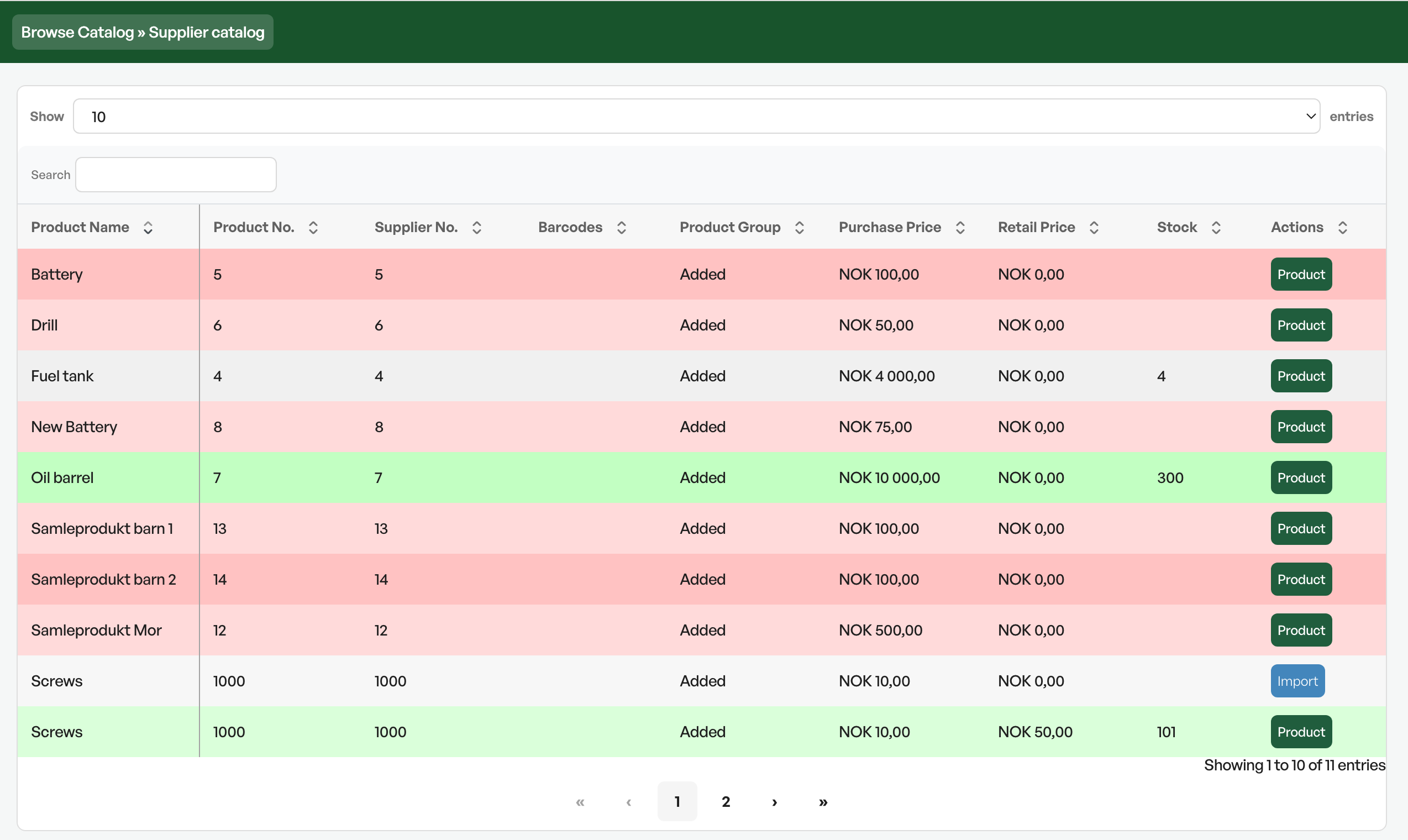
After import you are taken to the catalogue. Here a spot check of prices is recommended, comparing the file against the catalogue.
For a report on price updates, see the link to the guide below:
Guide: Updating sales prices and the update report
Note: When using a factor to increase the sales price, this only takes effect when importing catalogue products into products. More about price methods in a separate article

Was this article helpful?
That’s Great!
Thank you for your feedback
Sorry! We couldn't be helpful
Thank you for your feedback
Feedback sent
We appreciate your effort and will try to fix the article