Set Fields
This tool lets you efficiently mass-update products using an Excel file. By importing data directly from Excel, you can quickly make changes to product information such as prices, descriptions and labels. This saves time and reduces the risk of manual errors.
TABLE OF CONTENTS
Introduction
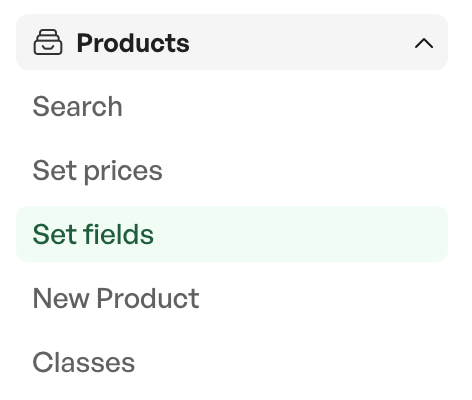
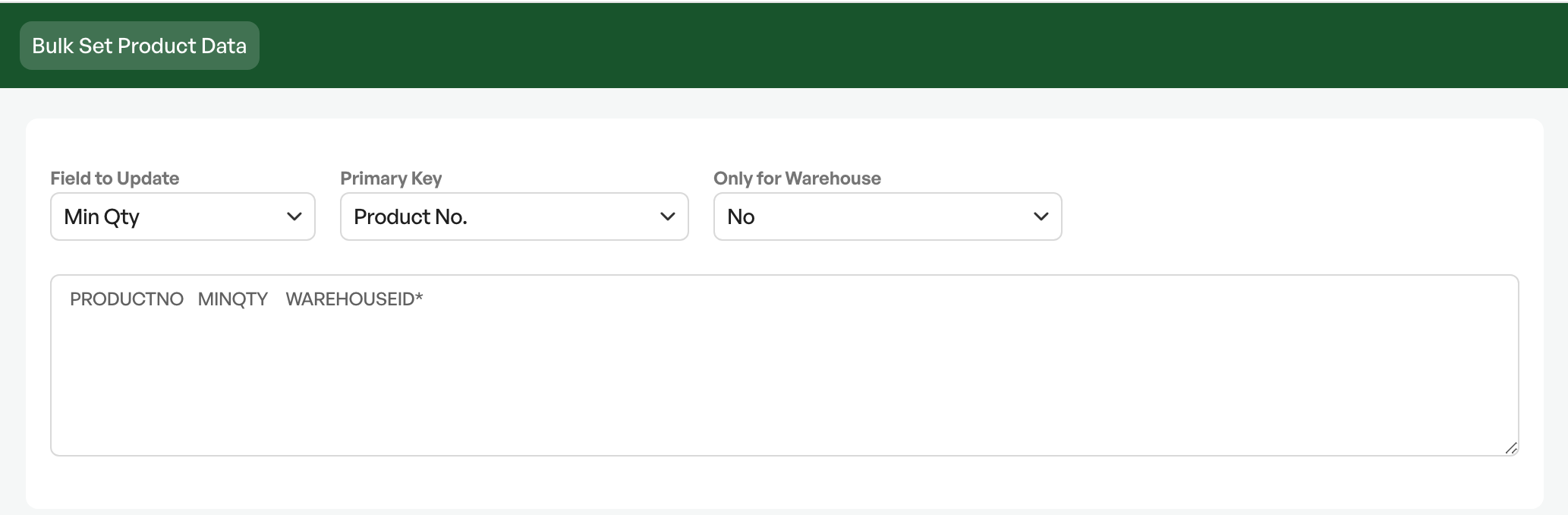
Set Fields is located under Products in the side menu
This tool lets you efficiently mass-update products using an Excel file. By importing data directly from Excel, you can quickly make changes to product information such as prices, descriptions and labels. This saves time and reduces the risk of manual errors.
The first step to using Set Fields is to have an Excel list of the products to be changed.
See the link below for how to export products in Telaris to Excel. After the export is done, duplicate a copy of the file as a backup.
Guide for exporting the product list to Excel
Tip: Duplicate an unchanged file as a backup
Set Fields settings
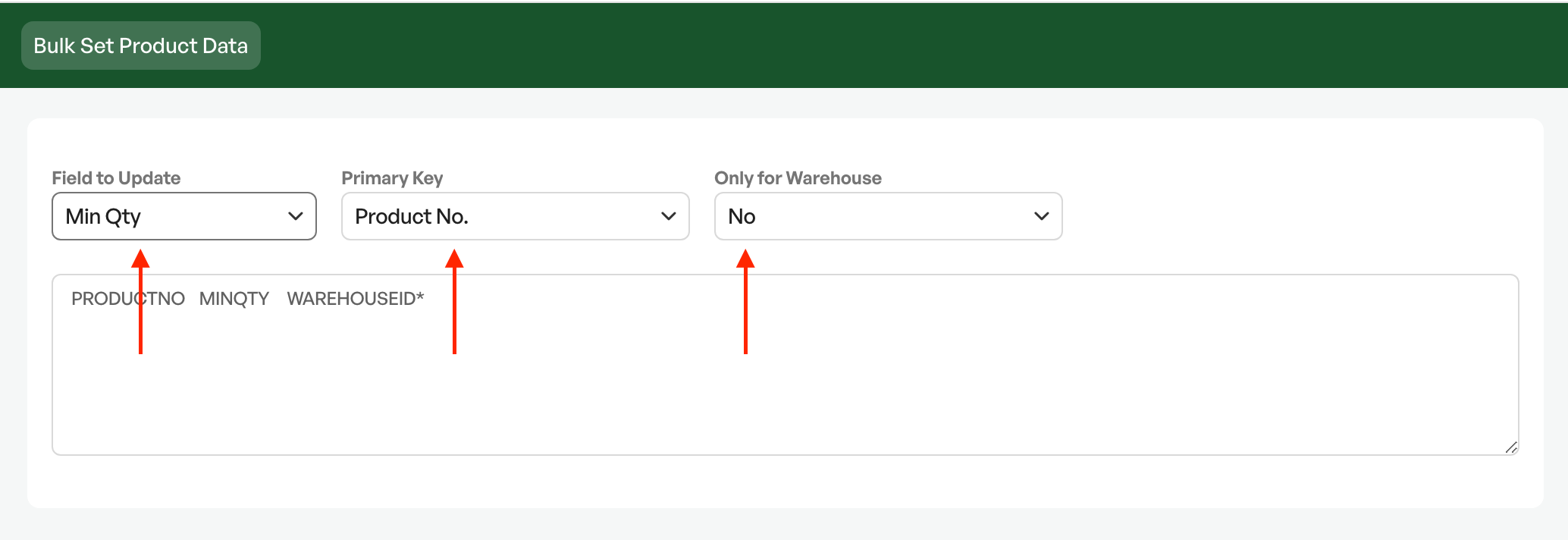
Set Fields settings overview
Field to update
This field determines which field on the product is changed during the mass update. For example product location, Min Qty and product number. It is also possible to make adjustments to custom fields from product classes
Primary Key
This field determines which identifier is used when importing products. The choices are between Telaris PNr and Product number.
Telaris PNr is a unique identifier for products. Each product has a unique Telaris PNr. This is the safest choice when changing products across several suppliers.
Product numbers can be identical in Telaris, either by duplication or coincidence. Product number can be used in cases where you have information from a supplier's price catalogue and want to make changes to products exclusively from one supplier's catalogue and do not have the option to retrieve the Telaris PNr.
Warehouse only
The option to make adjustments to products at specific warehouses. The default setting is "No".
Setting up the Excel file
In Excel you structure the file with two cells
- Telaris PNr or product number in cell A
- The change in cell B

In this example, the change is to change the value of Min Qty (minimum stock quantity)
How to perform the update in Telaris
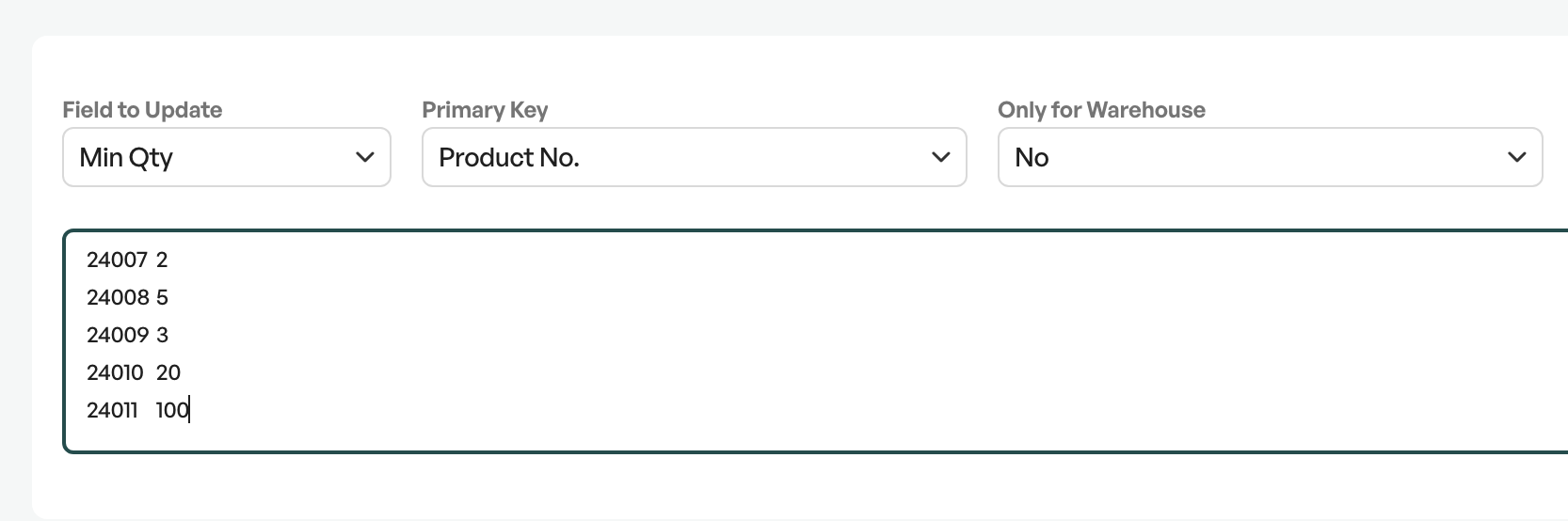
Pasted cells from Excel
Copy and paste the two columns without headers and click Update.

Note: This change is permanent. If you want to reverse the update, import the backup using the same method as described in the guide
Was this article helpful?
That’s Great!
Thank you for your feedback
Sorry! We couldn't be helpful
Thank you for your feedback
Feedback sent
We appreciate your effort and will try to fix the article