Exporting the product list with stock information to Excel
In some cases you need to export products with stock information to Excel. Telaris has this option built in from the product list.
TABLE OF CONTENTS
Procedure
Navigate to the product list via the side menu or via the dashboard shortcut.
Search for the desired products; by using restrictions on catalogue, category, and similar, you can get an accurate match for the products to be exported.
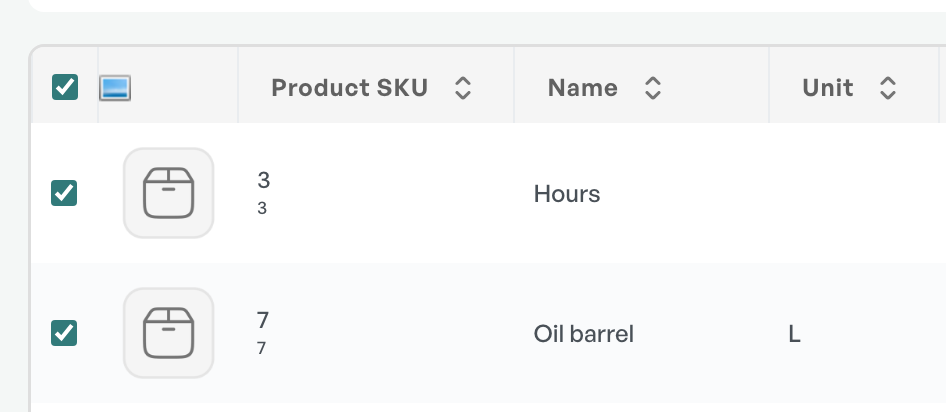
Select the products to be exported by clicking the checkbox so that it turns blue. By selecting the top checkbox in the header, all products in the search are selected.
At the bottom of the product page there is a button showing the text "With selected, do".
Click it and choose "Varehusdata.xlsx". Finish with Go.
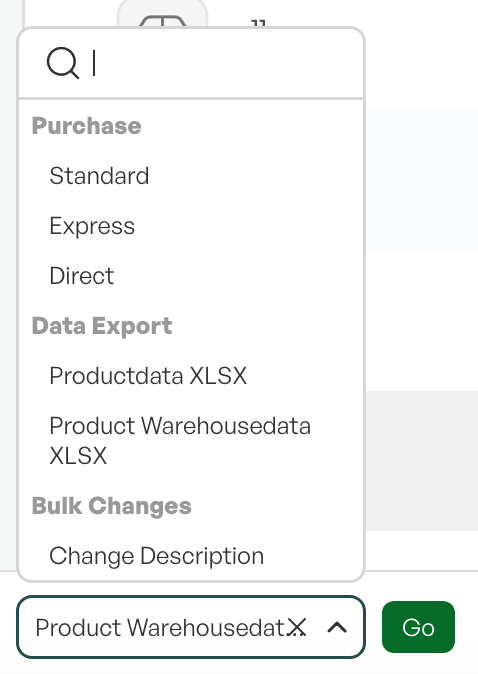
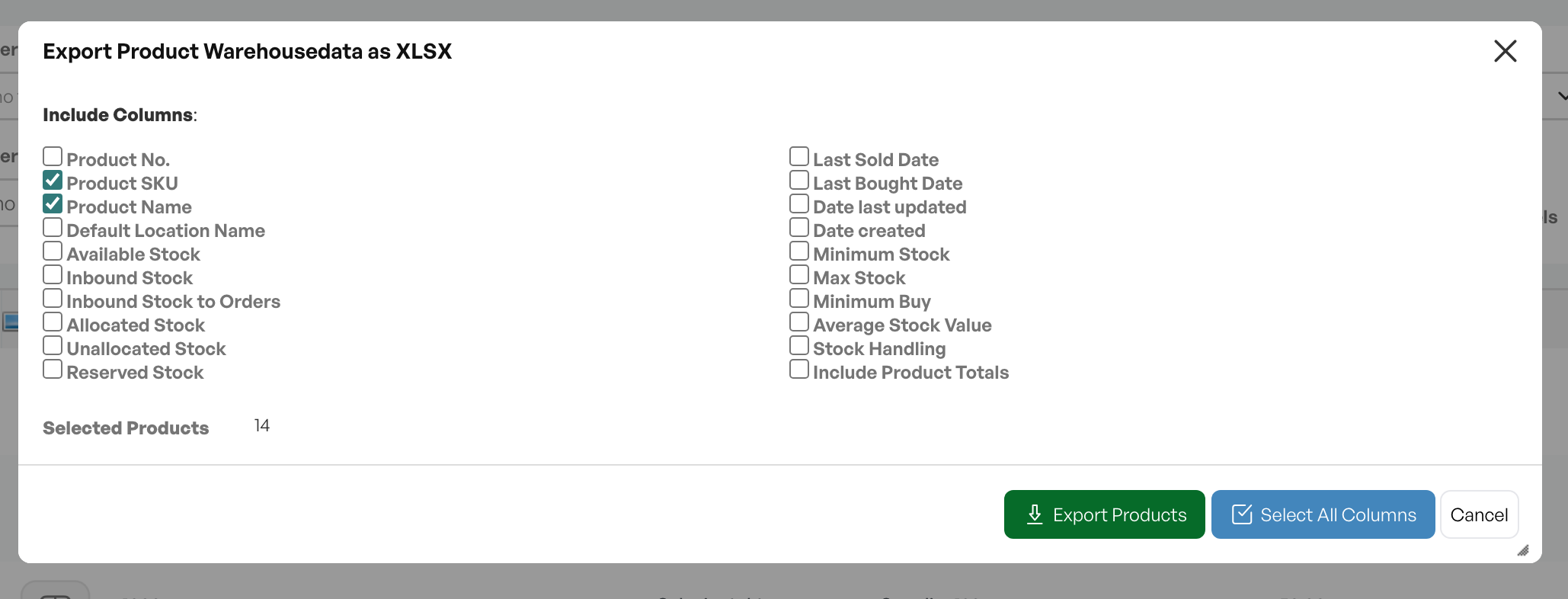
After the product list to Excel is chosen and you have clicked Go, a dialog box appears.
The dialog box shows which fields can be exported to Excel.
Choose the desired fields and click "Eksporter produkter".
Telaris then generates an Excel file with the desired criteria.
The file gives you one line per product per warehouse, and if the fields are blank, nothing has been set there before.
Tip: This export can be used, among other things, as a basis for mass changes via the 'Set fields' function.
Guide: Exporting the product list
Guide: Set fields

Was this article helpful?
That’s Great!
Thank you for your feedback
Sorry! We couldn't be helpful
Thank you for your feedback
Feedback sent
We appreciate your effort and will try to fix the article