Purchasing Overview from the Dashboard
The purchasing module is found in the side menu. It is also common to have shortcuts from dashboards.
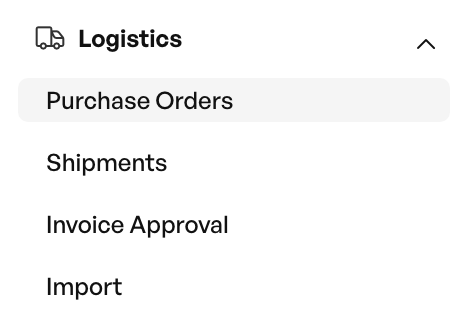
-> Side menu -> Logistics -> Purchase orders
Note: Purchasing from Telaris requires that suppliers and supplier catalogues exist in Telaris.
The Purchase Screen
The Purchase Header
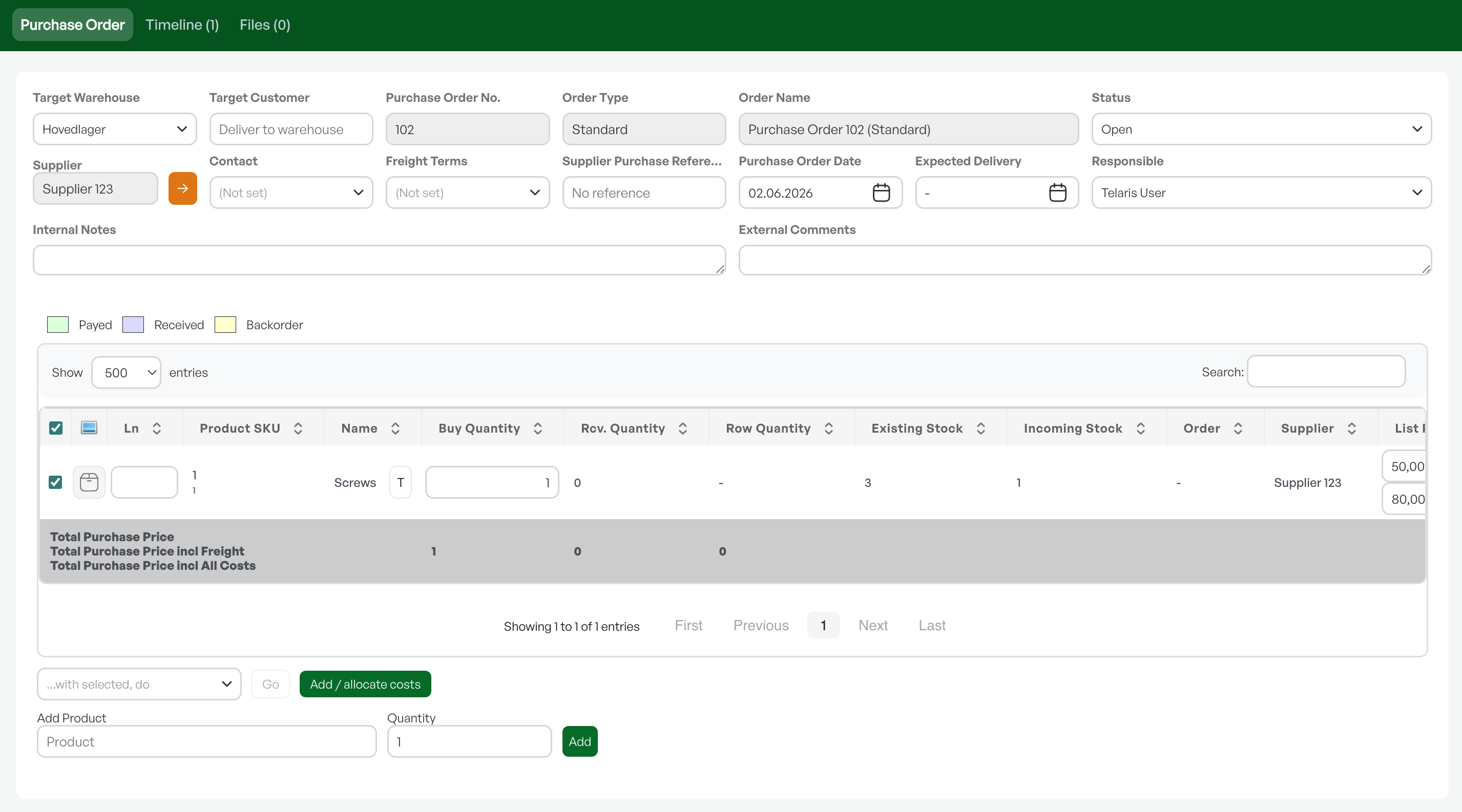
Shows the recipient, recipient options and relevant information for the purchase. Here you can change the status, the person responsible and which warehouse the purchase should be received into. It also shows the creation date with the option to add an expected delivery date.
Purchase Lines
The product lines for the purchase. Shows information such as quantity, price and order association. Also shows the status of the purchase and whether a goods receipt has been created.
"..With selected, perform"
Additional information and editing options for the purchase, such as deleting lines in the purchase, marking as paid, and moving lines to other purchases. You can also update prices to the catalogue if the purchase prices have changed since the previous purchase.
Report / Export Options
A row of buttons for export options. Here you choose how you want to send the purchase order (PO) to the supplier, with the option to export to Excel, send directly by email, and produce a PDF.
Purchase Methods and Categories
Creation Methods
Purchases can be created in four ways:
- From an order: When a product is out of stock or has too few in stock to be sold. The purchase created via an order will be linked to the order.
- From the purchase planner: An inventory monitor that looks for purchasing needs based on stock settings, sales and stock quantities.
- Manually: Create a manual purchase from the purchasing module. Not based on the purchase planner or an order.
- From the product list: Select the product in the product list and create a purchase with "..With selected, perform".
Purchase Categories
Purchases are also divided into three categories:
- Standard purchase: Straightforward purchase, the most common and most used form.
- Express purchase: Some suppliers have different prices for regular purchases compared with express purchases.
- Direct delivery: In cases where the purchase is to be delivered directly to the customer and not into the warehouse first.
Statuses
A purchase is set to different statuses based on where it is in the process. Statuses are used to work towards completion. It is not necessary to use all statuses to complete a purchase.
- Open: The purchase is open for editing, removing / adding products.
- PO sent: The PO has been sent to the supplier but it has not been confirmed that the order has been received.
- On order: The PO has been confirmed as received by the supplier. In the purchase you are prompted to create a goods receipt.
- Confirmed direct delivery: The supplier has confirmed direct delivery to the end customer.
- Confirmed warehouse delivery: In the purchase you are prompted to create a goods receipt.
- Back order: The PO has been received but there is a remainder.
- Closed: The purchase is completed and finished.
- On hold: The purchase is on hold.
- Cancelled: The purchase has been cancelled.
Note: If a purchase to a supplier has the status "open" and you create a new purchase to the same supplier, Telaris will automatically merge the purchases into a single purchase.

Was this article helpful?
That’s Great!
Thank you for your feedback
Sorry! We couldn't be helpful
Thank you for your feedback
Feedback sent
We appreciate your effort and will try to fix the article