Options and Useful Information
TABLE OF CONTENTS
Merging Open Purchases
If an open purchase already exists for a particular supplier, new products will automatically be added to this existing purchase. This ensures that multiple orders (POs) are not created for the same supplier, which helps avoid unnecessary shipping costs.
Linking an Existing Purchase to an Order
In cases where a purchase exists that is not allocated to an order, it is possible to link the purchase to a specific order. The method is to view incoming goods on the order line, which will be shown as "..+X" (quantity).
When you click "..+X", a dialog box is shown that allows you to choose to link the purchase to the order. When you click "Select", the quantity of the product in the order is allocated in the purchase, and the link is shown in both the order and the purchase.
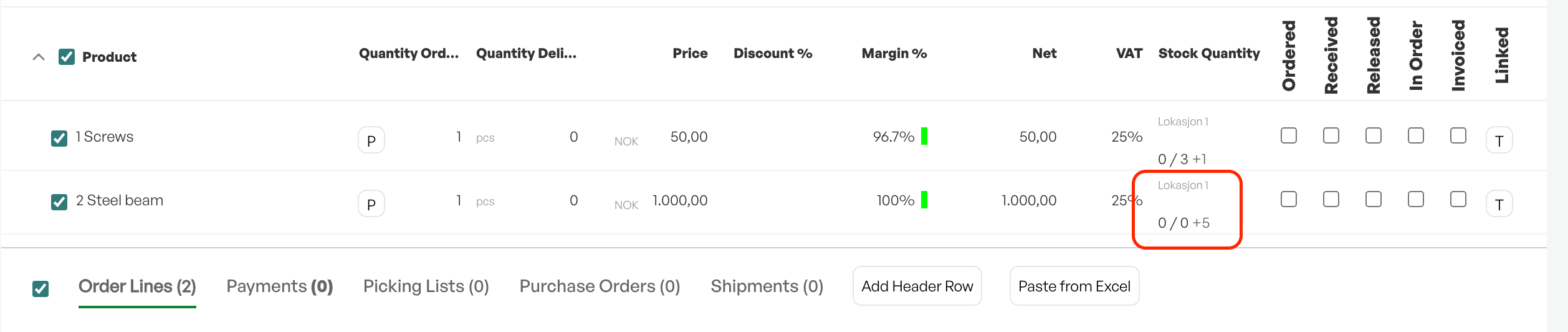
After you click the numbers under "Stock Quantity", a dialog box with the purchase appears. Here you can choose to link an existing purchase line to an order line.
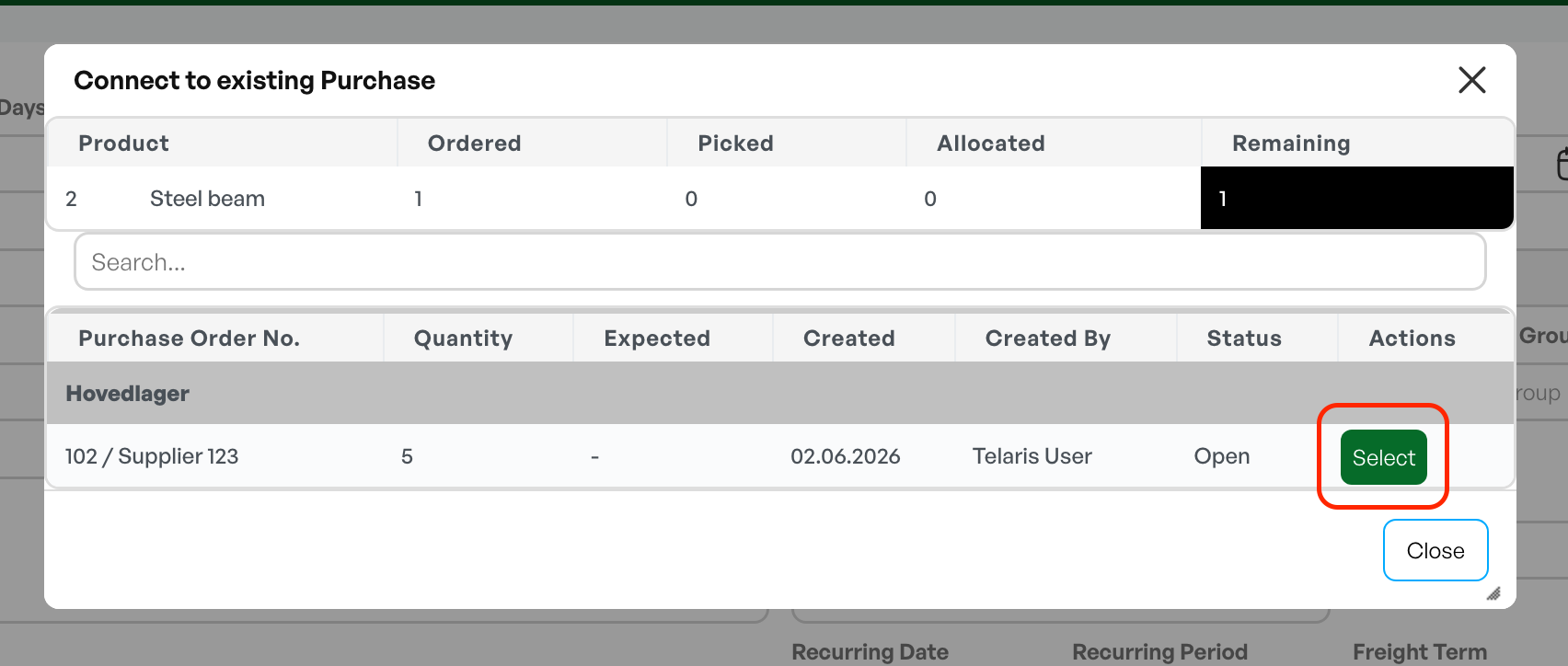
After you click Select, the line turns green, and you also get the option to unlink the order line again by clicking "Free up".
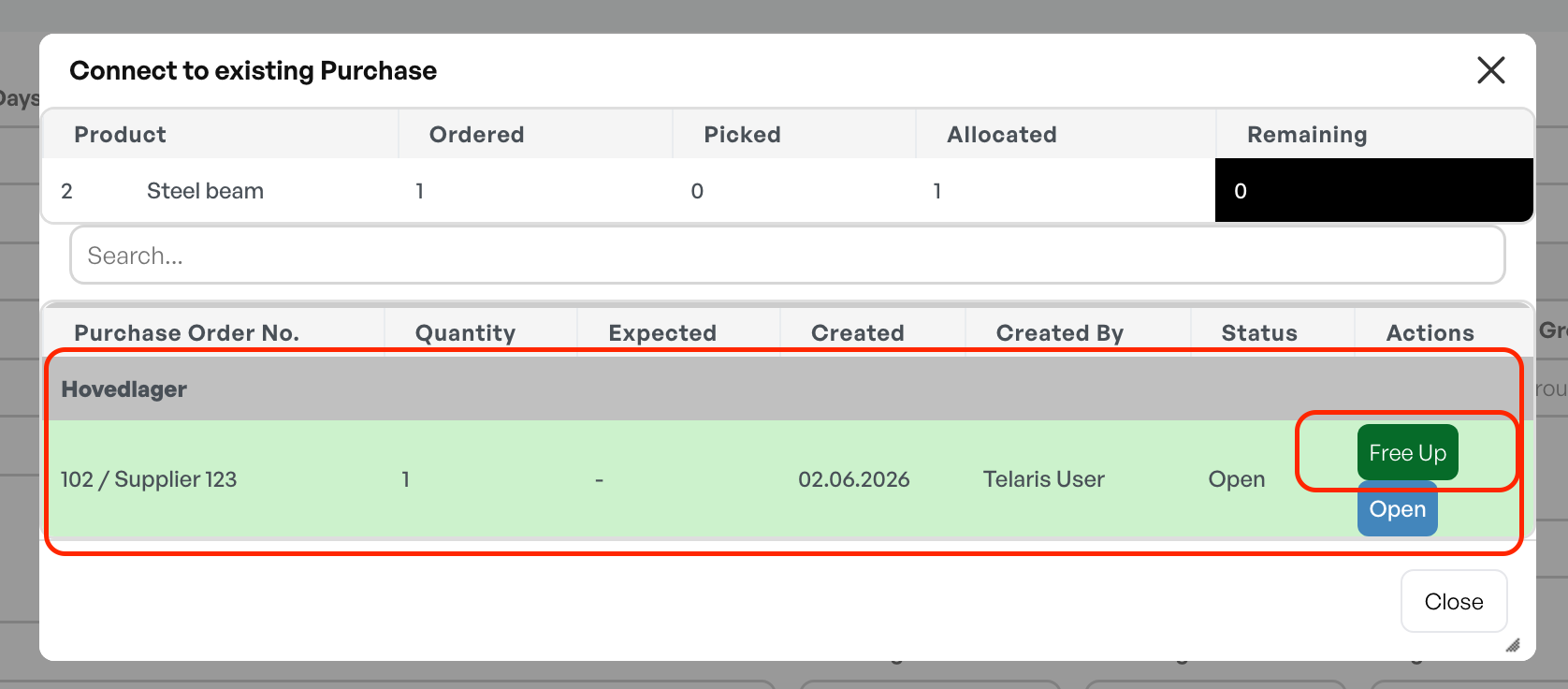
A linked purchase line will show the order number and customer name in the purchase order.

Removing the Link Between an Order and a Purchase
In some cases a purchase against an order is cancelled, and it becomes necessary to cut the link between the purchase and the order.
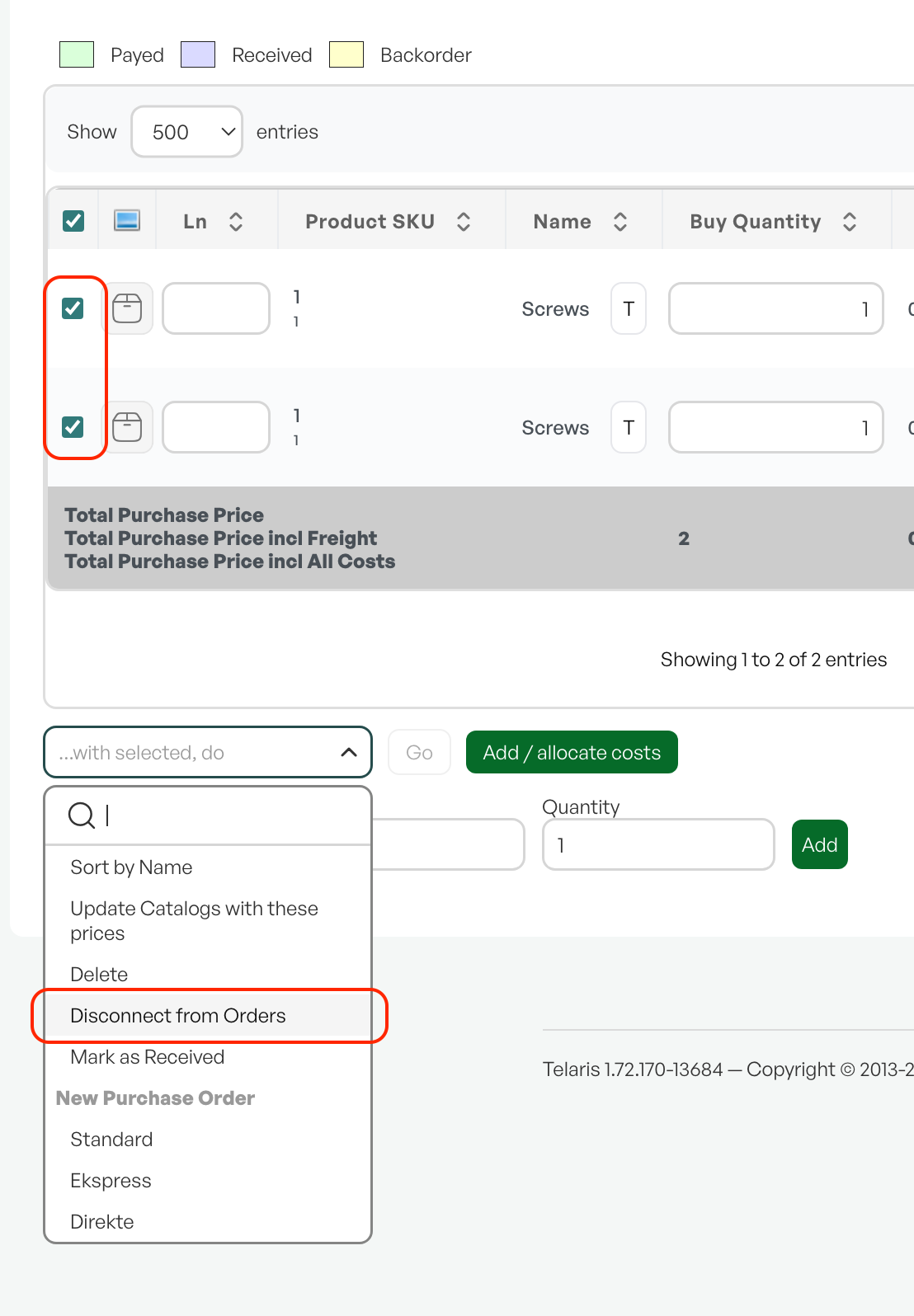
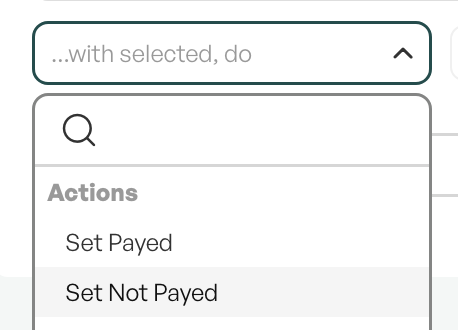
The method for removing the link is to tick the product in the purchase and select "Fjern fra ordre" (Remove from order) using "..With selected, perform".
Marking Purchase Lines as Paid or Unpaid
To streamline and simplify work processes, it is possible to mark purchase lines in three ways.
By marking the desired purchase lines with the blue radio button and using the "..With selected, perform" menu, you can choose to mark the purchase lines as paid or unpaid, as well as mark them as back order.
Deleting a Purchase
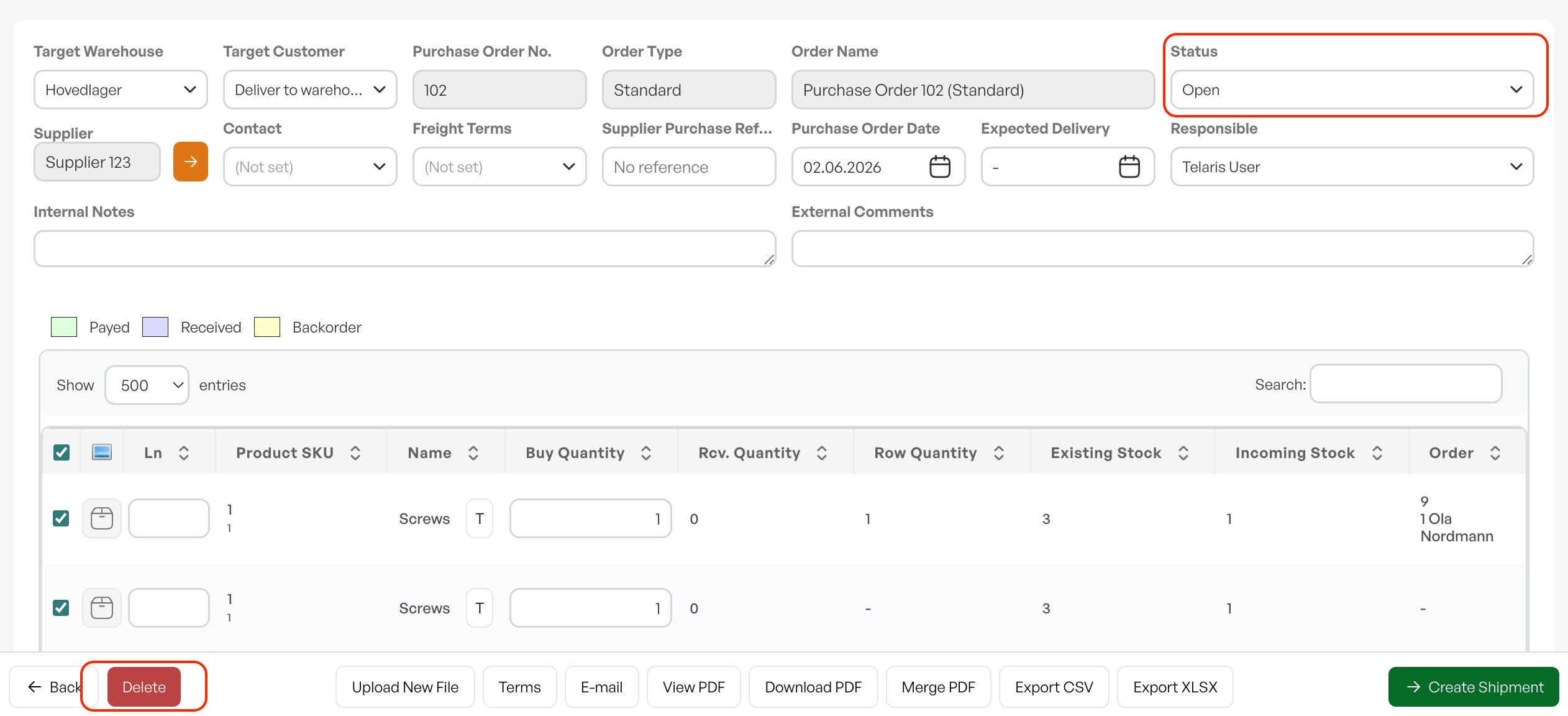
To delete a purchase, use the "Delete" button located at the bottom left of the purchase screen.
When deleted, the purchase is placed in the recycle bin in Telaris, and can be restored by going to System settings -> Recycle bin. The purchase must have the status "Open" for the delete button to be shown.
Timeline and Files
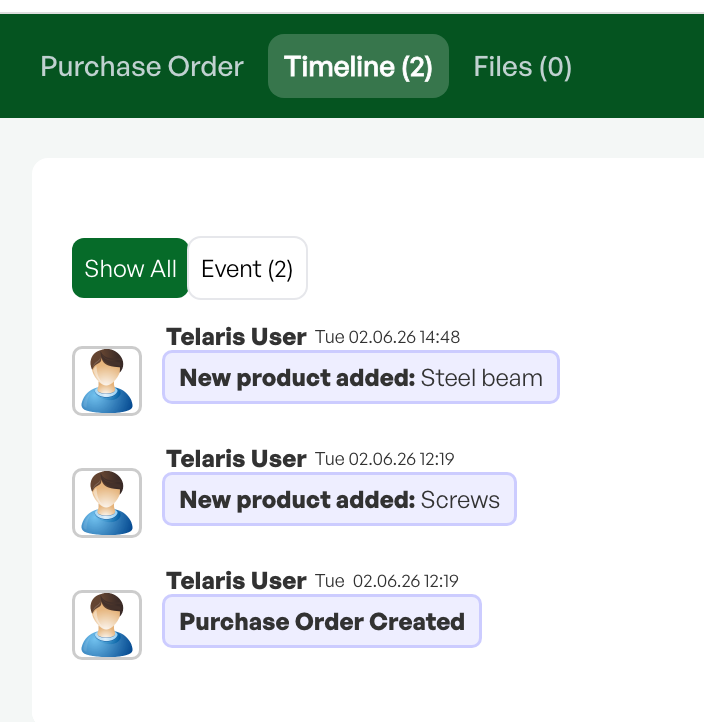
As in many other places in Telaris, you will find several tabs at the top of the screen. These tabs often include a timeline that shows the full history of who has made changes in the screen. For example, in a purchase there is also a tab for file upload, where you can upload documents related to the purchase to get a quick overview.
Uploaded files can also be sent as attachments on outgoing emails from the purchase order.


Was this article helpful?
That’s Great!
Thank you for your feedback
Sorry! We couldn't be helpful
Thank you for your feedback
Feedback sent
We appreciate your effort and will try to fix the article