Purchasing - Direct Delivery
Purchases where delivery is made directly to the customer instead of going via the warehouse
TABLE OF CONTENTS
- Purpose
- Creating a Direct Delivery
- Processing a Direct Delivery
- Setting: Purchase order type - direct delivery
Purpose
The option to send goods directly from the supplier to the end customer without going via your own warehouse.
Direct delivery makes it easier to keep control of the shipment from supplier to end customer, while the need is logged in the order and purchase.
Creating a Direct Delivery
A direct delivery can be created from two places:
1. From the order module
2. Manually from the purchase list
1. Direct Delivery from the Order Module
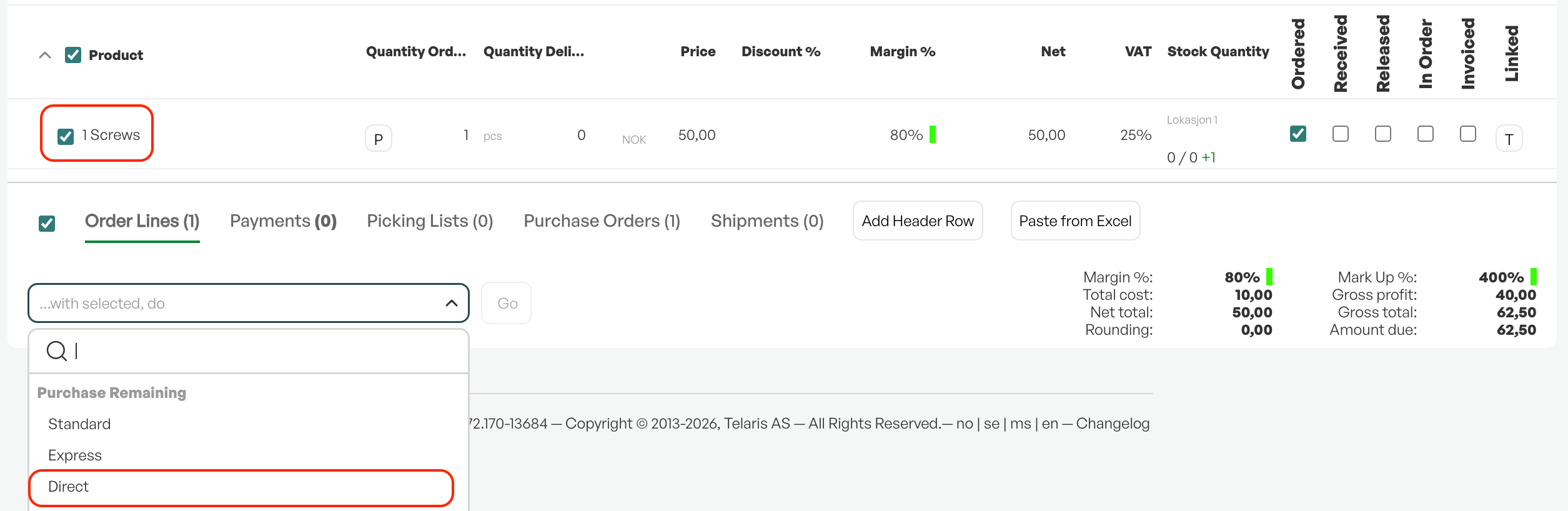
To create a direct delivery from the order module, mark the product(s) you want to make a direct delivery for, go to the menu 'Med utvalgte, utfør' (With selected, perform) and choose direct delivery.
The advantage of creating a direct delivery from an order is the tracking of the purchasing need.
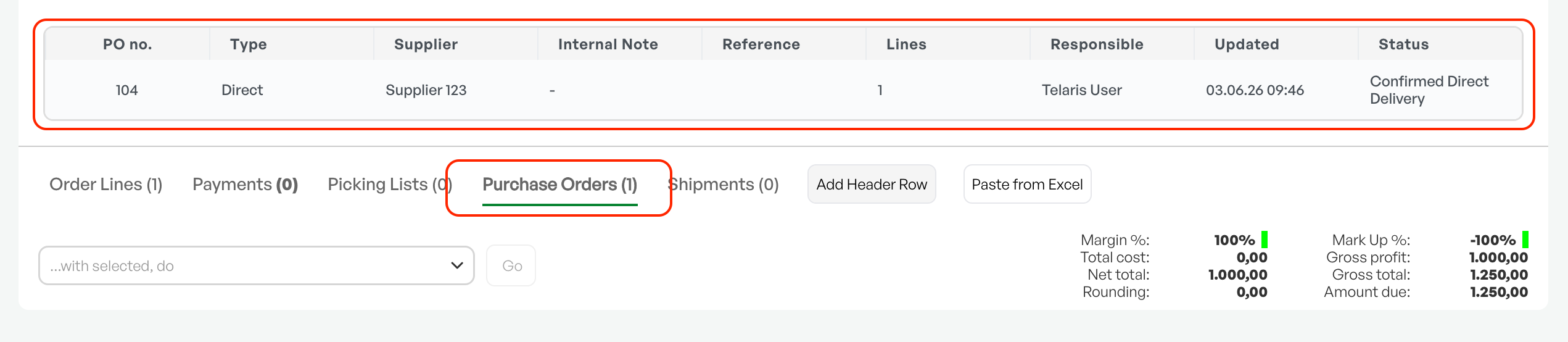
Just like a standard purchase, the direct delivery will be linked to the order in the 'Innkjøpsordre' (Purchase order) tab in the order module. The view on the purchase order tab will also show the type of purchase selected.
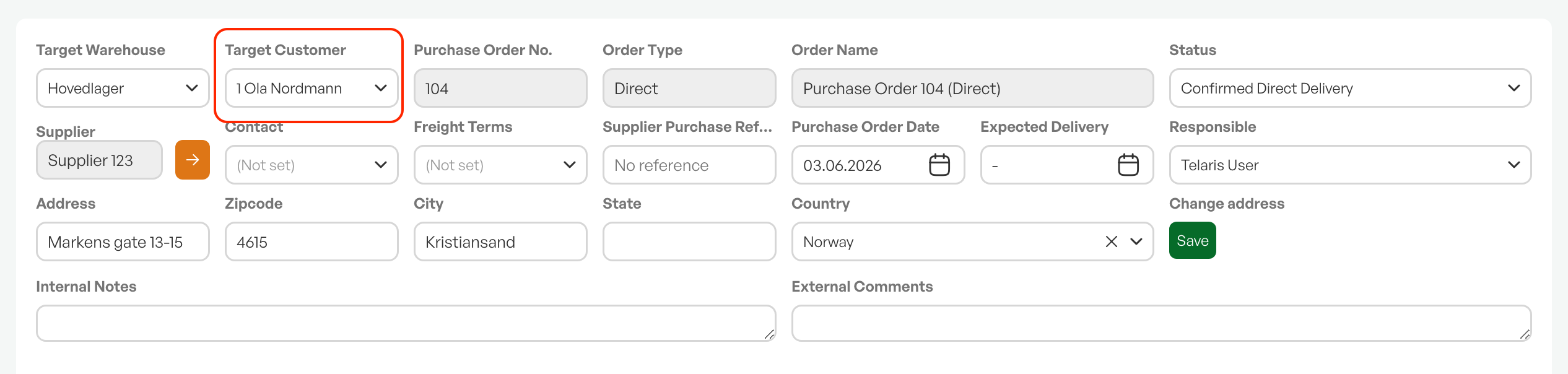
When a direct delivery is created from an order, the order's customer is automatically set as the delivery address under 'Target customer'.
This means that the documents for the purchase show the delivery address of the relevant customer.
Tip: There is a setting to always choose the order's delivery address instead of the customer's delivery address. Contact Telaris support to have this activated.
2. Manually from the Purchase List
Just like a standard purchase, a direct delivery can be created manually from the purchase list.
The disadvantage of creating a direct delivery manually is that you do not have tracking of the purchasing need linked to an order.

Unlike a purchase created from an order, you must yourself select the recipient's delivery address from the customer list in the direct delivery. The "Target customer" field is a search field, and you can search by customer number and customer name.

The rest of the direct delivery from an order and manually will have the same processing method.
Processing a Direct Delivery
After creating a direct delivery, there will be a purchase that has some notable differences from a normal purchase.
1. The Purchase
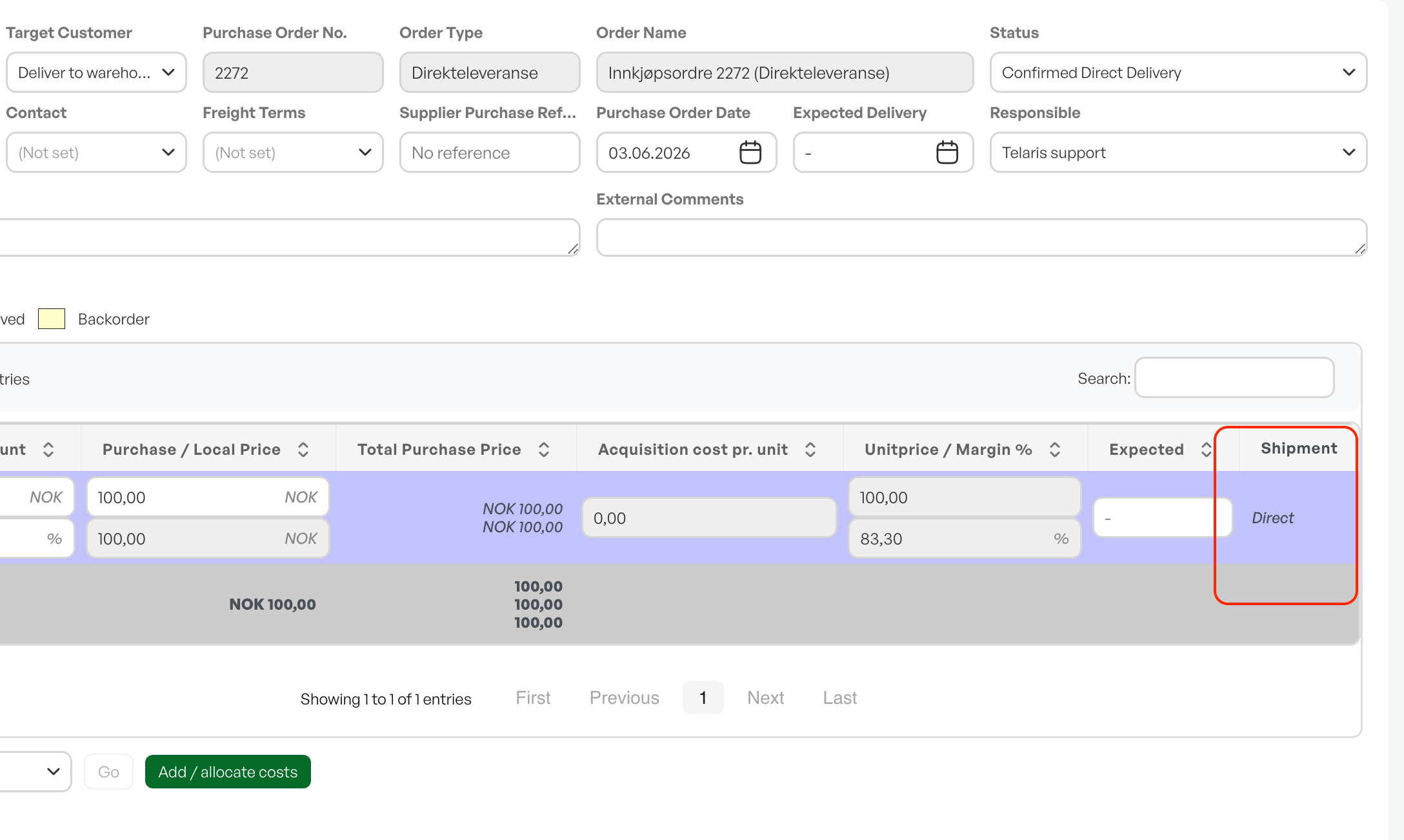
The lines in the purchase will have the marking 'Direkte' (Direct) under the goods receipt column.
It is also not possible to create a goods receipt from a direct delivery.
2. Marking the Purchase as Received
When the supplier notifies you that goods have been received (typically a tracking link, invoice, etc.), mark the received lines by using "Med utvalgte utfør" (With selected, perform) and "Marker som mottatt" (Mark as received).
For direct deliveries made without an associated order, this step is not necessary.
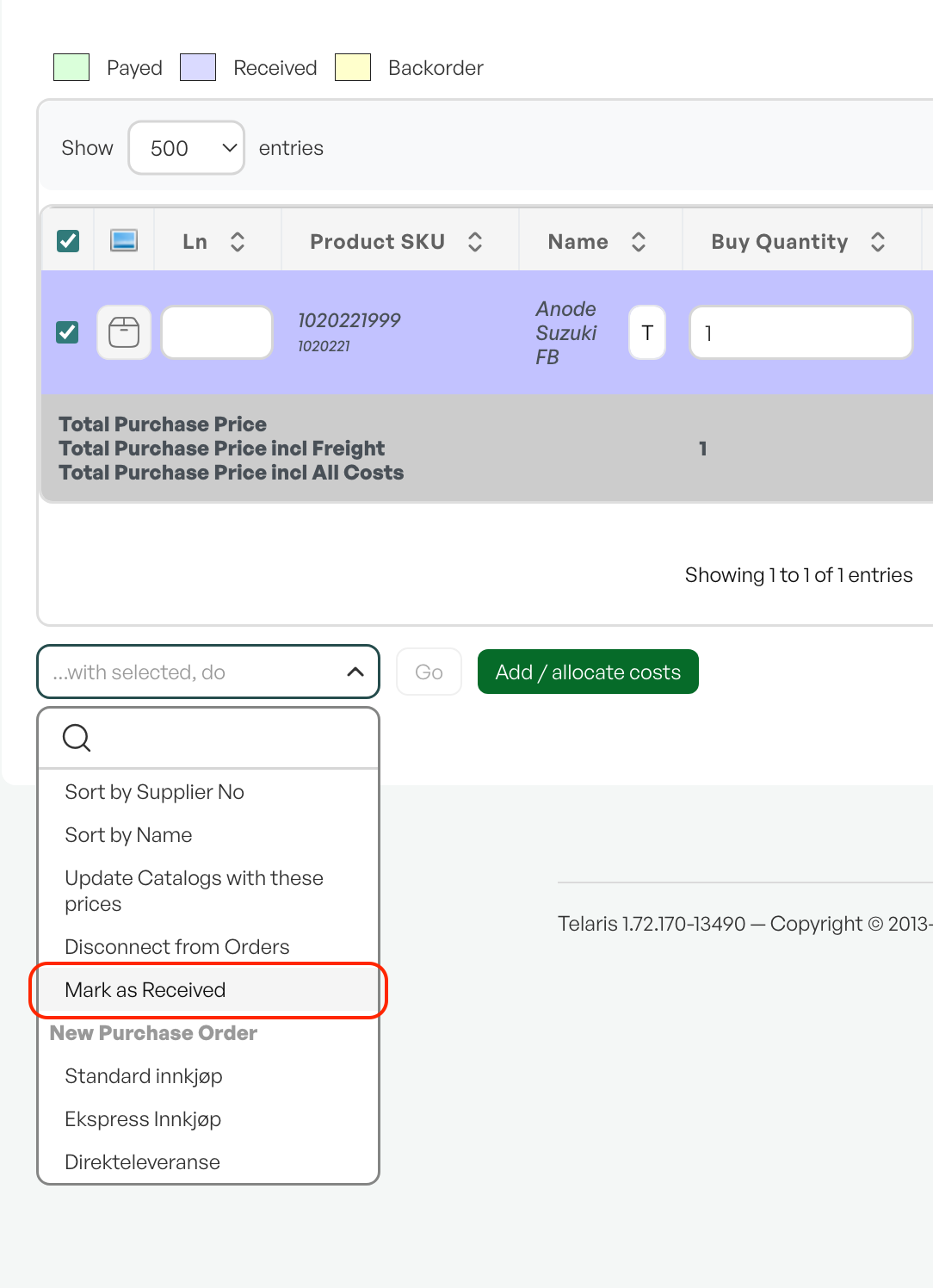
Marking the lines as received will update the order's status with the lines reported as completed.
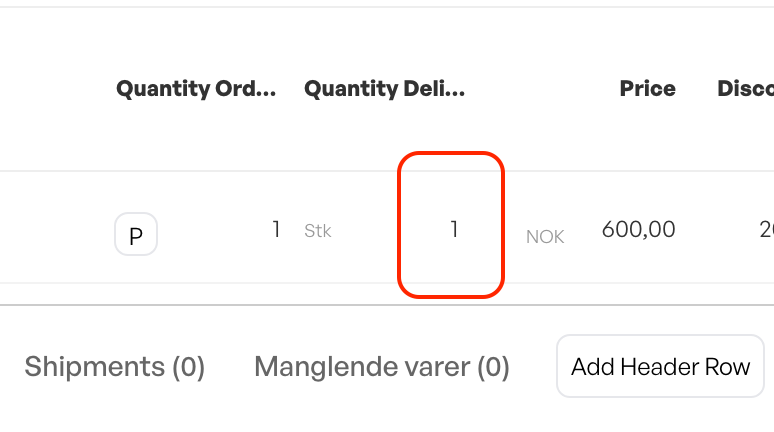
Order lines linked to purchases that are NOT received will NOT be auto-allocated or auto-picked during invoicing. If the item is to be picked from stock anyway, the line can be manually allocated and picked from the order functions. You must then remember to also remove the link between the purchase line and the order line.
Tip: There is a setting to activate a notification to the order manager when goods are received. Contact Telaris support for activation.
3. Completing the Purchase
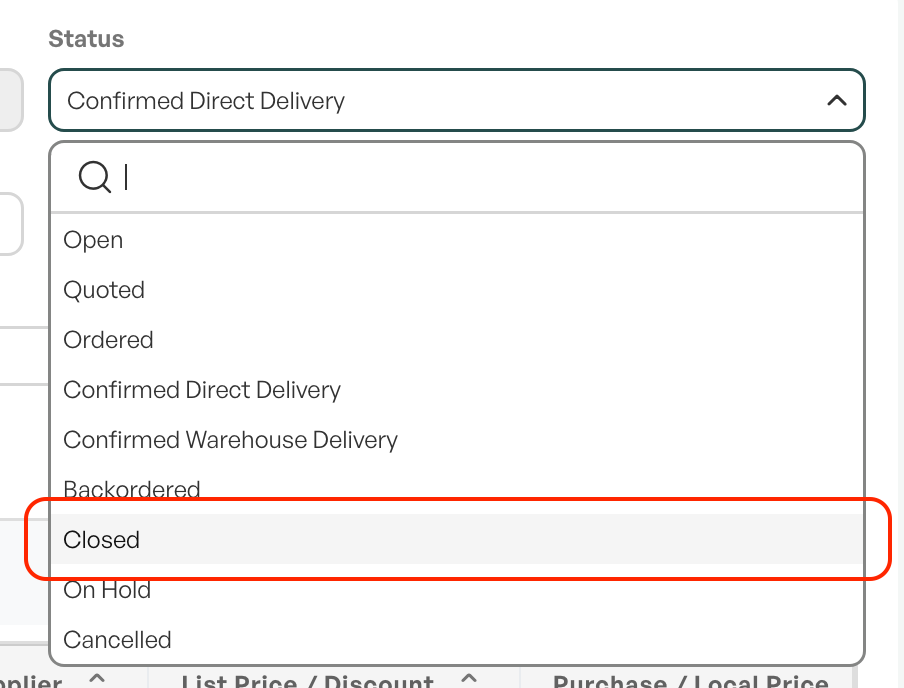
To complete the purchase so that it is no longer left as open or on order, change the status to, for example, 'lukket' (closed).
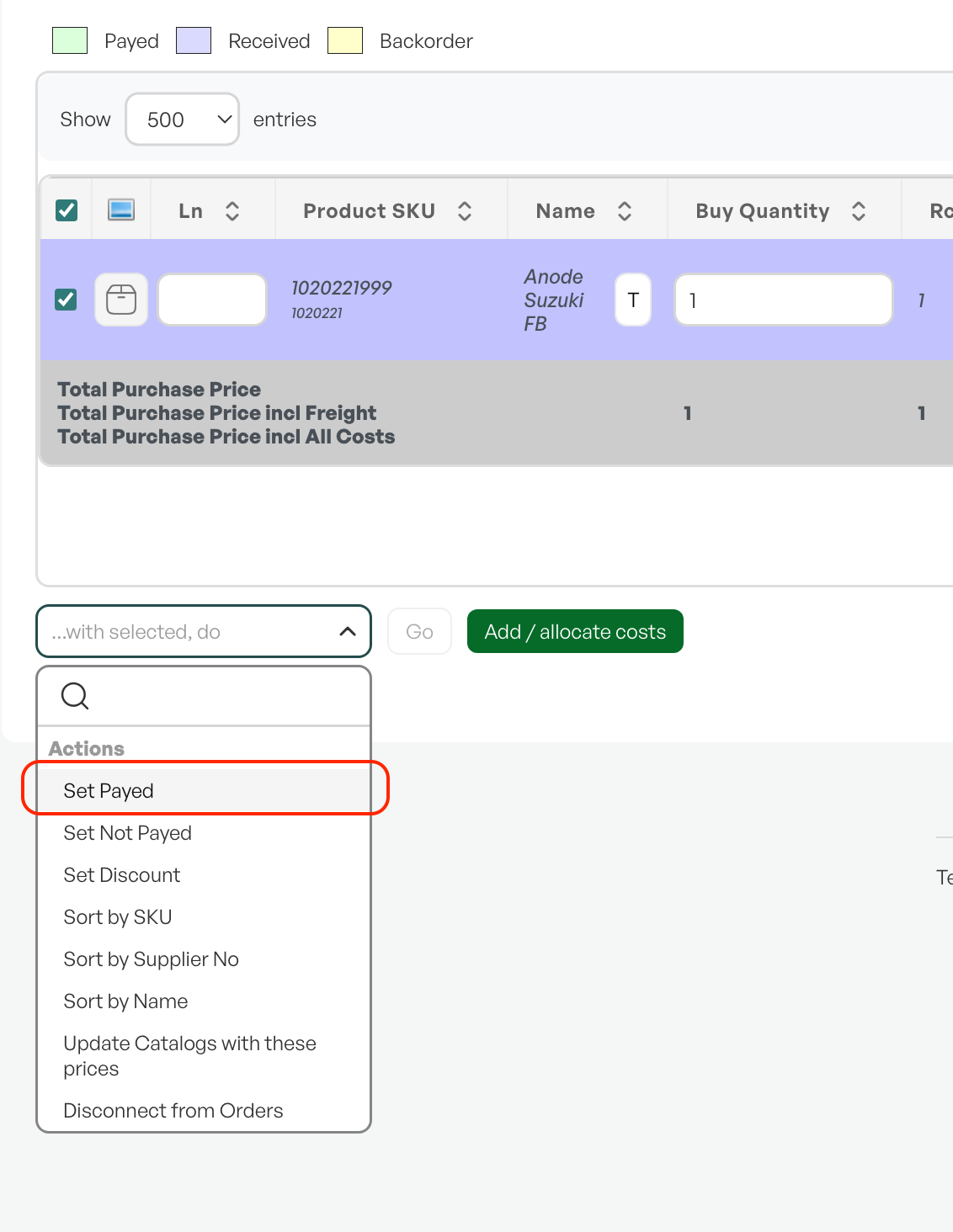
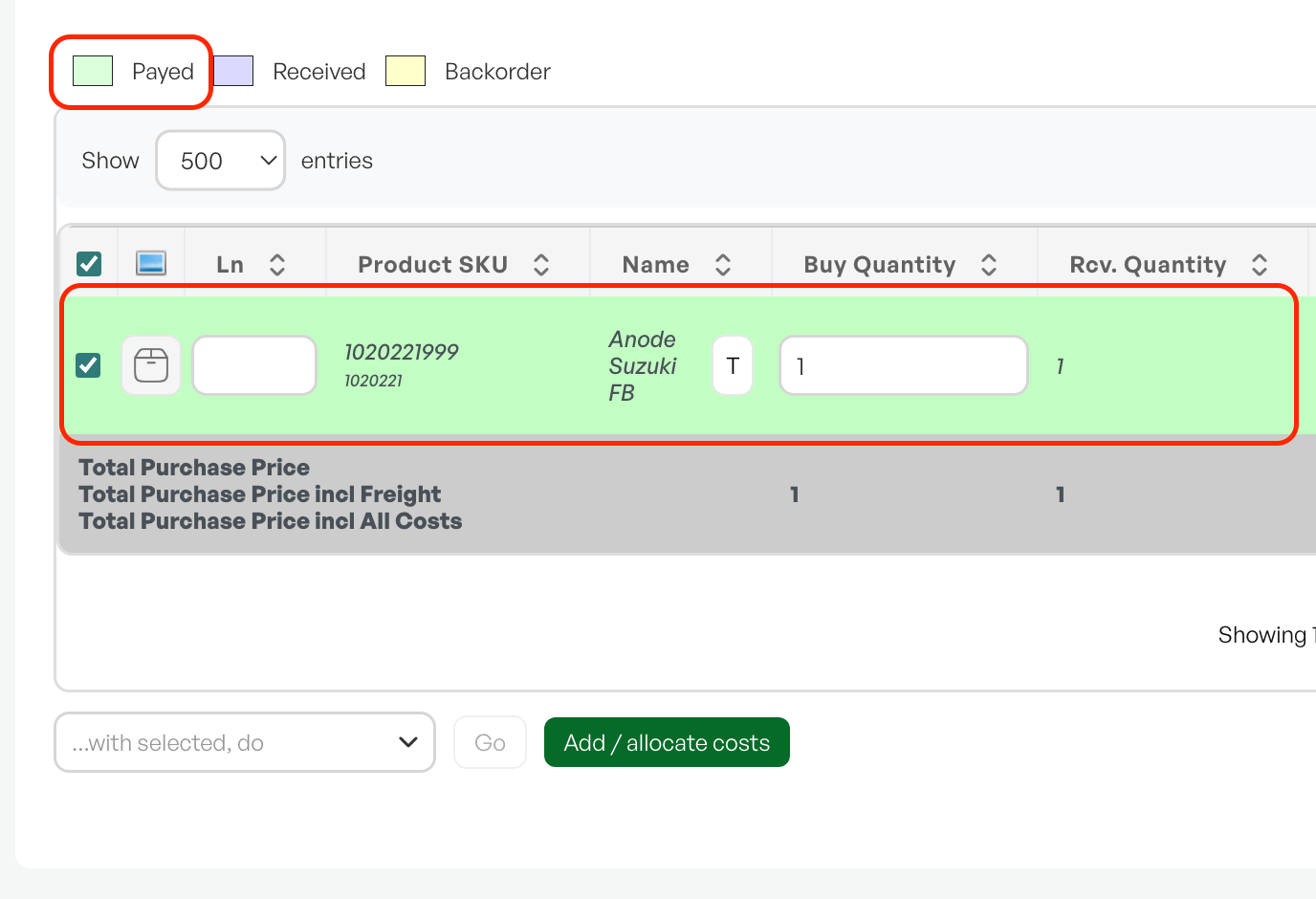
When you receive the invoice from the supplier, mark the lines as paid by selecting all lines in the purchase and using the menu 'Med utvalgte utfør' (With selected, perform) 'Marker som betalt' (Mark as paid). The line then turns green.
Setting: Purchase order type - direct delivery
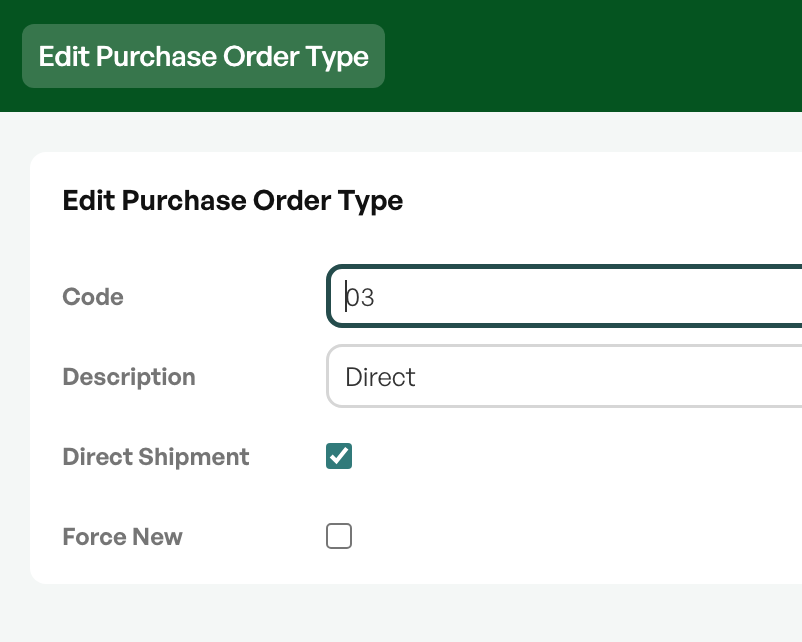
Under settings you will find purchase order types, where you will find the various purchase order types that have been created in the system.
Here it is important to ensure that the option for direct delivery (direct shipment) is activated for the purchase order type to be used for direct deliveries.

Was this article helpful?
That’s Great!
Thank you for your feedback
Sorry! We couldn't be helpful
Thank you for your feedback
Feedback sent
We appreciate your effort and will try to fix the article