Goods Receipt
Goods receipt follows after purchasing. With the purchase planner and purchasing module, the conditions for efficient and accurate inventory management are improved
TABLE OF CONTENTS
Goods Receipt Screen
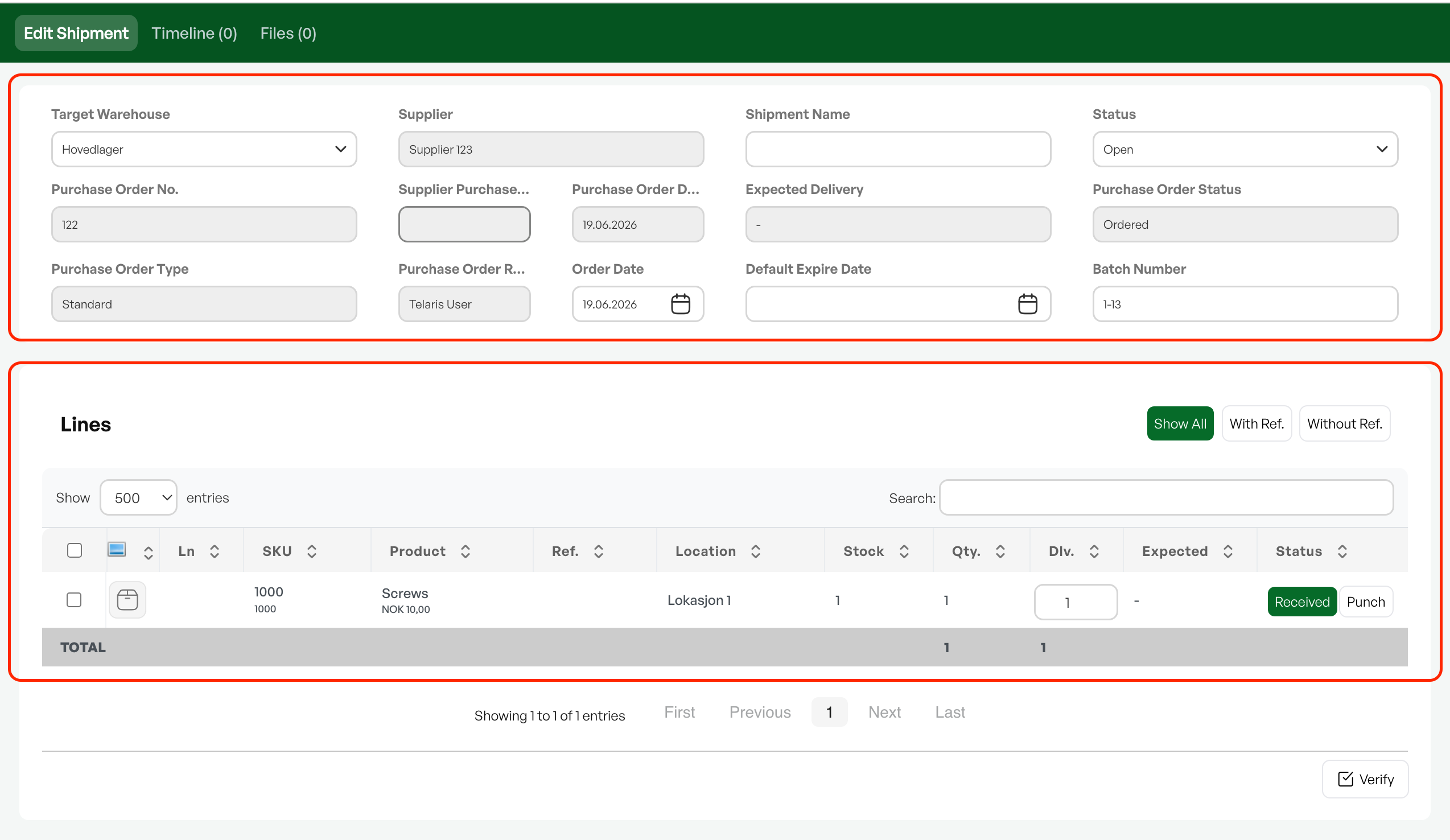
Goods Receipt Header
Displays relevant information about the purchase, such as status, recipient, supplier and purchase number. Option for full receipt, printing labels for quick marking of goods, and access to an overall goods receipt report
Goods Receipt Lines
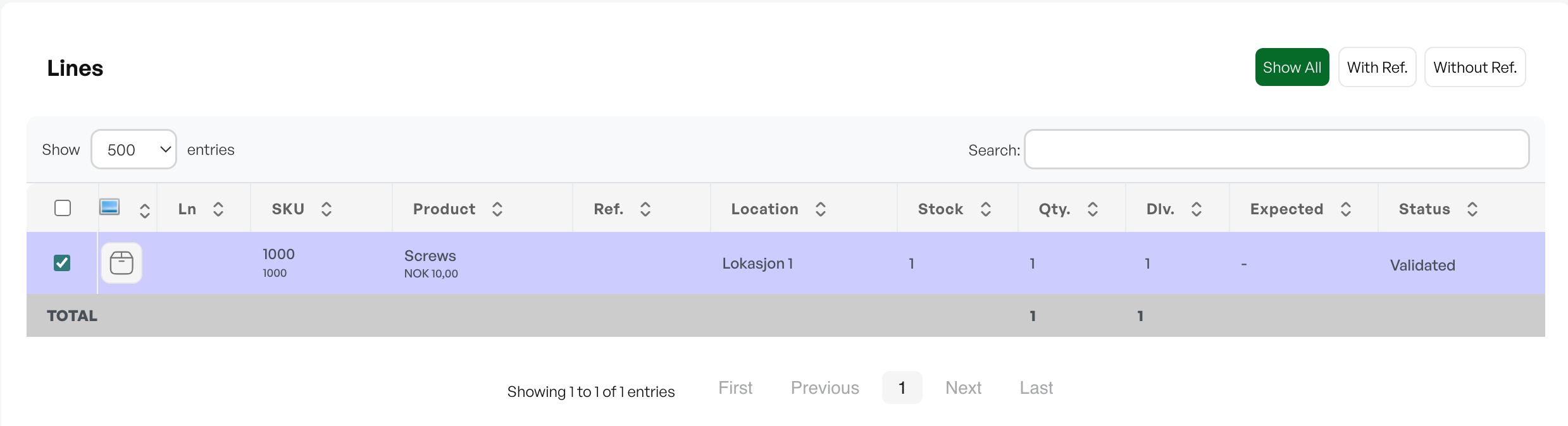
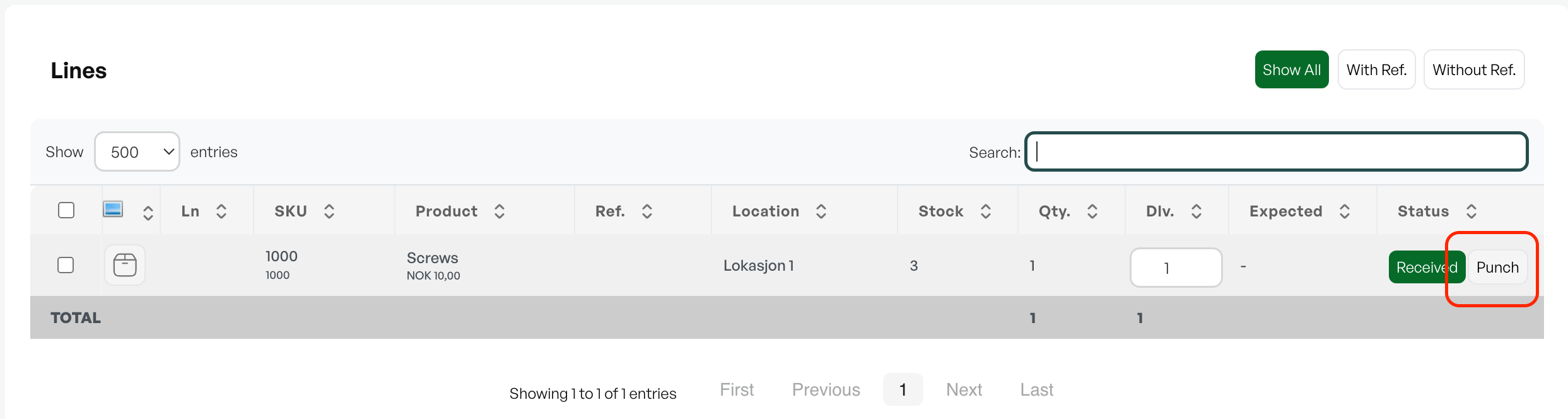
Overview of all lines in the purchase with product number, name, order reference, location, stock quantity, received quantity and status. Option to mark individual lines as received and place lines on backorder
Creating Goods Receipt
There are two methods for creating a goods receipt:
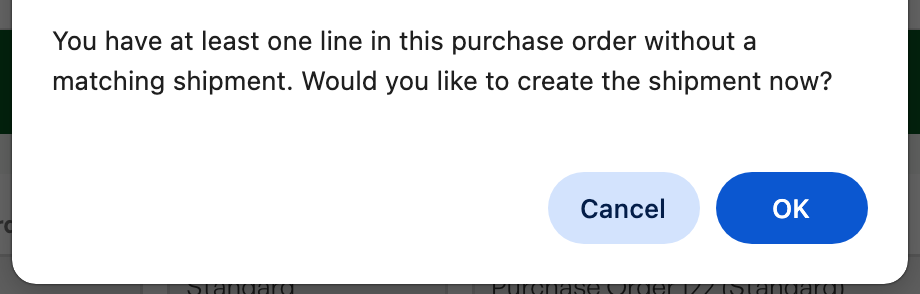
Status change:Change the purchase status to 'On Order' or 'Confirmed Stock Delivery'. If a goods receipt is missing, Telaris will automatically prompt a dialogue box for creation.
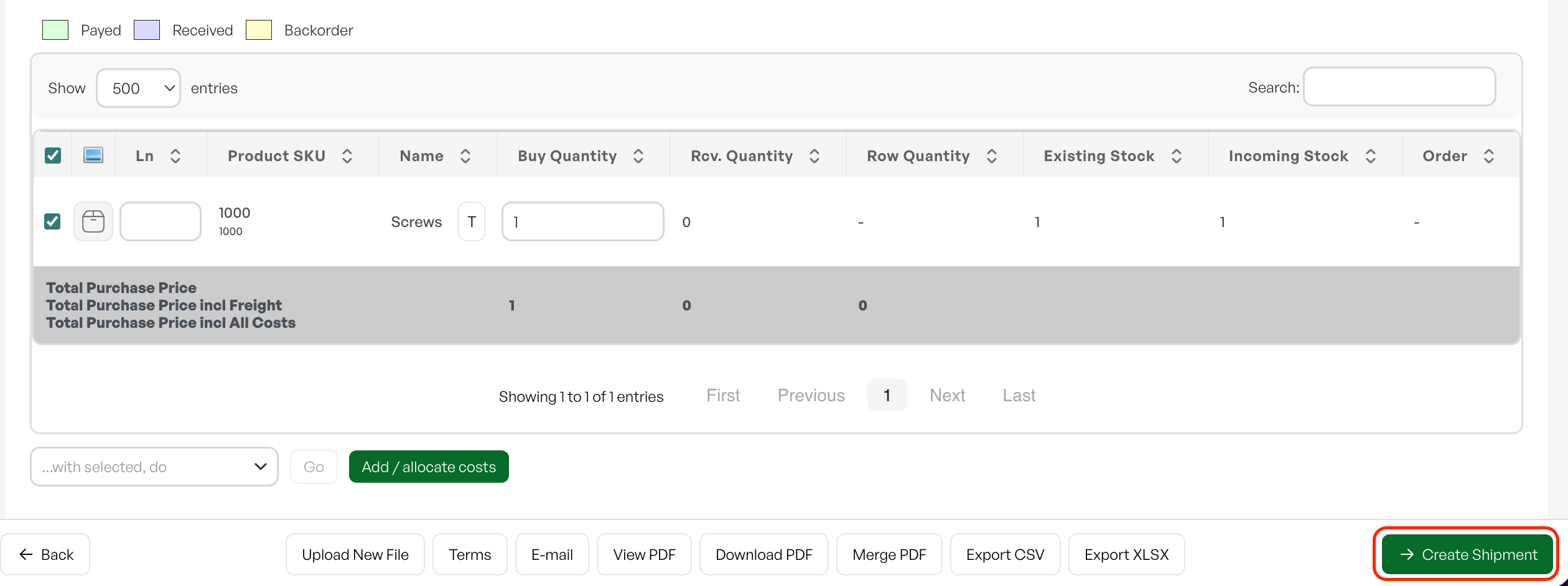
Button:Click the 'Create Goods Receipt' button directly from the purchase. Creating a goods receipt via the button automatically changes the purchase status to "On Order"
Verification of Received Goods (optional)
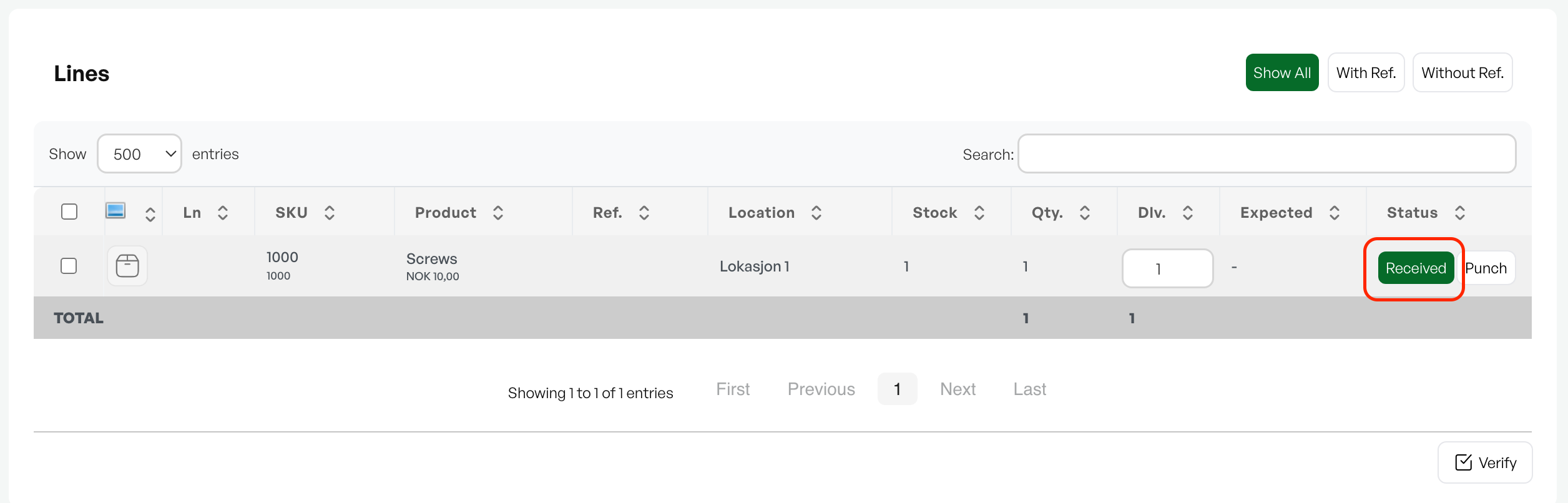
In the goods receipt you can mark each individual line as checked. When you click 'Received', the line changes to status 'Verified' and is marked in purple. This function has been added to ensure thorough control of the goods receipt
Add to Stock
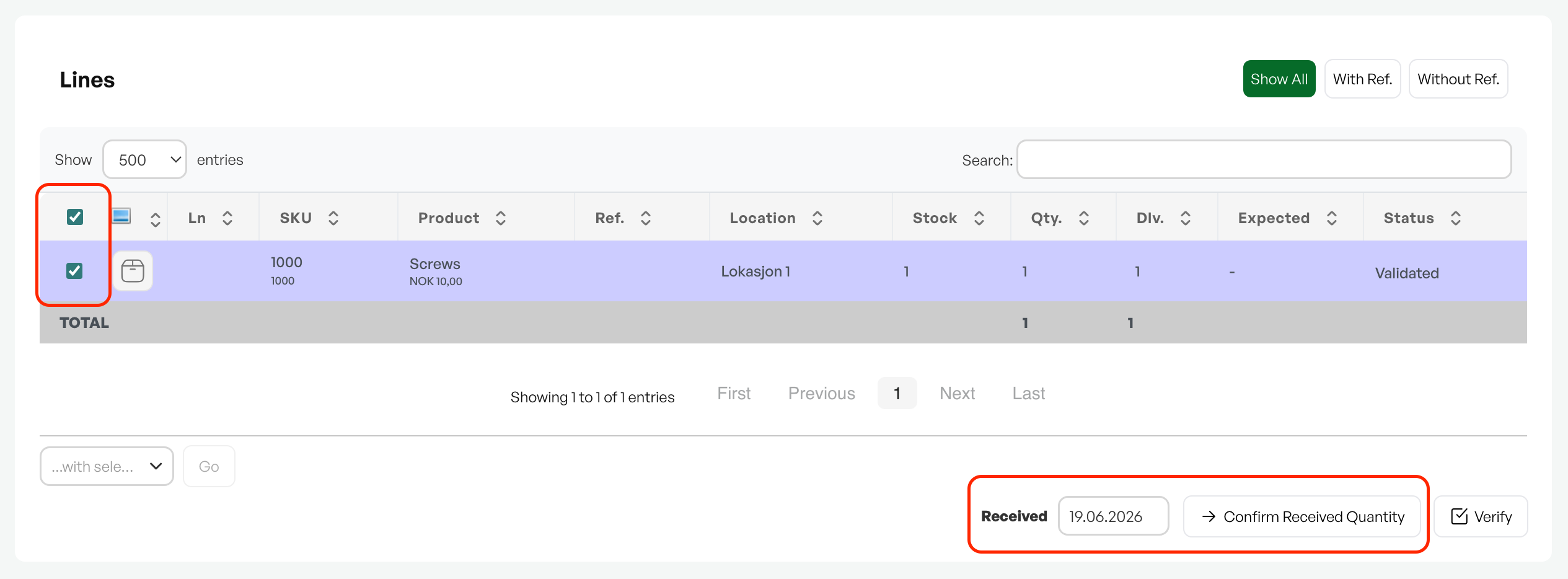
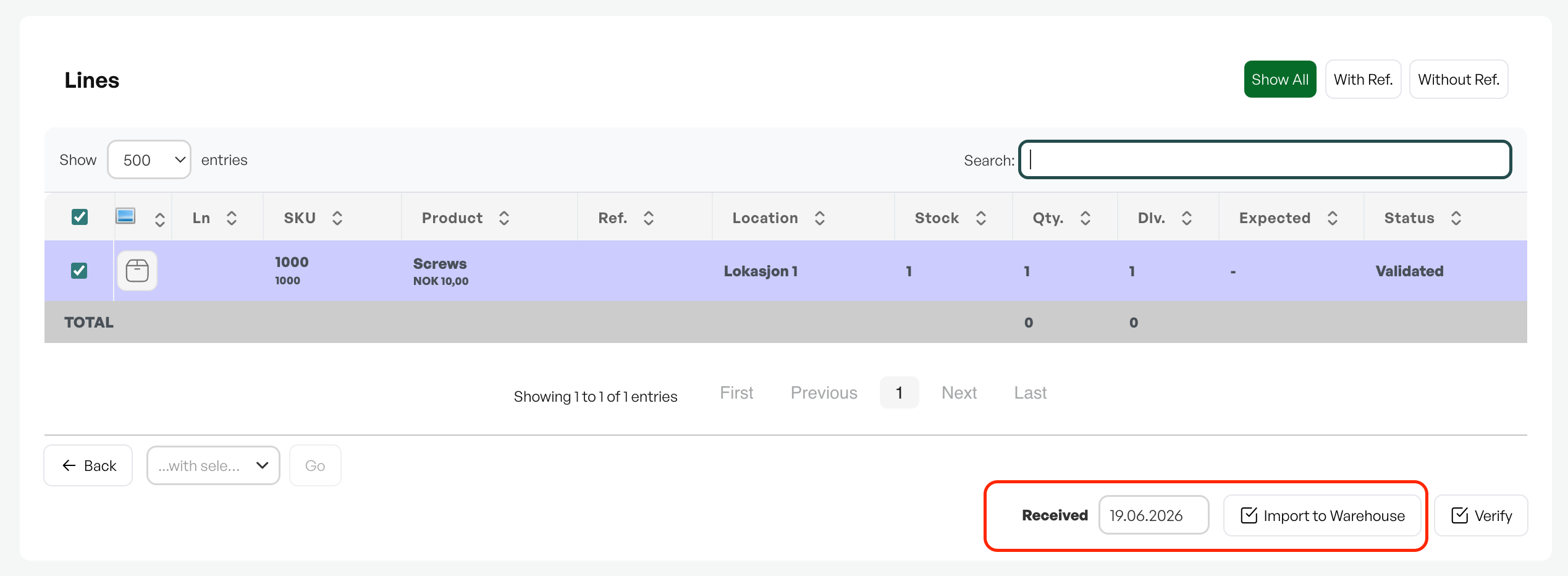
During goods receipt you can choose which date the goods are to be added to stock. The 'Show Quantity for Receipt' button is used to start the process of adding goods to stock. The first time the button is pressed, it changes to 'Add to Stock'. This is a safety feature to prevent goods from being added to stock by mistake.
Completed Goods Receipt
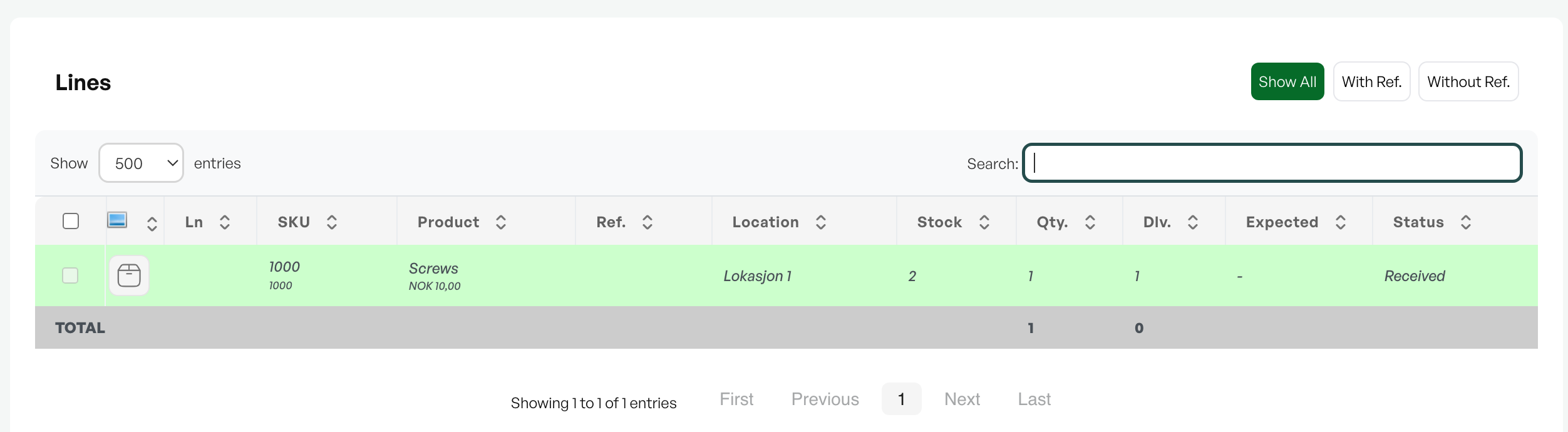
After completing the process with 'Show Quantity for Receipt' and 'Add to Stock', the lines in the goods receipt will turn green and receive the status 'Received'. This indicates that the goods have now been added to the stock quantity and stock value.
Note: Completing goods receipt and registering goods in stock is permanent. Any changes must be made manually by editing the stock quantity for the relevant product
Backorder
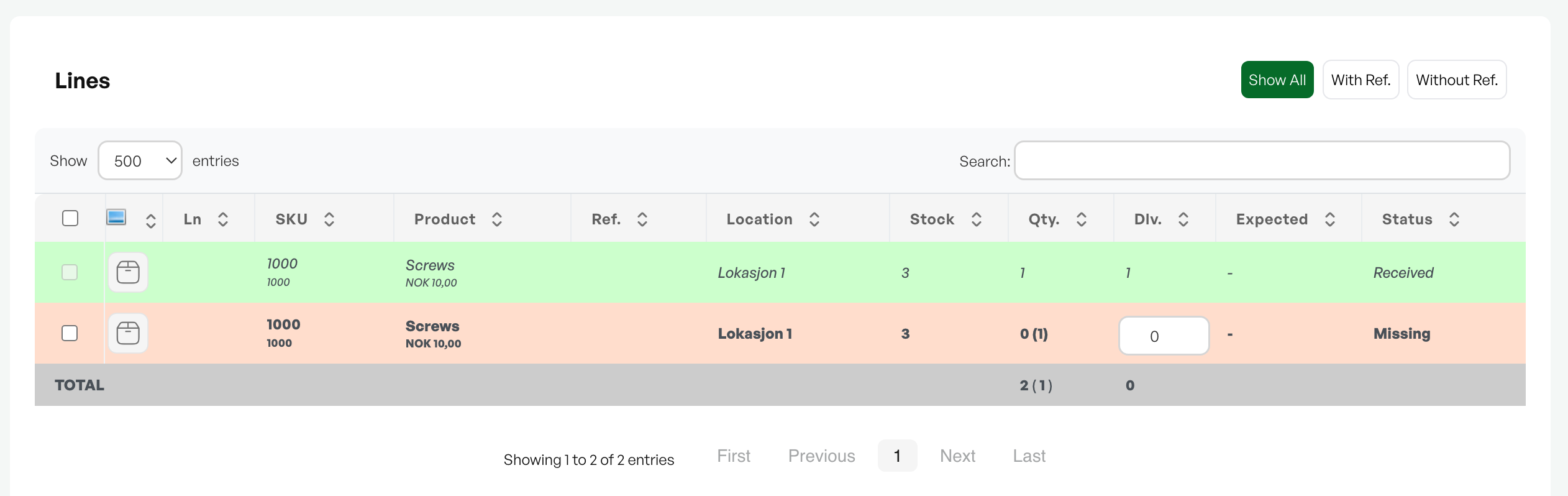
In some cases not all goods are delivered as agreed, and it may be necessary to create a backorder. When verifying the goods receipt you can register the actual received quantity per line. If the delivered quantity is lower than the ordered quantity, Telaris will automatically create a backorder line when the goods are added to stock

Picking Goods for Order
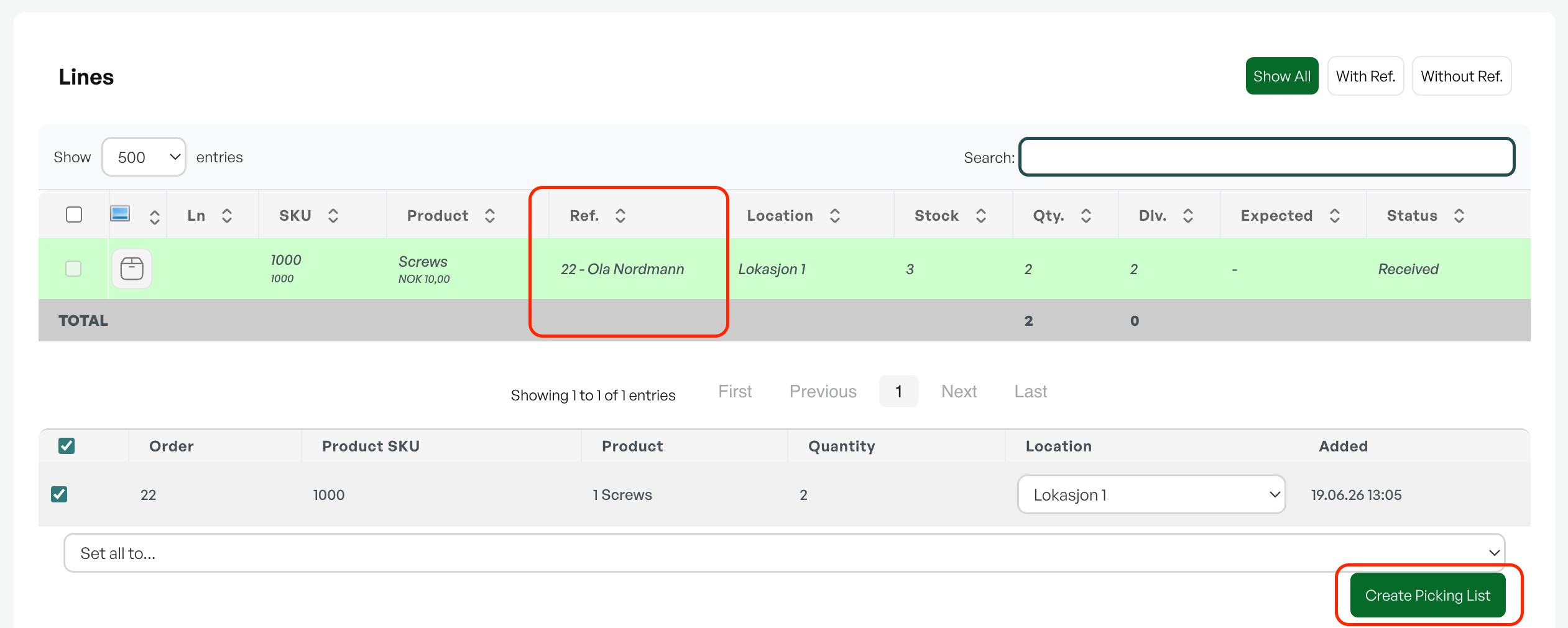
If goods in the purchase are allocated to one or more orders, you immediately get the option to pick selected goods for the order from the goods receipt.
Goods Receipt Line Details
To see more details about products in the goods receipt, click directly on the product in the lines. This opens a dialogue box with more detailed information, where you can also change the status of the line. Note that changing the status from 'Received' to 'On Order' does not remove the product from stock.
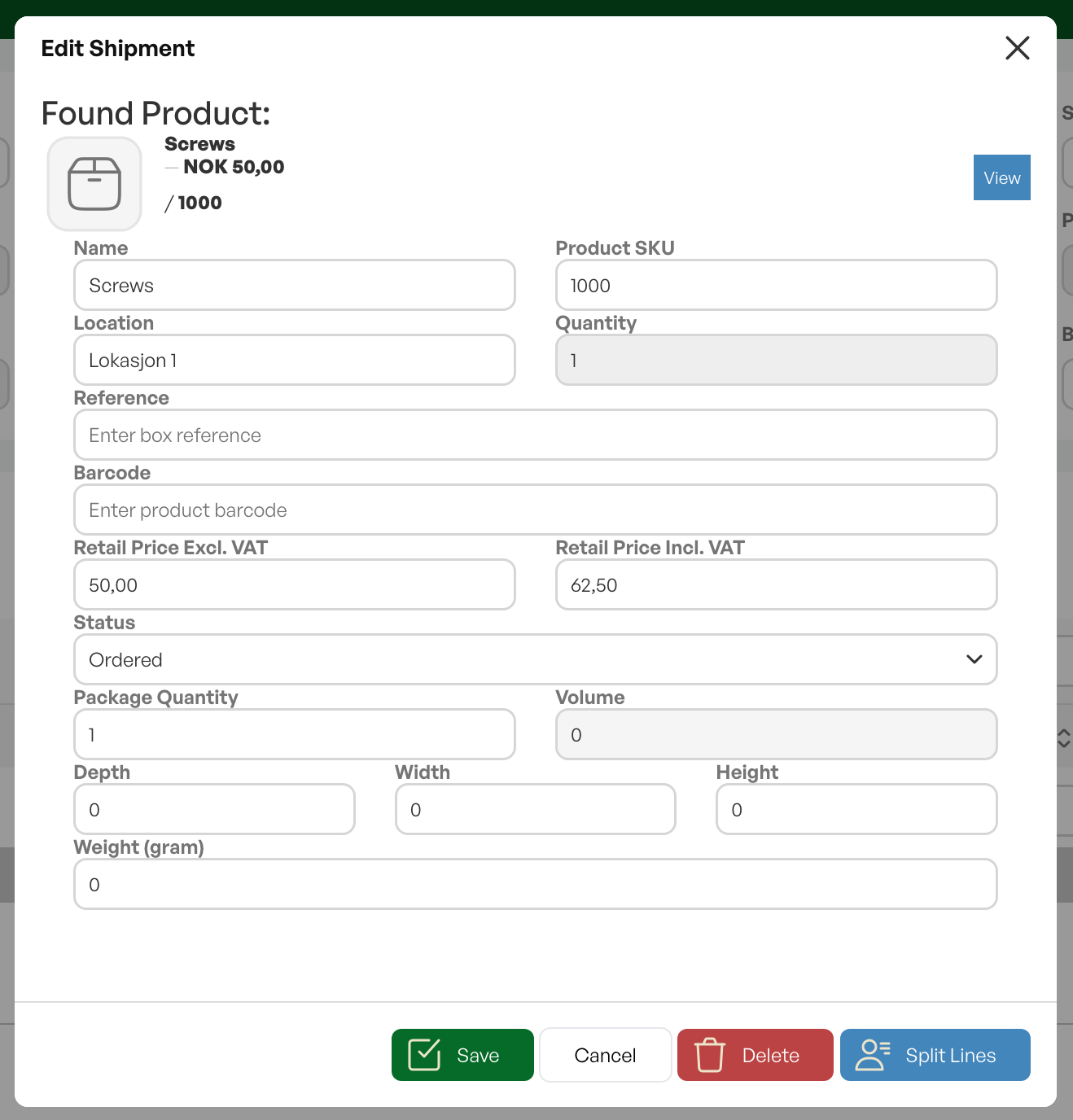
Note: Changing the status from 'Received' to 'On Order' will not remove the product from stock once it has been registered as received.
Change Location
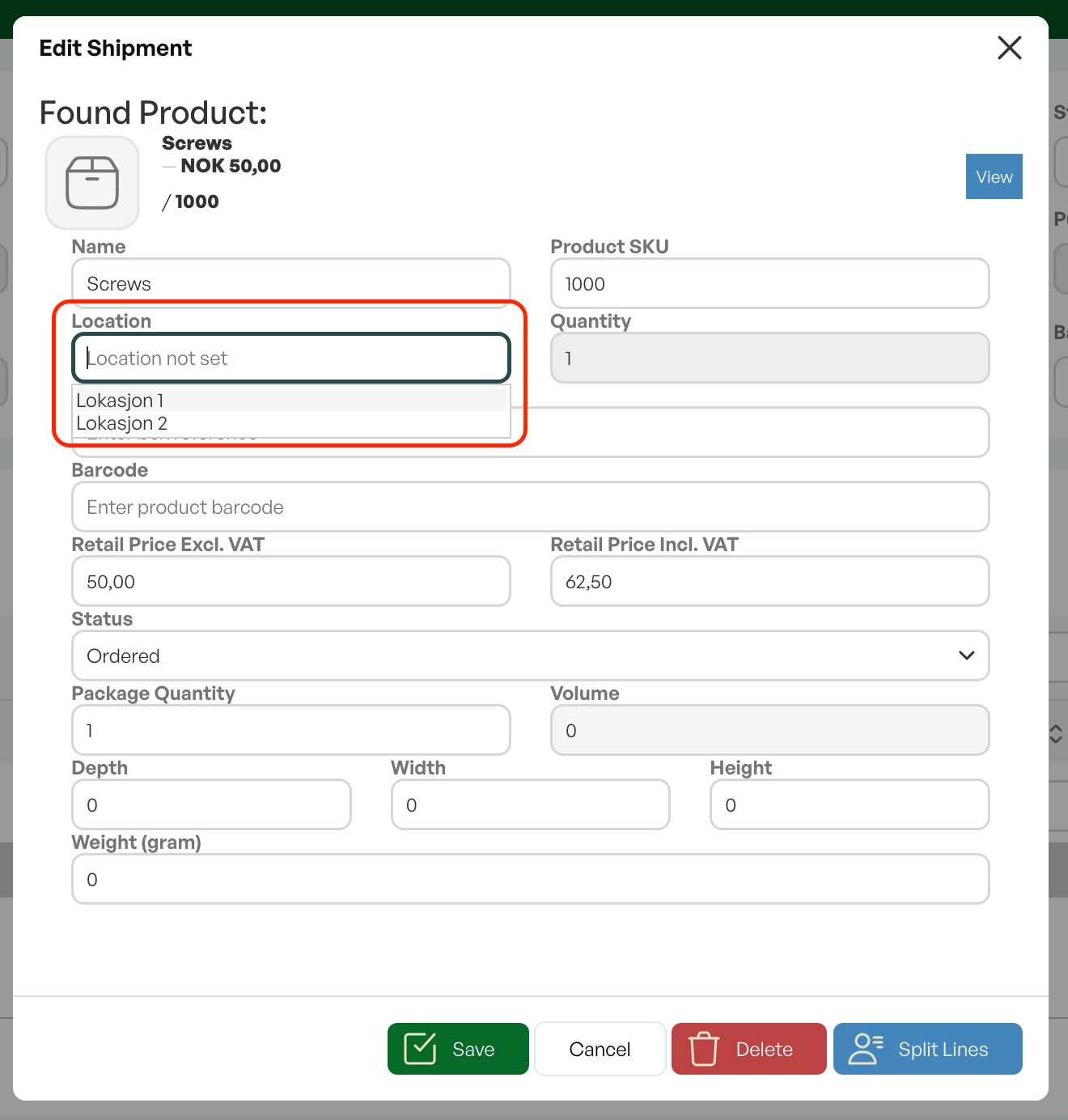
If you want to change the location of products before they are received into stock, this can be done by clicking on the products in the lines, which opens a dialogue box that allows you to update the location.
When changing the location you also get the option to set the location as the default for the product via a checkbox
Discrepancy
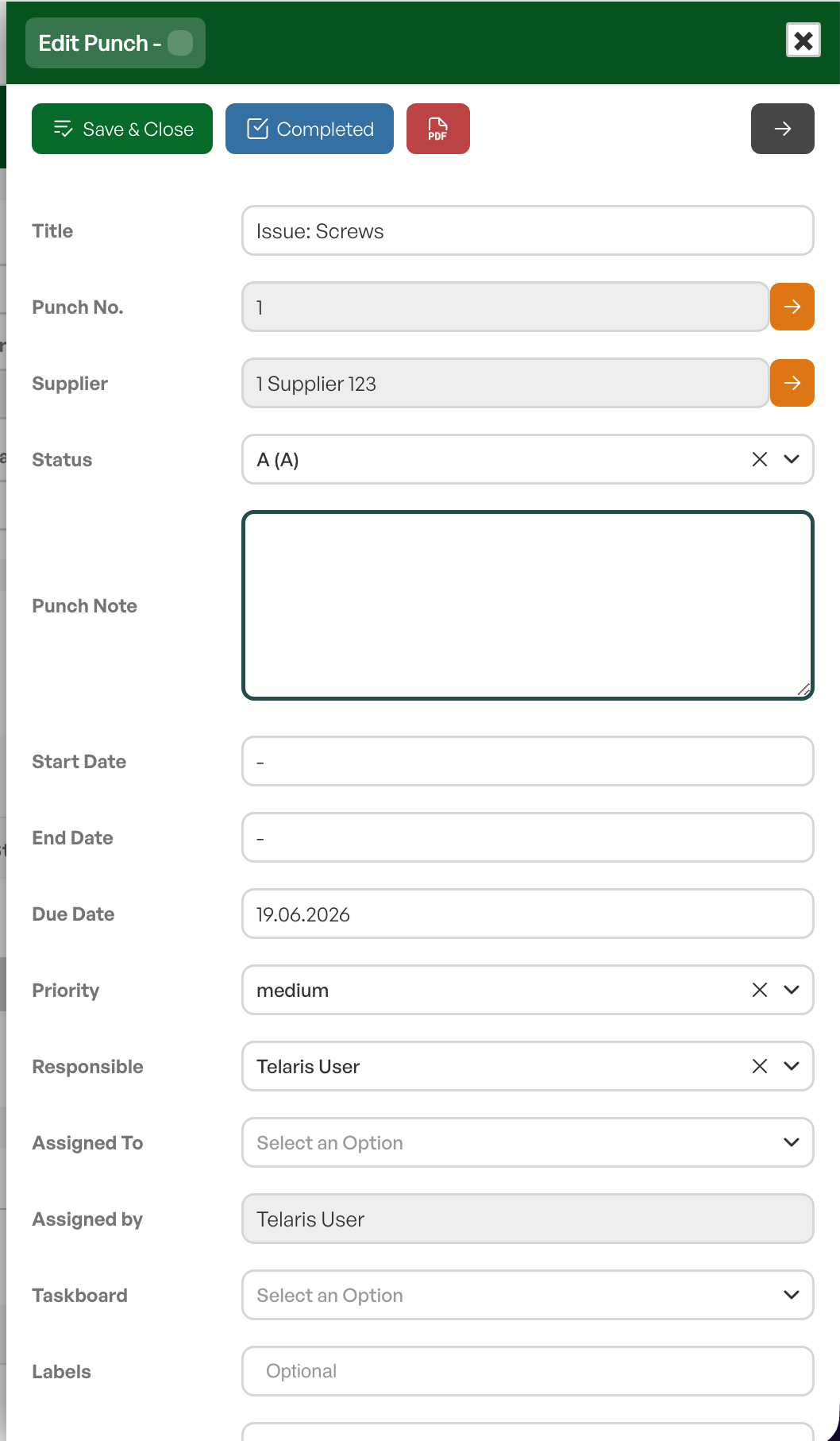
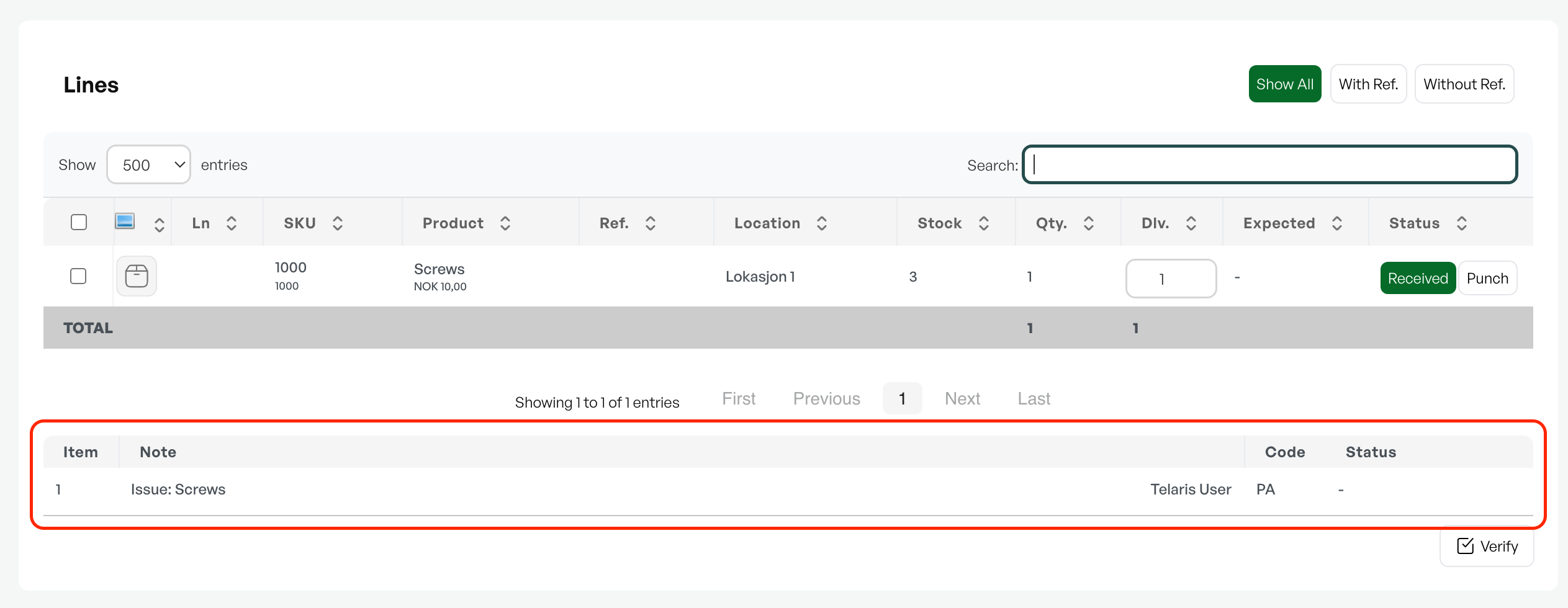
In cases where discrepancies occur in delivered goods, such as damage upon delivery, this can be registered as a discrepancy. By clicking the 'Discrepancy' button on the relevant line, a dialogue opens on the left side where the discrepancy can be registered. Here you can describe the problem, classify the discrepancy, set dates, and delegate to the right person for follow-up. The discrepancy will be visible at the bottom of the goods receipt, and when it has been handled, this will be reflected in the discrepancy status

Was this article helpful?
That’s Great!
Thank you for your feedback
Sorry! We couldn't be helpful
Thank you for your feedback
Feedback sent
We appreciate your effort and will try to fix the article