Purchasing and stocking products with an expiry date
Guide to purchasing products with an expiry date
TABLE OF CONTENTS
Expiry date
1. Activate expiry date
Make sure to make a product expiry-date managed by checking the checkbox at the bottom of the product card.

This activates new functionality in the purchase of the product.
2. Completing the purchase
Purchasing an expiry-date managed product gives extra functionality at goods receipt.
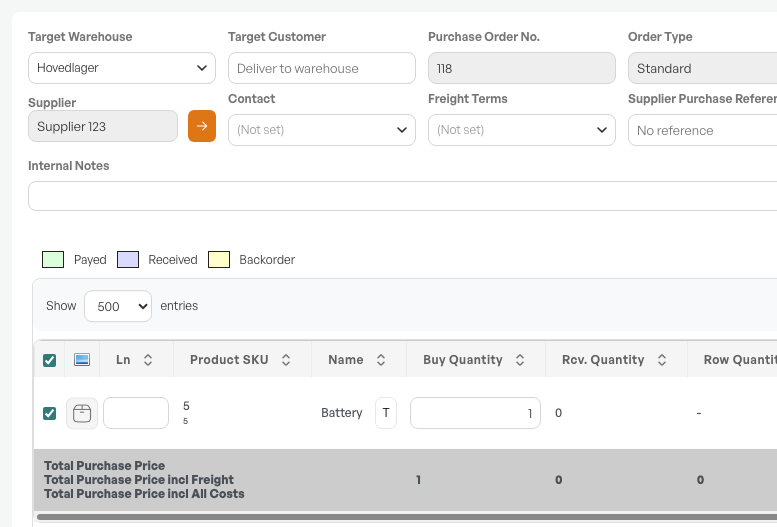
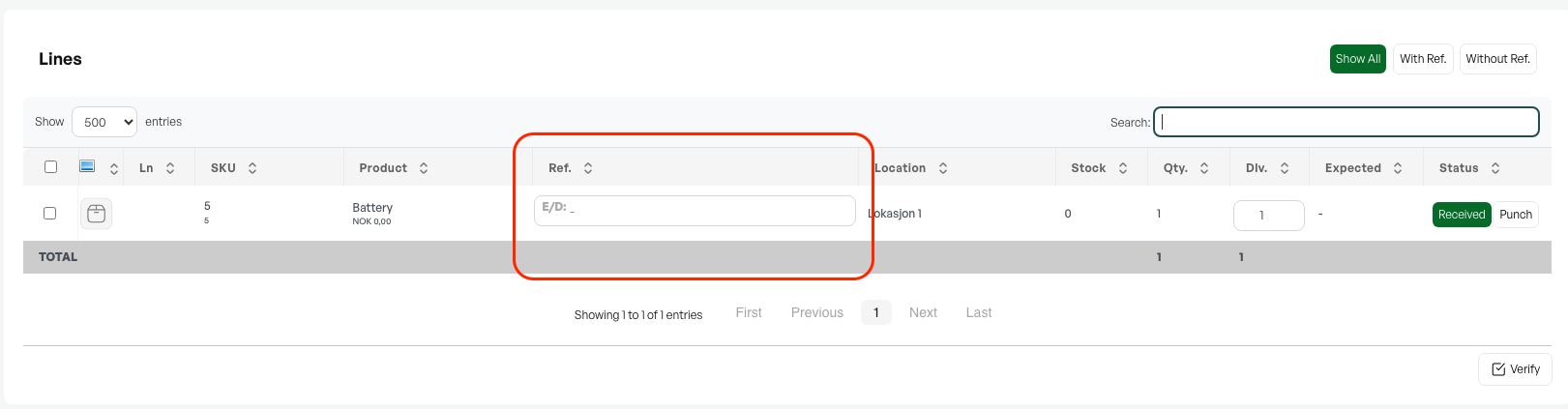
At goods receipt, you can then enter the expiry date. Complete goods receipt as normal.
3. Products with an expiry date in stock
On the stock tab of the product card, products marked with an expiry date have a display under "Stock details".

Guide: Selling expiry-date managed products

Was this article helpful?
That’s Great!
Thank you for your feedback
Sorry! We couldn't be helpful
Thank you for your feedback
Feedback sent
We appreciate your effort and will try to fix the article