Selling shelf-life-controlled products
Guide for selling shelf-life-controlled products
TABLE OF CONTENTS
Guide
1. Shelf-life-controlled products in stock
After goods receipt of products with shelf life, the product gets extra stock details on the stock tab of the product card, showing the quantity and an overview ofdatesregistered in stock.
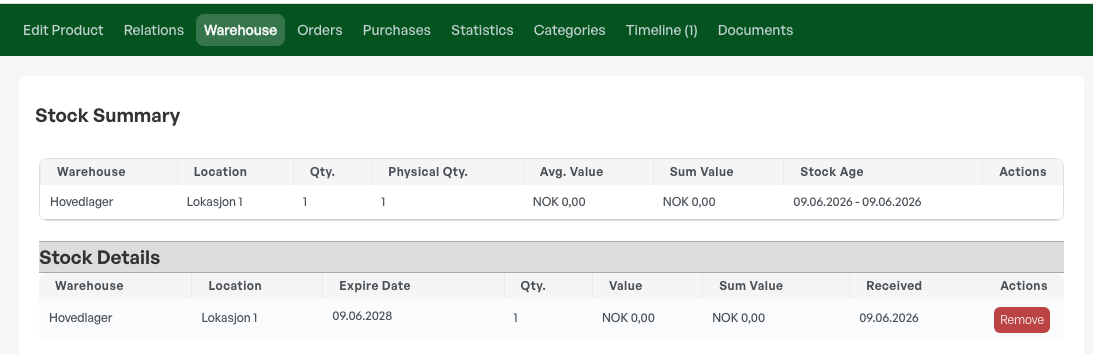
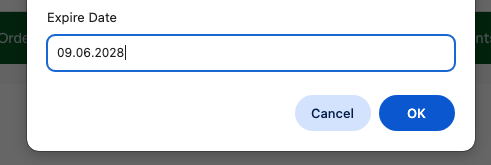
From this tab it is also possible to clickthe shelf-life numberto add or change the stored dates.
2. Sellingproducts with an expiry date
Add the product to the order as normal.

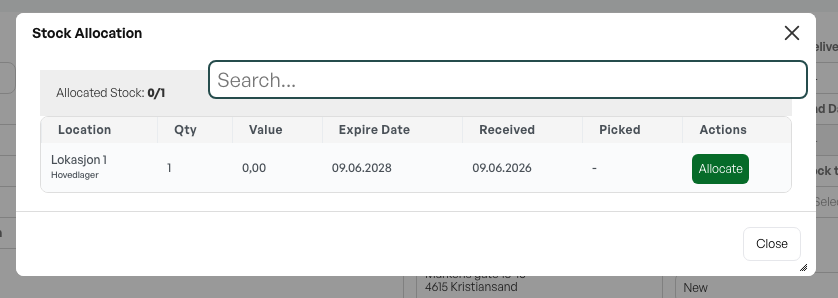
Click the numbers under 'På lager' to choose which product with shelf life to sell.

TIP: If you do not choose a specific expiry date in the order, FIFO is used, which takes the oldest product for sale.
Then choose the desired product by clicking the 'Alloker' button.
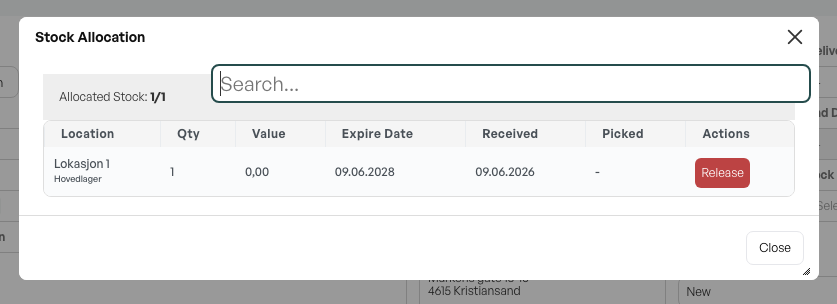
The product is then added to the order with the date in the description. You can cancel this by clicking 'Release'.
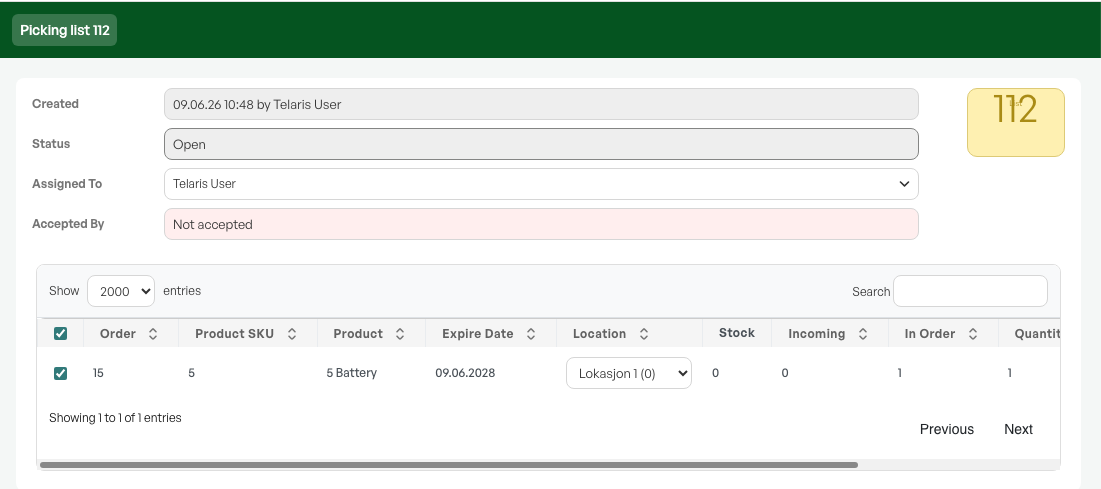
In the picking list, the product is then shown with the expiry date.
In the order view,the expiry dateappears as text below the product. The date also appears on produced PDFs.
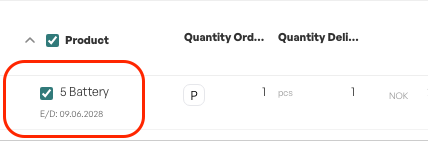
The product is now sold as a normal product, and the chosenexpiry-date productis deducted from stock.
Guide: Purchasing products with an expiry date

Was this article helpful?
That’s Great!
Thank you for your feedback
Sorry! We couldn't be helpful
Thank you for your feedback
Feedback sent
We appreciate your effort and will try to fix the article