Creating a Purchase
Purchase via an Order
If you need more products in an order, you can create a purchase directly from an order. The method is to mark the desired products for purchase, use the "..With selected, perform" tool, and choose the purchase type.
The purchase that is created will be linked to the order, and the order will show that there is a purchase against it.
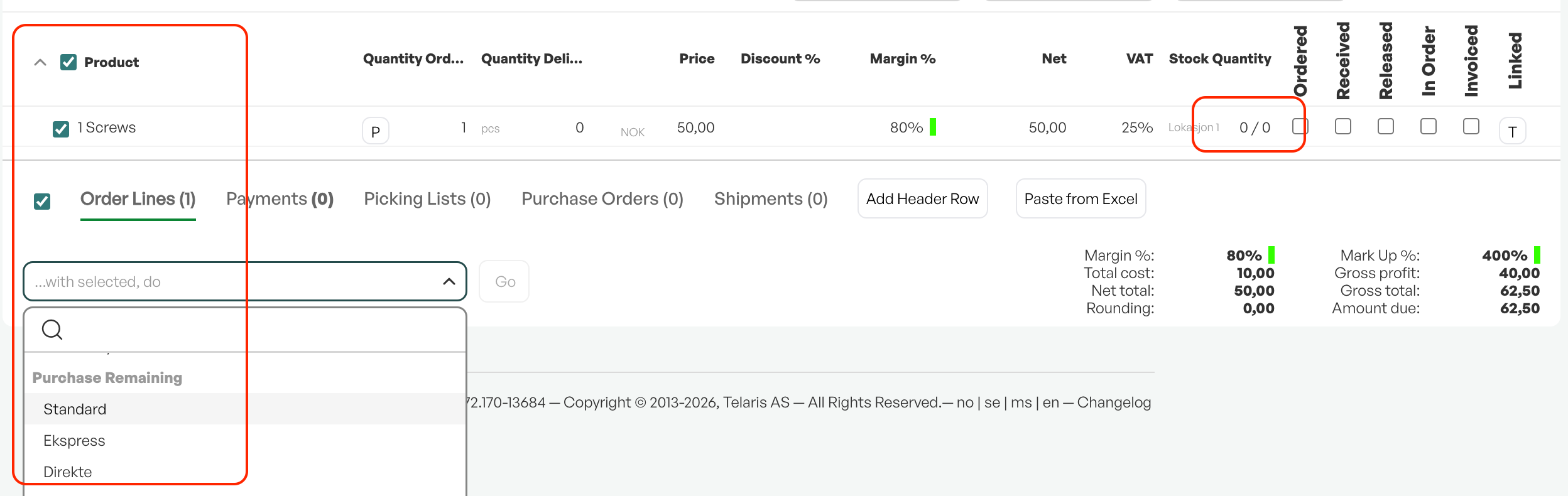
Example of a product that must be purchased in an order
In the image above, the product is out of stock and must be purchased. By using the option from the order screen "..With selected, perform" and choosing "standard purchase", you create a purchase that is linked to the order.
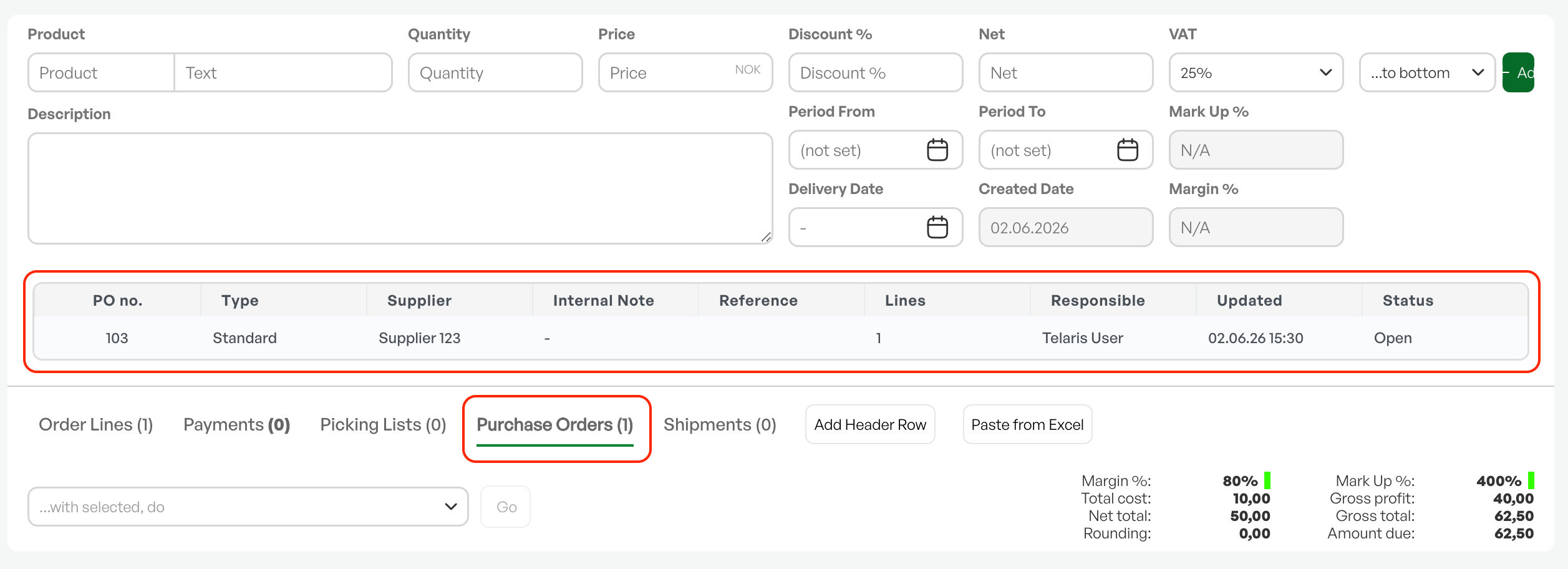
Display of a purchase order linked to an order
When a purchase is created, it is shown in the "Purchase order" tab in the order screen. By clicking the purchase number (PO. no), you go directly to the purchase.
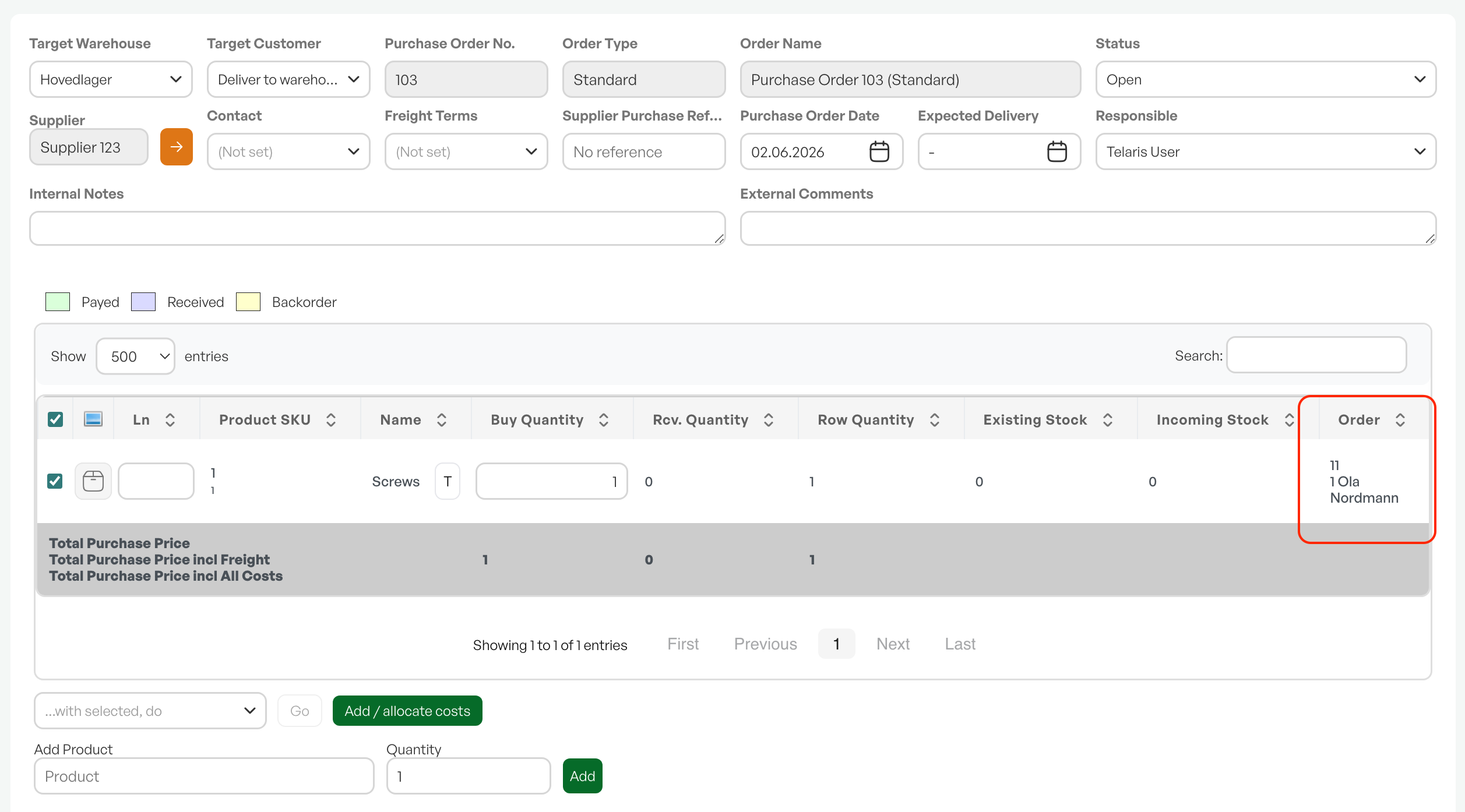
Purchase linked to an order
In the purchase, the linked order will be shown in the lines. The purchase screen is shown as normal in the header and lines, but with a link to the selected order.
Once the purchase has been created and is ready to be sent to the supplier, you use the row of buttons at the bottom to choose the delivery method.
Note: Purchase lines linked to an order are allocated to the order and cannot be picked from stock for other orders.

Was this article helpful?
That’s Great!
Thank you for your feedback
Sorry! We couldn't be helpful
Thank you for your feedback
Feedback sent
We appreciate your effort and will try to fix the article