Excel to order lines
Telaris supports the ability to do an order import by pasting products from Excel.
TABLE OF CONTENTS
Purpose
For cases where you have a long list of products to add to an order that is too long to enter manually.
The import method supports multiple fields and shows which fields are valid for import.
How to
Prepare Excel file
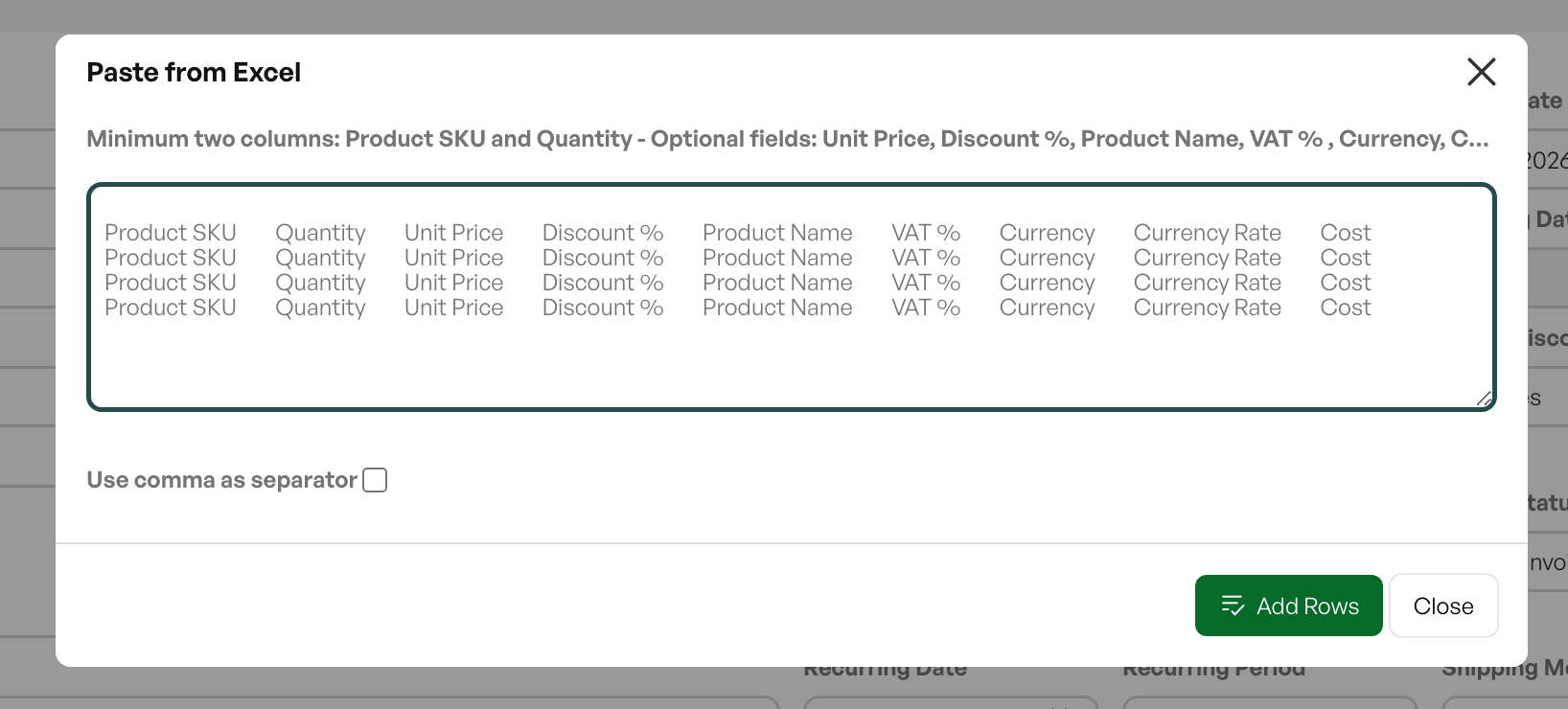
In order to paste products from Excel, you need to create an Excel spreadsheet set up with headers as shown in the image below.
Paste values
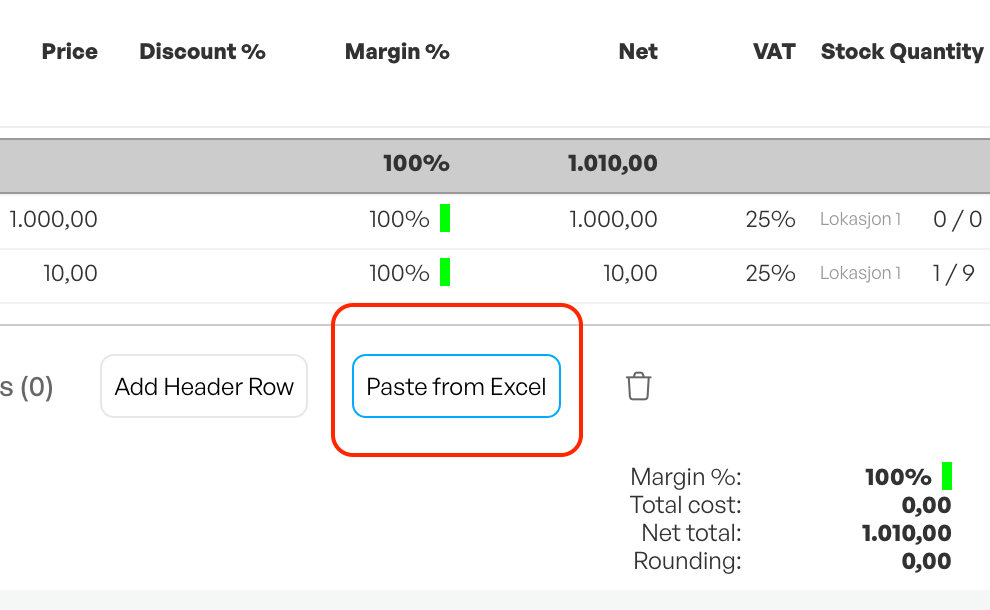
Under the order lines in Telaris you will find the button 'Paste items from Excel'. Clicking it opens the dialog for pasting order lines. Note that product numbers must already exist, either in a catalogue or in the product list.
TIP: Items that only exist in catalogues can be mass-imported to the product list using this function. Telaris will check whether the products exist in catalogues and ask whether to import the products.
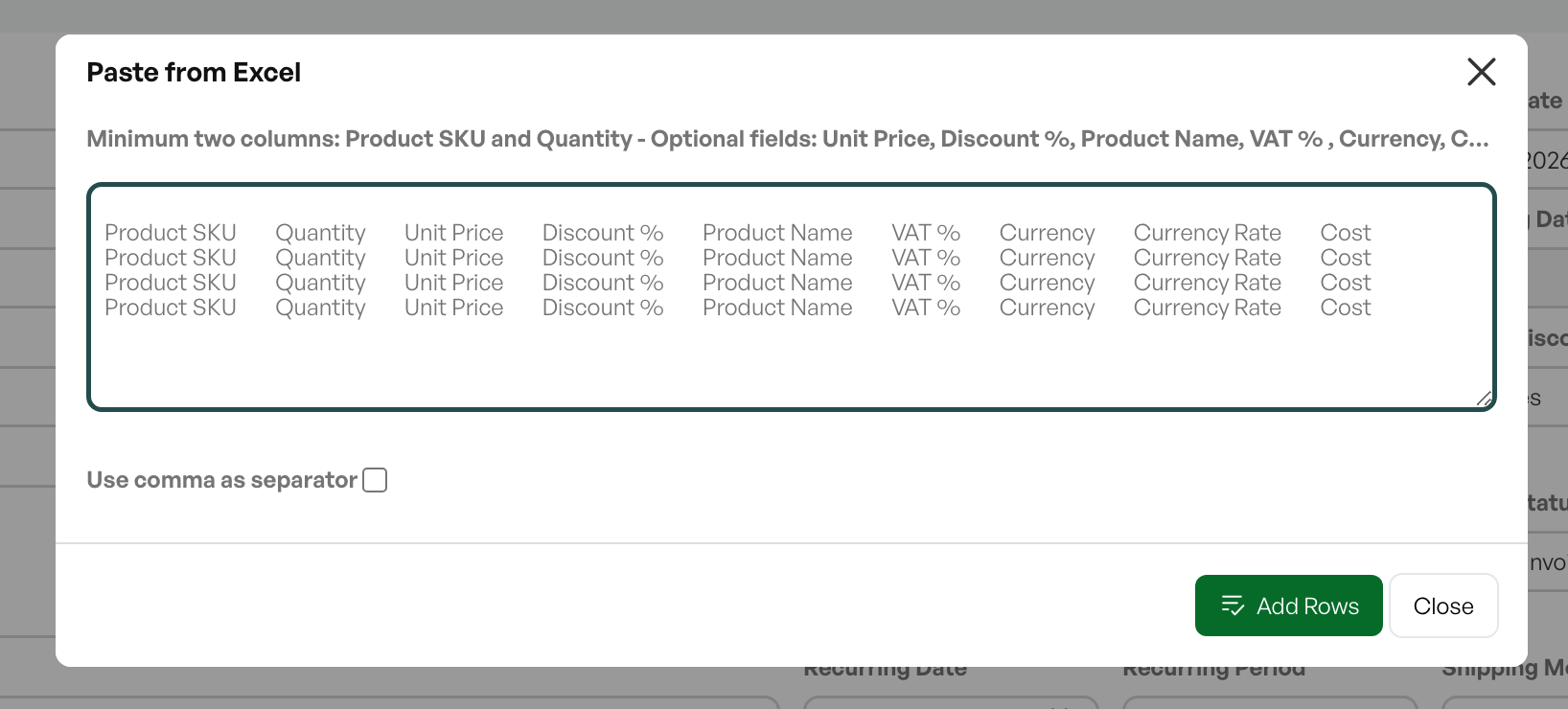
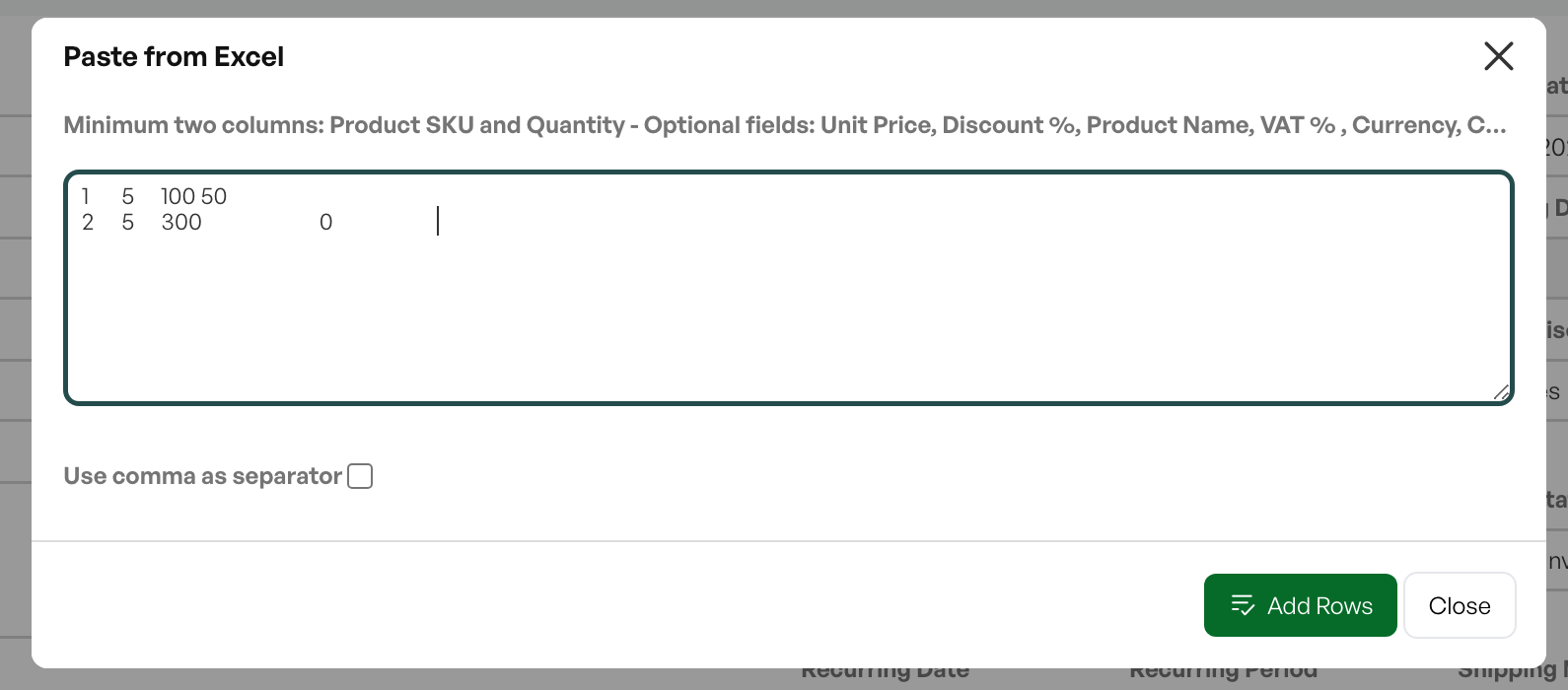
In the dialog that opens, paste the Excel list, select the desired options and click 'Import'.

Result
The order lines are created in the order with the selected values.

Criteria
- For the paste from Excel function to work, the product numbers must be written exactly as they are registered, without extra spaces or characters.
- The product numbers must exist in either catalogues or the product list.
Paste sections and comments
From the Excel file it is possible to add sections and comments.
For section: Write HEADER in the product number field — the product name on the line becomes the section title.
For comment: Write INFO in the product number field — the product name on the line becomes a comment/text line.


Was this article helpful?
That’s Great!
Thank you for your feedback
Sorry! We couldn't be helpful
Thank you for your feedback
Feedback sent
We appreciate your effort and will try to fix the article