Recurring orders
Guide showing how to create a template and use recurring orders.
TABLE OF CONTENTS
Purpose
Recurring orders are designed to automatically create orders at specific times — for example in connection with services or subscription agreements.
A recurring order is created from a template (an order with the status 'Template'). The system then creates a new order at a set interval from the template.
Setup
NOTE: Both steps of the setup must be in order before using recurring orders. May require a licence and activation of a system job. Contact Telaris support for questions and activation.
1. Create periods
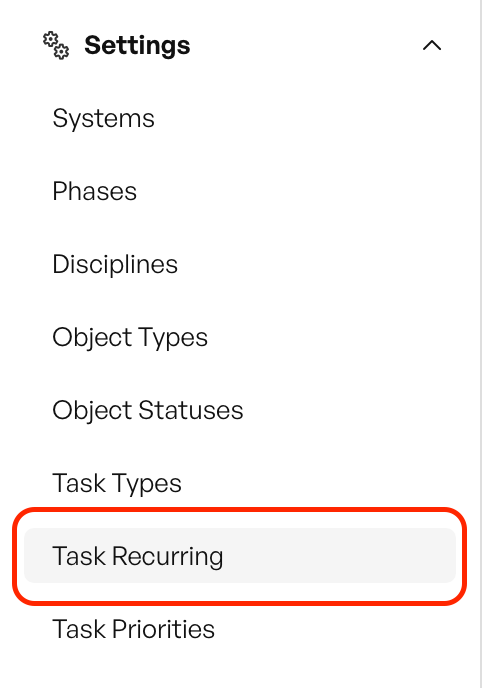
Go to 'Settings → Recurring tasks → Add new'
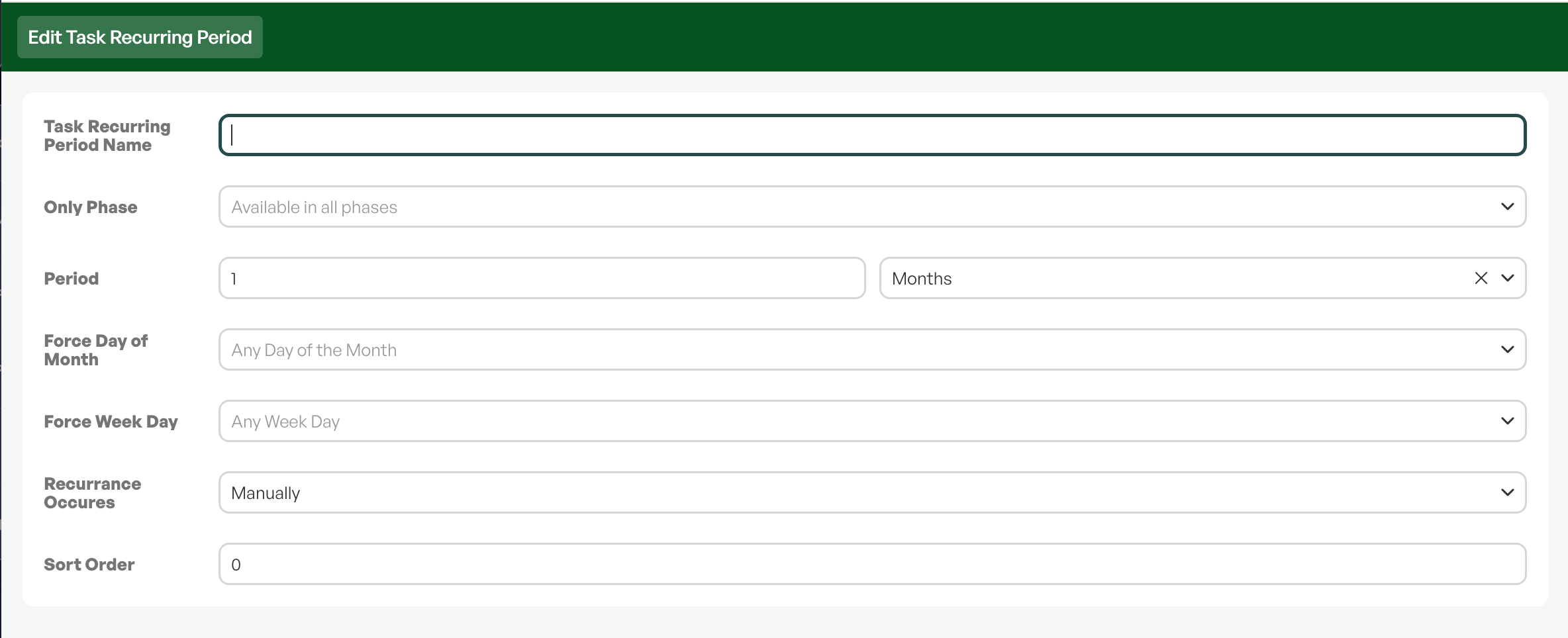
Period name: Shown in the order
Phase only – Not relevant for recurring orders. N/A
Period: Number of intervals
Force fixed date: Hits the same date every time
Force weekday: Always hits on the same weekday
Interval: The unit of time (days, weeks, months, years)
2. Create order type
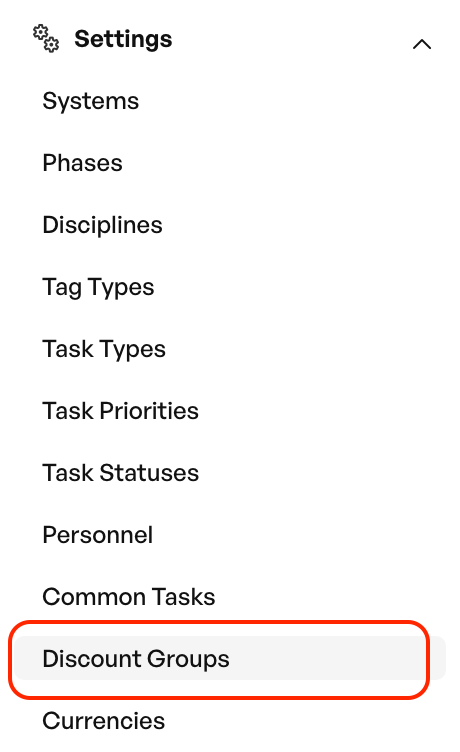
Go to 'Settings → Order settings → Order types'
Note: In some versions of Telaris this option is called 'Discount groups'
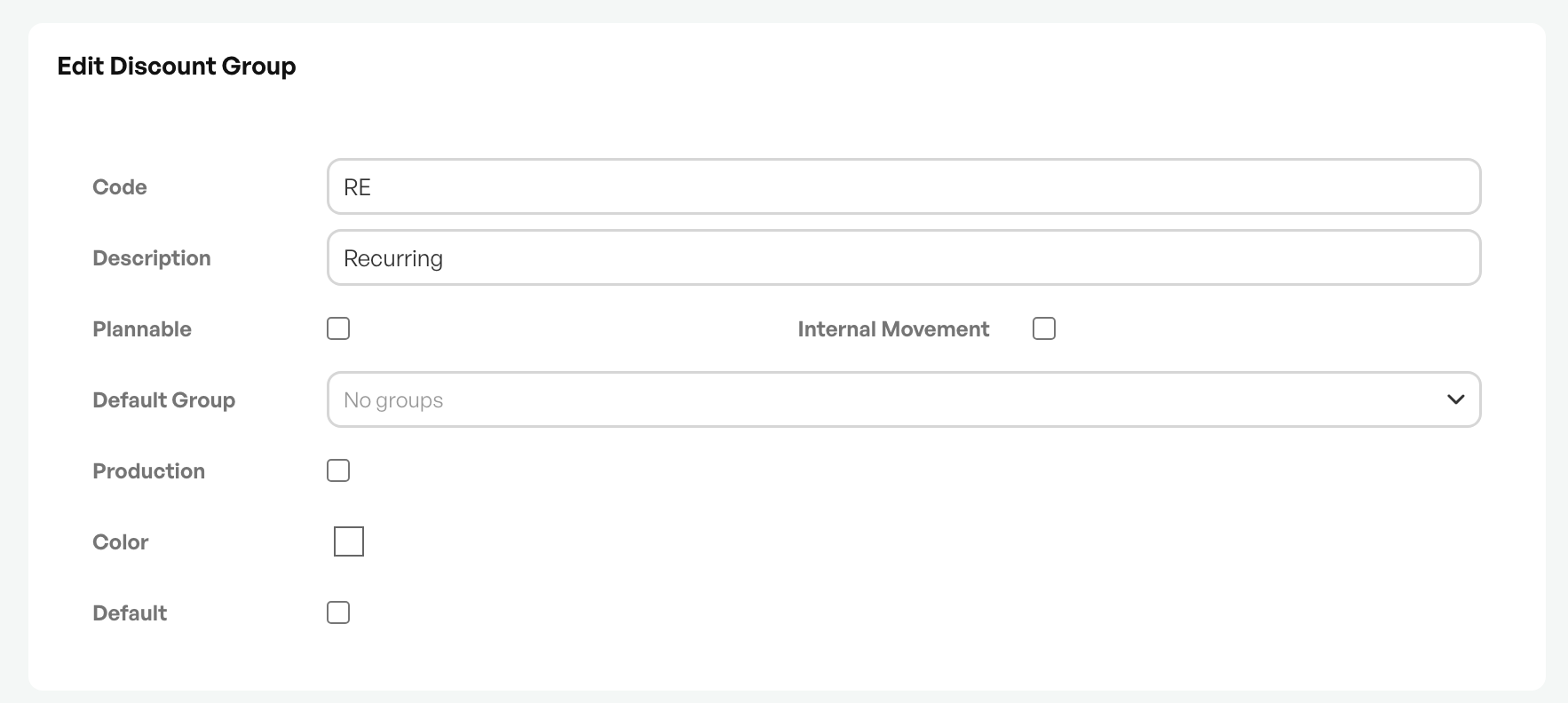
The order type that is created does not need more than a code and a name.
3. Create template
Create a new order and set it to the order type created for recurring orders if you choose to create a separate order type.
- Create a relevant order name — this name is copied with each recurrence
- Add the desired fixed order lines
- Enter the desired trigger date for recurrence, and the desired interval
- Set the order status to "Template" when the order is ready
- If the order should not create recurring orders beyond a certain date, set an end date
Recurring order
When the system job runs, a new order is created with the same order type as the template, and order status "Recurring/Repeated".
A recurring order will appear as recurring in the timeline, as well as in the template it was created from.

The order can be freely edited and worked on before invoicing, and can be invoiced like other orders.
Overview of recurring orders
Shortcuts can be set up on Telaris dashboards that show all recurring orders, as needed. Contact Telaris support for setup.

Was this article helpful?
That’s Great!
Thank you for your feedback
Sorry! We couldn't be helpful
Thank you for your feedback
Feedback sent
We appreciate your effort and will try to fix the article