TABLE OF CONTENTS
Preparation and setup
Defining recurring periods
Go to: Task recurring under settings.
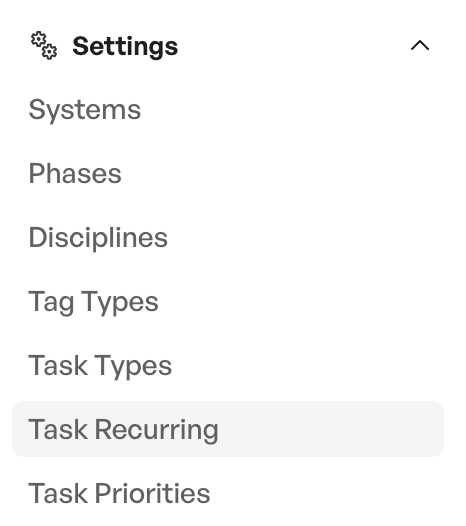
Here you create and customise the available recurring periods according to your needs.
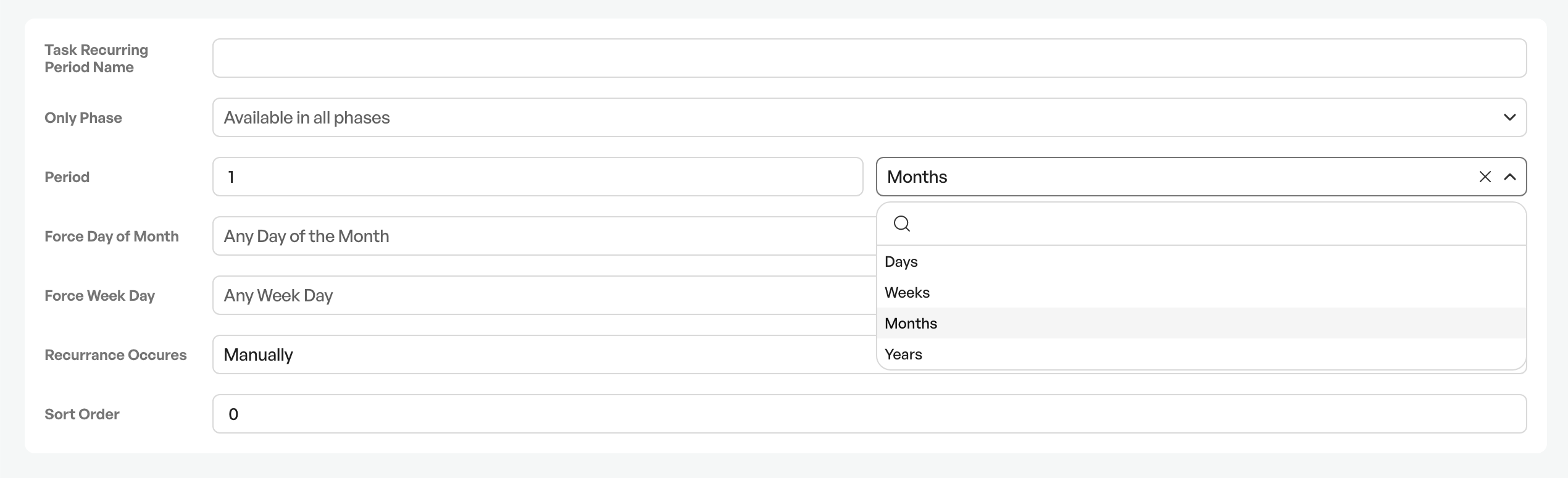
Examples can be monthly, quarterly, half-yearly and yearly.
Example of a completed recurring period:
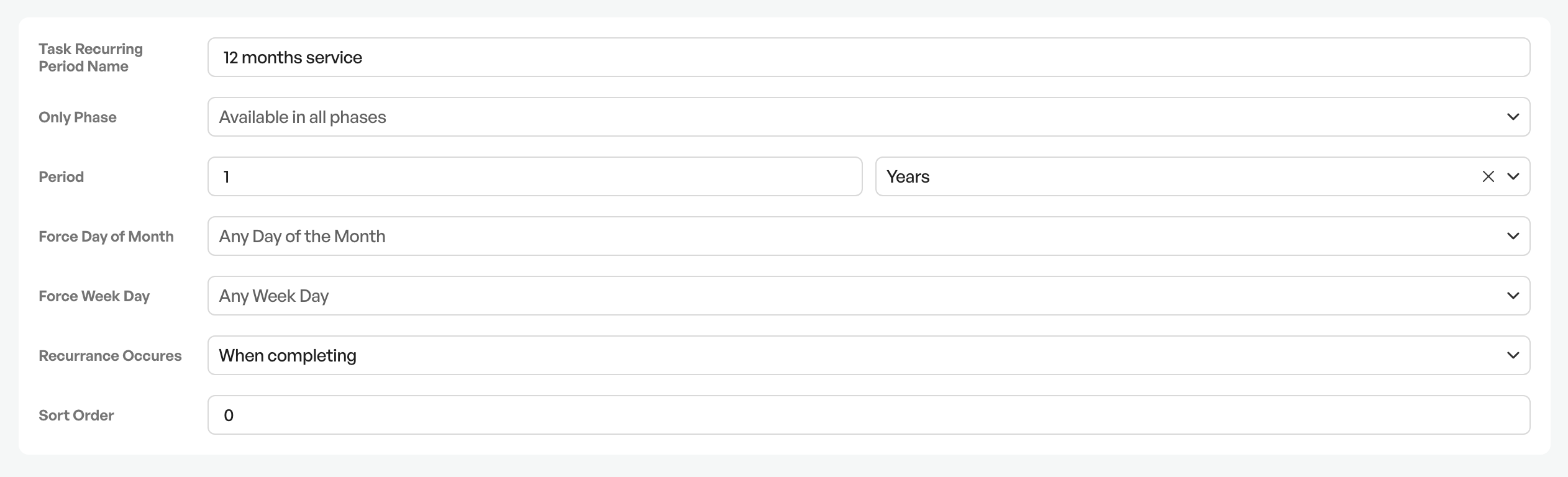
Here the task/checklist applies to the phase "After-sales", repeats every year, and repeats when the task/checklist is completed.
If you cannot find Task recurring under settings, contact support and they will make the necessary activations.
Timing of recurrence (recurring)
There are 3 different trigger points for when a task/checklist repeats in the system:
1. Manually
2. When it is completed
3. On archiving (Contact support to enable the function to archive checklists)
Enabling recurring on a phase
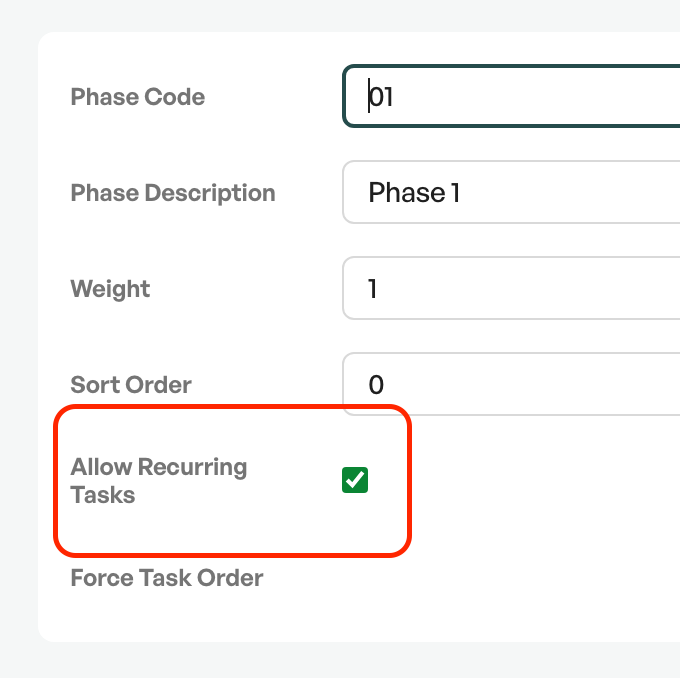
Go to: Phases under settings.
Enable "Recurring" for the phase(s) where you want checklists to repeat:
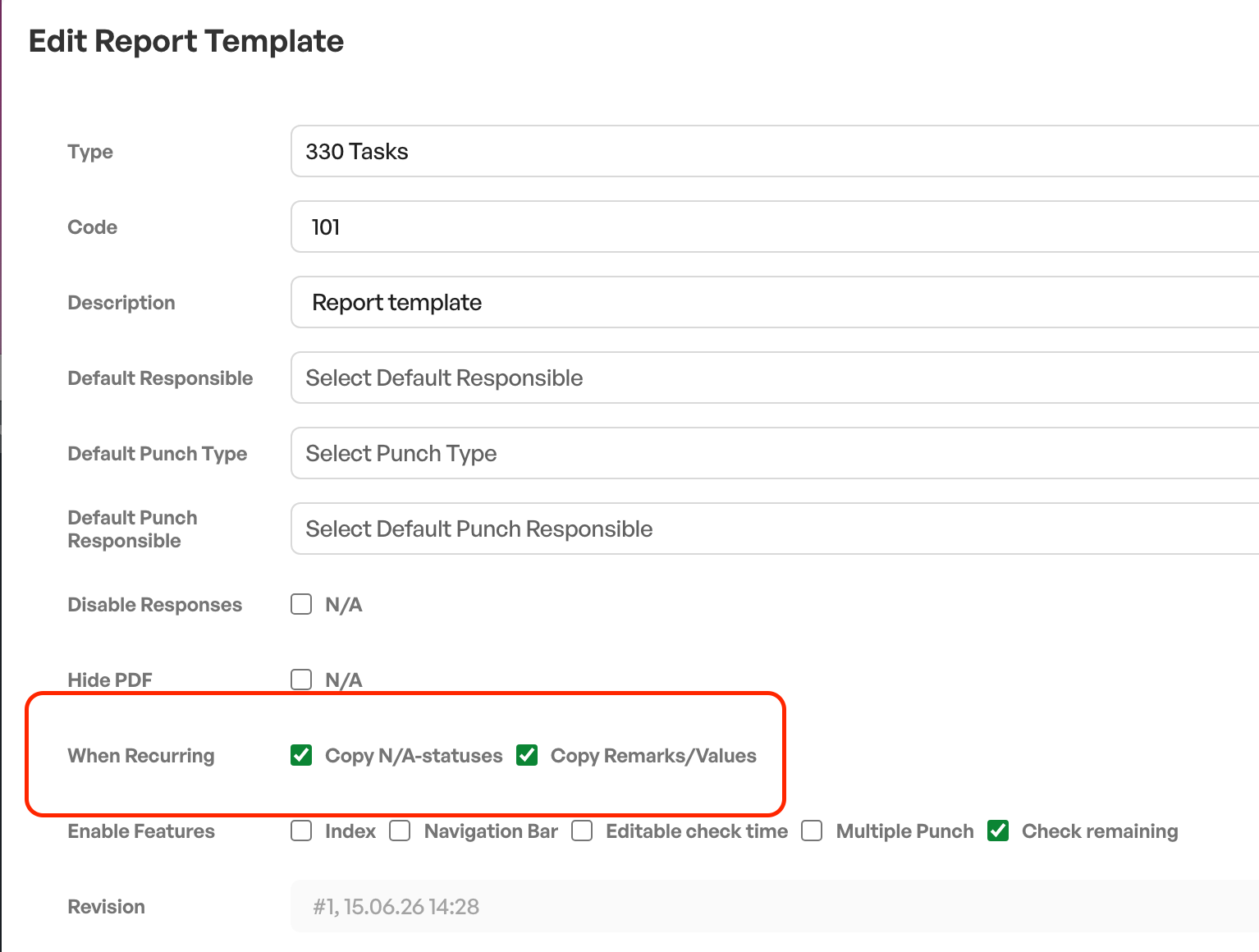
Copying N/A or input to the next checklist
Go to: Report templates under settings:
Choose whether the system should copy "N/A" choices and/or previous input to the next checklist:
Linking to a tag
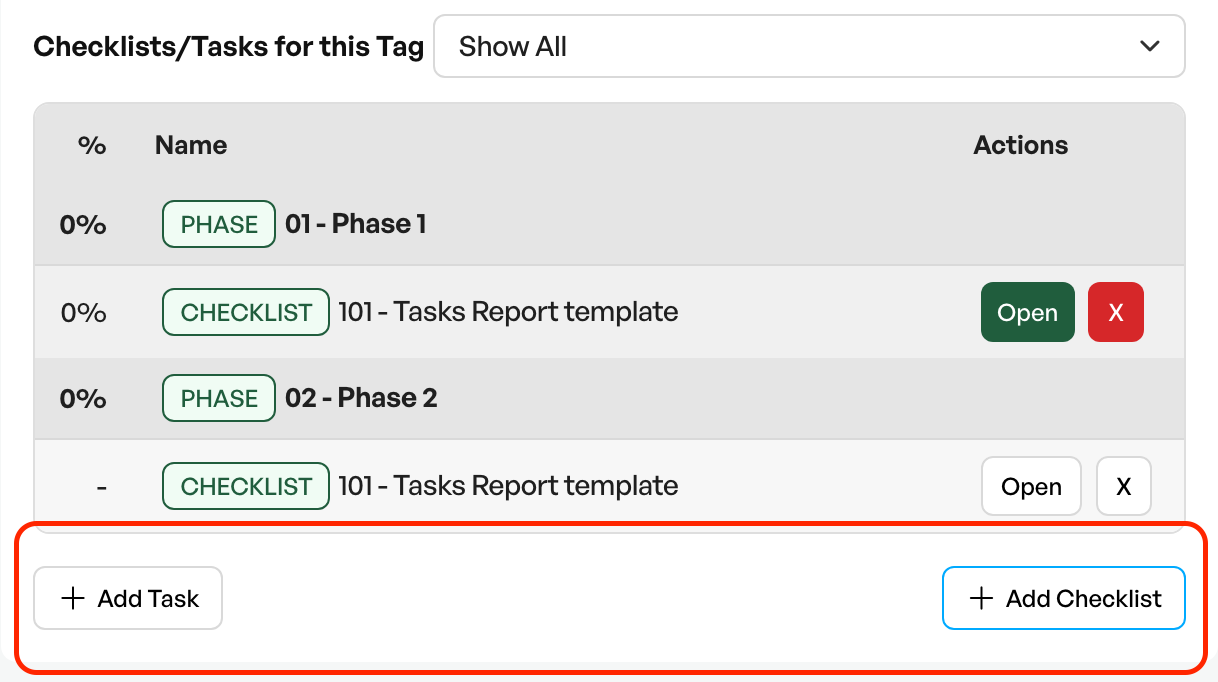
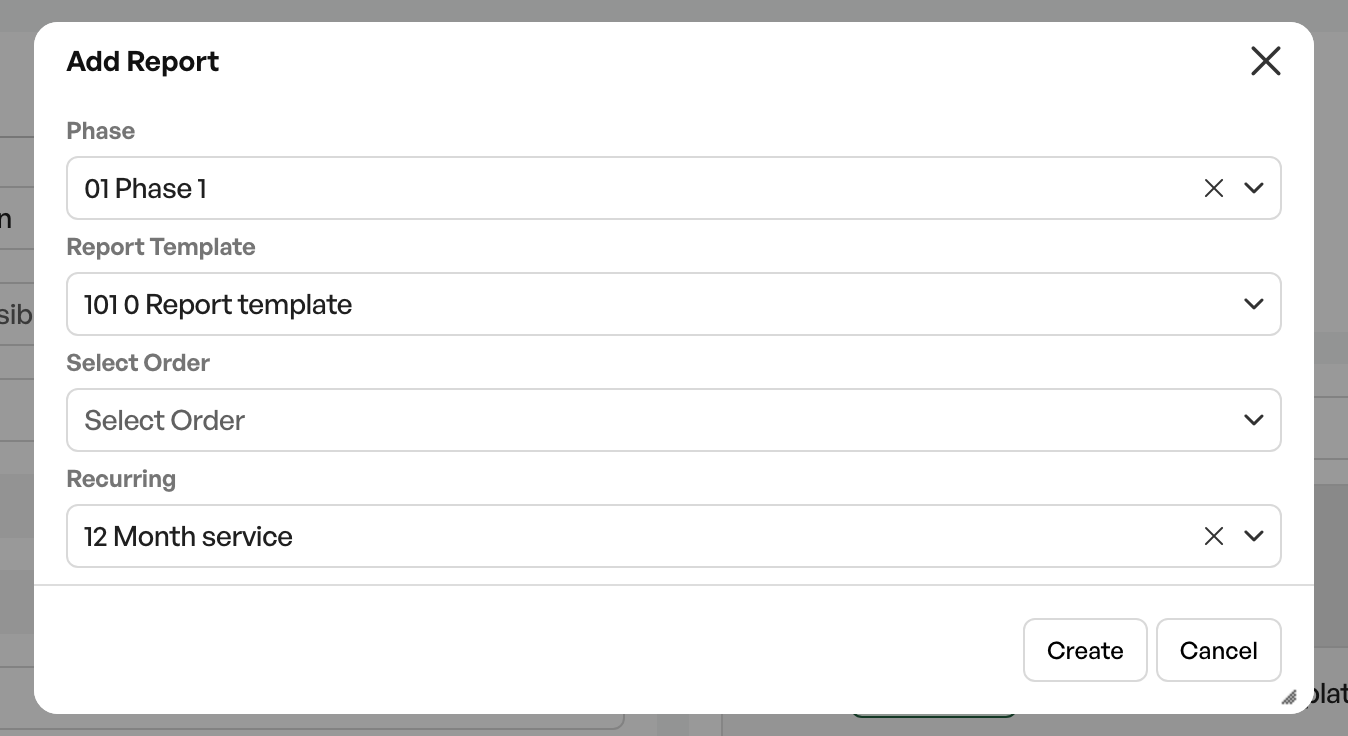
Adding a task and checklist
Add tasks and checklists on the relevant tag, on the right side of the screen underwork process.

Was this article helpful?
That’s Great!
Thank you for your feedback
Sorry! We couldn't be helpful
Thank you for your feedback
Feedback sent
We appreciate your effort and will try to fix the article