3. Report template - The checklist's content
Guide for how to create and edit checklists in Telaris
INNHOLDSFORTEGNELSE
- 3. Report template - The checklist's content
- Creating and editing checklists
- Actions
- Overview of field types
- Tips
Creating and editing checklists
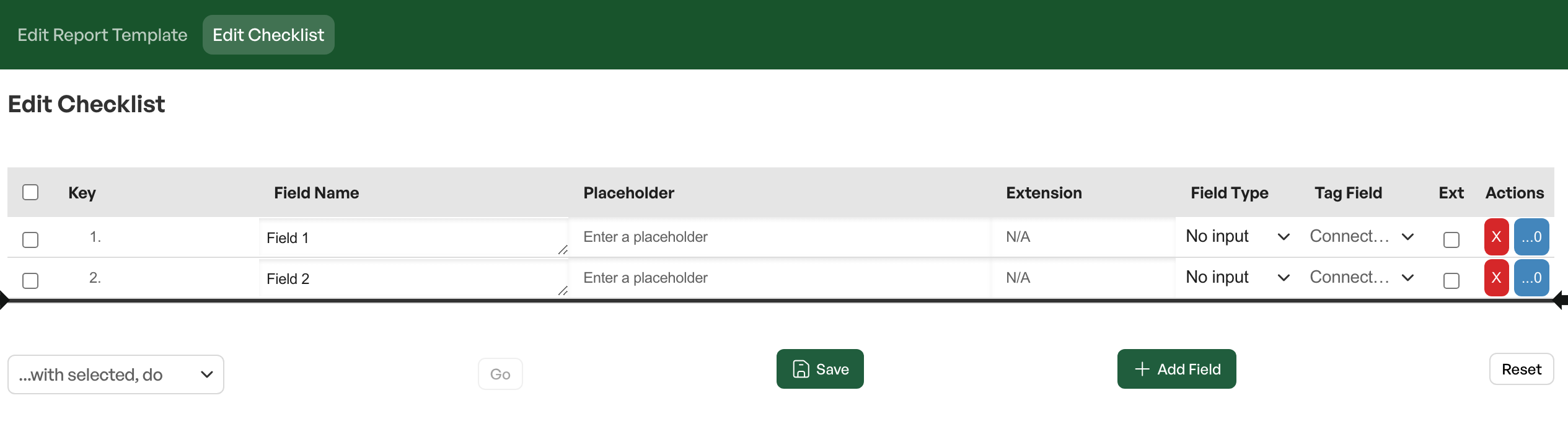
To create a checklist, go to the report template and select 'Edit checklist'.
From the list you add fields to the checklist.
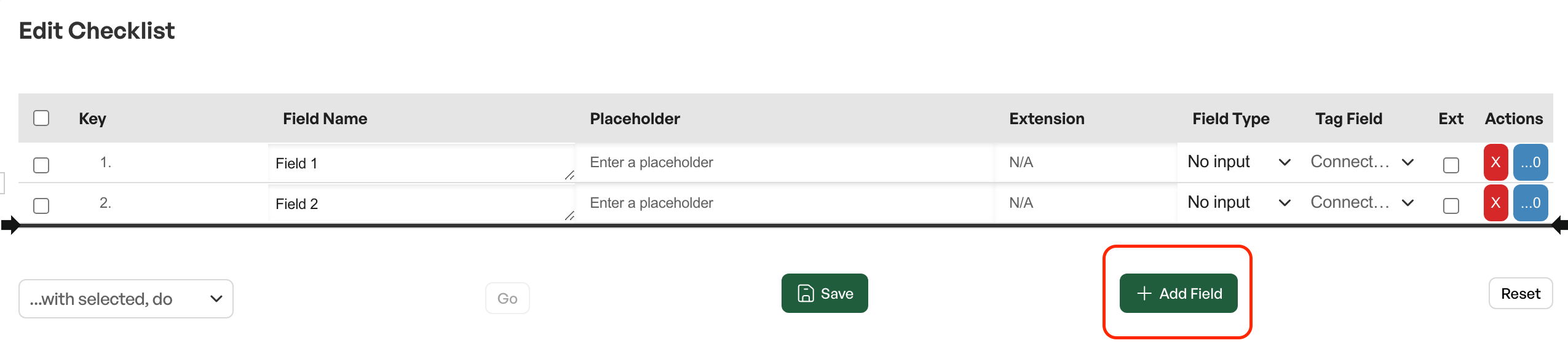
Add field
Opens for adding more fields to the checklist - shows an 'Add' button that lets you add more and more fields as needed
NB! Changes to an existing list affect everyone who uses it. Create a new list on revision instead.
Actions
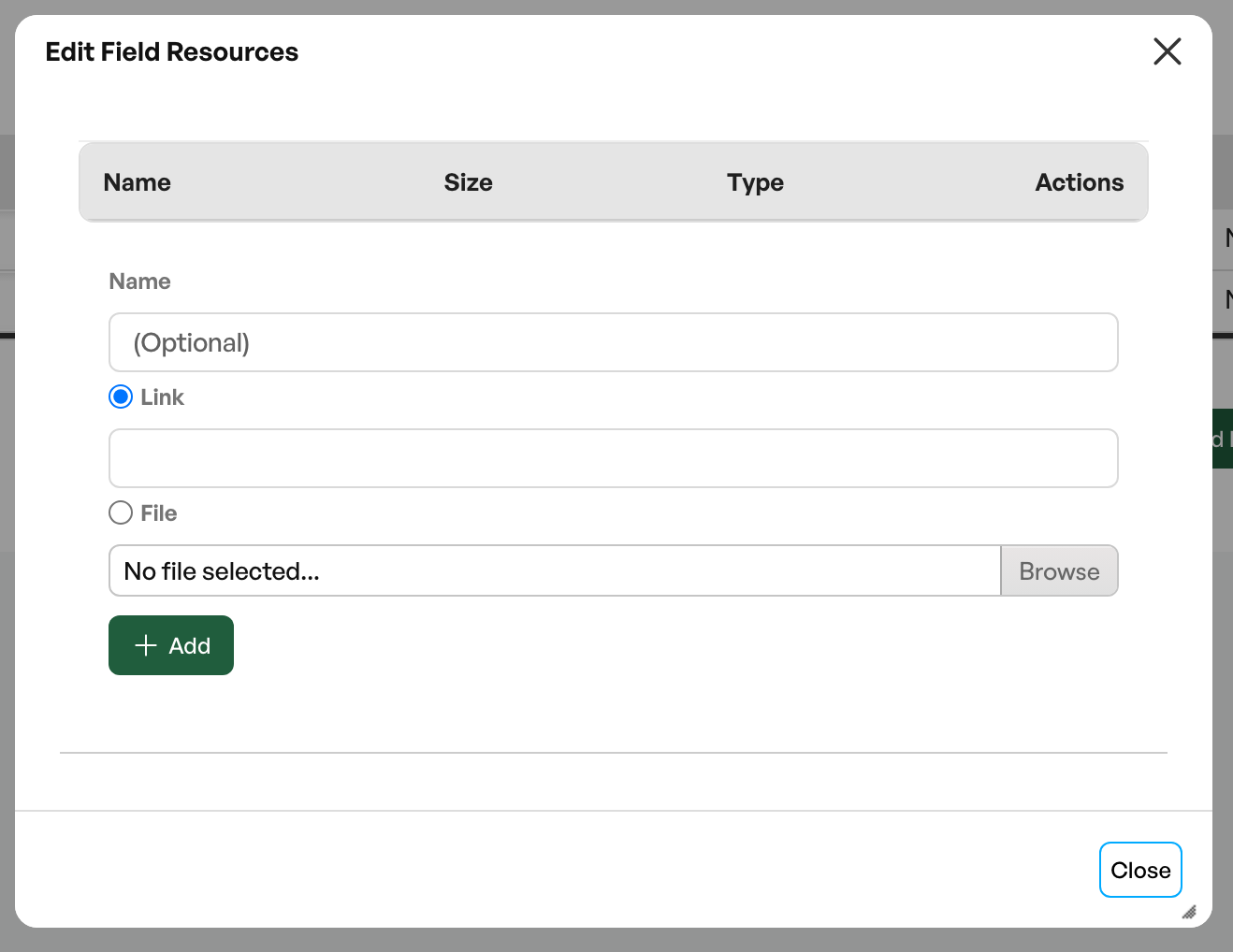
Gives the option to make fields in the checklist required, and to link in other relevant information via the documentation tab.
When documentation is added, an info symbol appears in the checklist, linking directly to the attached file or link.
Overview of field types
There are many field types in the checklist module. Examples include:
- Text / Numeric: Simple fields for text or numbers
- Date: Calendar value
- Checkbox / Dropdown: Choice from a predefined list
- Images and files: Option to upload a jpg or reference file
- Header: Headings in the checklist (sometimes called 'Show in report header'
- Tag field: It is possible to link fields from the tag to the checklist so that the tag is updated with the information filled in the checklist
Tips
- Save often and use "Refresh" to see updates
- The field type often has to be changed manually after copying
- Checkbox/Dropdown interprets a space as a new option – do not use commas
- Drag and drop to move a checkpoint – use the key field
- The key field lets you set the desired checkpoint names in the list for organisation
- Via 'Edit report template' you can preview the checklist as a PDF
Next step: 4. Automatic linking of checklists to tag types
Was this article helpful?
That’s Great!
Thank you for your feedback
Sorry! We couldn't be helpful
Thank you for your feedback
Feedback sent
We appreciate your effort and will try to fix the article