TABLE OF CONTENTS
How to create an order?
In Telaris, each order functions as a foundation, or building block, for further processing — such as generating accurate quotes and invoices for customers. This ensures a streamlined and consistent process from order to payment.
Guide
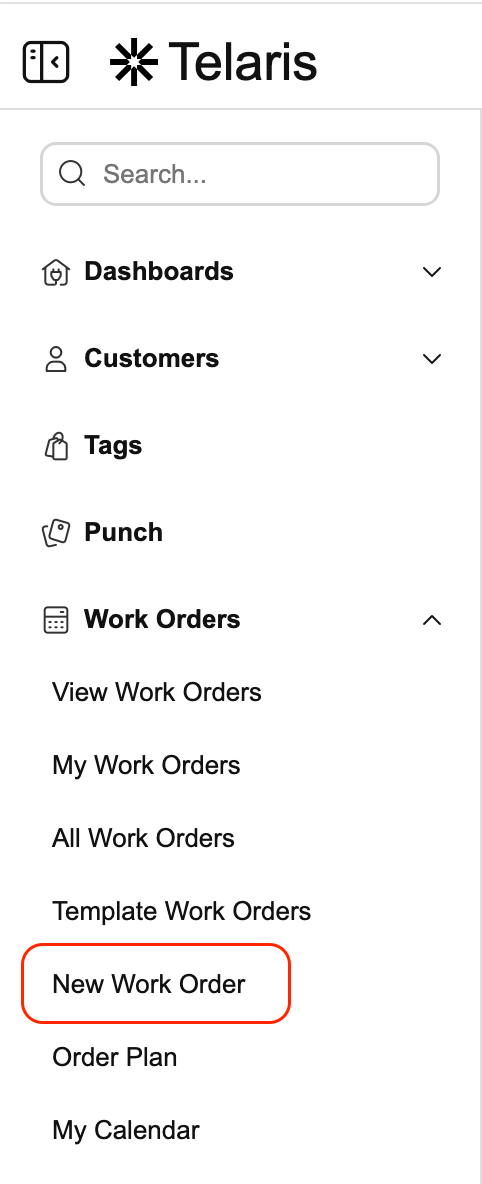
Click "New order" from the side menu. Many instances of Telaris will also have shortcuts from dashboards.
Adding a customer
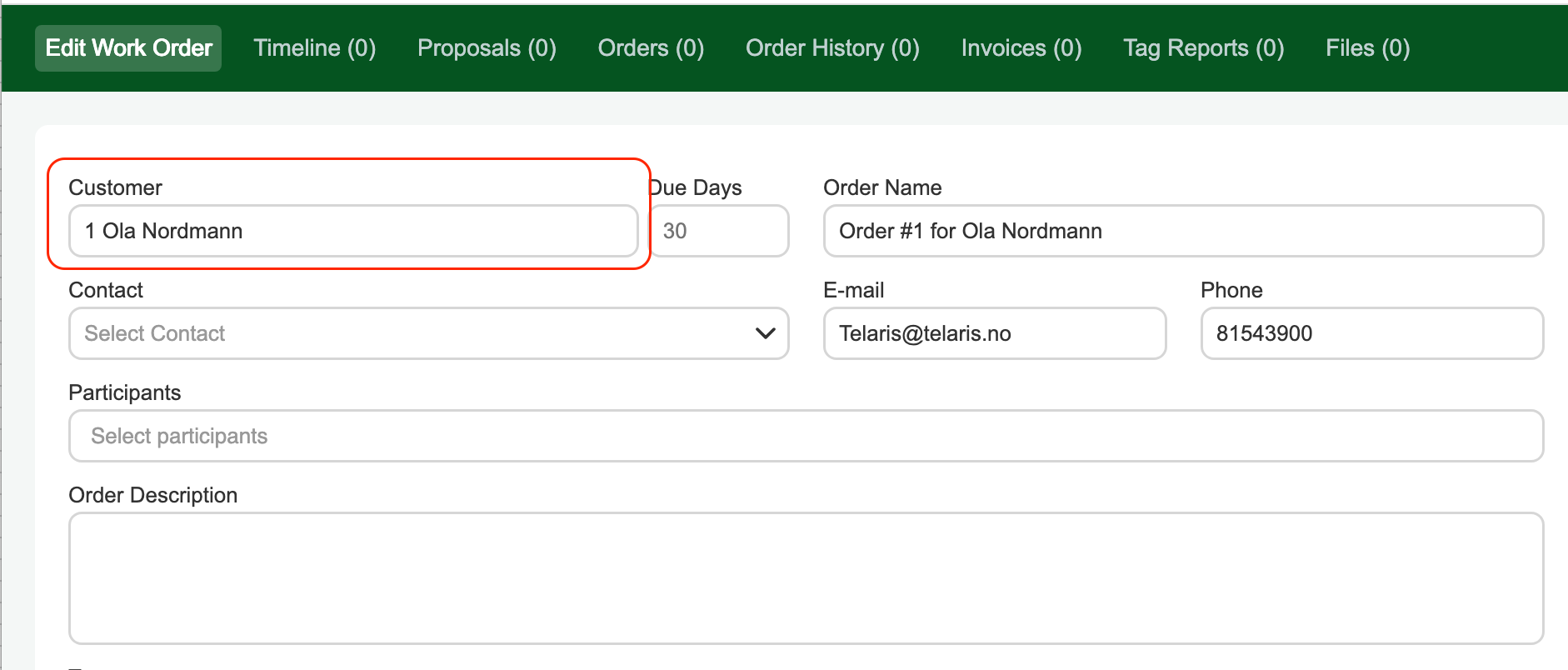
The customer field in the order module works as a lookup against the customer database.
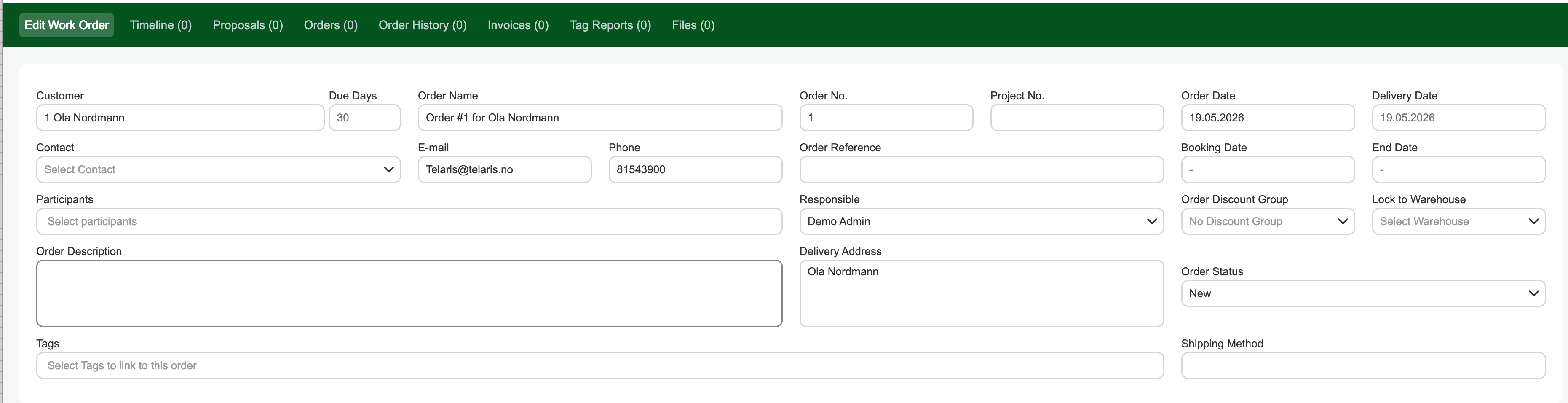
Select the desired customer by clicking their name, then press Enter to save (or click Save at the bottom of the screen). When you save, the fields for order name/description, order number and order date are created and filled in automatically. The order name/description can be changed afterwards. Customer information is also retrieved from the customer card and filled in automatically, as long as all the information is correctly filled in on the customer card.
The Contact person and Responsible fields are automatically set to whoever created the order. These can be changed afterwards.
How to add products to an order?
Products are added in the order lines section. Search for a product by name or product number. You can also add free-text lines without linking to a product in the product register.
Was this article helpful?
That’s Great!
Thank you for your feedback
Sorry! We couldn't be helpful
Thank you for your feedback
Feedback sent
We appreciate your effort and will try to fix the article