Creating an order template
Guide for turning an order into an order template
INNHOLDSFORTEGNELSE
Purpose
In cases where you often find yourself creating the 'same' order again and again, it is useful to create a template order.
A template order is an order with an order status defined as a template in default Telaris.
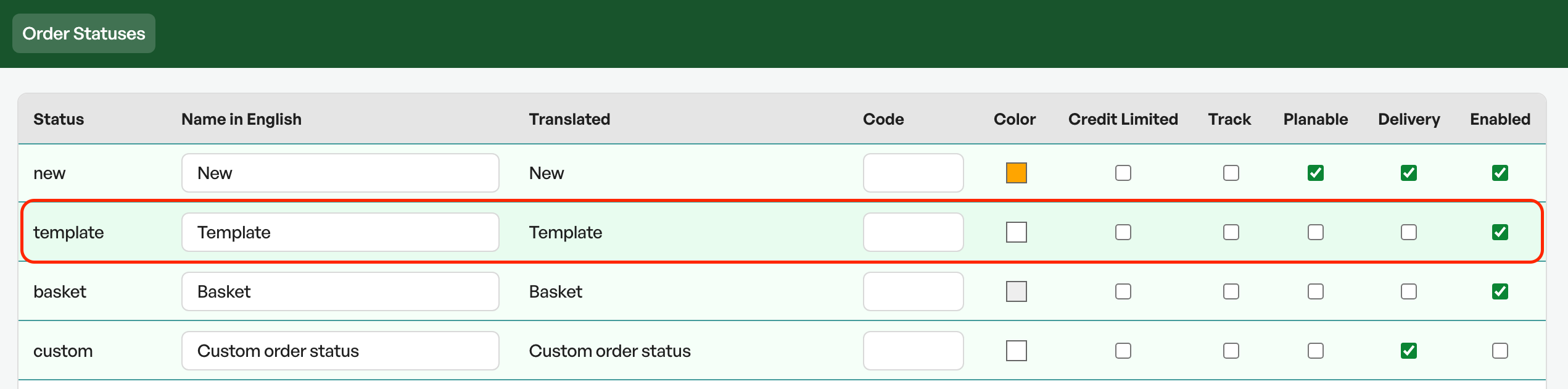
Procedure
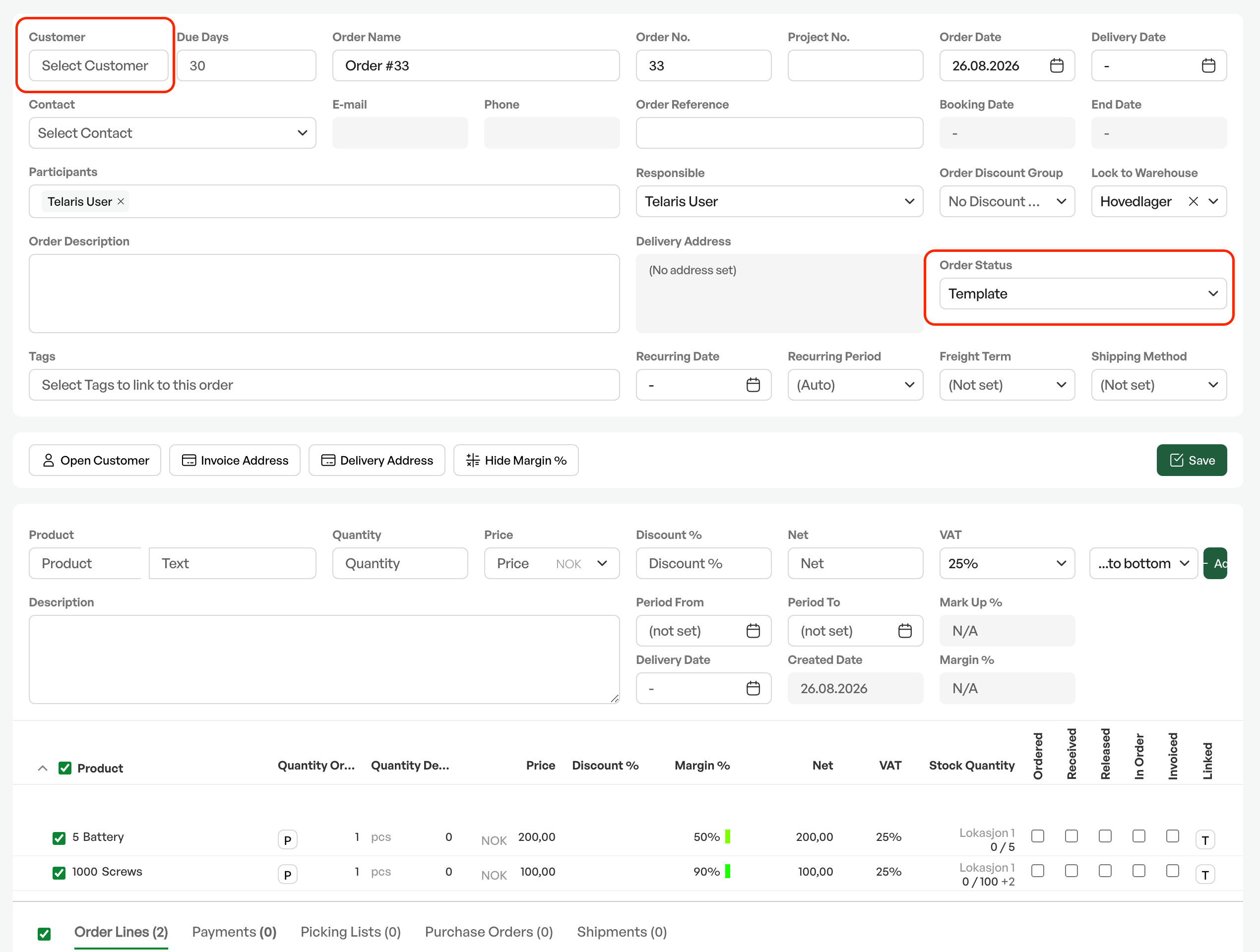
To create an order template in Telaris, you create a new order as normal, but remove the customer and any delivery date etc.
It is also recommended to change the order name to a desired standard
By saving an order as a template, the functionality to invoice and process the order further disappears. The template type will 'lock' the order so that it is not invoiced or changed by mistake
1. Creating the template
- Create a new order without adding a customer
- Add the desired products
- Change the order status to the type 'Template'
- Once created, order functionality disappears and the order becomes a template
2. Using the template
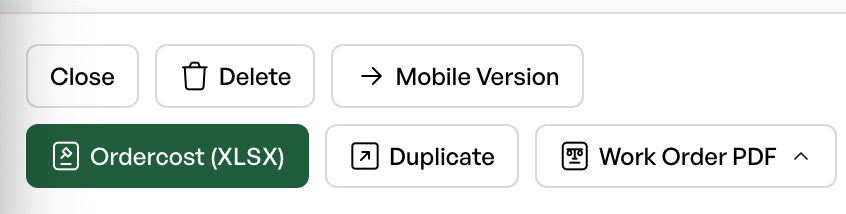
To create an order from the template, click the 'Duplicate' button located on the left at the bottom of the order view.
This creates a new copy of the order where you can fill in customer and other desired information.

Was this article helpful?
That’s Great!
Thank you for your feedback
Sorry! We couldn't be helpful
Thank you for your feedback
Feedback sent
We appreciate your effort and will try to fix the article