How do you create an invoice?
Here you will find a guide for creating, editing and following up invoices in the system. We help you with everything from understanding the invoicing process to solving any problems related to invoicing. The goal is to ensure efficient and accurate handling of your invoices.
TABLE OF CONTENTS
How to create an invoice in Telaris
Once an order is completed, you can invoice immediately. Depending on the workflow, you can also invoice after a proposal is approved, or at a point where a work order is completed.
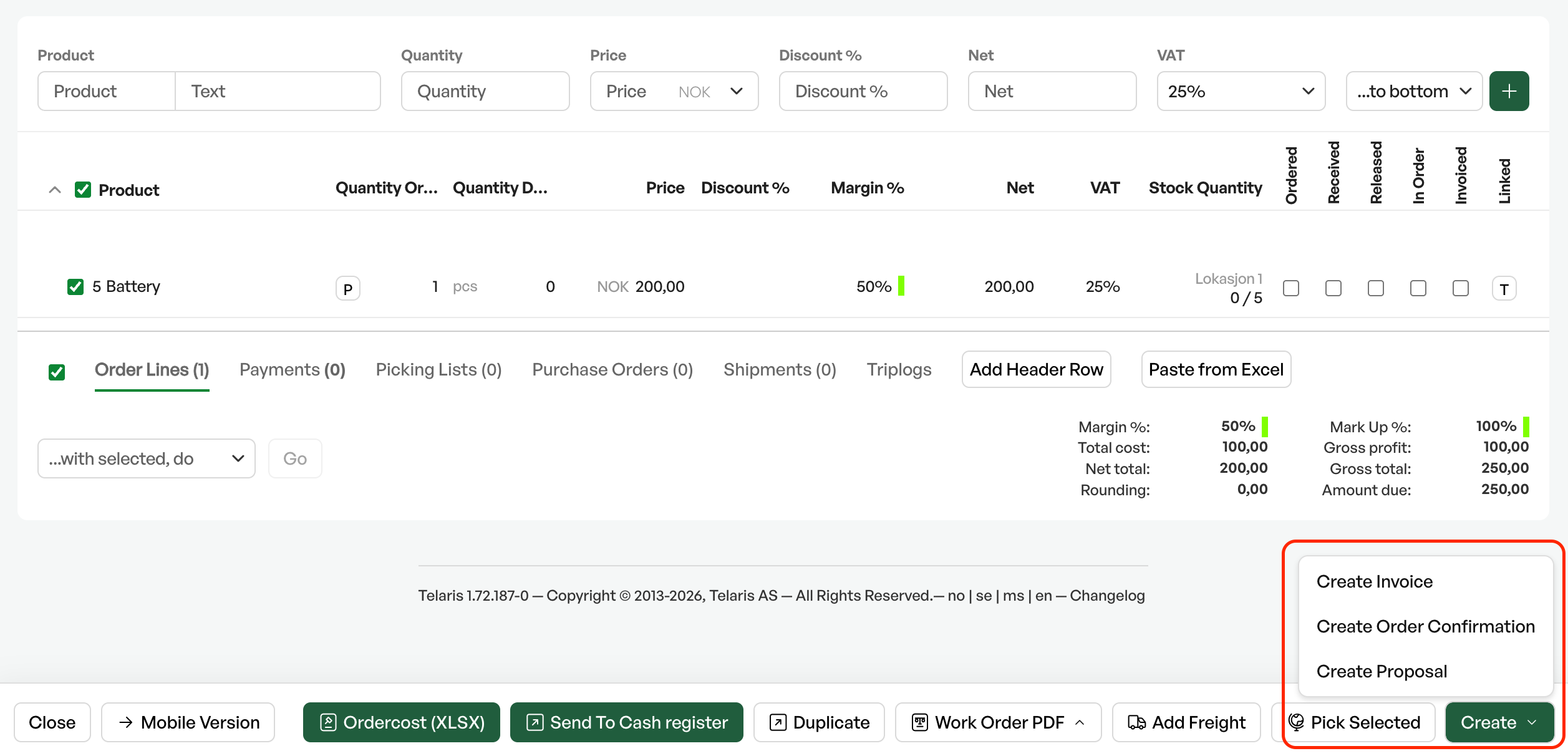
The button for producing an invoice is located at the bottom right of the order view. Click "Create" and "Create Invoice".
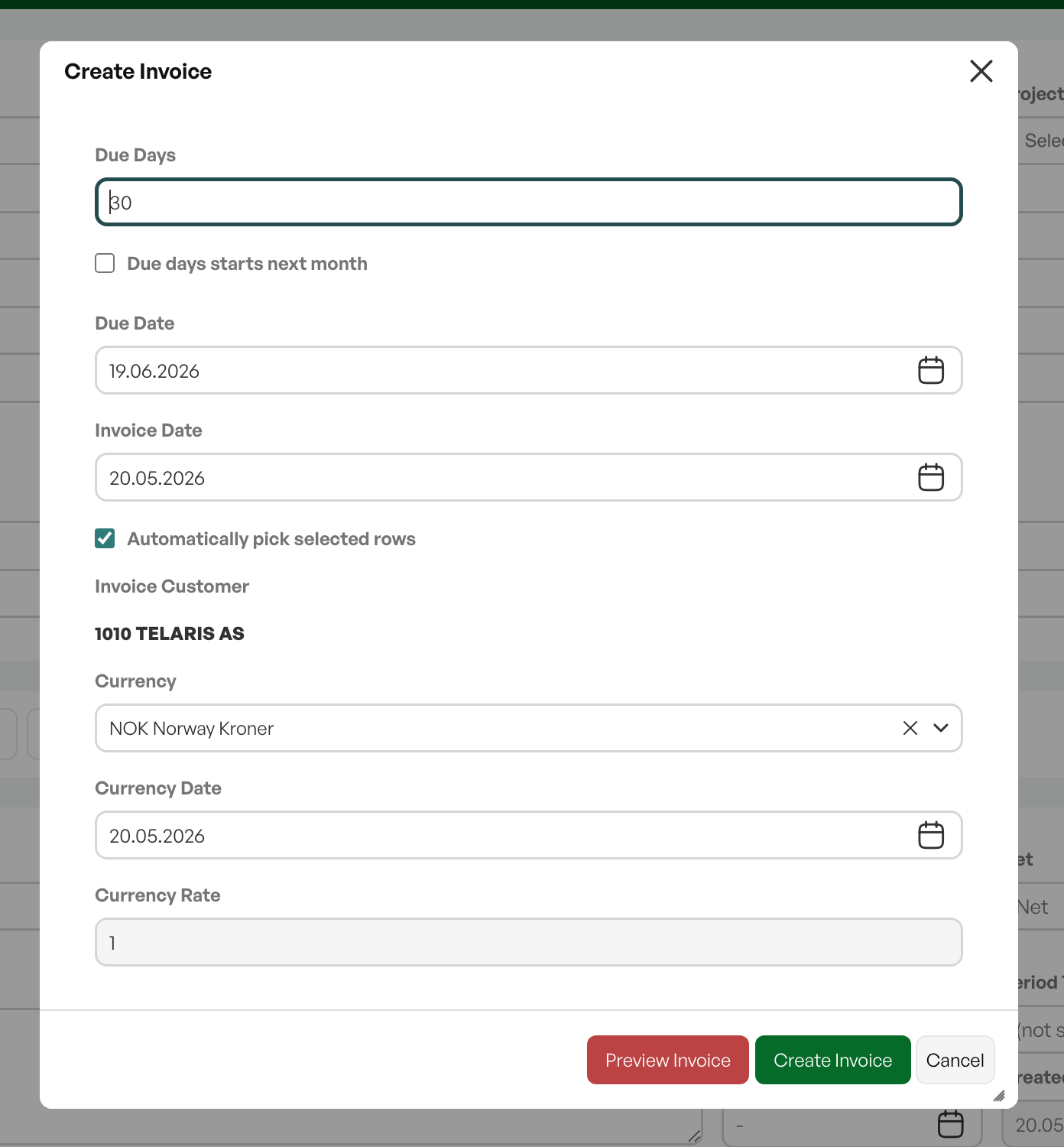
When clicked, an invoice dialog box opens for choices on the invoice to be produced.
Here you find the option "Automatically pick selected lines" which, with inventory management, automatically deducts items from stock when invoicing.
Before final production, you can also preview the invoice PDF.
For final production, click "Invoice", and you are redirected to the invoice view. The invoice number is created automatically from the number sequence.
Sending an invoice
When an invoice is produced, you are directed to the invoice view, which shows an overview of the invoice information.
The invoice now has a status of "Not delivered". Until it is marked as sent, it keeps this status.
To ensure the invoice is sent, you are met with a pop-up with sending options. The sending options can also include EHF and eFaktura, depending on the Telaris configuration
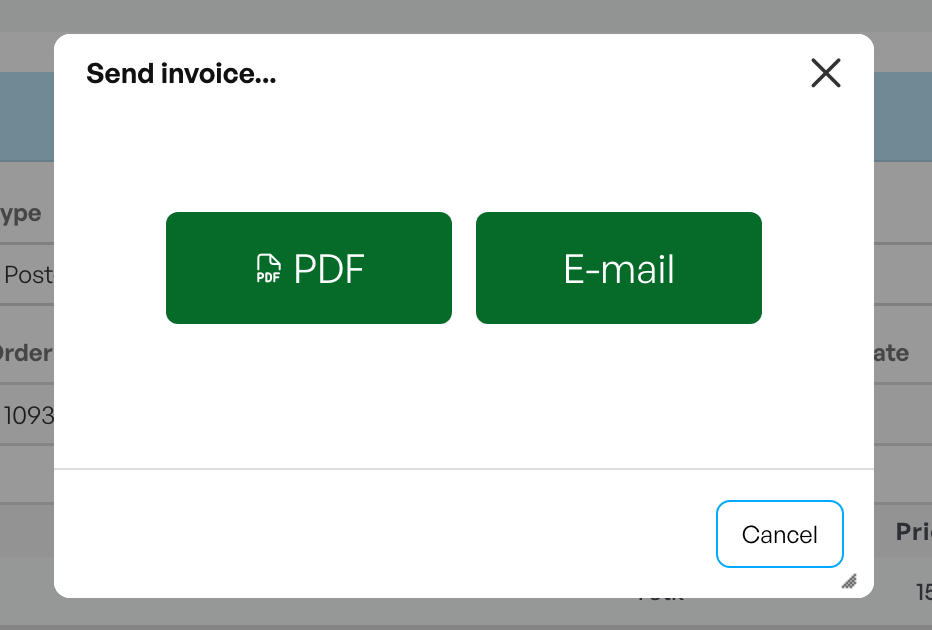
You can also close or cancel the dialog box if you need to check the invoice details before sending.
When the invoice is sent, it is marked on the invoice with method and date
Tip: You can choose a custom email recipient when sending an invoice
The invoice view
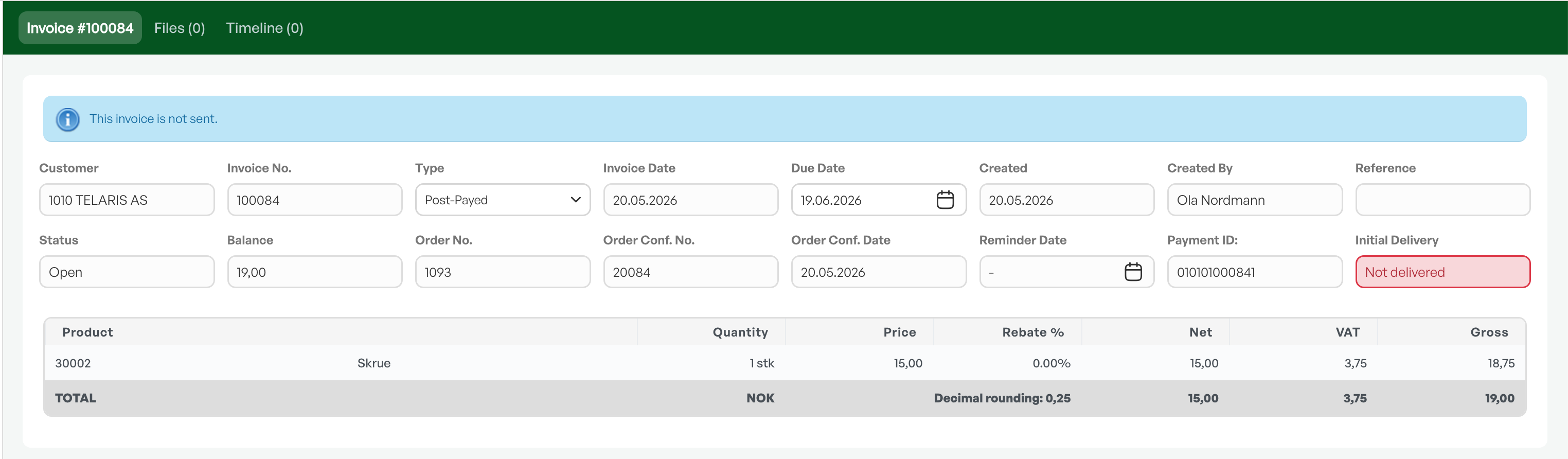
Invoice details with all necessary information such as invoice date, due date, invoice number, etc.
Here you have the option to view and change terms for the specific invoice, the option to register payment if relevant, as well as crediting and reminders.
Guide for crediting an invoice
Below the invoice details is also the order linked to the invoice. If you click the line, you are taken to the order view

Guidance: Send order and invoice to the POS

Was this article helpful?
That’s Great!
Thank you for your feedback
Sorry! We couldn't be helpful
Thank you for your feedback
Feedback sent
We appreciate your effort and will try to fix the article