Sending eInvoice
Streamline your invoicing process with eInvoice – a secure and fast solution.
TABLE OF CONTENTS
- Sending eInvoice
- How it works
- Activation
- Required fields on customer card
- How to proceed
- Status update
- Why use eInvoice?
- Possible error sources
How it works
Telaris uses Mastercard as the technical provider for the eInvoice service. When an invoice is sent, the system performs a lookup to find the recipient's eInvoice address in the alias register (e.g. based on email and mobile number).
Activation
To activate this service, please contact support@telaris.no. The service is priced based on transaction volume. For further details, see our terms of use here https://telaris.no/bruksvilkaar.
Required fields on customer card
To send eInvoice to a private individual, one of the following combinations must be registered on the customer card:
- Mobile number + email address
- Mobile number + postal code
These are the fields used in the lookup made against Mastercard:
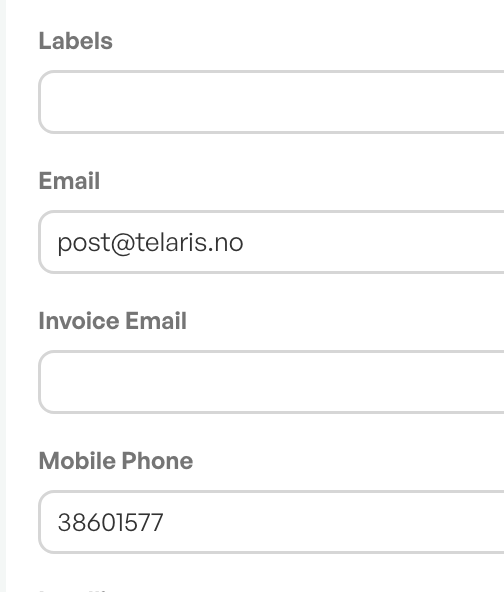
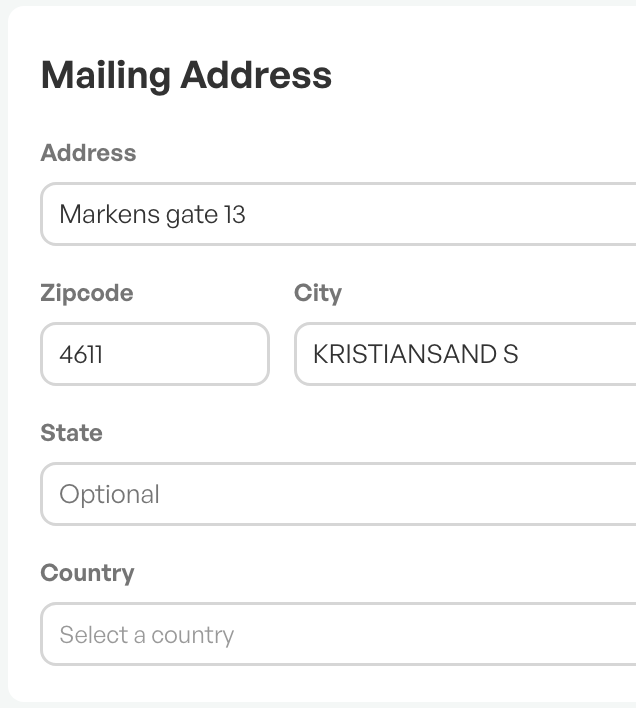
This means that the registered mobile number and email address on the customer card must be identical to what the customer normally receives eInvoice on. The customer can check this in their online banking or payment app.
How to proceed
You create an invoice in the usual way in the system (see user guide: How to create an invoice?), and select eInvoice as the delivery method.
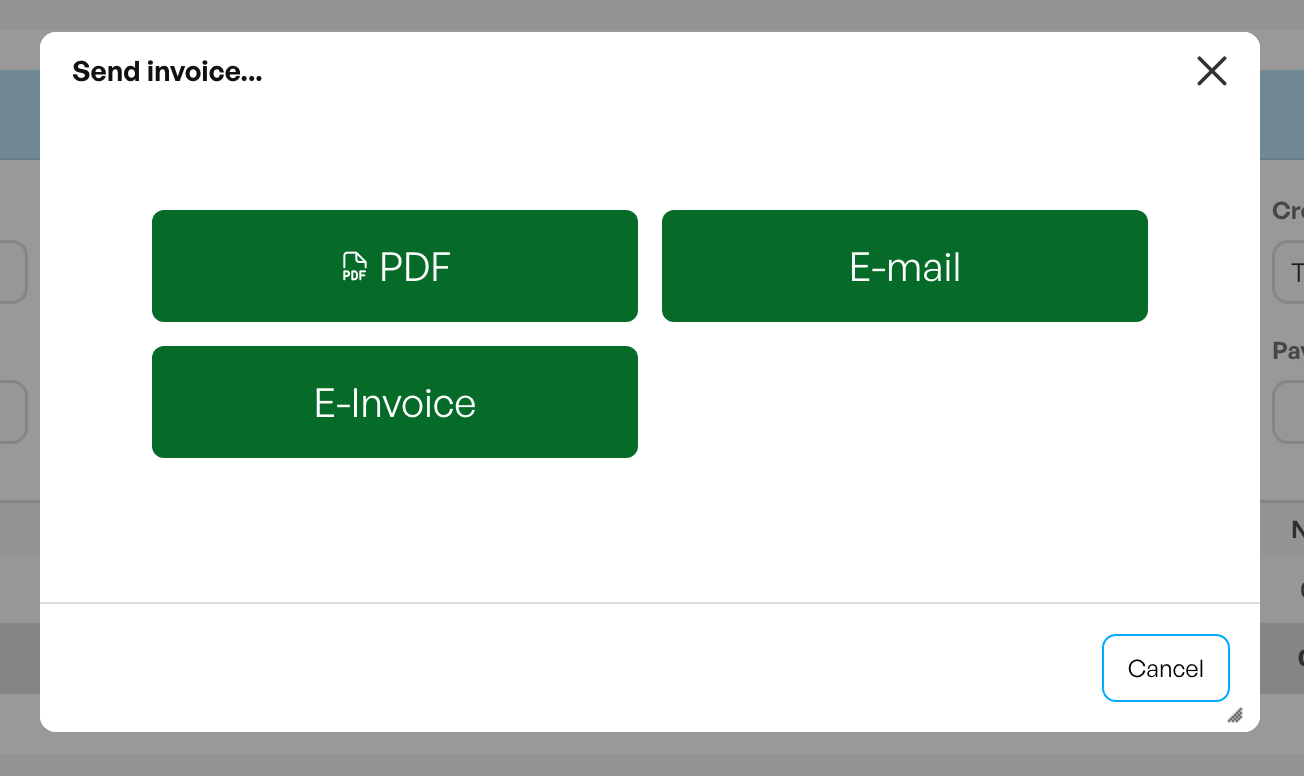
The following dialog box will appear:
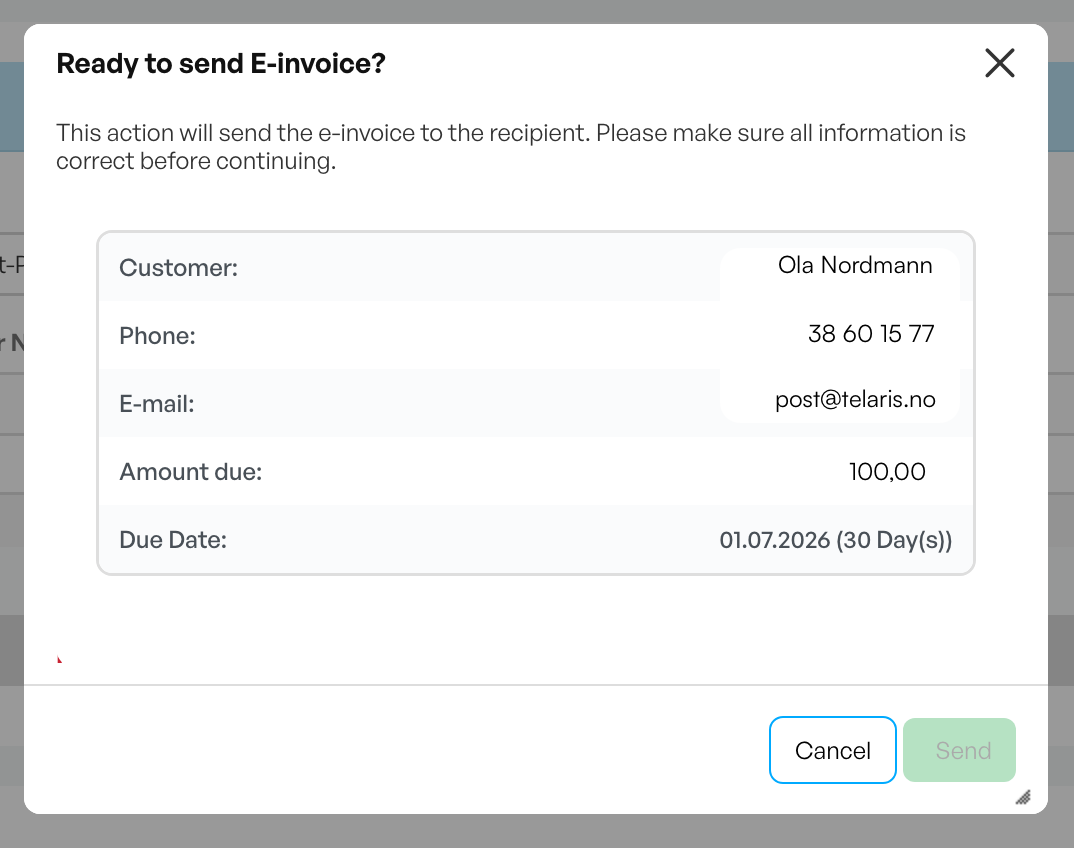
Clicking OK will send eInvoice based on the customer information in the associated invoice.
Clicking Cancel will return you to the invoice view.
If changes to the customer card are needed before sending, click the eInvoice button again. The button is found at the bottom right of the invoice view.
Status update
The system updates the eInvoice delivery status within 30 minutes of sending.
As the billing manager, you can always check the status in the "first delivery" field in the invoice view.
The timeline also contains useful information about the steps in the process.
Why use eInvoice?
- Saves time – less manual work when sending invoices
- Reduces the risk of unpaid invoices, and consequently the time spent on reminders and follow-up
- Secure and direct delivery to the customer's online bank
Possible error sources
- Incorrect information in the required fields on the customer card
- The recipient has opted out of eInvoice
- Error message "Mastercard: Mastercard PEM File not found." indicates a configuration error. Contact Telaris support.
The system generates automatic notifications if an eInvoice is not successfully sent. An email is sent to the person defined as the financial manager under system settings.

Was this article helpful?
That’s Great!
Thank you for your feedback
Sorry! We couldn't be helpful
Thank you for your feedback
Feedback sent
We appreciate your effort and will try to fix the article