Edit default invoice text on outgoing email
In the invoice window you have the option to send the invoice by email directly to the customer without having to download the invoice and send it via your own email. The text sent in the email is a default before it is eventually changed.
TABLE OF CONTENTS
Guide
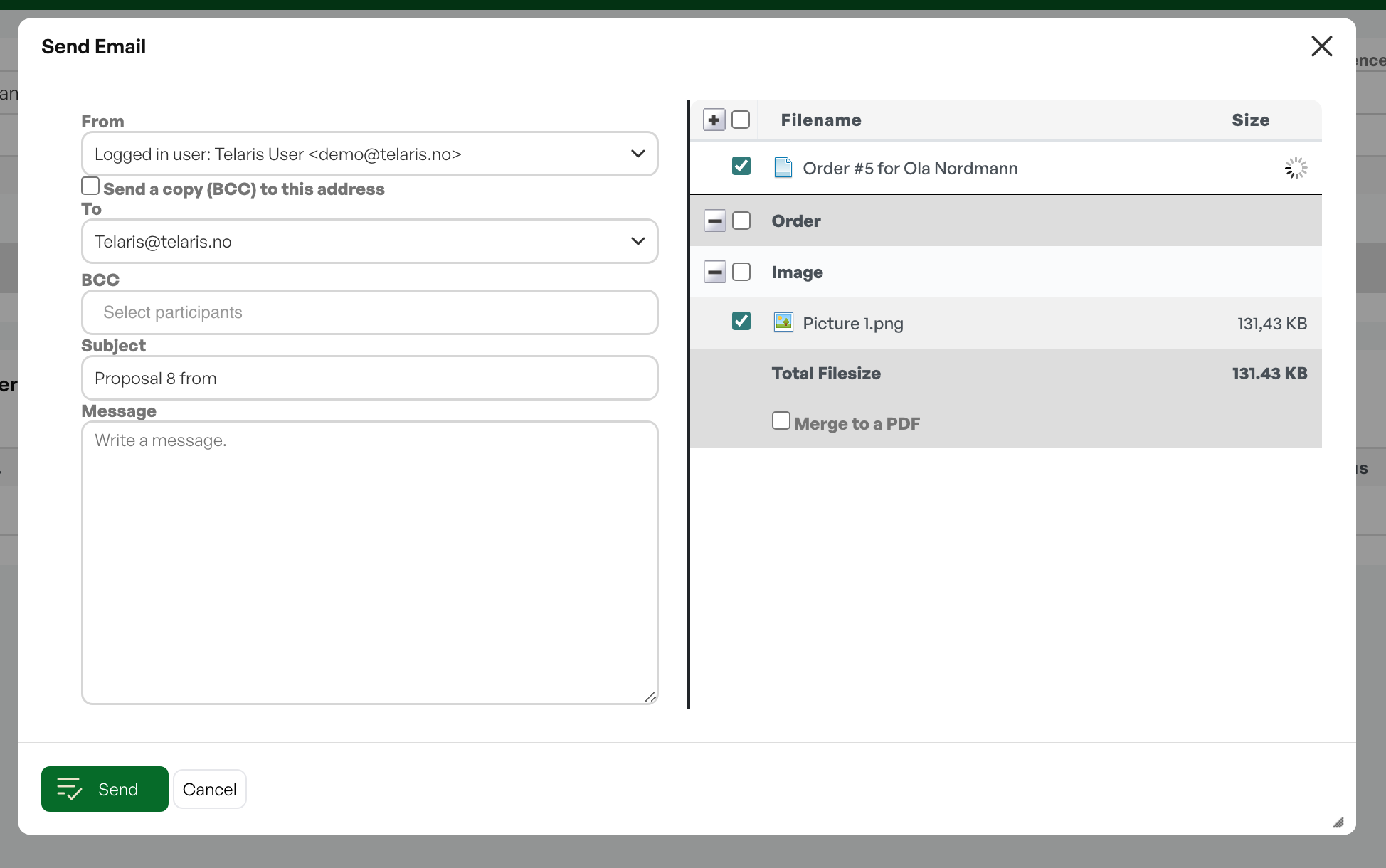
When you are going to invoice an order and want to send the invoice by email, the message text that appears in the dialog box is controlled by what is set up in the settings.
Templates
If you want to change this text permanently, go to Settings in the side menu and click into system settings.
Then click on the tab called 'Templates'.
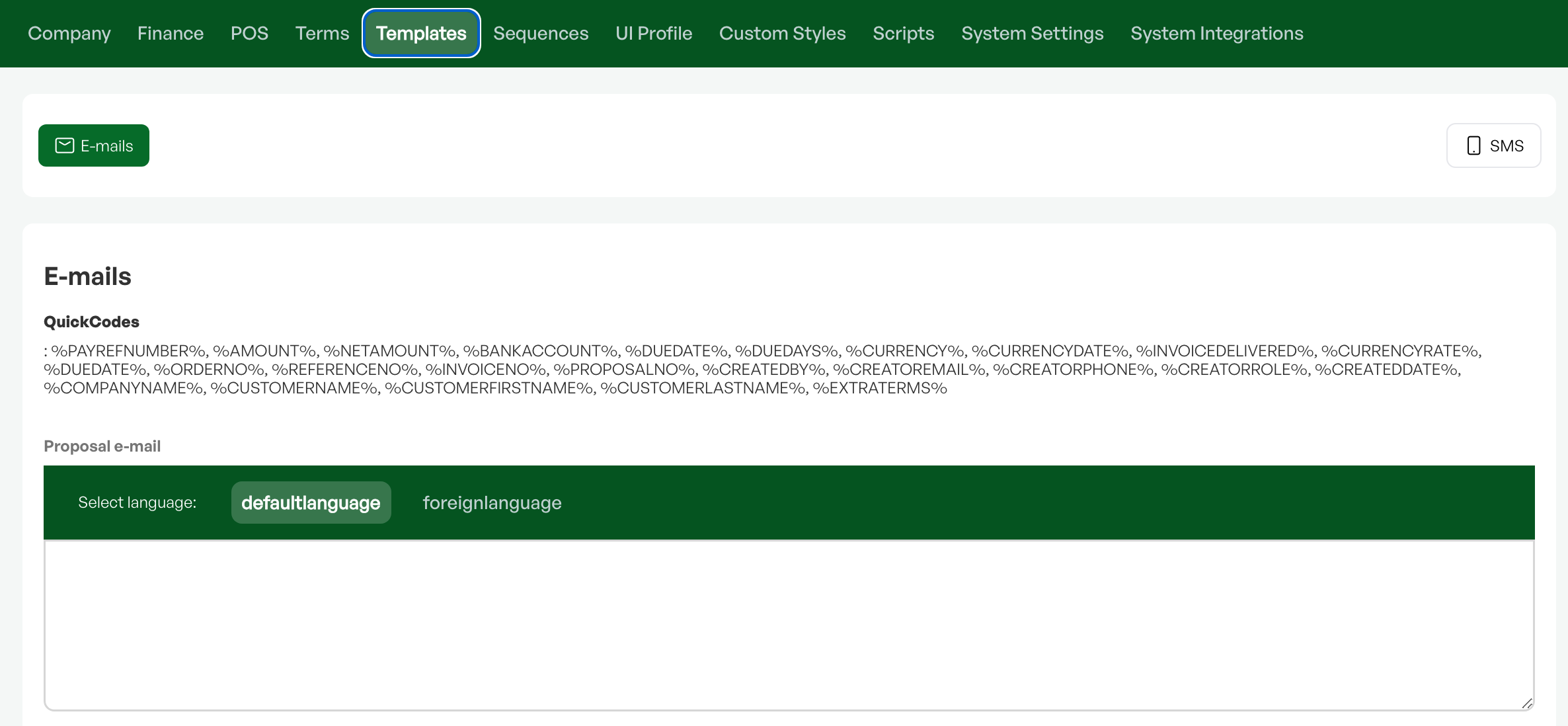
When you select Emails, you will see predefined templates relevant to emails from Telaris. Find the template called "Invoice e-mail" and make the desired text changes.
Text that starts and ends with %, for example %BALANCE%, are merge fields that pull invoice information so that each email sent out has the unique information that follows each invoice.
In 'Templates' you have several options. This guide is for the invoice email, and the field that can be edited is 'Invoice e-mail' shown in the image below.

Merge fields
At the top of the templates screen there is a list of available merge fields that can be pasted into all templates to include information in the email text sent to customers.


Was this article helpful?
That’s Great!
Thank you for your feedback
Sorry! We couldn't be helpful
Thank you for your feedback
Feedback sent
We appreciate your effort and will try to fix the article