Edit outgoing email text with quote
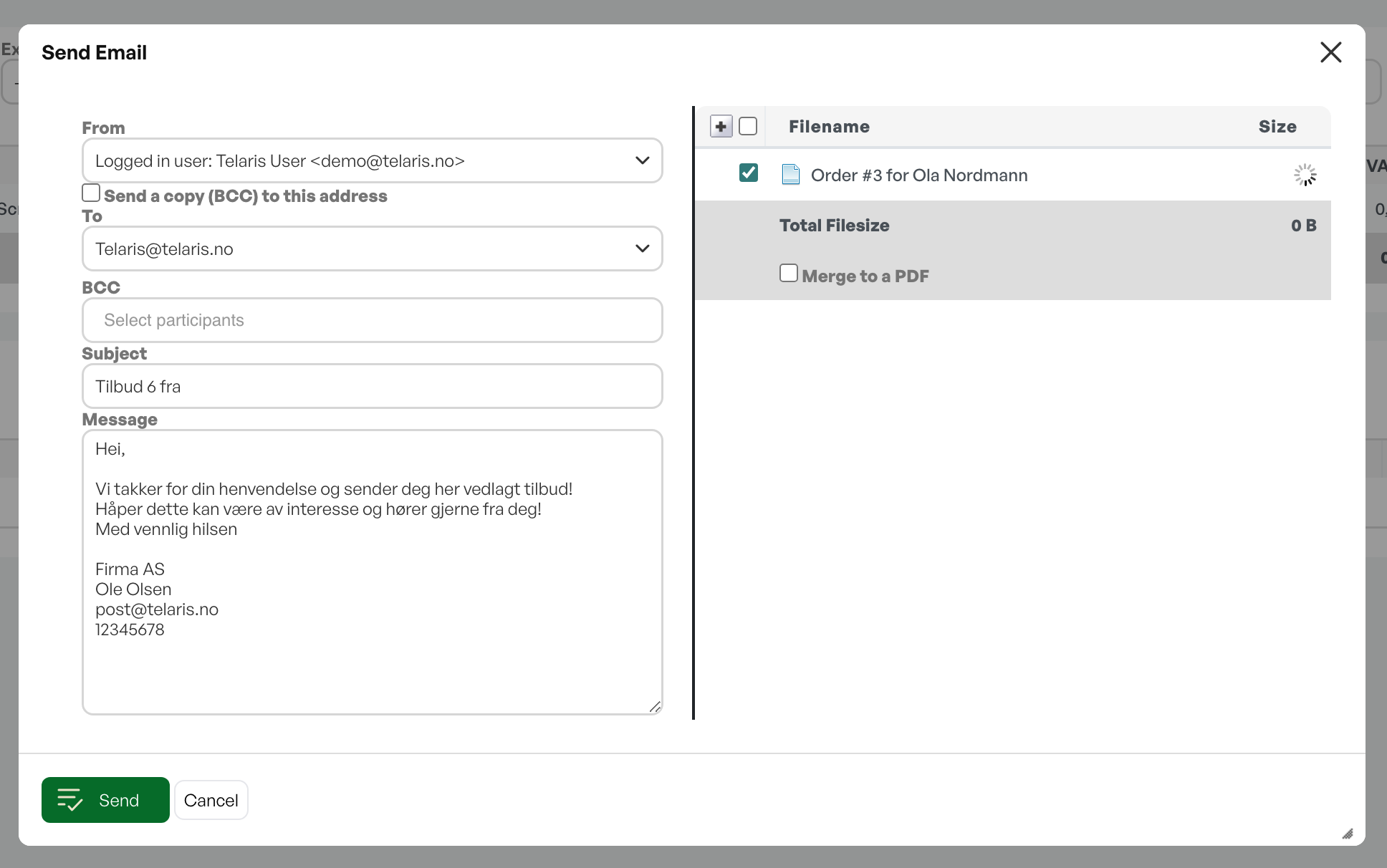
When sending a quote and wanting to send it by email, the message text that appears in the dialog box is controlled by what is set up under settings.
Guide
Email dialog:
If you want to create a fixed template, go to Settings in the side menu and click on System settings → Templates.
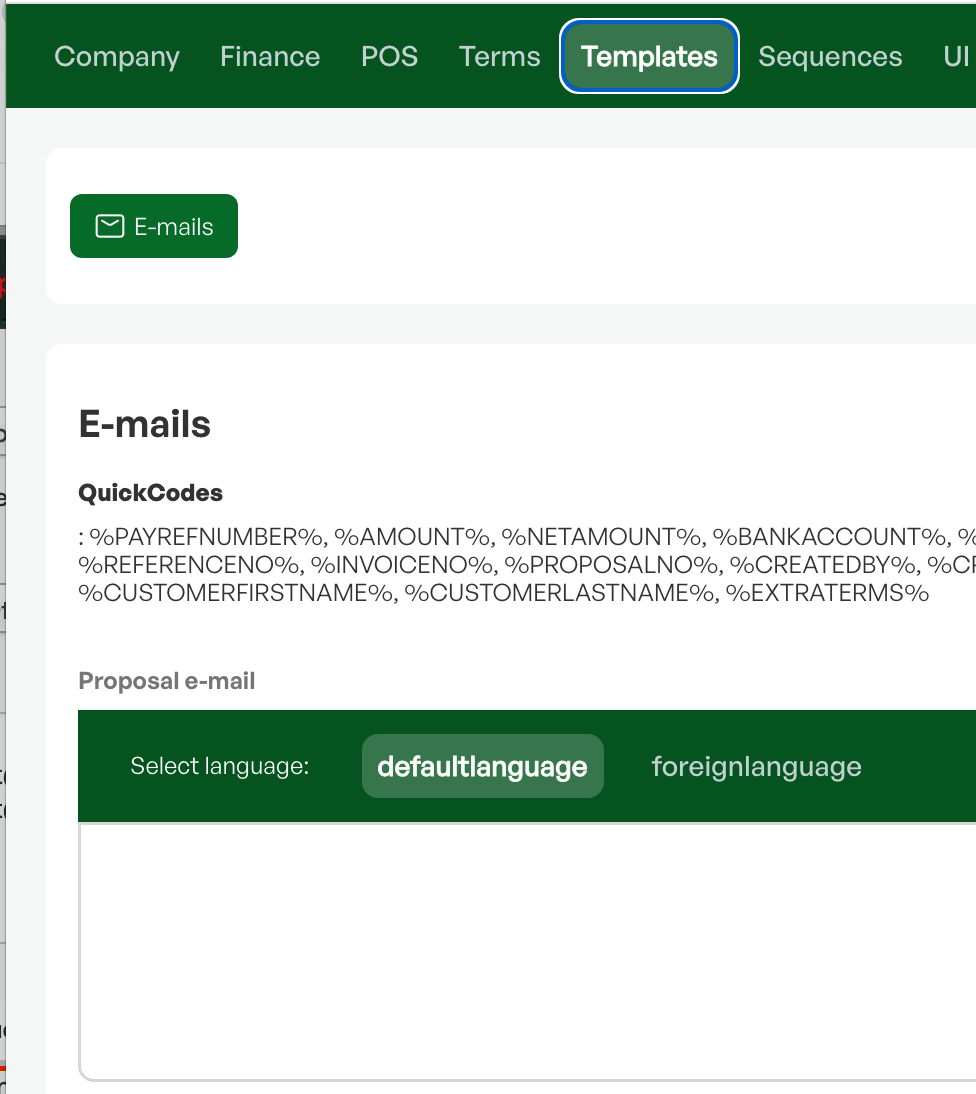
Then click on the tab called Templates.
When you select Emails, you will see predefined templates that are relevant for emails sent from Telaris. Find the template called "Proposal e-mail" and make the desired text changes. Words that start and end with % are merge fields, and pull relevant information from the quote that goes out with the email.
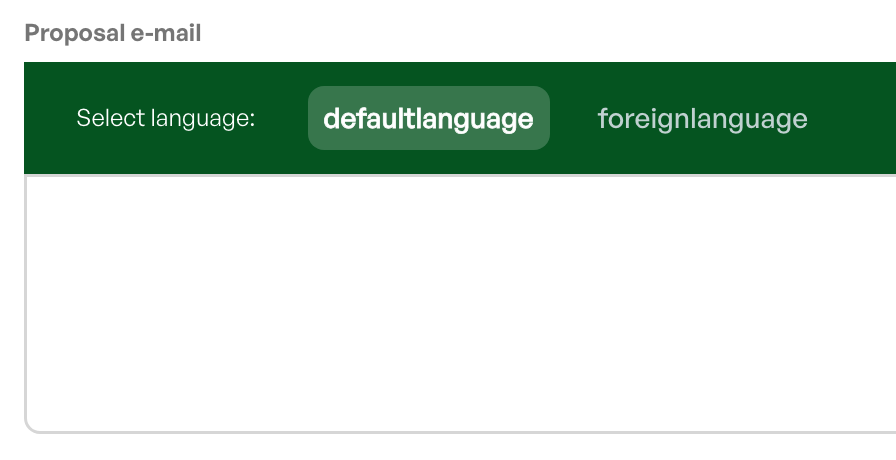
Merge fields
At the top of the templates screen there is a list of available merge fields that can be pasted into all templates to include information in the email text sent to customers.
Example:
Hi,
Thank you for your enquiry — please find attached your quote with quote number %PROPOSALNO%
We hope this is of interest and look forward to hearing from you!
Kind regards,
%COMPANYNAME%
%CREATEDBY%
%CREATOREMAIL%
%CREATORPHONE%


Was this article helpful?
That’s Great!
Thank you for your feedback
Sorry! We couldn't be helpful
Thank you for your feedback
Feedback sent
We appreciate your effort and will try to fix the article