TABLE OF CONTENTS
How to create a proposal
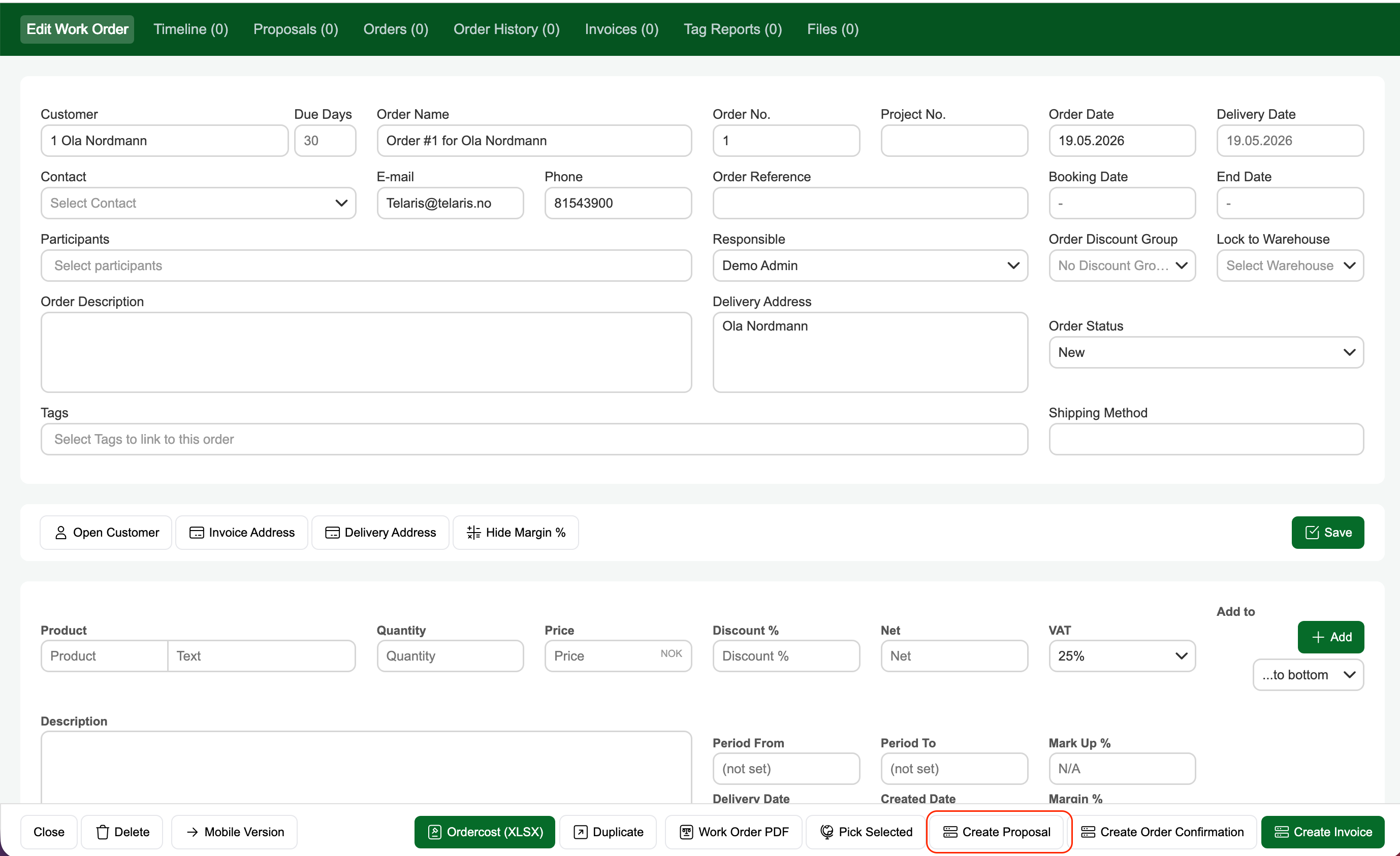
A quote is created via the order view. Start by creating an order and adding the desired products. Once the order is ready, click the 'Create proposal' button at the bottom of the page.
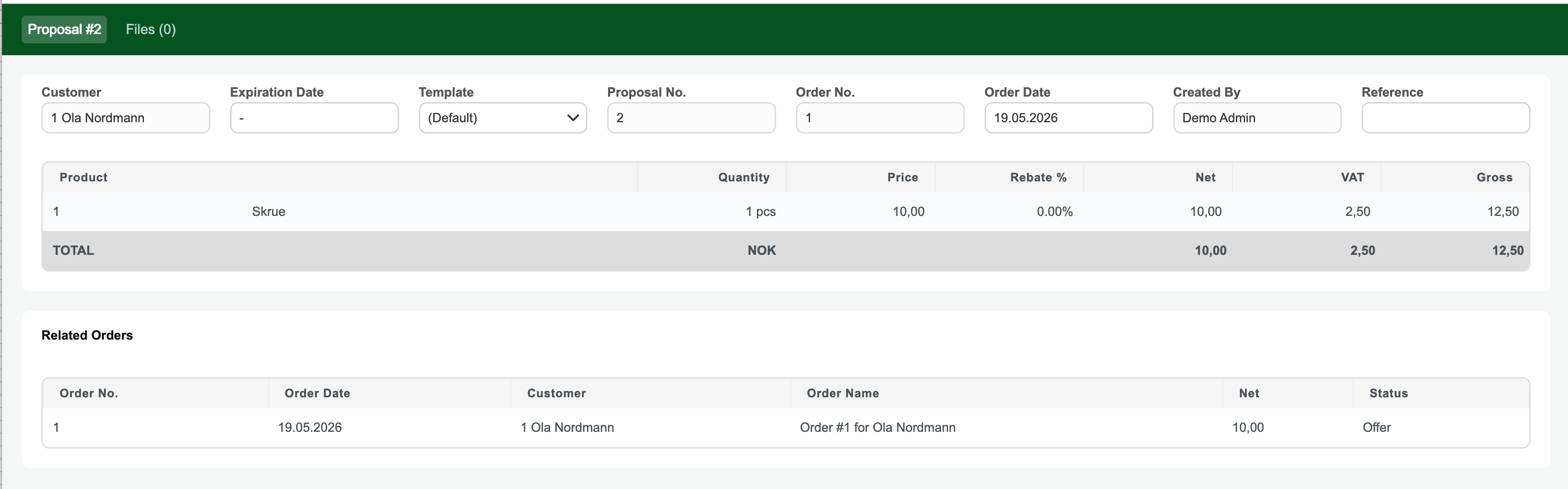
Overview of the proposal before sending
After the proposal is created, a quote number is automatically generated and you are taken to a preview of the proposal.
Here you can preview the PDF version of the proposal as well as send the proposal by email to the customer.
If you have entered an incorrect price, are missing a product or something else, you can go back to the order, make corrections and then create a new proposal in the same way as you created the first one. The new proposal will receive a new proposal number.
Sending the proposal by email
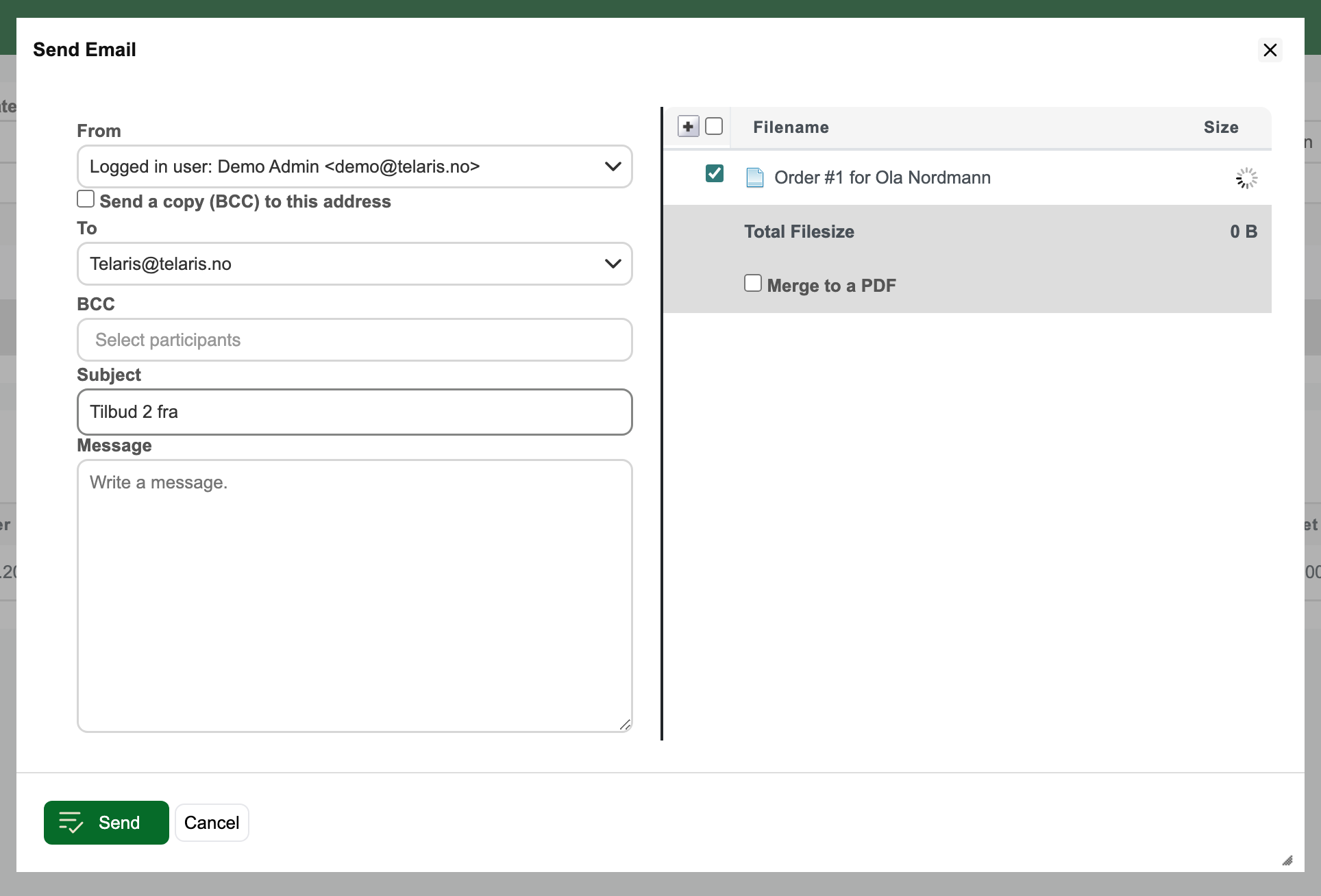
When you click the 'Send by email' button, a pop-up window opens.
Here you can choose to send the proposal to the email address from the customer card (default, filled in automatically), or enter a custom email address by using the dropdown menu and selecting 'Custom'.
The text in the 'Subject' and 'Message' fields is retrieved from a default text in the settings. Both fields can be overwritten/changed if you wish to add or change the text for this particular proposal.
When the quote is ready, click 'Send' and the proposal is sent to the customer.

Was this article helpful?
That’s Great!
Thank you for your feedback
Sorry! We couldn't be helpful
Thank you for your feedback
Feedback sent
We appreciate your effort and will try to fix the article