How does invoice approval work in Telaris?
This article explains how approval of supplier invoices works in Telaris when Tripletex Leverandørfakturagodkjenning is enabled.
TABLE OF CONTENTS
- How does invoice approval work in Telaris?
- What is invoice approval?
- Open an approval task
- View the invoice and PDF
- Approve an invoice
- Reject an invoice
- Forward to another approver
- Comments and timeline
- Frequently asked questions
What is invoice approval?
Invoice approval means checking and confirming that a supplier invoice is correct before it goes on to payment in Tripletex.
As an approver, you typically check:
that the goods or service have been received
that the amount is correct
that the invoice relates to the correct project or purchase
that the invoice should be approved for payment
The supplier invoice is first registered in Tripletex and then automatically imported to Telaris as an approval task.
Tip: Invoice approval in Telaris does not replace Tripletex's approval flow. Telaris is the user interface where you process the task.
Open an approval task
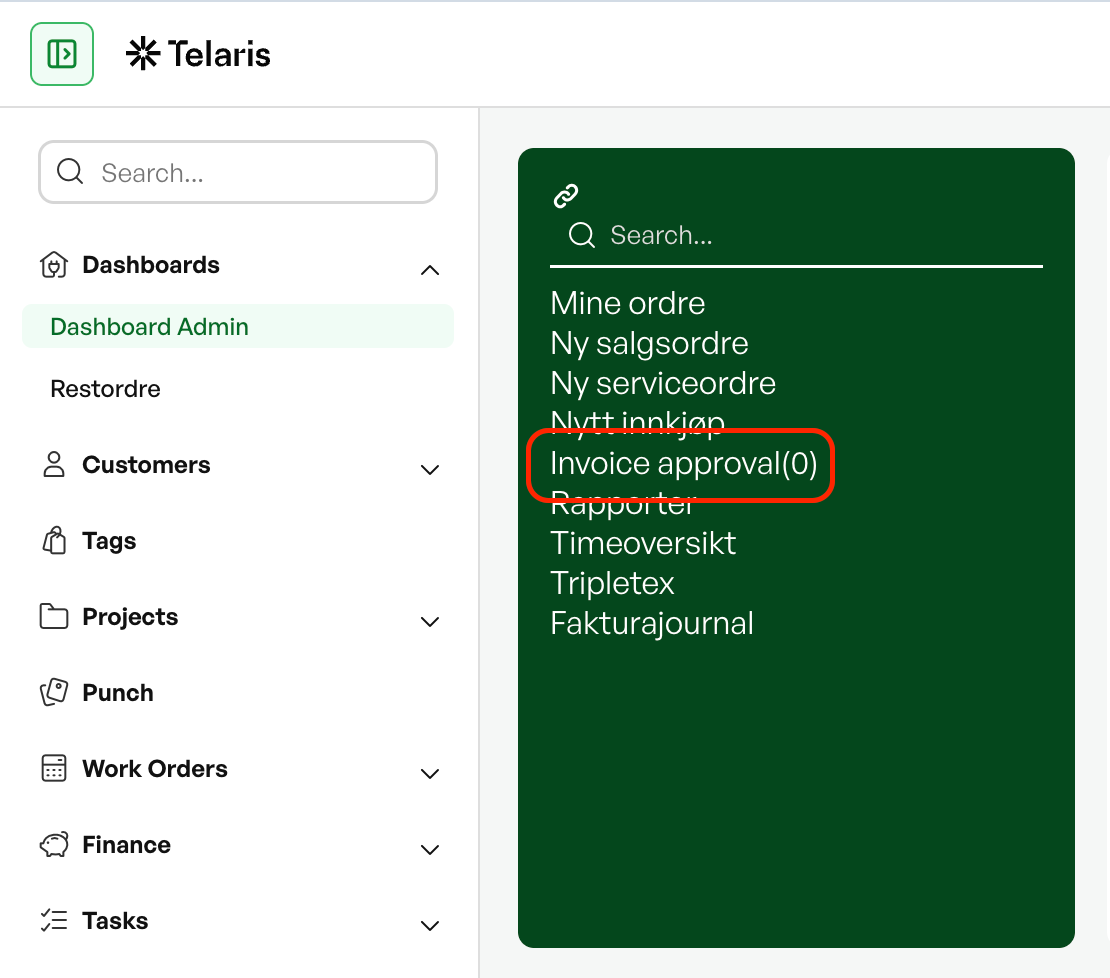
When you have a supplier invoice waiting for approval, it appears as a task in Telaris.
You can open the task from:
The task list
The approval page
Notifications or dashboard
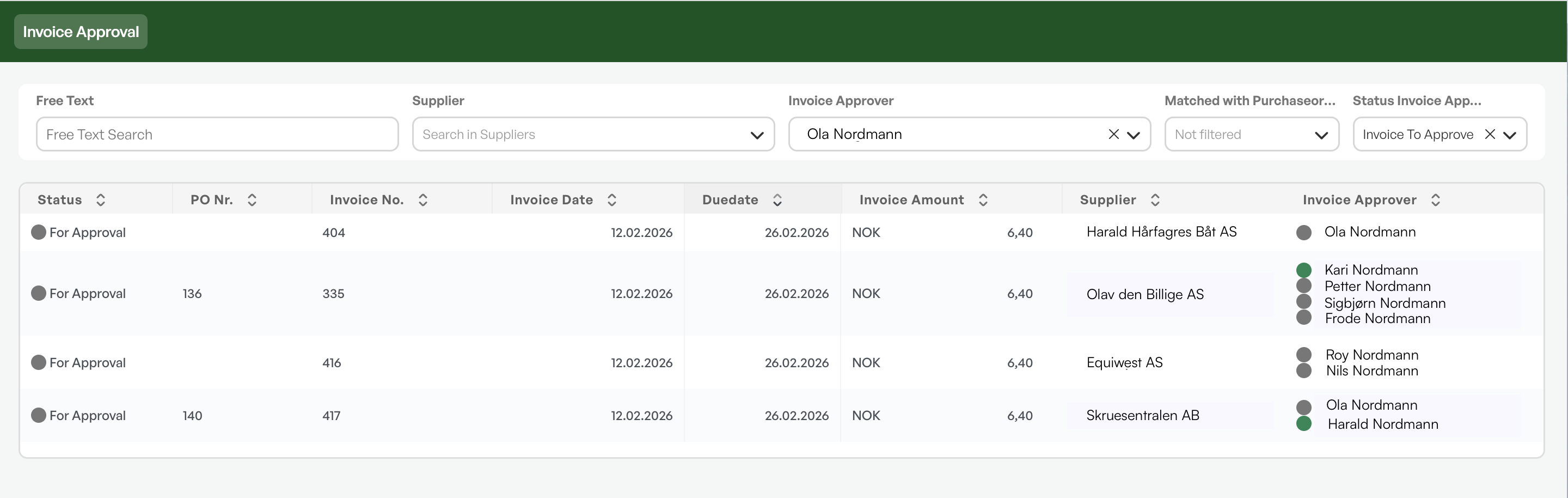
When you open the task, the following is shown:
Supplier
Invoice number
Amount
Due date
Approval status
PDF view of the invoice
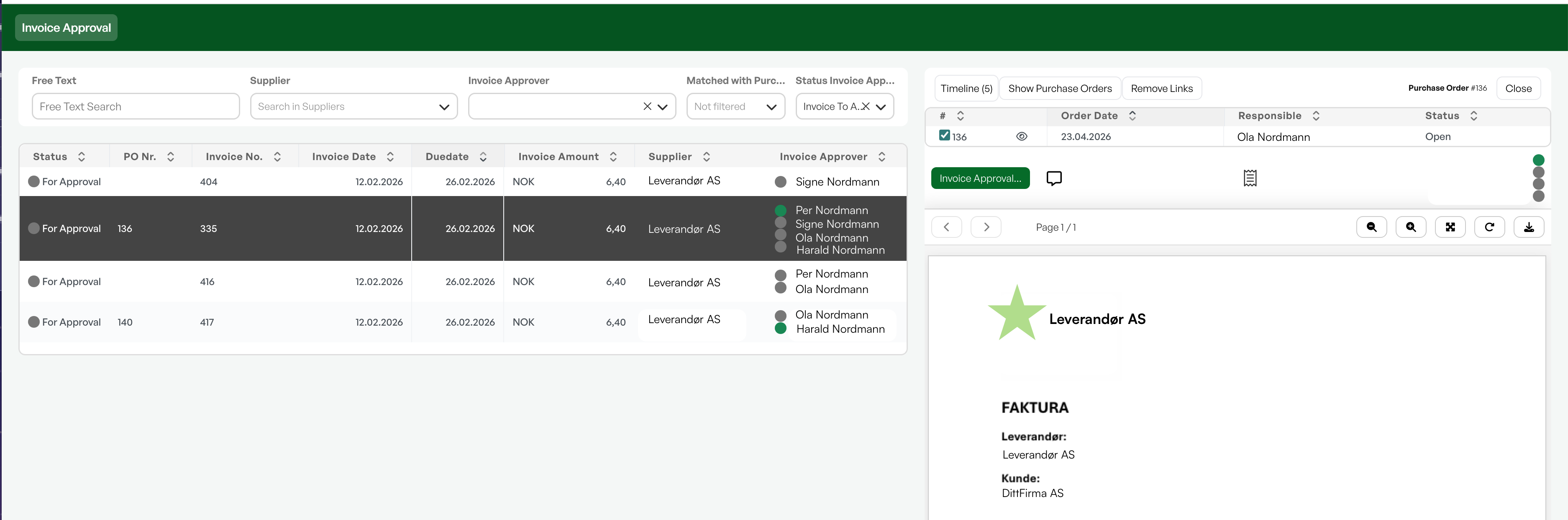
View the invoice and PDF
The invoice PDF is shown directly in the side panel in Telaris.
You can:
Zoom in and out
Rotate the document
Fit to screen
Download the PDF
The PDF is fetched from Tripletex the first time you open the invoice and is then stored locally for faster viewing later.
If the invoice is linked to a purchase order, you can also check which order lines the invoice relates to.
NOTE: The first opening of the PDF may take a few seconds while the document is downloaded from Tripletex.
Approve an invoice
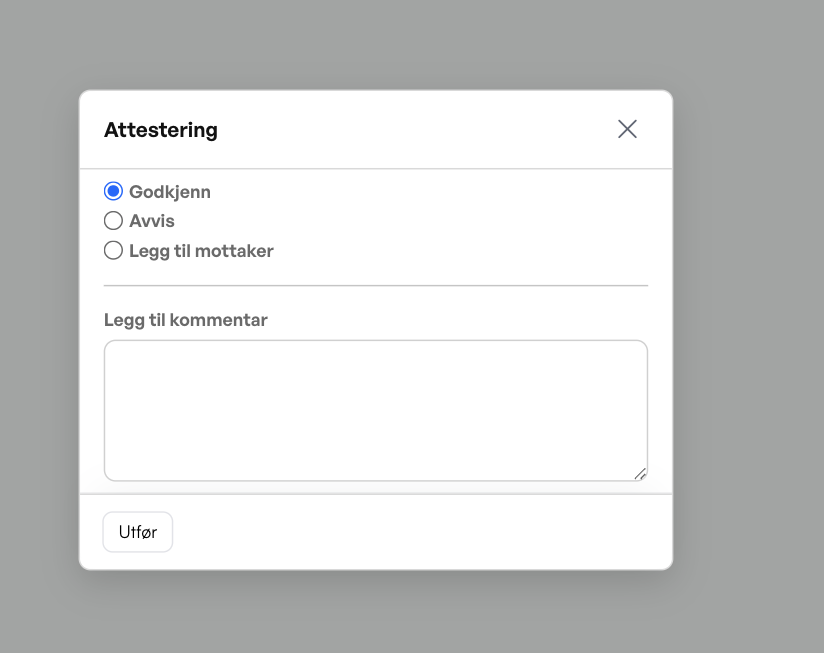
To approve a supplier invoice:
Open the approval task.
Check the invoice and any purchase orders.
ClickApprove...orApprove w/o purchase....
ChooseApprove.
Optionally add a comment.
ClickGo.
When all approvers have approved the invoice, the result is sent back to Tripletex.
The invoice can then go on to payment in the accounting system.
Reject an invoice
If the invoice is wrong or should not be approved, you can reject it.
To reject an invoice:
Open the approval dialog.
ChooseReject.
Write a comment explaining why the invoice is rejected.
ClickGo.
A comment is required when rejecting.
The rejection is sent directly back to Tripletex.
Important: A comment must be filled in when a supplier invoice is rejected.
Forward to another approver
If another person should approve the invoice, you can forward it.
To forward:
Open the approval dialog.
ChooseAdd recipient.
Choose the person who should receive the task.
Optionally chooseRemove me from the approval list.
ClickGo.
The new approver now gets their own approval task in Telaris.
The recipient is also added to the approval flow in Tripletex.
Comments and timeline
All actions are logged in the timeline on the supplier invoice.
The timeline shows, among other things:
Approvals
Rejections
Forwardings
Comments
Status changes from Tripletex
Link to purchase order
This makes it easy to see who has processed the invoice and what has been done.
Frequently asked questions
What is the difference between «Approve» and «Approve w/o purchase»?
«Approve w/o purchase...» is shown when the invoice is not linked to any purchase order. «Approve...» is shown when at least one purchase order is linked.
Can I approve from mobile?
Yes. The approval interface works in the browser on mobile and tablet.
Can I download the invoice?
Yes. The PDF view has a download function.
What happens when I approve?
The approval is stored in Telaris and sent on to Tripletex when all approvers have processed the invoice.
What happens if I reject?
The rejection is sent directly back to Tripletex together with your comment.

Was this article helpful?
That’s Great!
Thank you for your feedback
Sorry! We couldn't be helpful
Thank you for your feedback
Feedback sent
We appreciate your effort and will try to fix the article