Category sync to WooCommerce
How to synchronise product categories from Telaris to WooCommerce.
TABLE OF CONTENTS
- Category sync to WooCommerce
- Introduction to category sync
- Walkthrough of category sync from A to Z
- Common problems with category sync
Introduction to category sync
Category sync makes product categories in Telaris export to WooCommerce.
This ensures that the structure in the web shop mirrors the category structure in Telaris, and makes it easier to organise products correctly.
Category sync must be activated separately from product sync.
Tips: Set up categories in Telaris first, and use them as the basis for the structure in the web shop.
Walkthrough of category sync
Category sync is configured in the WooCommerce integration in Telaris.
Guide: How to set up the WooCommerce integration in Telaris
Activate category sync
Go to Administration → Integrations.
Open the WooCommerce integration and activate:
- Module: Category Sync
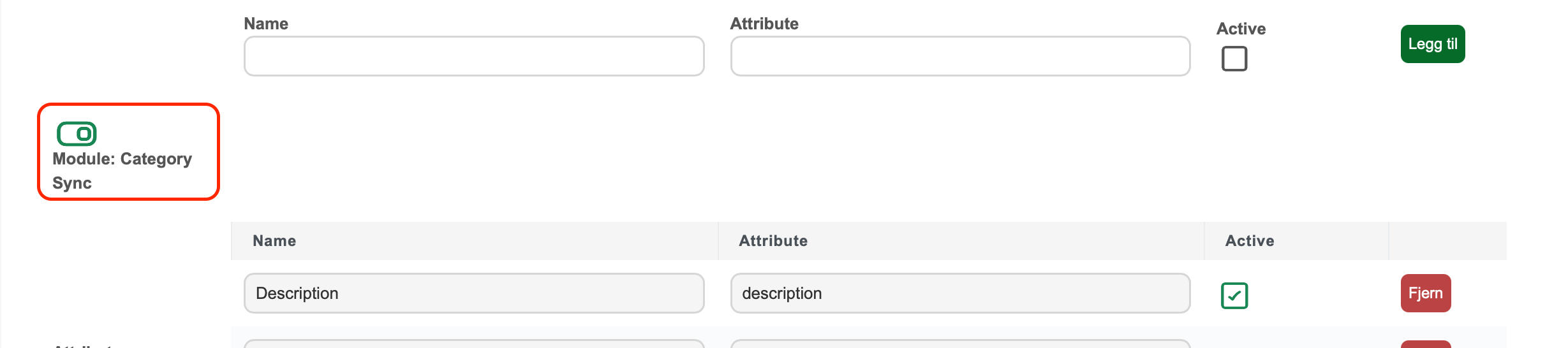
NOTE: If this is not activated, categories will not be exported to WooCommerce. You must also have registered a top category
Go to Administration → Integrations.
Open the WooCommerce integration and set:
- Top category

What is synchronised for categories
The following information can be synchronised:
- Category name
- Description
- Image
- URL (slug)
- Sort order
Which fields are synchronised is controlled in the attribute table for categories.
How hierarchy works
The category hierarchy from Telaris is transferred automatically to WooCommerce.
This means that:
- Subcategories are linked to the correct main category
- The structure is preserved in the web shop
Only categories under the selected top category are exported.
NOTE: If a category is moved outside the top category, it will no longer be synchronised.
When categories are updated
Categories are exported automatically when:
- A category is created
- A category is updated
You can also run a manual export of all categories.
Tips: Run the category export before products on the first sync.
Common problems with category sync
If categories do not appear in WooCommerce, check:
- Category sync not activated
- Top category not set
- Category is outside the top category
NOTE: The error "Du prøver å overføre en kategori som ikke er lov" means the category is outside the top category.

Was this article helpful?
That’s Great!
Thank you for your feedback
Sorry! We couldn't be helpful
Thank you for your feedback
Feedback sent
We appreciate your effort and will try to fix the article