Attribute management - which fields are synchronised
Decide which product fields are synchronised between Telaris and WooCommerce.
TABLE OF CONTENTS
- Attribute management - which fields are synchronised
- Introduction to attribute management
- Walkthrough of attribute management from A to Z
- Common problems with attribute management
Introduction to attribute management
Attribute management determines which product fields are synchronised from Telaris to WooCommerce.
Using the attribute table, you can activate or deactivate individual fields, so that you have full control over which data is overwritten in the web shop.
This is especially useful if you want to maintain certain fields directly in WooCommerce.
Tips: Use attribute management to prevent Telaris from overwriting content you want to control manually in WooCommerce.
Walkthrough of attribute management
Attribute management is found in the WooCommerce integration under product sync.
Guide: Product sync to WooCommerce
What is the attribute table
The attribute table is a list of fields that can be synchronised to WooCommerce.
Each field can be activated or deactivated individually.
If a field is active, Telaris updates this field in WooCommerce at every synchronisation.
If a field is deactivated, it will not be sent from Telaris.
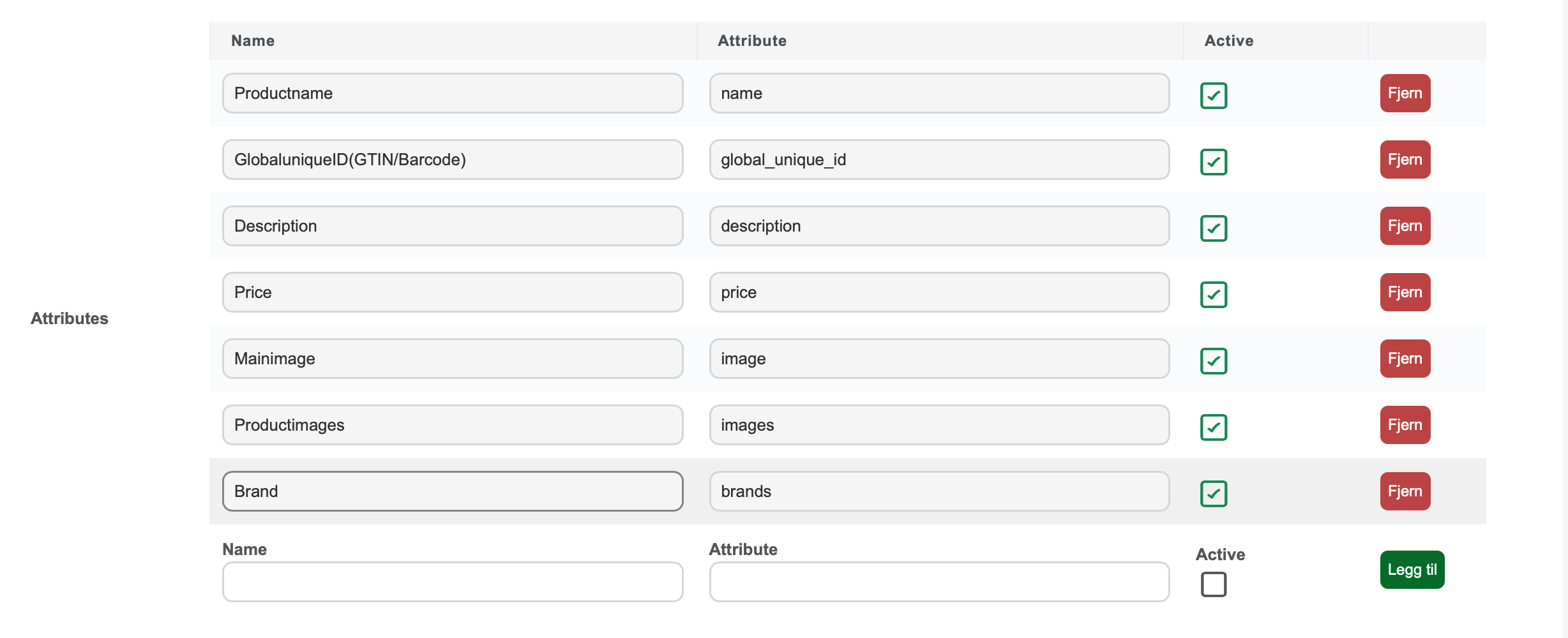
Default fields
The integration comes with several predefined fields:
- Name (name)
- Barcode (global_unique_id)
- Description (description)
- Price (price)
- Main image (image)
- Product images (images)
- Brand (brands)
- Length, height, width (length, width, height)
These are active by default.
Adding your own fields
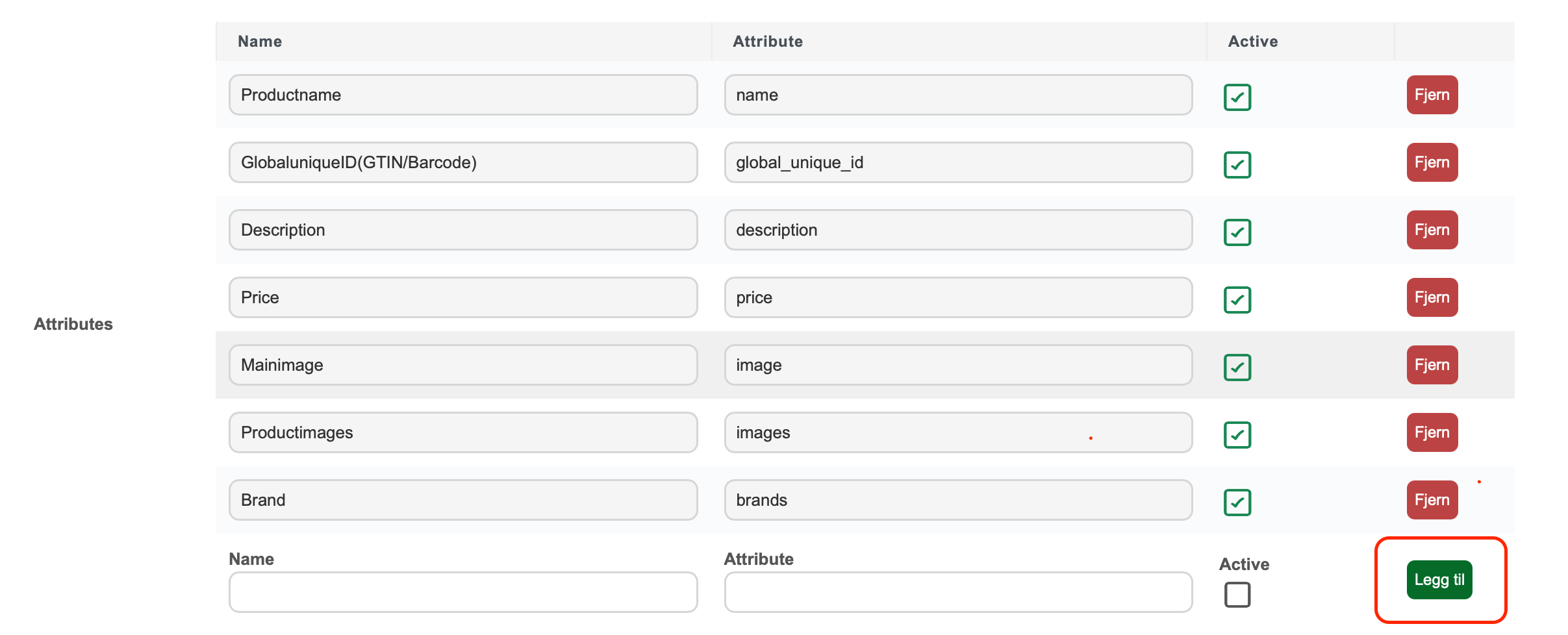
You can add more fields manually in the attribute table.
Click Add and fill in:
- Name (optional)
- Attribute (WooCommerce field name)
- Active / deactivated
Examples of fields you can add:
- slug (URL)
- status
- stock_quantity
- weight
- categories
NOTE: The field name must be a valid WooCommerce field for it to work.
Deactivating fields
To stop a field from being synchronised:
- Add the field to the table (if it does not exist)
- Uncheck the active box
Example:
If you want to control the URL (slug) in WooCommerce yourself, you add slug and deactivate it.
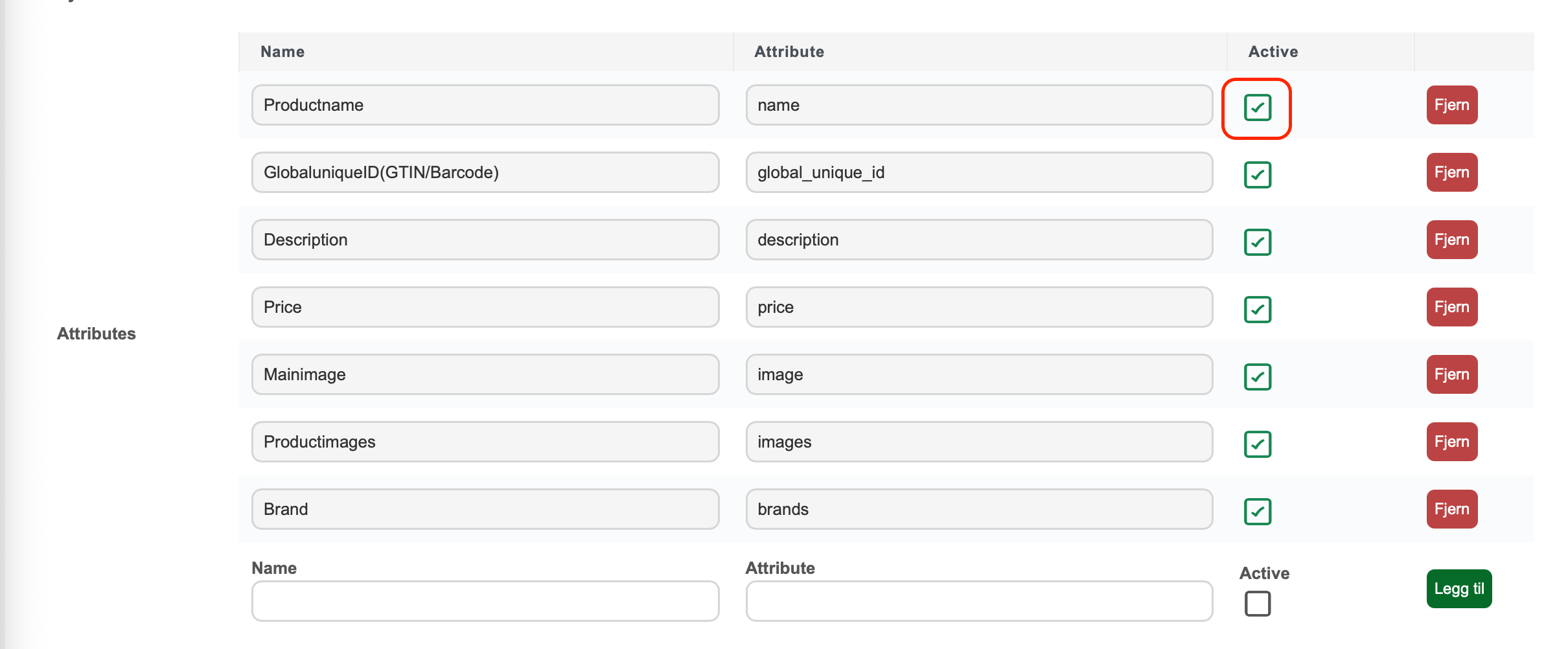
Tips: Deactivate price if you want to control prices directly in WooCommerce.
Common problems with attribute management
If a field does not behave as expected, check:
- Wrong field name (attribute)
- Field is still active
- Field is missing from the table
NOTE: If price is deactivated, sale price is also stopped automatically.

Was this article helpful?
That’s Great!
Thank you for your feedback
Sorry! We couldn't be helpful
Thank you for your feedback
Feedback sent
We appreciate your effort and will try to fix the article