Email dialog
Guide for the universal email dialog
TABLE OF CONTENTS
Purpose
Clear communication with the customer, with control over files at every stage of the order process
Functionality
The email dialog has several features that make it easy to send emails and documents to customers.
The dialog is divided into two parts: Email details and file handling
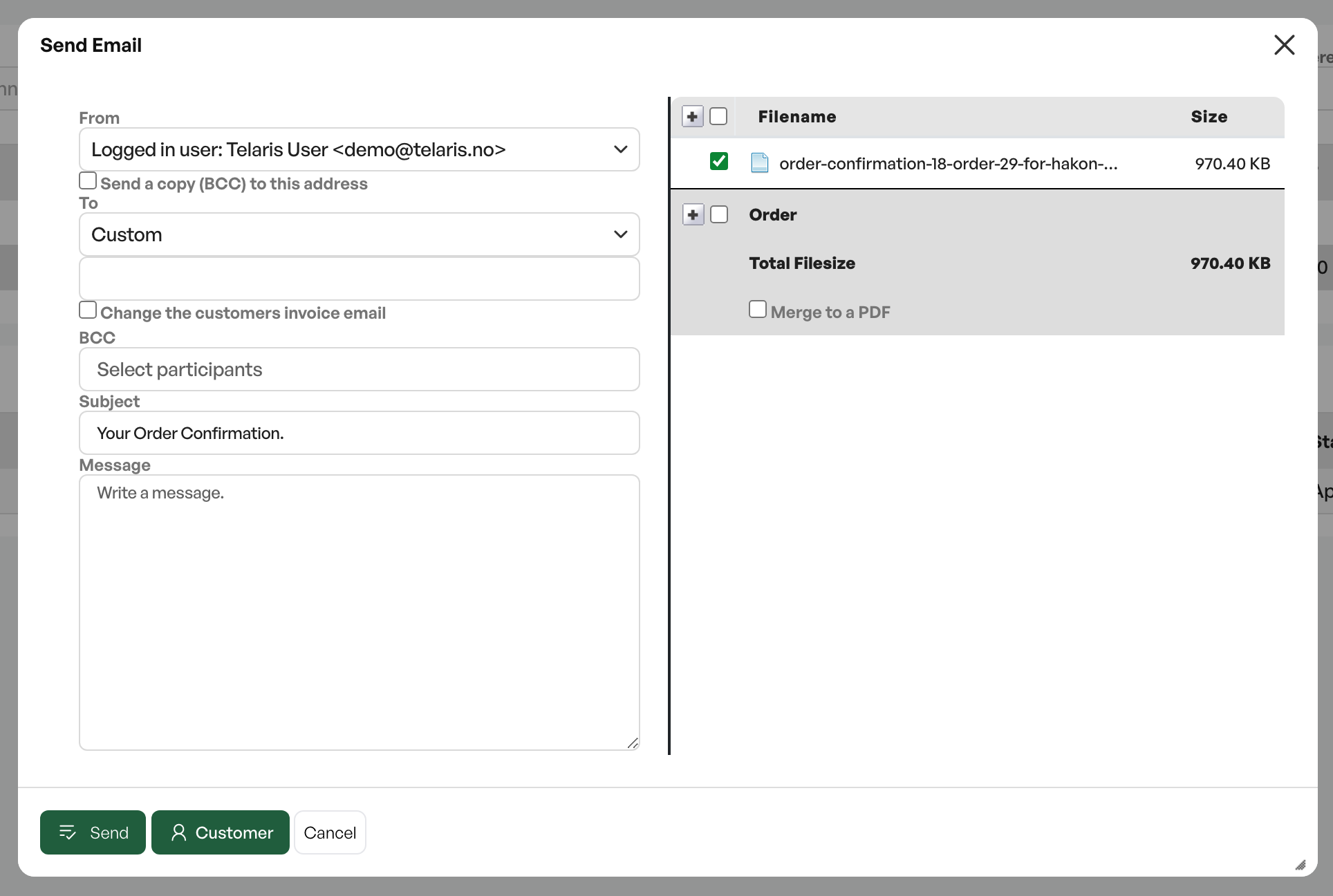
Email details
Type
Shown only on invoices. Option for invoice or reminder fee
Sender
Option for whether the sender is the logged-in user or the company. This is shown again if the customer replies to the email.
Copy
Checkbox to send a BCC to the sender's email address
To
Recipient of the email. The first option is the customer; the dropdown shows the customer's contacts, plus an option to enter a custom recipient
BCC
Option to select contacts who should receive a BCC
Subject
The email's subject to the recipient. Auto-generated based on settings
Message
The message to the recipient of the email
File handling
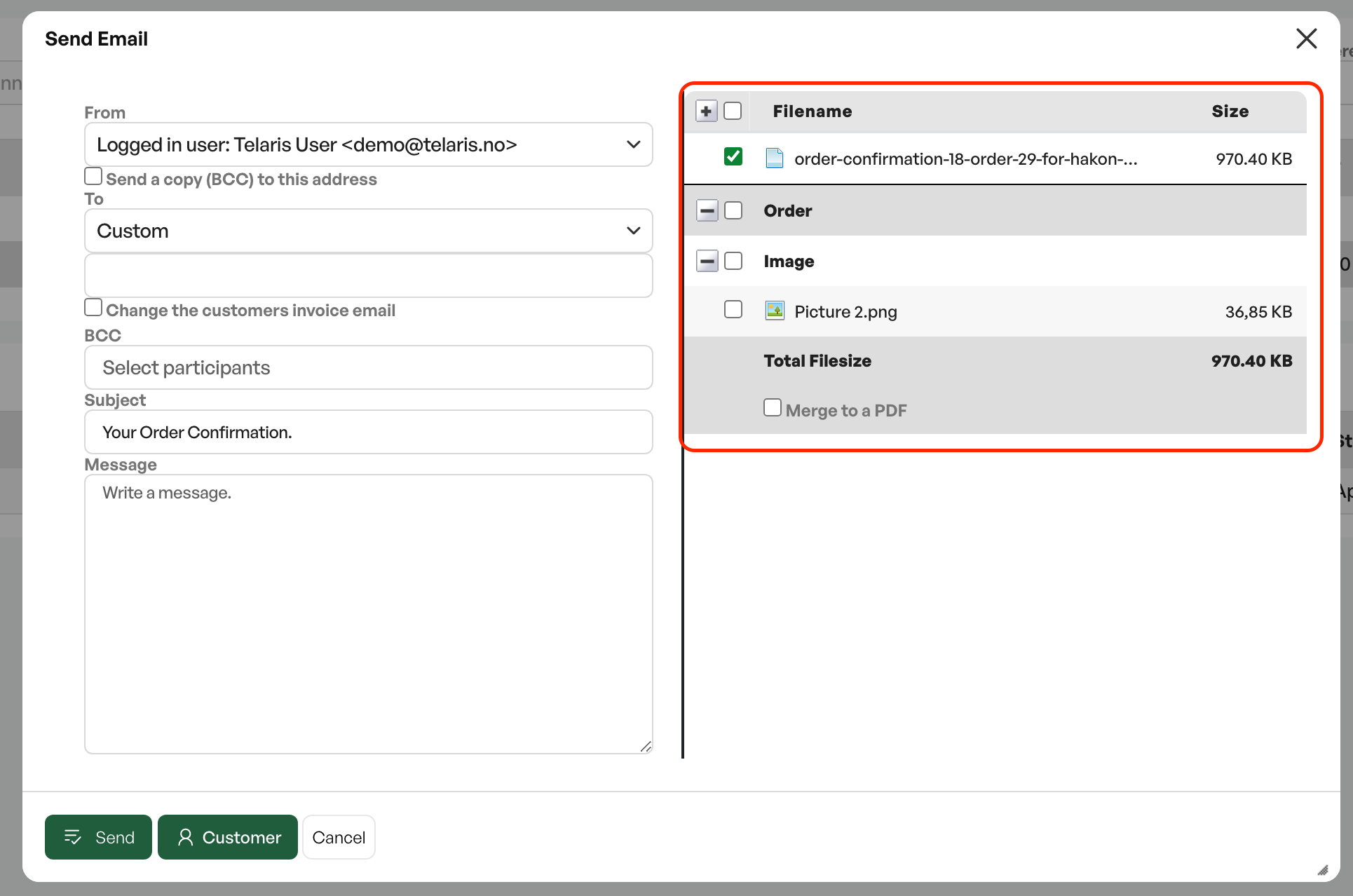
The email dialog always shows the top file from the area you are trying to send email from.
In the example below, an order confirmation is to be sent, which is why the order confirmation is at the top.
Two files have been uploaded to the order, one with file type Document and one with file type Image.
These are shown as available under 'Order'
You can then expand the dropdown to select the files you want to include in the email
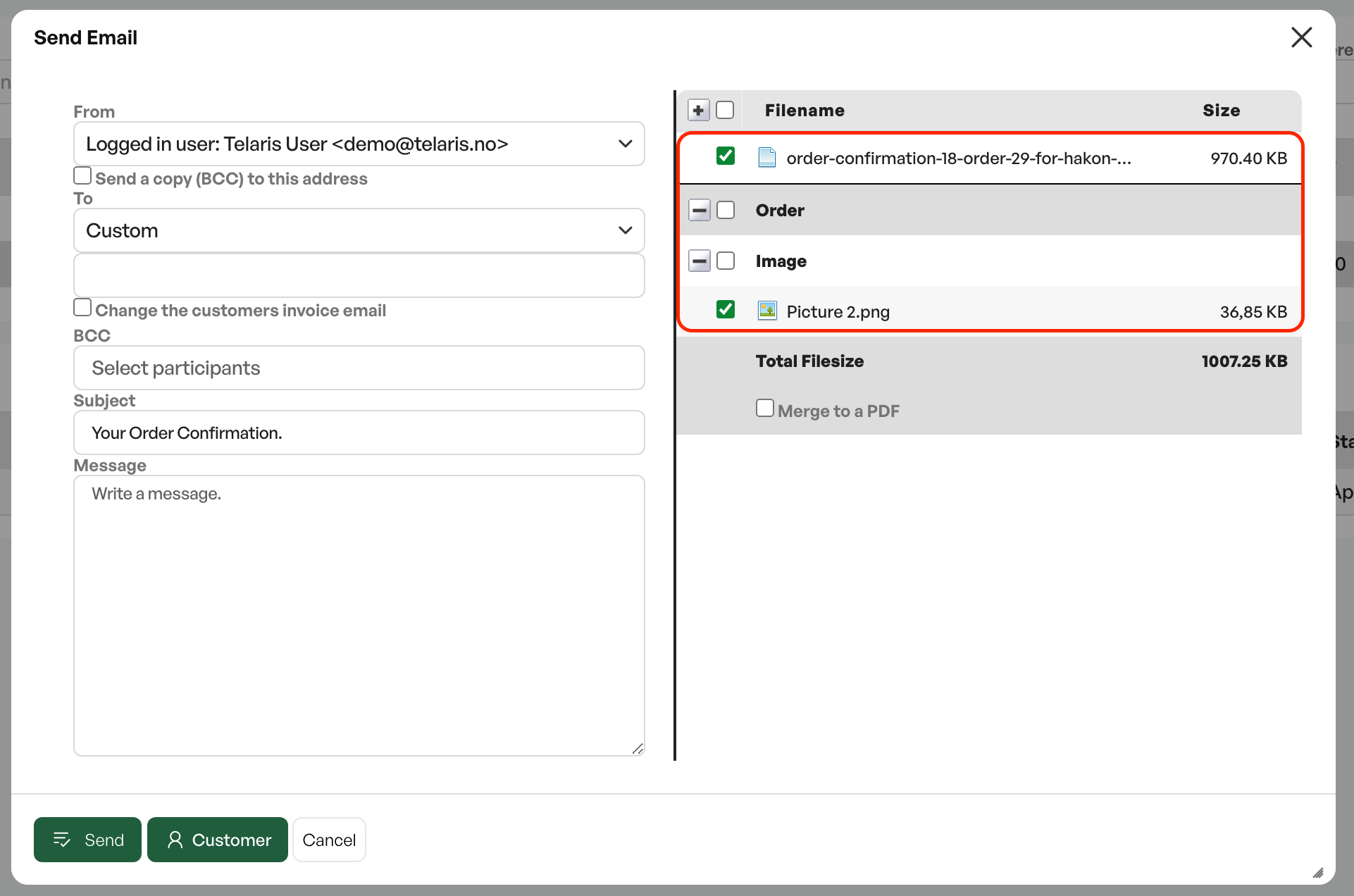
If you for example want to include the order confirmation PDF and send the Excel list together as two attachments on the order, select both and click send
Merge files
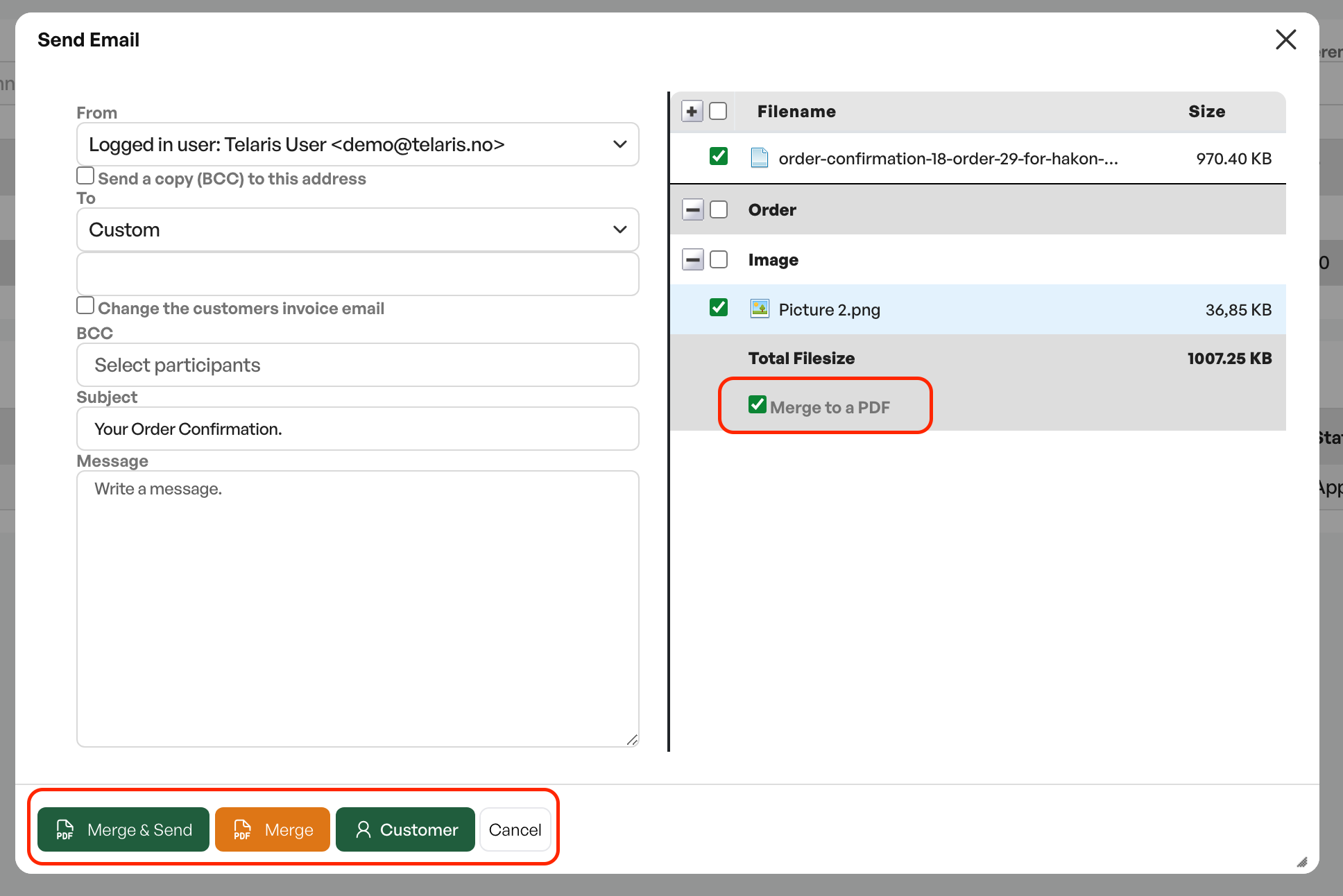
The email dialog can merge files into a single file, so that you only send one attachment to the recipient.
To do this, select the desired files and tick the box called 'Merge into one PDF'
You then get the options 'Merge and send' and 'Merge'.
'Merge and send' immediately merges the selected files and sends them to the recipient
'Merge' merges the files, but does not send the email until you click 'Send'
Tip: Excel files or other file types that cannot be converted to PDF will show a warning triangle to indicate that they are not merged with the other files
Document types and settings
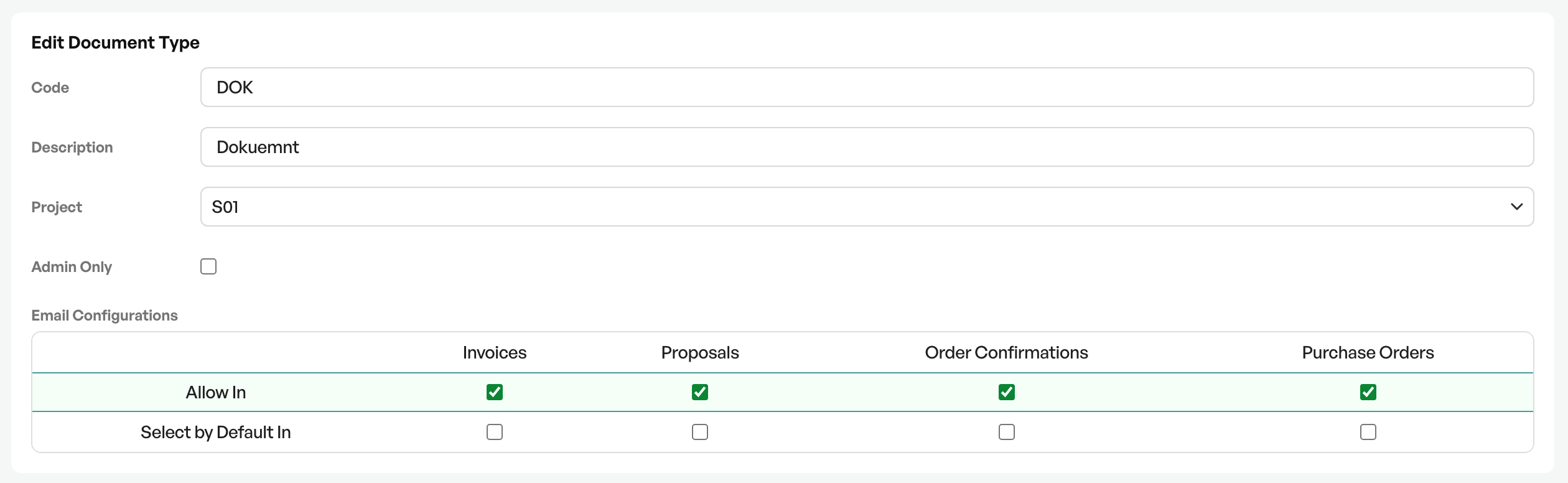
For all document types created in Telaris, you can configure whether the document type is allowed to be sent from selected places in Telaris. You can also choose that the document type is always selected automatically.
Document types are configured under Settings - Document types
It is also possible to mark a document type as 'Admin Only'.
This means the documents cannot be sent by email from the email dialog
File sizes
For files that are too large in an email, Telaris first warns about the file size, and if the file(s) become even larger, prevents sending.
The first file-size warning occurs at <12.5 MB.
Sending is prevented at <30 MB

Was this article helpful?
That’s Great!
Thank you for your feedback
Sorry! We couldn't be helpful
Thank you for your feedback
Feedback sent
We appreciate your effort and will try to fix the article