Setting up the Duell integration
This guide describes the entire setup of the Duell integration in Telaris, from prerequisites and connection to account setup for daily settlement. The steps marked optional apply only to customers who need them.
TABLE OF CONTENTS
- Prerequisites
- Step 1: Configure the connection
- Step 2: Set up department linking (optional)
- Step 3: Link employees (optional)
- Step 4: Export products
- Step 5: Export customers (optional)
- Step 6: Account setup for daily settlement
- Manual synchronisations
- System settings
Prerequisites
The following must be in place before setup starts:
- The licence in Telaris must be activated
- Have an account with Duell (Kasse)
- Client number and client token are available from Duell
- A cash customer is created in Telaris and set as the default customer under Administration > Finance > System preferences
- Product classes are created in Telaris (determine the categories in the cash register)
- Chart of accounts is configured for payment types (for daily settlement import)
NOTE: The cash customer is used for all cash register sales where the Duell customer does not exist in Telaris. Without a cash customer set as default, import of cash register sales will fail.
Step 1: Configure the connection
- Go to Administration > Cash register in Telaris
- Fill in the fields:
- Client Name – display name
- Client Number – the client number from Duell
- Client Token – the API token from Duell
- Stock Department – default department for stock in Duell
- Order Department – default department for orders in Duell
- Save. The system validates the connection and starts category export automatically
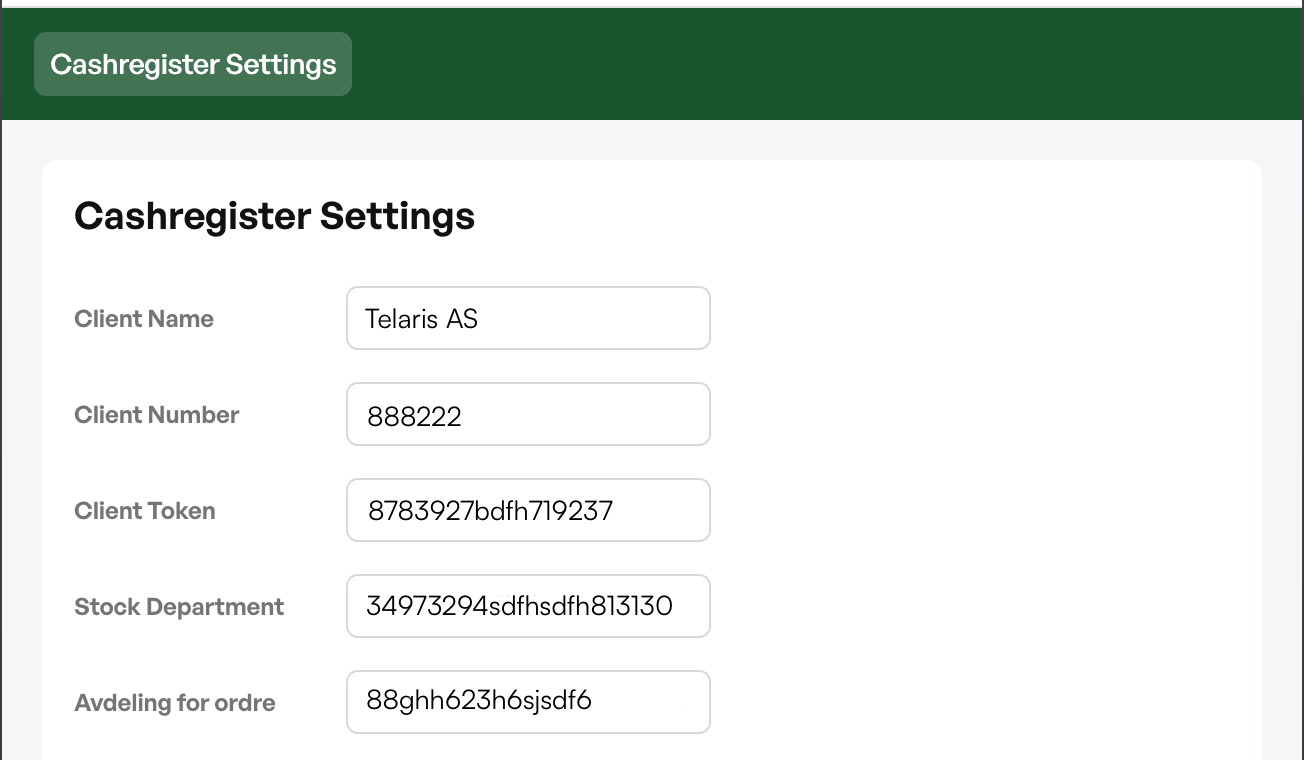
NOTE: The department fields are only required for multiple departments in Duell. If the customer has only one department, or wants everything to go to one cash register, it is enough to set the default department.
Step 2: Set up department linking (optional)
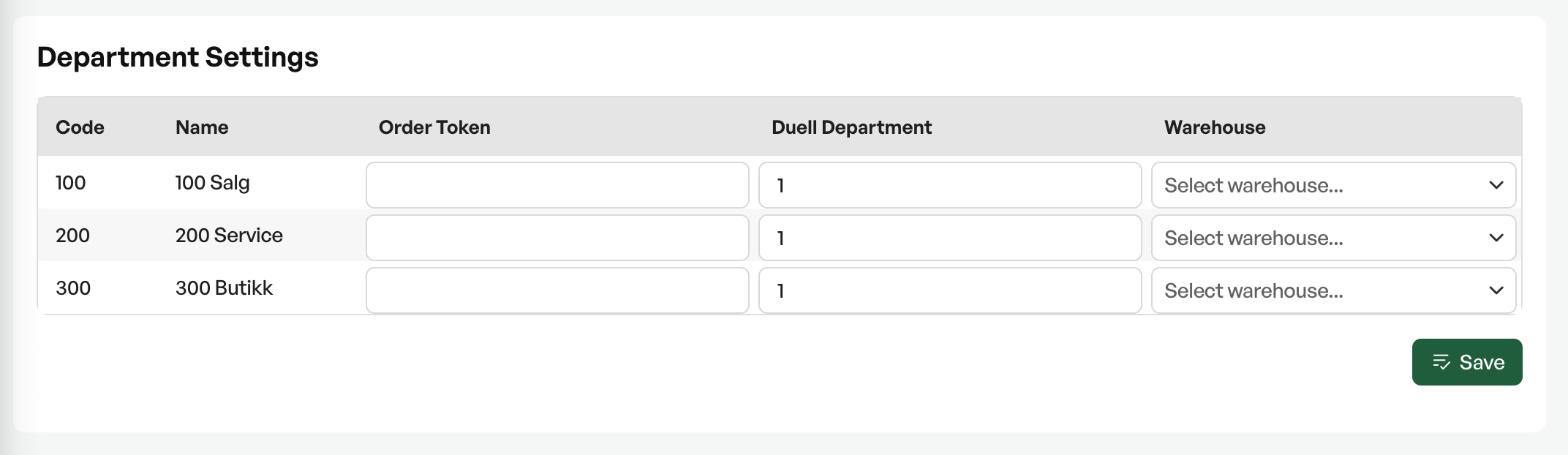
Only necessary if you have several Duell departments and want to separate them in Telaris. The department settings require the department module to be active. Without it, only the default department is used.
- Under department settings, fill in Order Token and Duell Department for each Telaris department
- Link each department to the correct stock location
- The default department is used for orders and sales that do not match any department linking
- Optionally: choose which department paid invoices should be reversed to in the accounts. Leave the field empty to use the order's default department

Step 3: Link employees (optional)
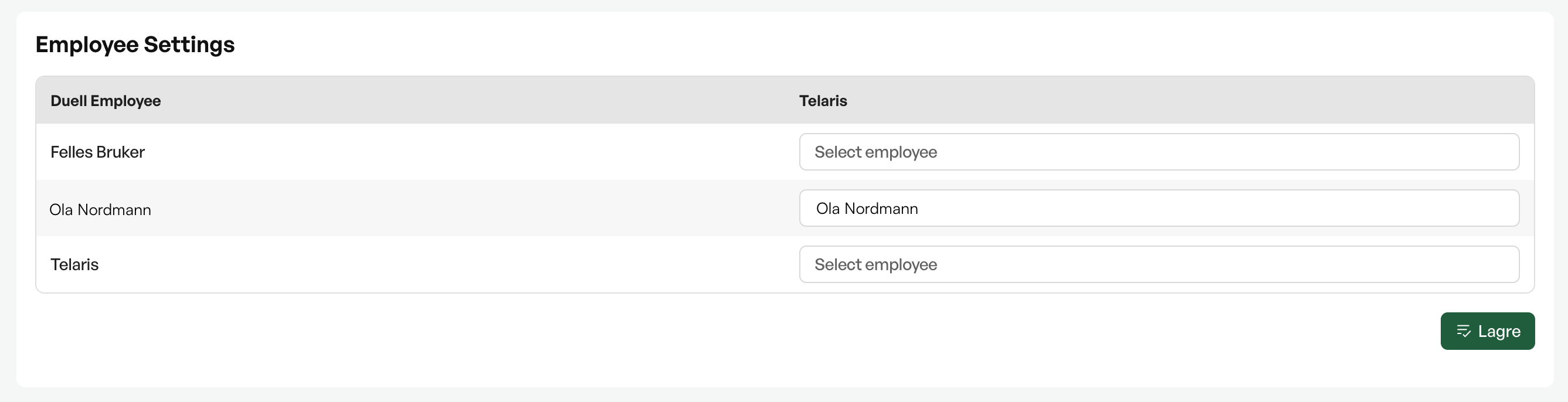
Linking employees means the correct Telaris user is set as responsible on orders imported from cash register sales.
- Under employee settings, link each Duell employee to a Telaris user
- Use autocomplete to search for Telaris users
- Save the links
Step 4: Export products
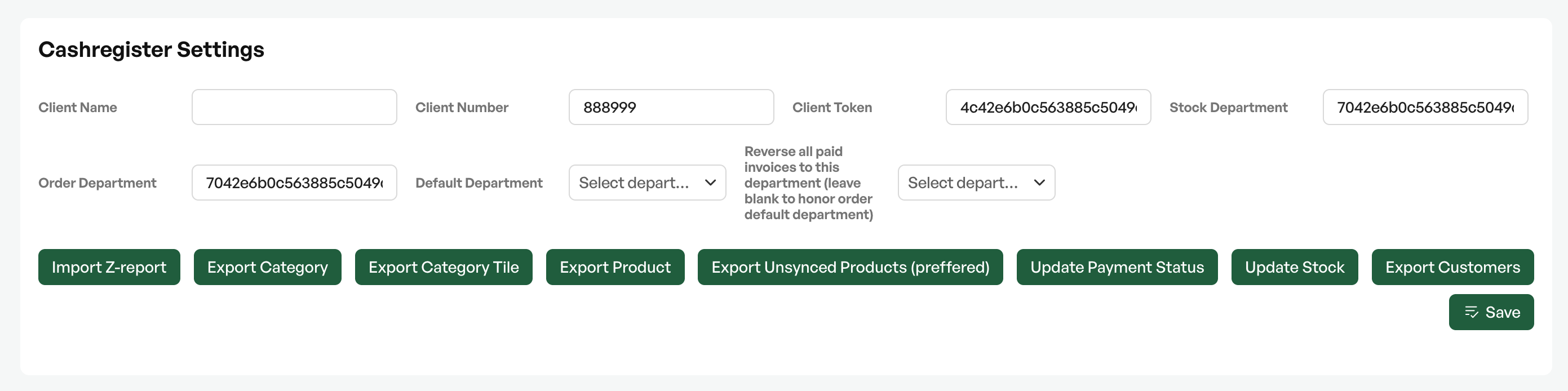
- Click Export products from the administration page
- The system exports categories, products and category tiles in order
- Check that the products appear in Duell with the correct prices and categories
Step 5: Export customers (optional)
- Click Export customers to export all customers without a Duell ID
- Alternatively, customers are exported automatically when sending orders
Step 6: Account setup for daily settlement
For Z-reports to be imported correctly, two things must be in place.
Accounting accounts on product classes:
Each product class used in the cash register needs accounting accounts so that the sale is posted correctly in the daily settlement:
- Sales account (e.g. 3000) – used for sales with VAT (25%)
- Zero-VAT account (e.g. 3100) – used for sales without VAT (0%)
Both accounts must be filled in on each product class, and the chart of accounts must also be created in Duell Admin. There is no sync of the chart of accounts from Telaris to Duell or vice versa.
Payment accounts:
The daily settlement contains various transaction types (card sales, cash, Vipps, gift cards, Klarna and similar) that are each linked to an account via the payment account setup in the chart of accounts. Set up accounts for all payment types to be used in the cash register, in Duell Admin.
NOTE: Missing accounts on product classes are the most common reason that Z-reports do not balance, or that entries end up in the trash can. Check this first if the daily settlement is not correct.
Manual synchronisations
From the administration page, the following jobs can be run manually when needed:
- Import Z-report
- Export categories
- Export category tiles
- Export products
- Export unsynchronised products
- Update payment status
- Update stock level
- Export customers

Was this article helpful?
That’s Great!
Thank you for your feedback
Sorry! We couldn't be helpful
Thank you for your feedback
Feedback sent
We appreciate your effort and will try to fix the article