Create a purchase
Purchase via an order
If you need more products in an order, you can create a purchase directly from an order. The procedure is to select the desired products for purchase, use the "With selected, perform" tool and choose the purchase type.
The purchase that is created will be linked to the order, and the order will show that there is a purchase against it.
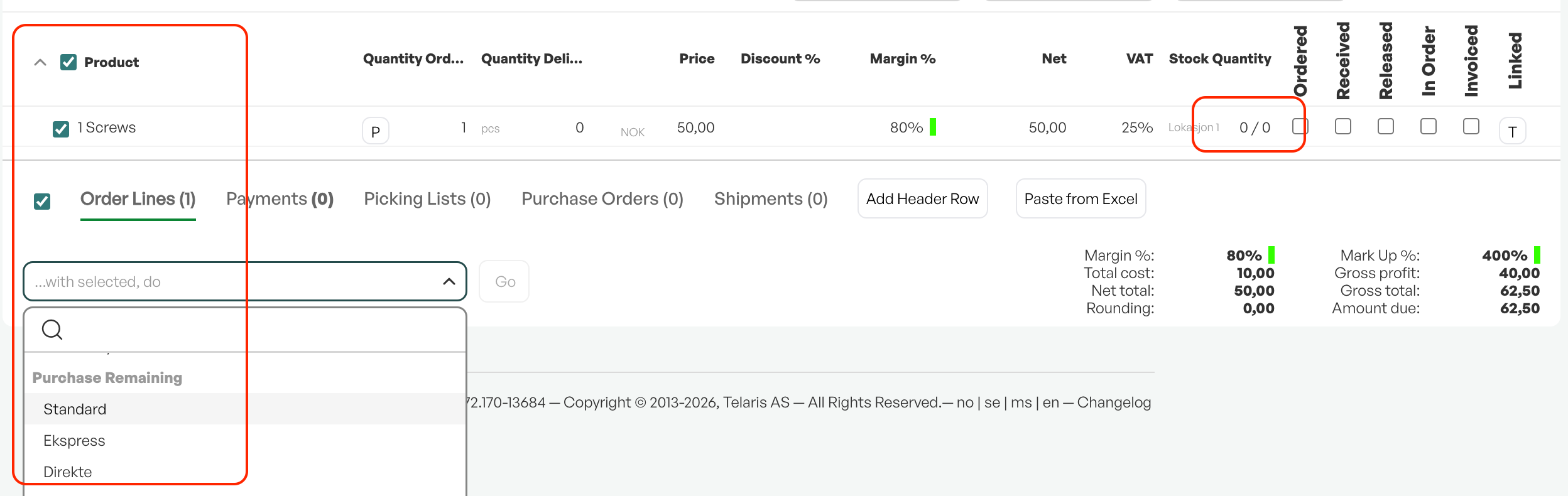
Example of a product that must be purchased in an order
In the image above, the product is out of stock and must be purchased. By using the option from the order view "With selected, perform" and choosing "standard purchase", you create a purchase that is linked to the order.
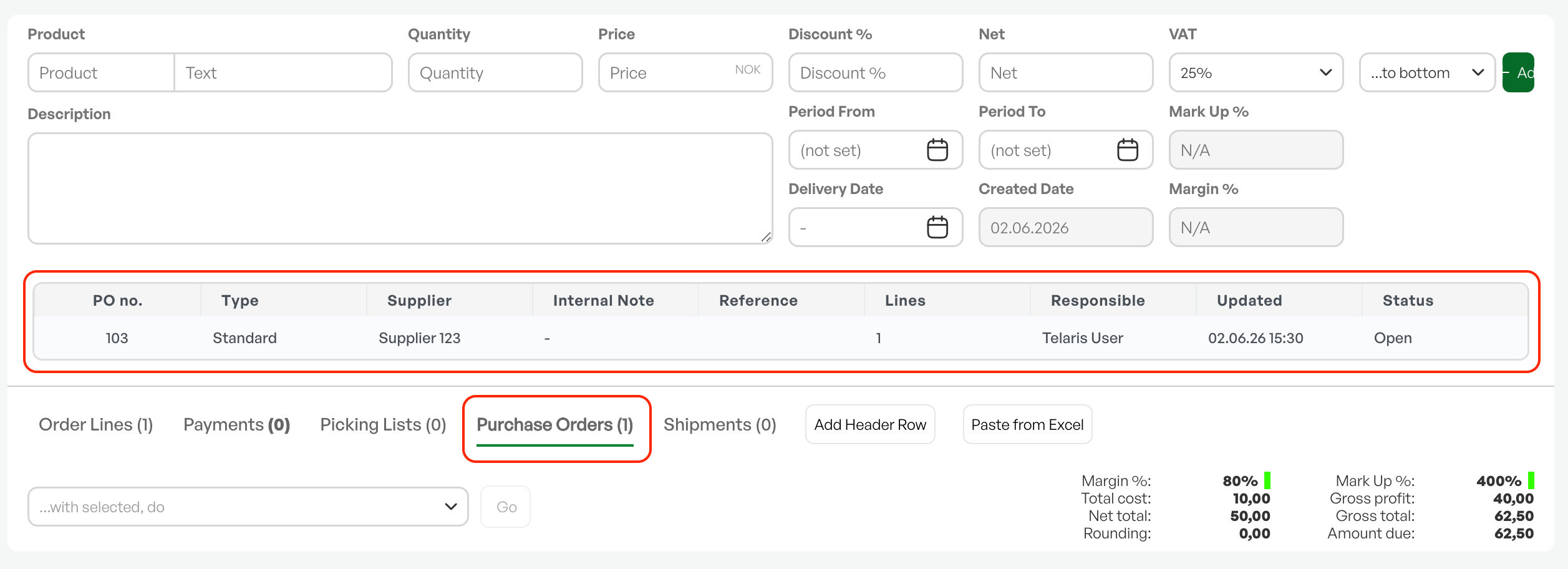
View of purchase order linked to the order
When a purchase is created, it appears in the "Purchase order" tab in the order view. By clicking the purchase number (PO. no) you go directly to the purchase.
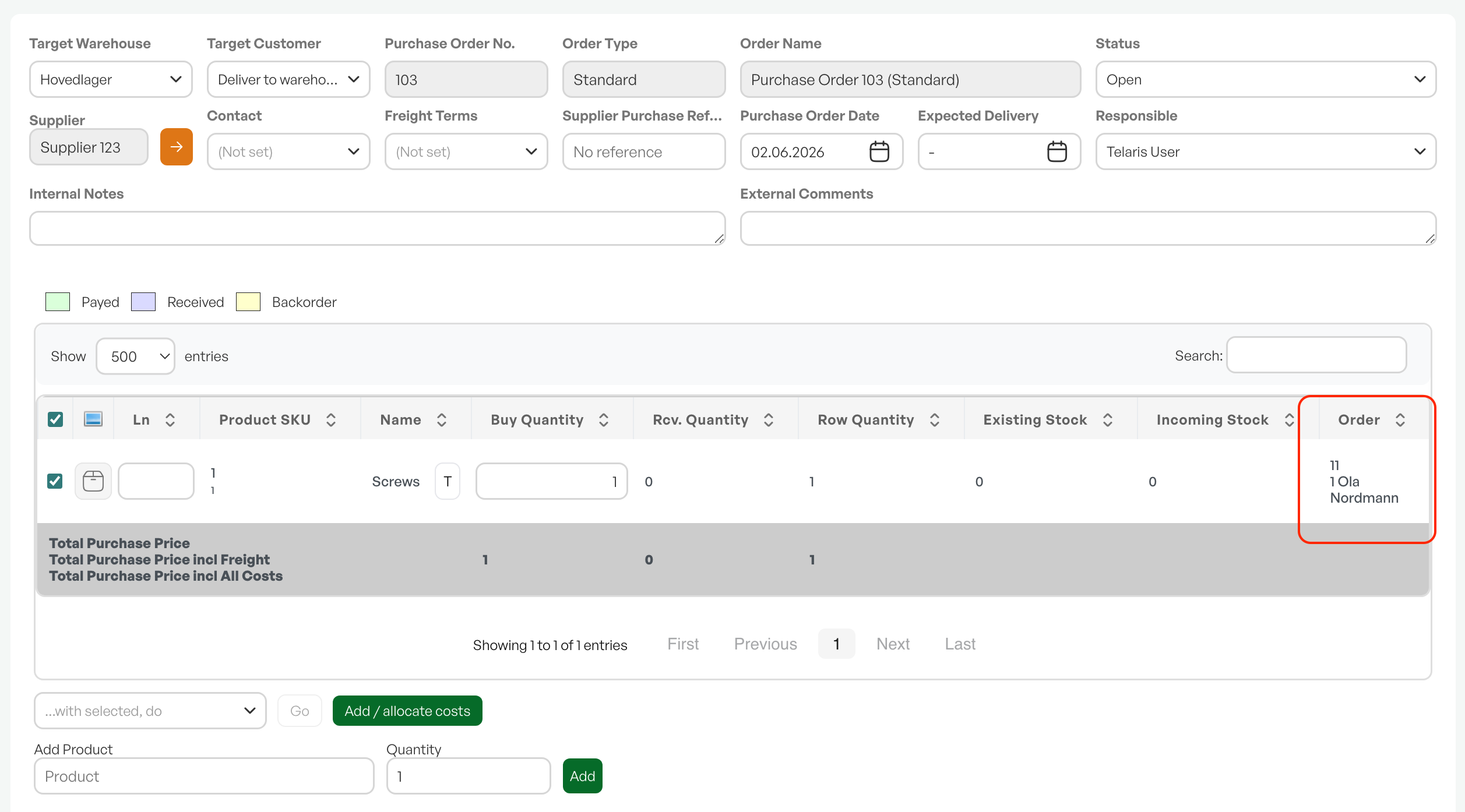
Purchase linked to the order
In the purchase, the linked order is shown in the lines. The purchase view appears as normal in the header and lines, but with a link to the selected order.
After the purchase is created and ready to be sent to the supplier, you use the row of buttons at the bottom to choose the sending method.
Note: Purchase lines linked to an order are allocated to the order and cannot be picked from stock for other orders.

On goods receipt of a purchase line linked to an order, only the quantity the order line is missing is bound. If you buy in more than the order needs, the rest becomes available in stock instead of remaining allocated to the order

Was this article helpful?
That’s Great!
Thank you for your feedback
Sorry! We couldn't be helpful
Thank you for your feedback
Feedback sent
We appreciate your effort and will try to fix the article