Crediting
For cases where an invoice needs to be reversed or credited.
TABLE OF CONTENTS
Information
An invoice can be credited both before and after it has been sent to the customer.
See separate guides for partial crediting and crediting of a paid invoice.
Guide: partial crediting
Guide: crediting a paid invoice
Process
Find and open the invoice to be credited.
Click 'Credit invoice' on the left.
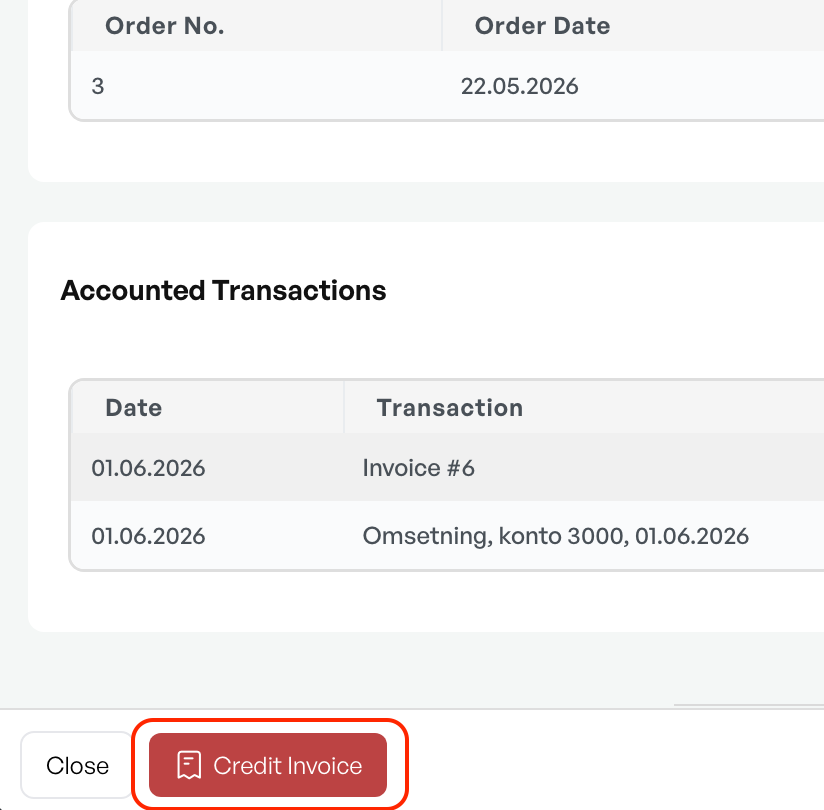
Add a credit reason and click 'Credit invoice'. If you want to credit to a specific date, for example to align with a particular accounting period, change the 'Credit date' to the desired date.
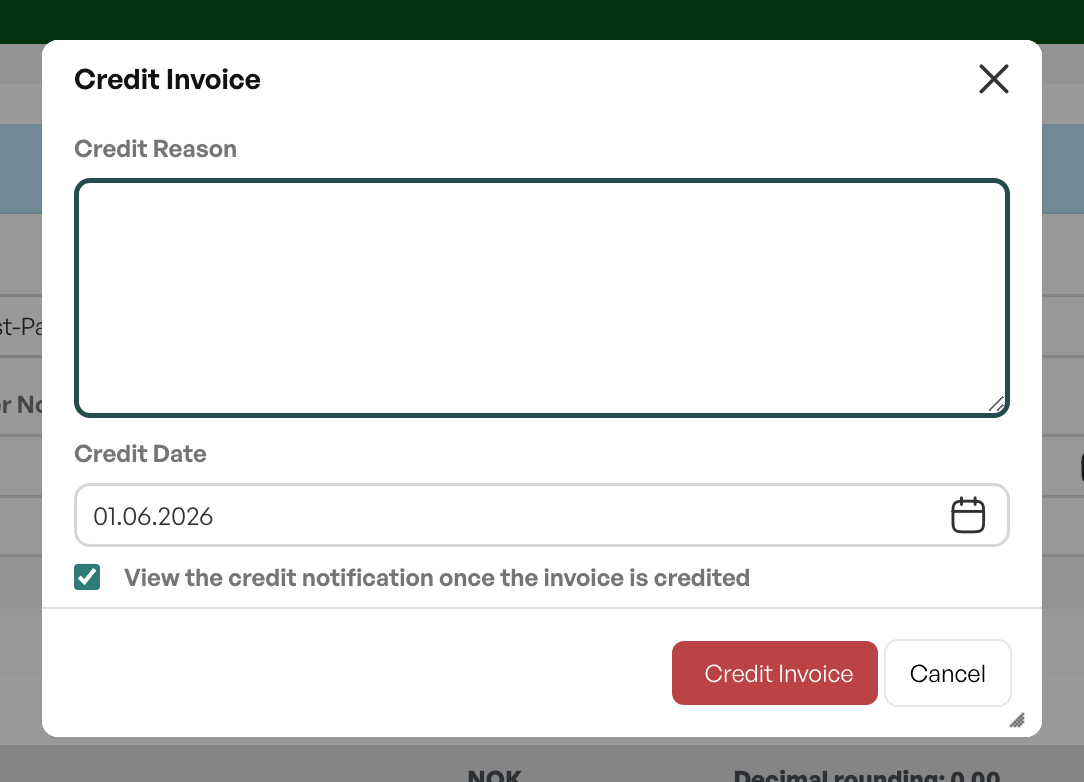
By checking "View the credit notification once the invoice is credited", you will be taken to the credit note in the same way as an invoice, and will then have the option to send it to the recipient if relevant.
Picked items
If the order/invoice contains items that have been picked and these need to be returned to stock, this must be done manually – the system does not do this automatically.
See user guide: Returning items to stock when a credit note has been created
Logging
Timeline
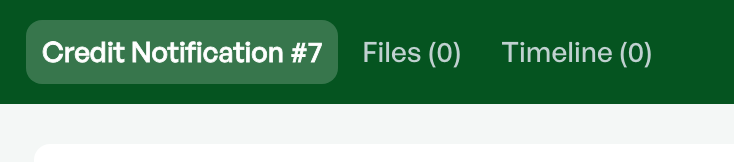
Like many other modules in Telaris, the invoice module has a Timeline per invoice/credit note. All processing of invoices and credit notes will be shown here, such as sending or comments entered by other employees.
Order
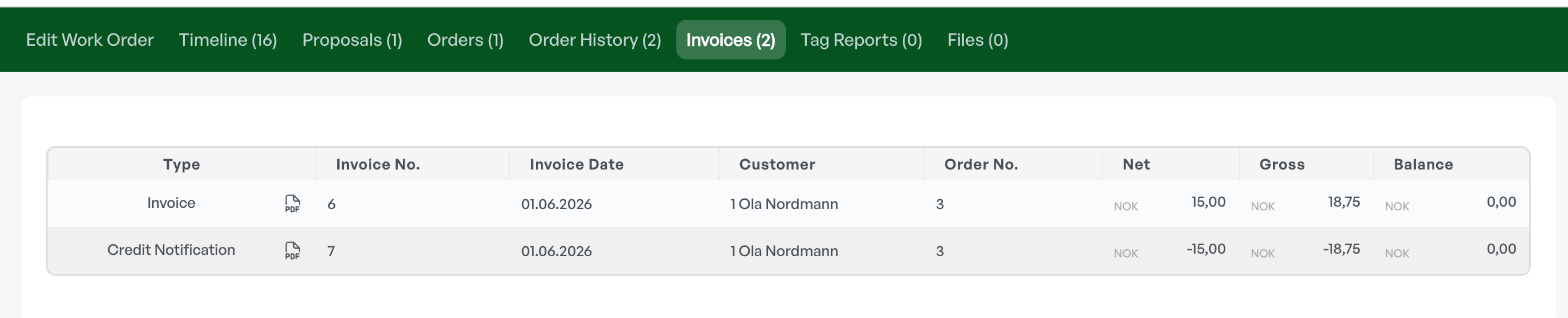
From the order view, all invoices and credit notes are logged under the 'Invoice' tab and can be clicked directly to open for sending or review.
Customer
From the customer card, all invoices and credit notes created for the relevant customer are also logged, under the 'Invoice' tab.


Was this article helpful?
That’s Great!
Thank you for your feedback
Sorry! We couldn't be helpful
Thank you for your feedback
Feedback sent
We appreciate your effort and will try to fix the article