Factoring batches: generate and send
Invoices to be factored are collected in factoring batches and sent to the factoring partner. This guide shows how to open a batch, add and remove invoices, and generate and send the batch as a file or email.
TABLE OF CONTENTS
- Open factoring batches
- Columns in the batch list
- Adding and removing invoices
- Generate and send
- Delivery methods
- Download and reset
Open factoring batches
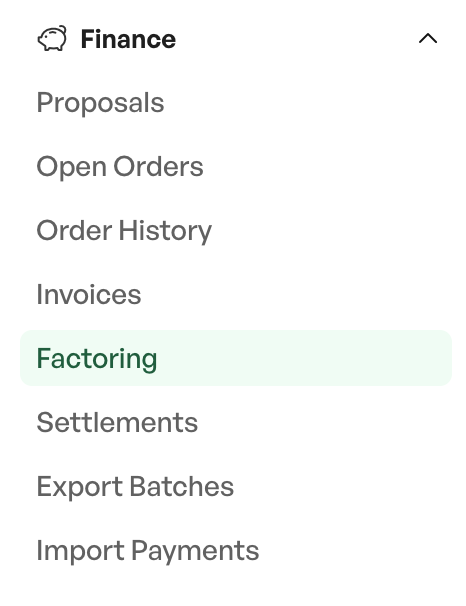
Factoring batches are accessed from the Finance menu. The list shows one row per batch. Click a batch to open it and see the invoices it contains.

Columns in the batch list
| Column | Description |
|---|---|
| Batch no. | The batch's number. |
| Partner | The factoring partner the batch applies to. |
| Invoices | The number of invoices in the batch. |
| Net / Gross | The total amount in the batch. |
| Created | When the batch was created. |
| Sent | When the batch was sent (empty if not sent). |
Adding and removing invoices
An invoice is added to factoring by linking it to factoring. The system then automatically assigns it a new or existing, unsent batch for the partner. An invoice can also be removed from the batch again.
Tip: All unsent invoices for the same partner are collected in the same batch. You do not need to create the batch manually.
Generate and send
When you open a batch, the invoices it contains are shown along with actions to generate, send, download and reset. How the batch is delivered depends on the partner and the setup.
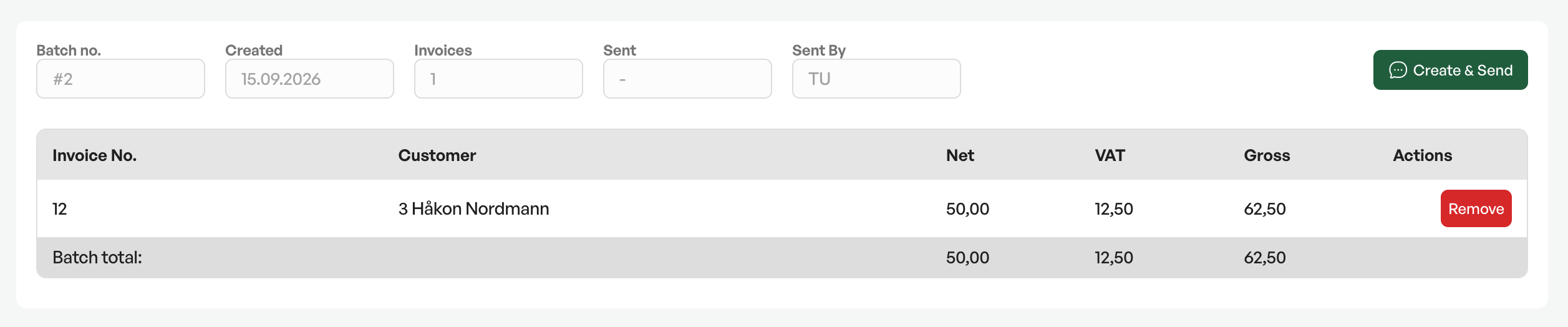
After sending, the sent status and time are set on the batch.
Delivery methods
| Delivery method | Description |
|---|---|
| File (DNB / Svea) | The batch is generated as an XML file tailored to the partner. |
| File (Nordea / Nordea2) | The batch is generated as Excel file(s), two to three files. |
| The batch is sent as an email to the partner's address, with the file(s) as attachments. | |
| Report export mode | The batch is marked as sent without generating a file (when this mode is active). |
Download and reset
The batch's file(s) can be downloaded manually from the batch. To send a batch again, reset the sent status; the batch can then be generated and sent again.
NOTE: The file is not read in automatically by the partner. You download it or send it, and the partner reads it into their own system.

Was this article helpful?
That’s Great!
Thank you for your feedback
Sorry! We couldn't be helpful
Thank you for your feedback
Feedback sent
We appreciate your effort and will try to fix the article