Setting up the Mailchimp integration
This article explains how to connect the Telaris webshop to Mailchimp so that customers and visitors can sign up for newsletters directly from the webshop.
Once the setup is complete, a newsletter field appears in the footer and a checkbox at checkout. Email addresses are automatically sent to a selected Mailchimp audience.
TABLE OF CONTENTS
- Setting up the Mailchimp integration
- Prerequisites
- Step 1 – Create Mailchimp API key
- Step 2 – Find Server Prefix
- Step 3 – Create or find Audience
- Step 4 – Configure Mailchimp in Telaris
- Step 5 – Verify the setup
- Common issues
Prerequisites
Before you start you need:
An active webshop in Telaris
A Mailchimp account
Access to Mailchimp API keys
The free version of Mailchimp works fine.
Step 1 – Create Mailchimp API key
First you need to create an API key in Mailchimp.
Log in to Mailchimp
Go to Profile → Extras → API keys
Click Create A Key
Copy the API key
This is used as Mailchimp AT in Telaris.
Important: The API key gives access to the Mailchimp account. Treat it as a password and never share it.
Step 2 – Find Server Prefix
The Server Prefix is used to identify which Mailchimp data centre your account uses.
You find it in the URL when you are logged in to Mailchimp:
Example: https://us21.admin.mailchimp.com
Server Prefix: us21
This is used as Mailchimp SP in Telaris.
NOTE: Enter only the prefix, not the full URL.
Step 3 – Create or find Audience
Mailchimp uses the term Audience for email lists.
If the customer does not already have an audience:
Go to Audience → All contacts
Click Create Audience
This audience becomes the list that newsletter sign-ups are sent to.
Step 4 – Configure Mailchimp in Telaris
Once Mailchimp is ready, the integration must be configured in Telaris.
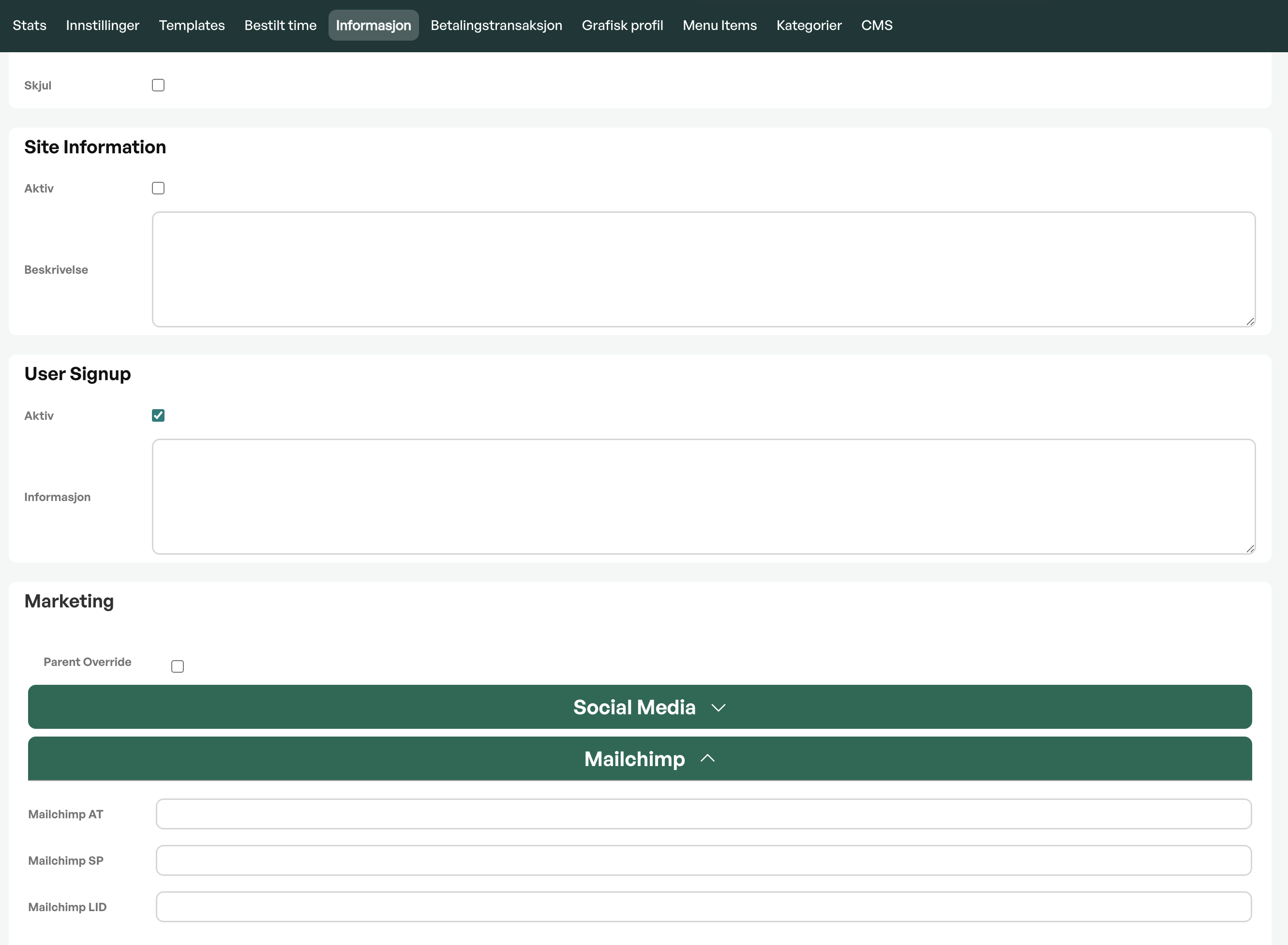
Go to Settings → Webshop
Open the Information tab
Scroll down to the Mailchimp section
Fill in the fields
Field | Description |
Mailchimp AT | Your Mailchimp API key |
Mailchimp SP | Server Prefix (e.g. us21) |
Mailchimp LID | Audience/list that contacts should be added to |
Once Access Token and Server Prefix are filled in, you can click in the List ID field to fetch available audiences directly from Mailchimp.
Select the correct audience and save.
Tip: The newsletter function is activated automatically when the List ID is filled in.
Step 5 – Verify the setup
After saving, check that the integration works.
Check the following:
Newsletter field is visible in the webshop footer
Checkbox is visible at checkout
Test sign-up lands in the Mailchimp audience
If everything works, the integration is active.
Common issues
Problem | Solution |
Audience list not showing | Check Access Token and Server Prefix |
Newsletter field not showing | Check that List ID is filled in and saved |
Sign-up not working | Check that the API key is still valid |
503 Service Unavailable | Mailchimp has temporary issues – try again later |
Mailchimp integration – overview and what the module does
How newsletter sign-up works in the webshop
Troubleshooting: Mailchimp sign-up not working

Was this article helpful?
That’s Great!
Thank you for your feedback
Sorry! We couldn't be helpful
Thank you for your feedback
Feedback sent
We appreciate your effort and will try to fix the article