Add or change contact person
Guide for adding or changing a contact person on an order in the mobile order view.
TABLE OF CONTENTS
Introduction
The mobile order view has the ability to change customer, edit customer, and add and change contact persons.
Add and change contact person
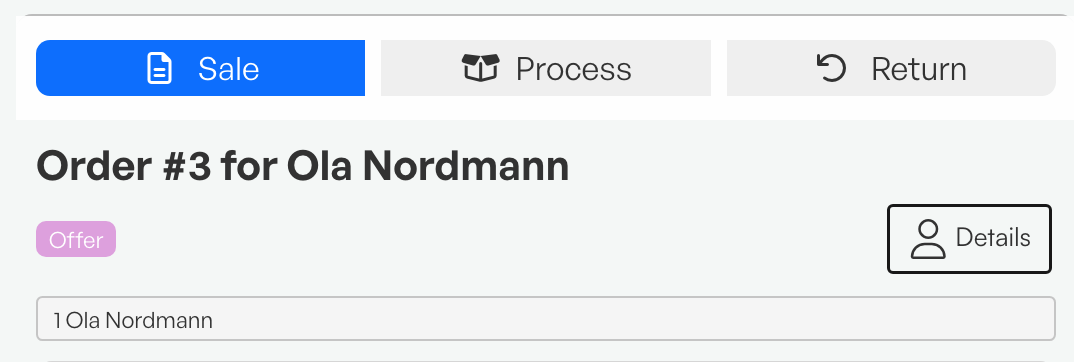
To add a contact person in the mobile order view, tap "Details".
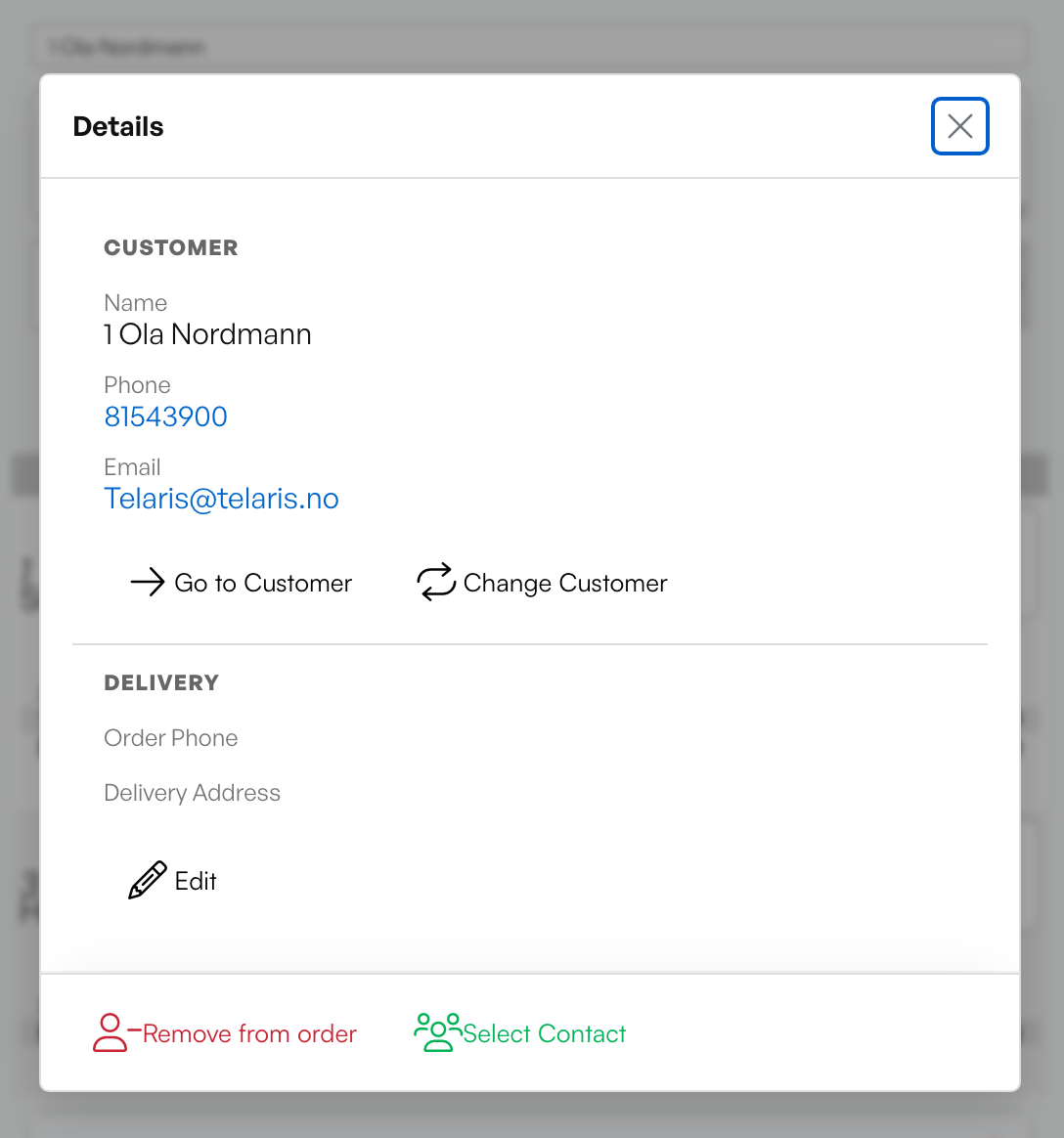
This gives the option to add a contact person using the "Select Contact" button.
This allows adding existing contact persons from the customer.
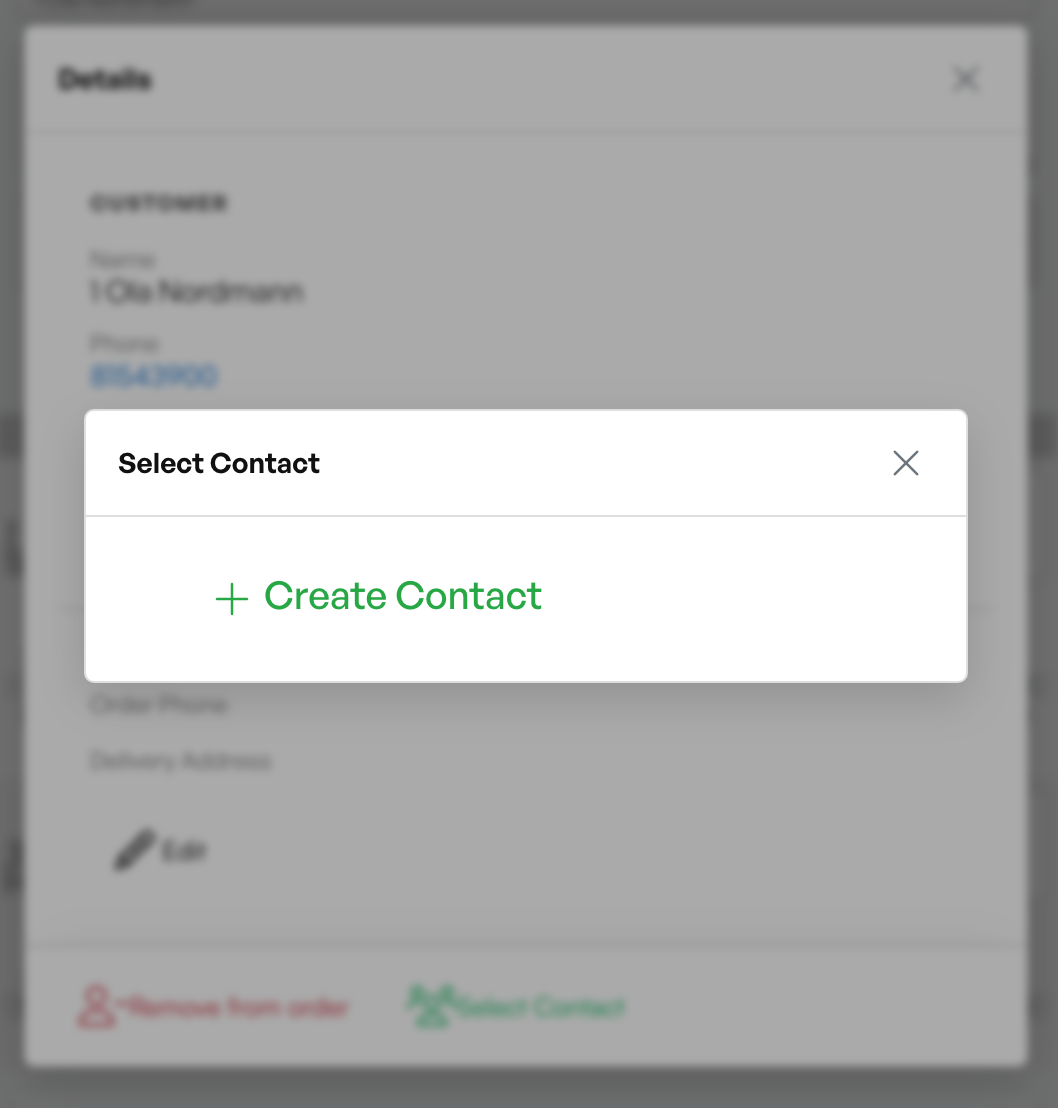
If you want to create a new contact person, tap "Create contact".
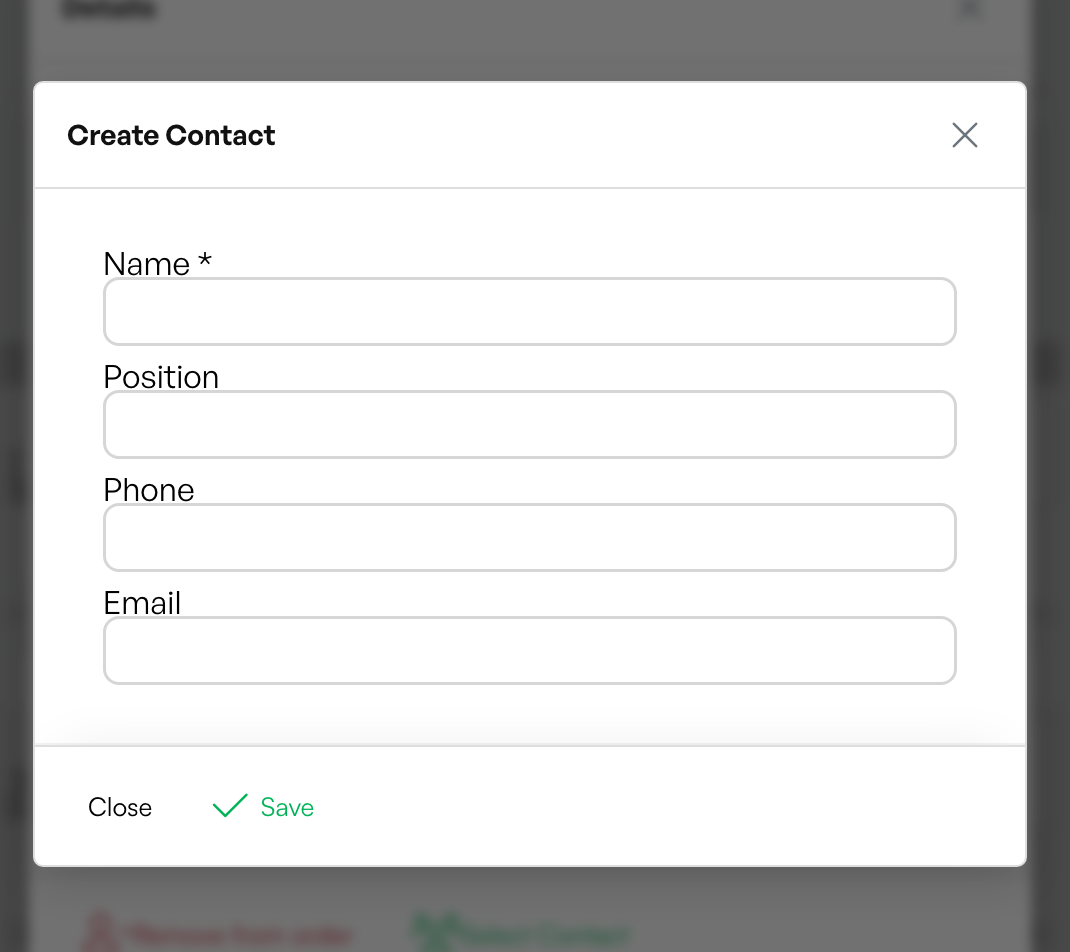
Fill in the desired information — a minimum of a name is required.
When saved, the contact person will appear under 'Contact' in the customer details of the order.
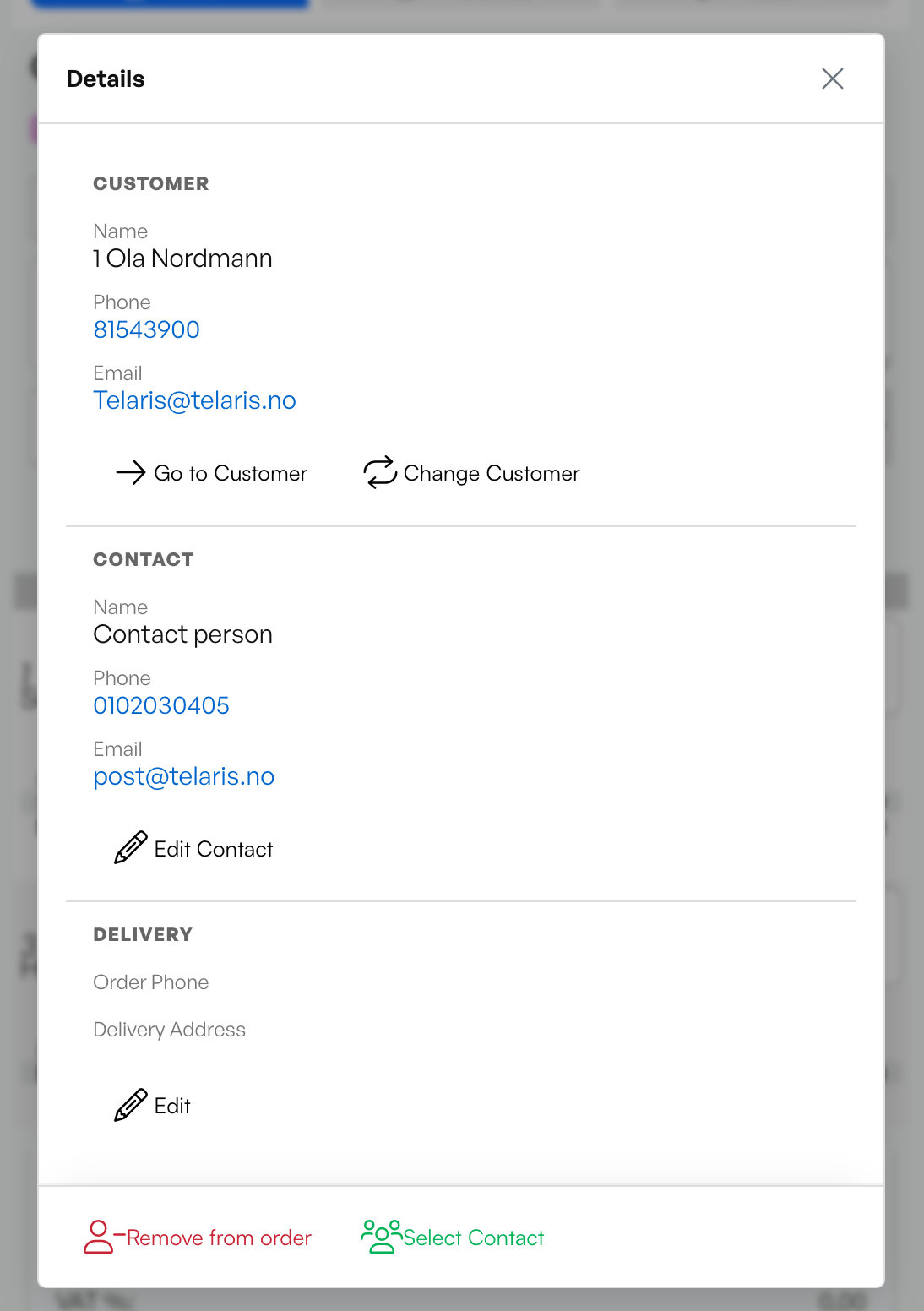
If you want to change the contact person added to the order, tap 'Edit contact'.
Note: To remove the contact person from the order you must go to the desktop view.

Was this article helpful?
That’s Great!
Thank you for your feedback
Sorry! We couldn't be helpful
Thank you for your feedback
Feedback sent
We appreciate your effort and will try to fix the article