Verified E-signing
Functionality for customers to sign proposals and order confirmations electronically
See the separate guide for setting up Verified
INNHOLDSFORTEGNELSE
E-signing via Verified
To start Verified signing, an order must be created, and on the order a proposal or an order confirmation must be created
When Verified is activated, the 'Signature' button appears in the proposal/order confirmation
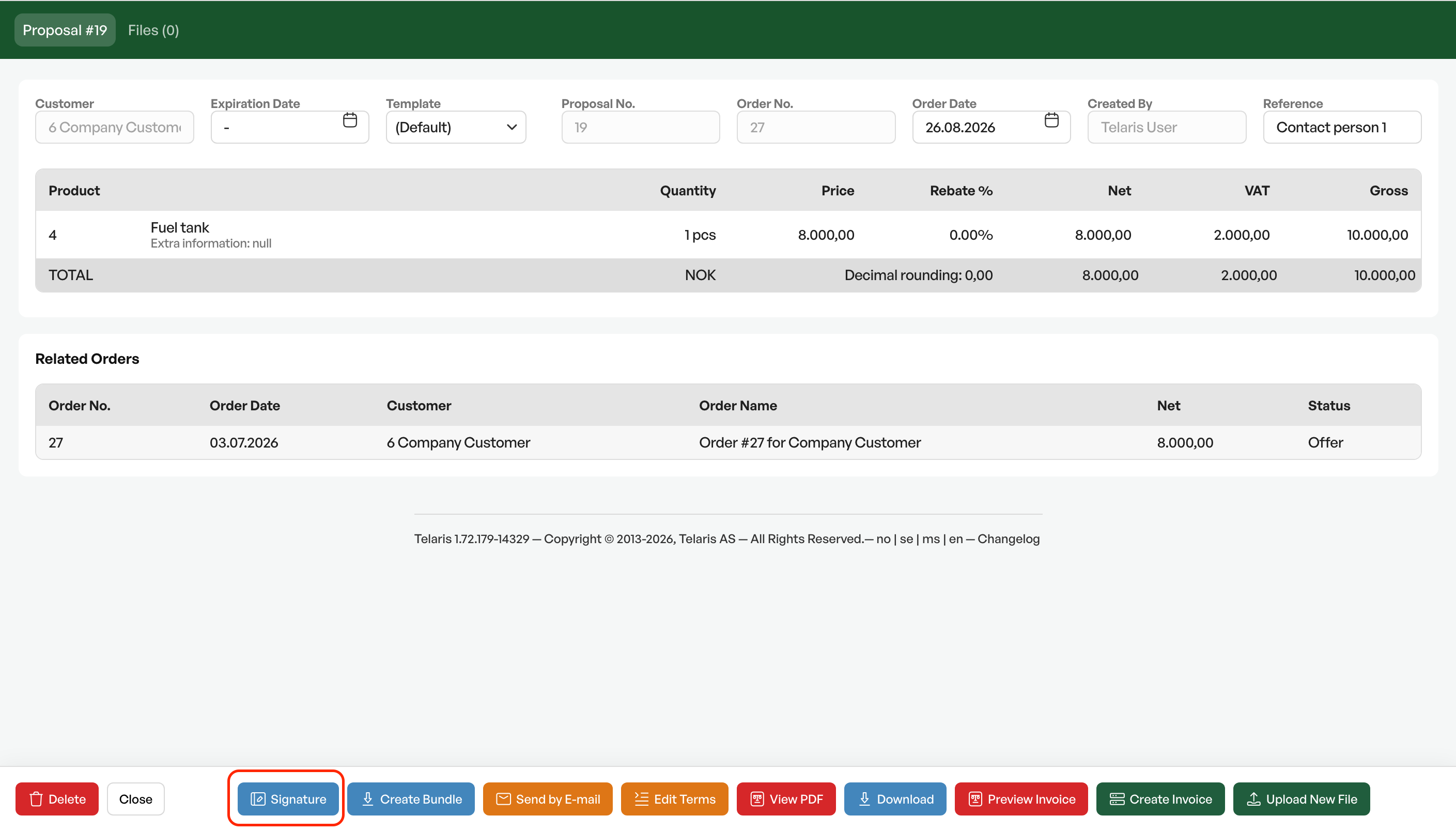
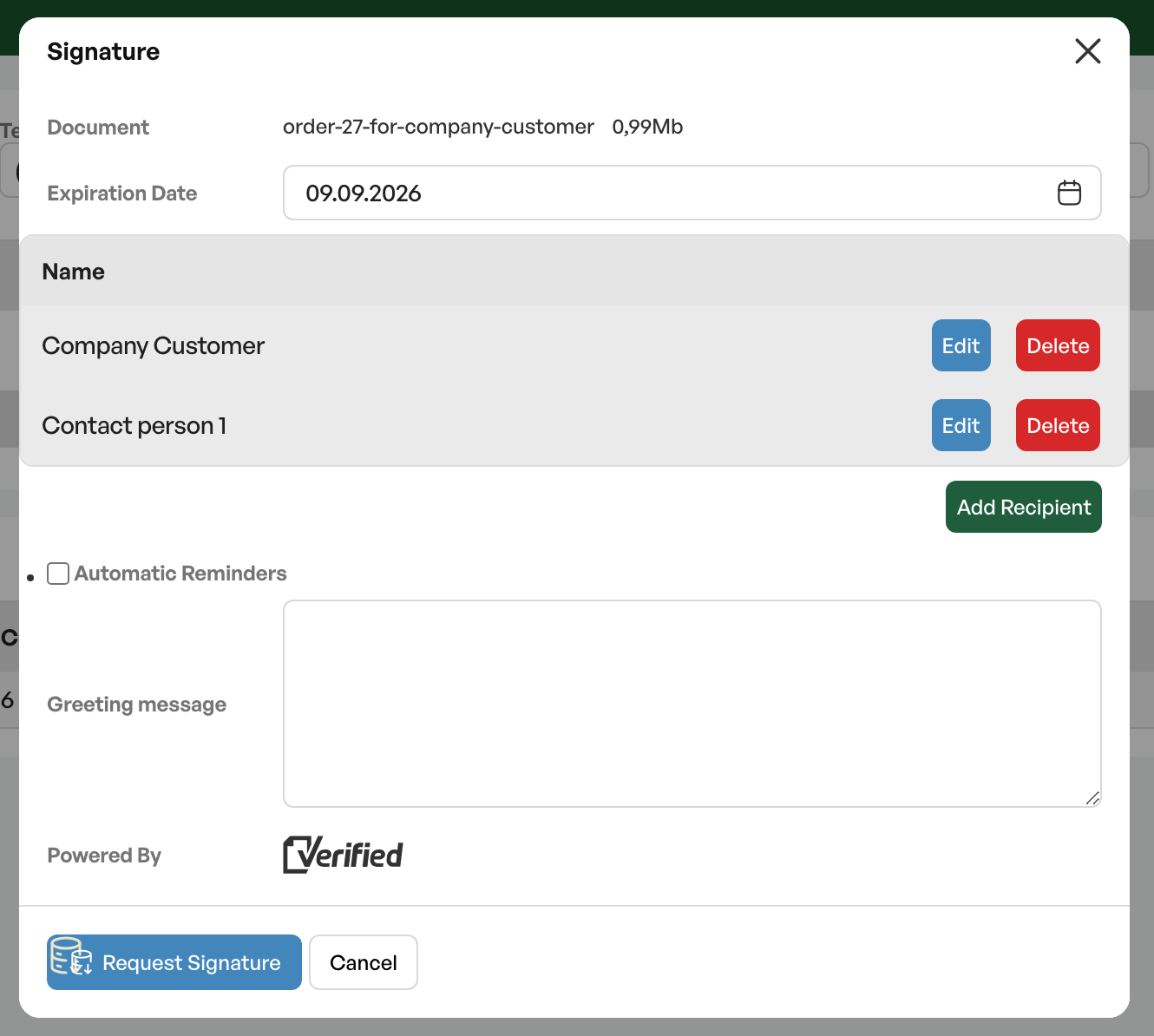
Dialog box
The button opens the dialog for sending a signature request to the recipient.
If all settings and choices are correct, you can simply send out the request.
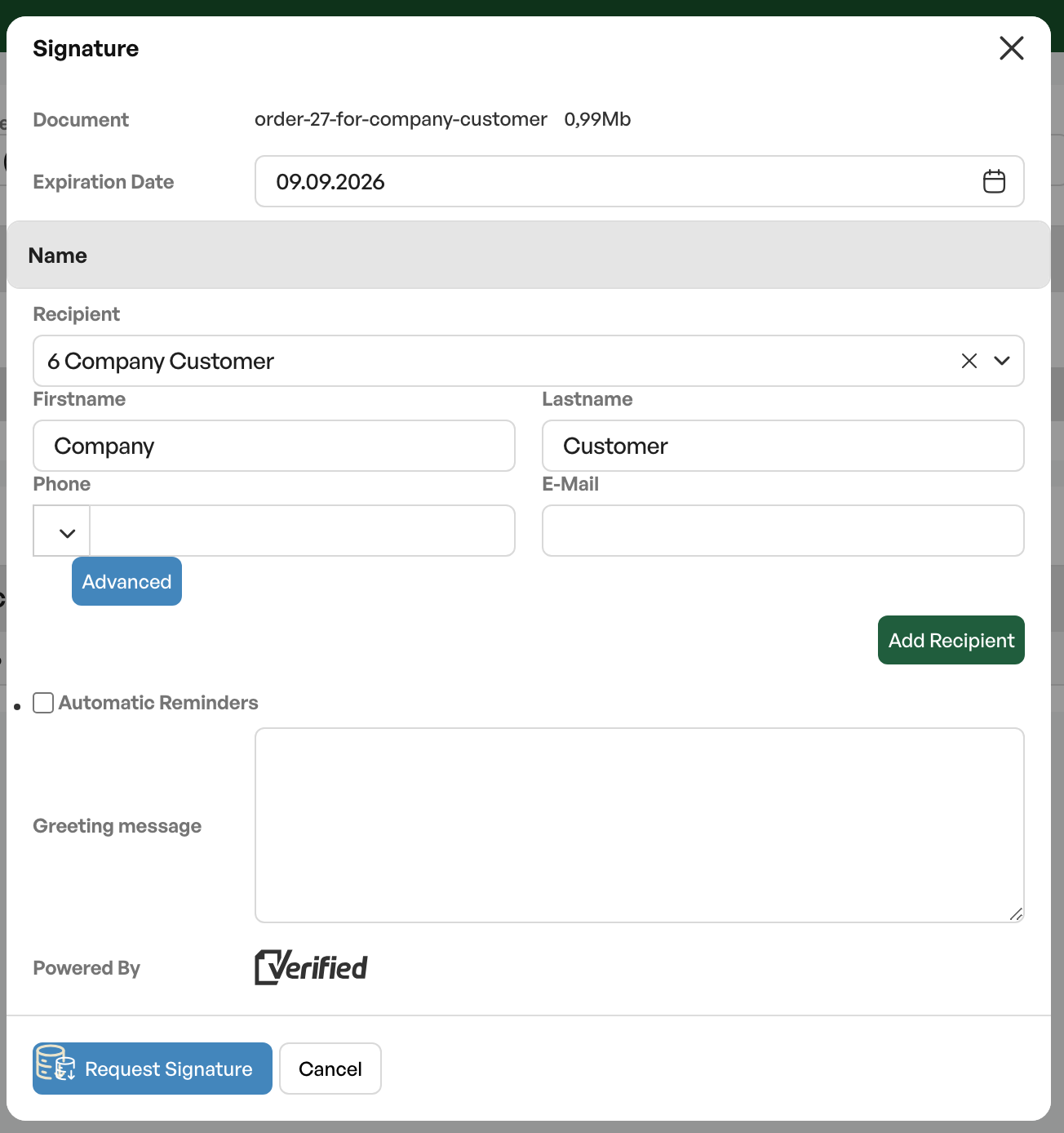
Multiple recipients
If there are several recipients, add more recipients with the 'Add recipient' button
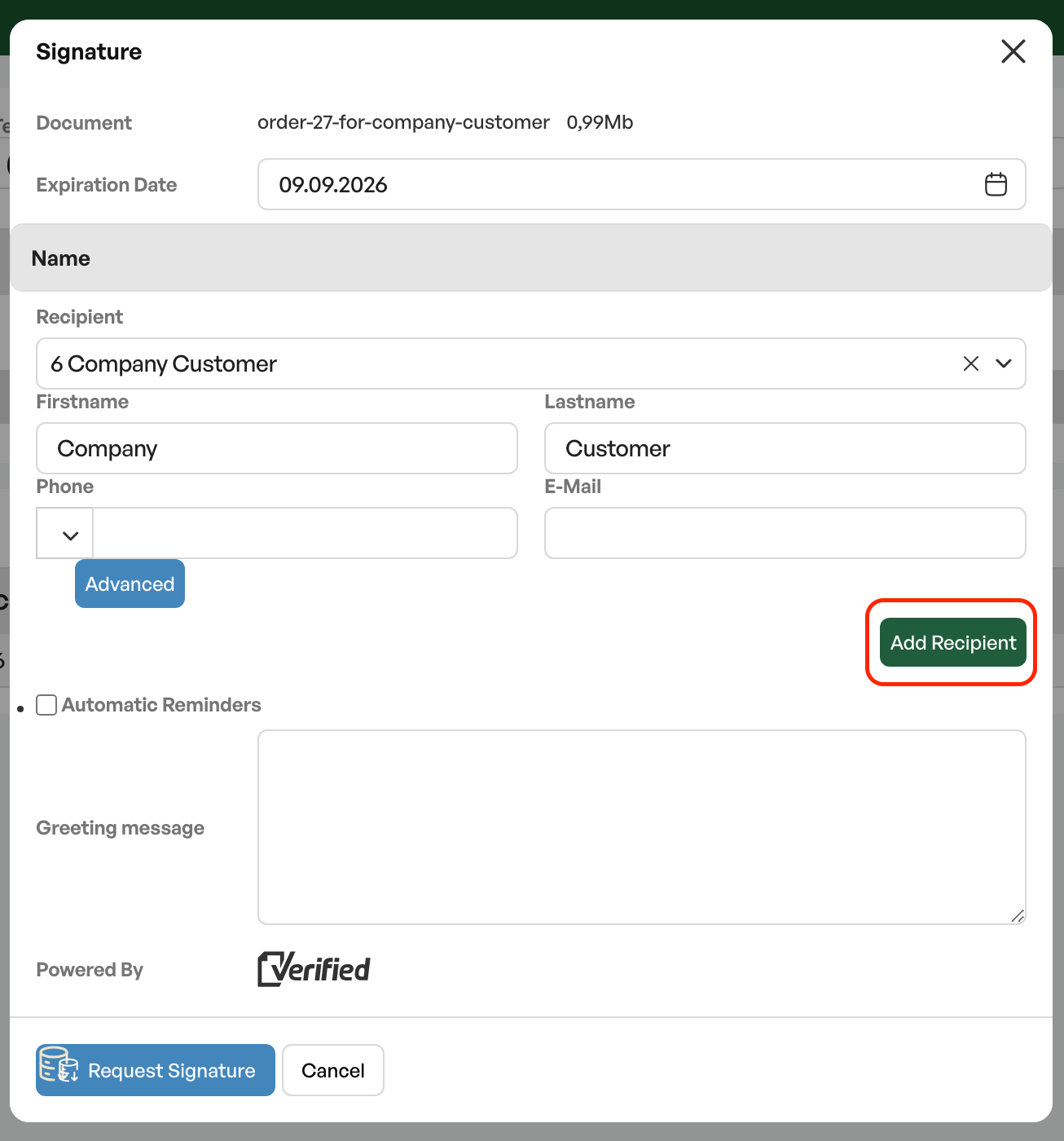
Note: With sequential setup of recipients, the order of recipients matters. One person must sign before the next person can sign.
You can move recipients in the list with 'Drag n drop'


See the guide for setting up Verified for setting up sequential recipients
From the recipient list you can select the main customer on the proposal/order confirmation, or the customer's contacts.
You can also choose the logged-in user in Telaris as the recipient for internal signing, or remove a recipient by clicking "delete" and set a custom recipient not added to the customer.
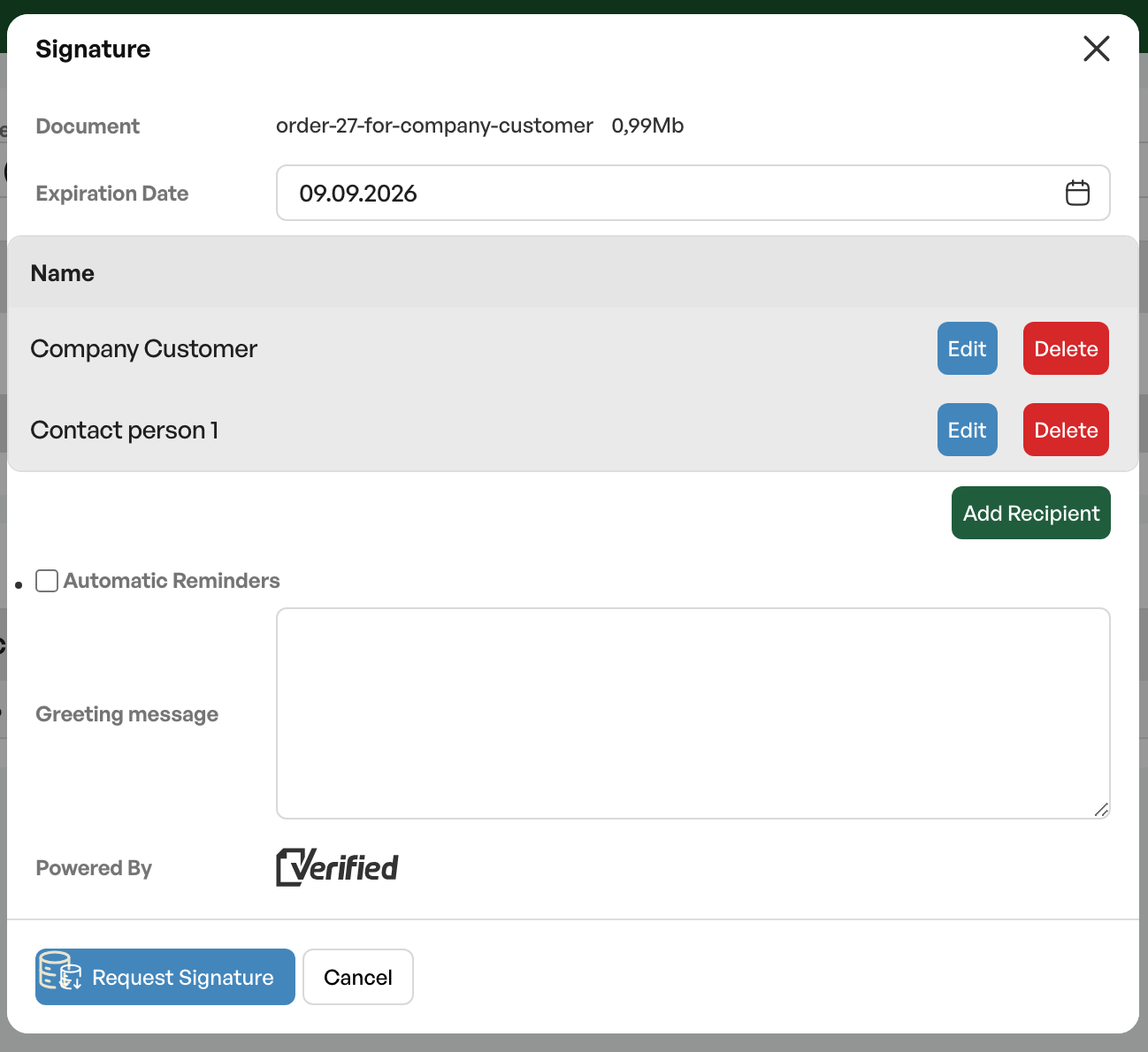
Prepared signature dispatch.
With sequential dispatch, 'Recipient 1 - top' receives the document for signing first, and when the signature is done, 'Recipient 2 - bottom' receives the document for signing.
If it is not a sequential setup, both recipients receive the document for signing at the same time.
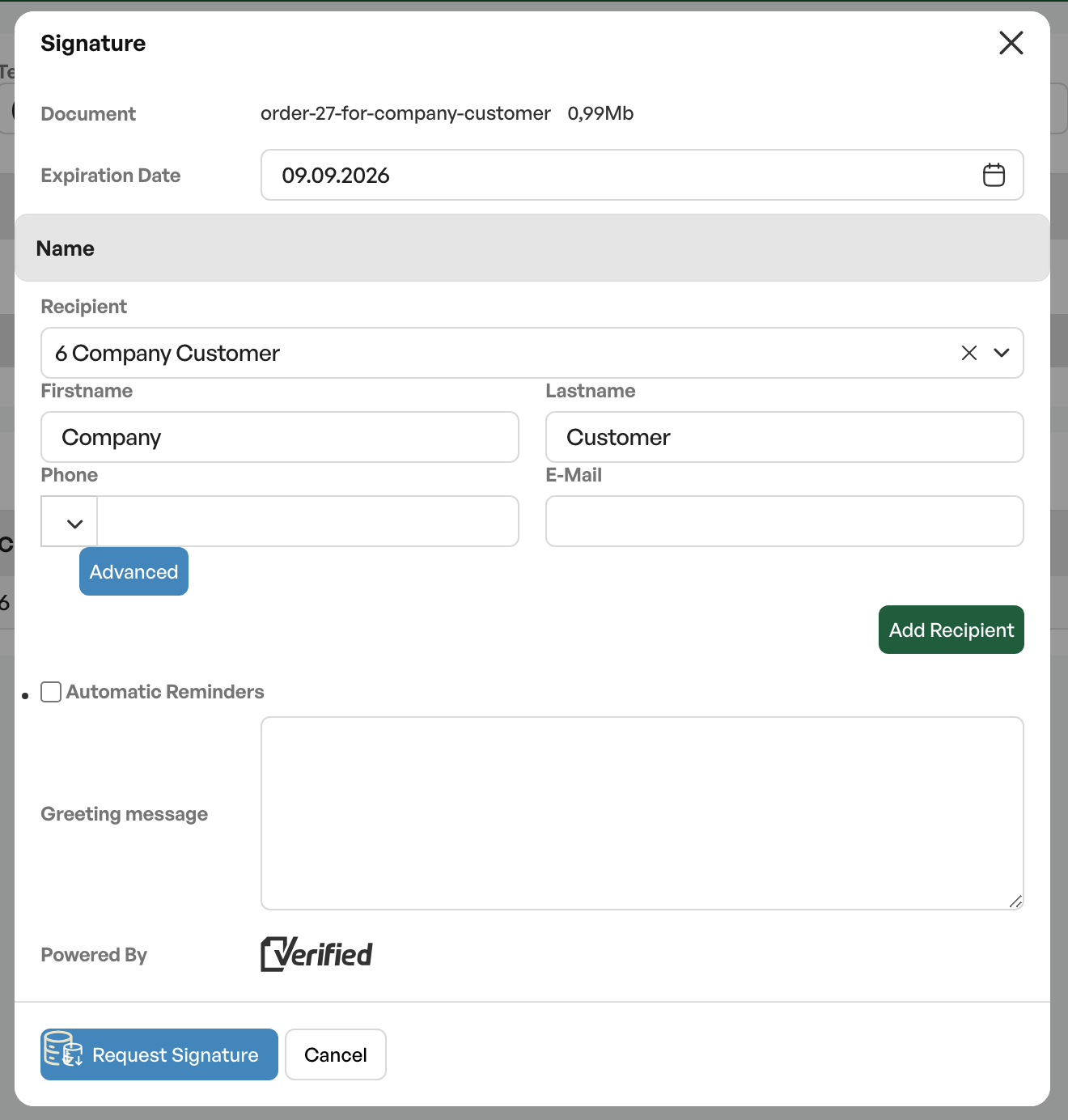
Advanced
By clicking 'Advanced' on a recipient, you can make adjustments to how the recipient should sign, and choose the recipient's role
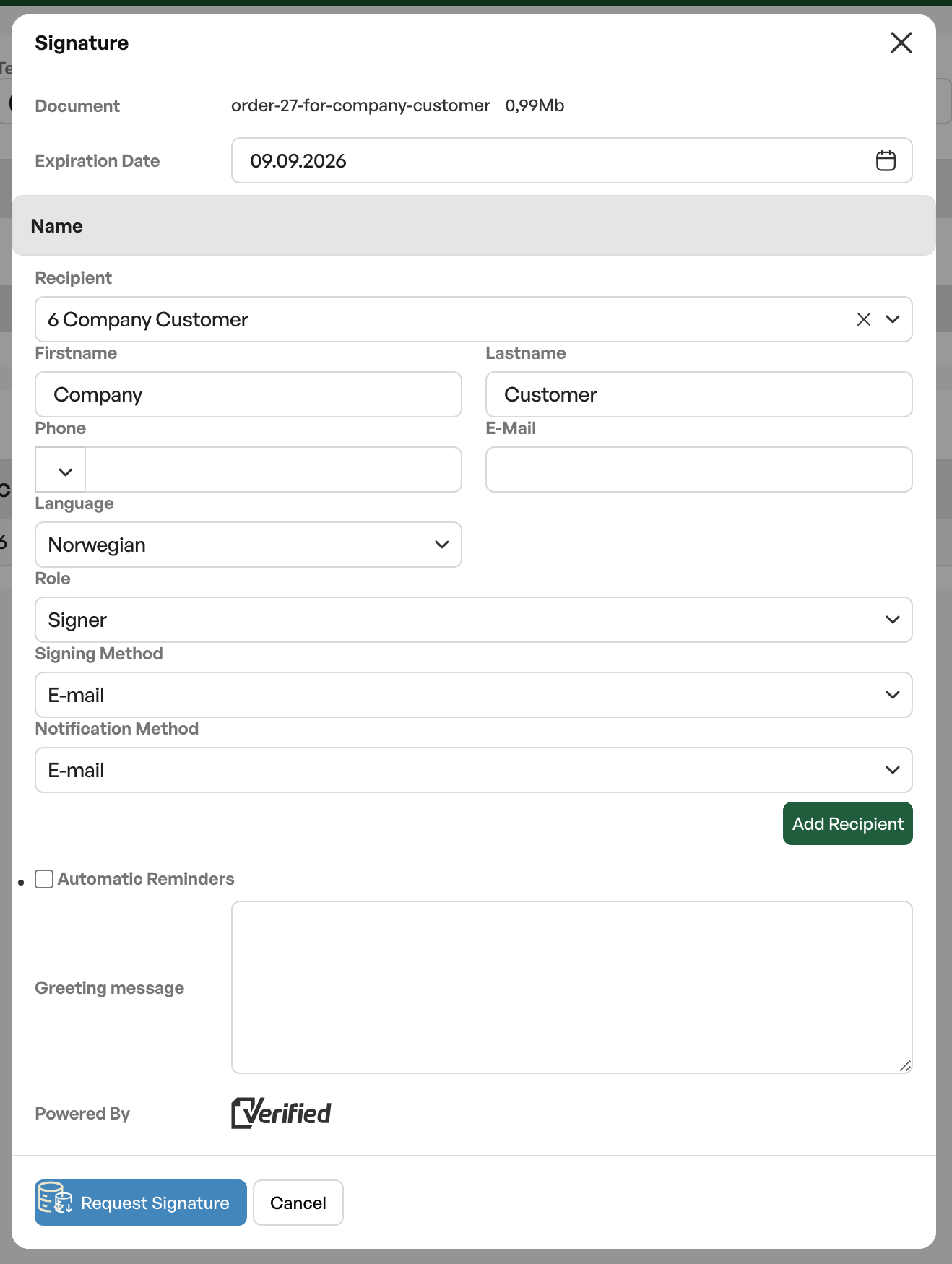
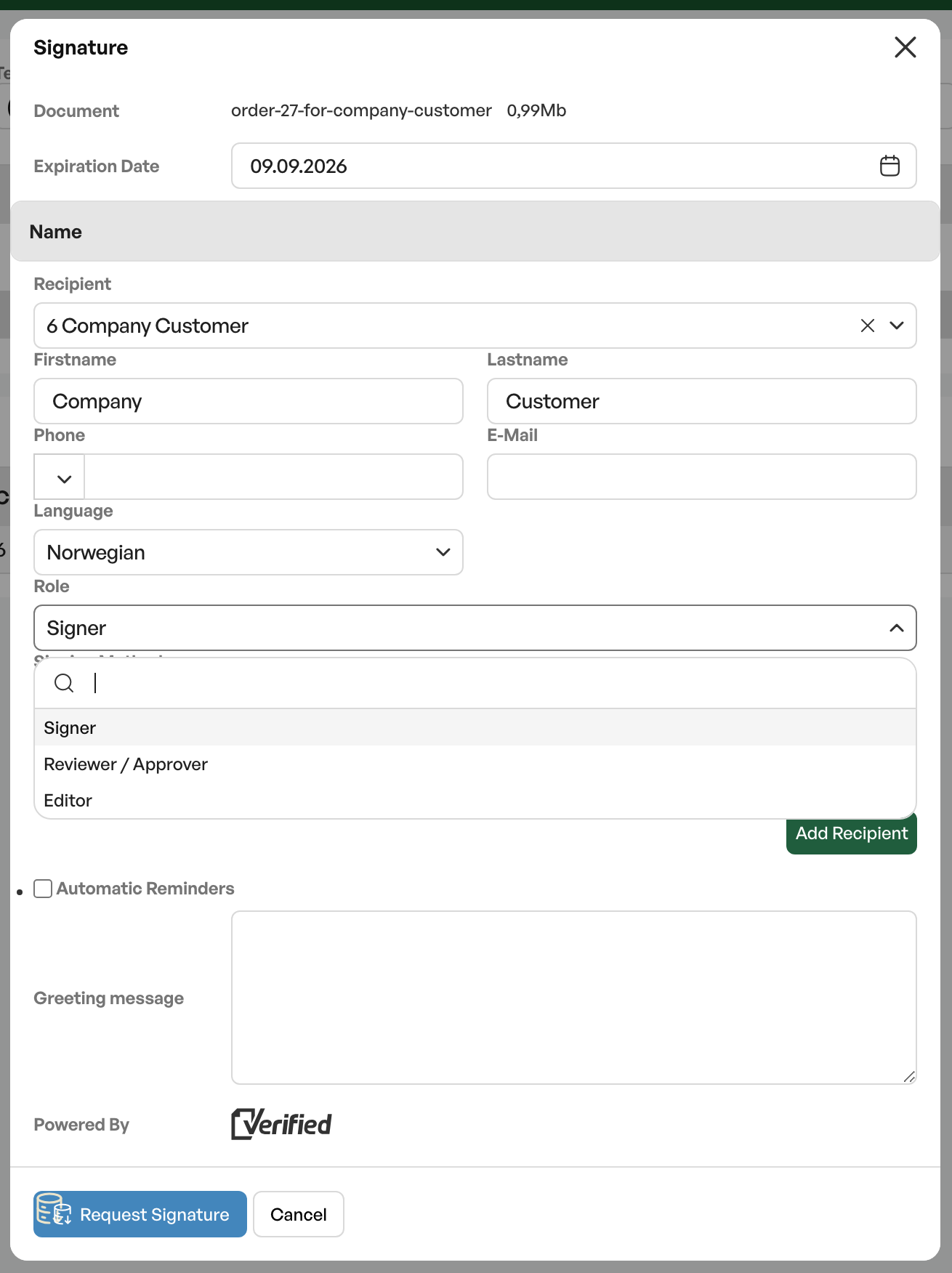
A signer must sign, while a manager can for example 'review and approve'
An internal controller can have the role 'Document editor'
Receiving
When the recipient receives the email with the signing request, they can view the document and click 'Continue' to sign.

Signing
After the recipient clicks 'Continue', they reach the document review. The document shown will be the same as the proposal template/order confirmation in Telaris.

When the recipient chooses to sign, it is sent for signing with BankID, if that is set up as the default signing method in the setup.

Contact your administrator to change the default signing method
After signing
When the recipient(s) have signed, they get a completion view, receive finished copies of the signed document, and are offered to download the document as a PDF


After signing is complete, the signature status in Telaris is also updated on the proposal/order confirmation

Was this article helpful?
That’s Great!
Thank you for your feedback
Sorry! We couldn't be helpful
Thank you for your feedback
Feedback sent
We appreciate your effort and will try to fix the article