Change or edit customer in mobile view
How to change or edit customer information on a sales order from the mobile view in Telaris PCS.
TABLE OF CONTENTS
Open the Details panel
All customer editing is done via the Details button at the top of the sales order. Tap it to open the panel.
The Details panel is available from all three order views: Sale, Process and Return.
Overview
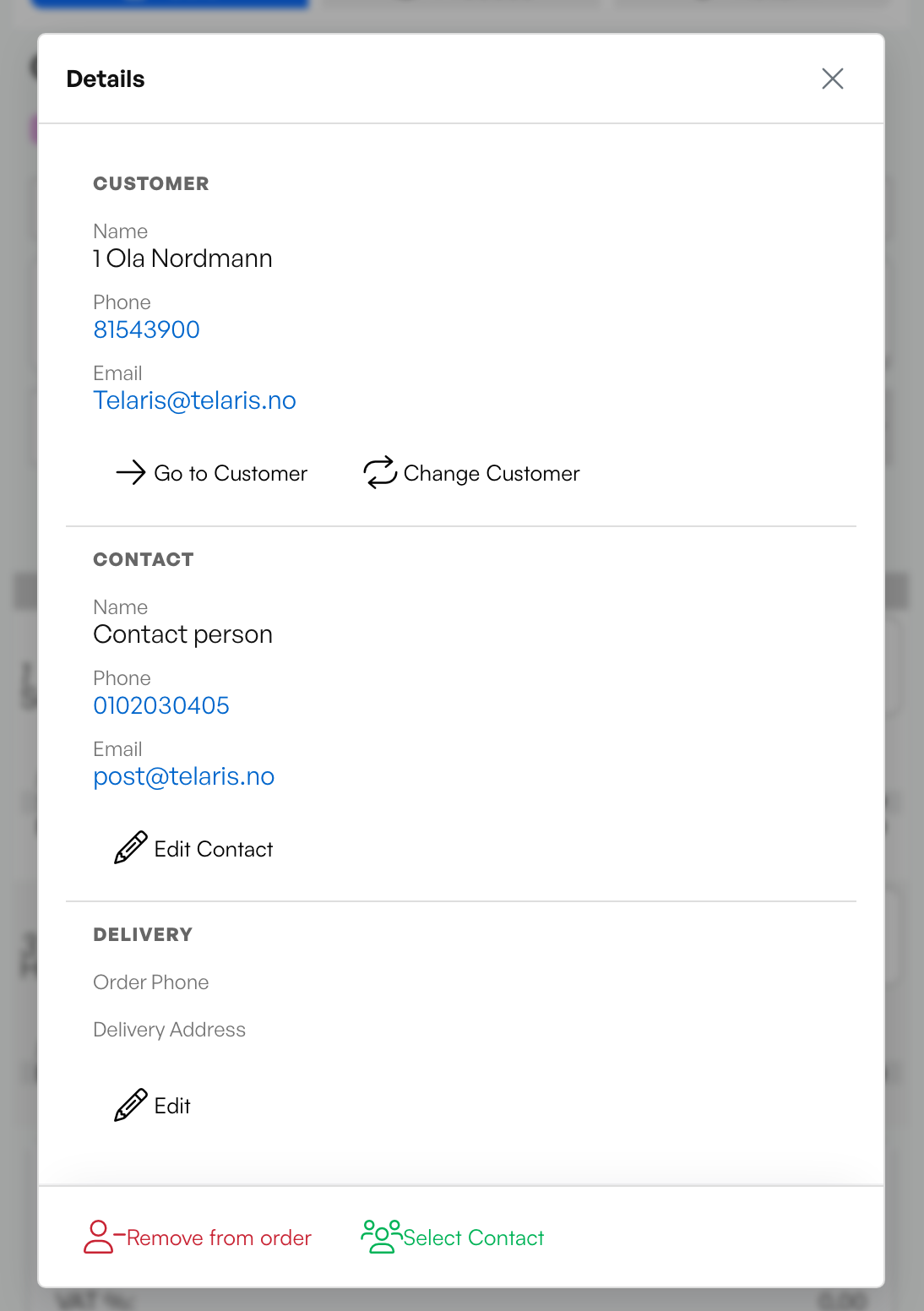
In the Details panel you will find three sections: Customer, Contact and Delivery. Here you can change who the order belongs to, edit the contact person and adjust the delivery address.
Change customer
Under the Customer section the name, phone number and email of the customer linked to the order are shown.
To switch to a different customer, tap Change customer. You can search for existing customers or create a new one.
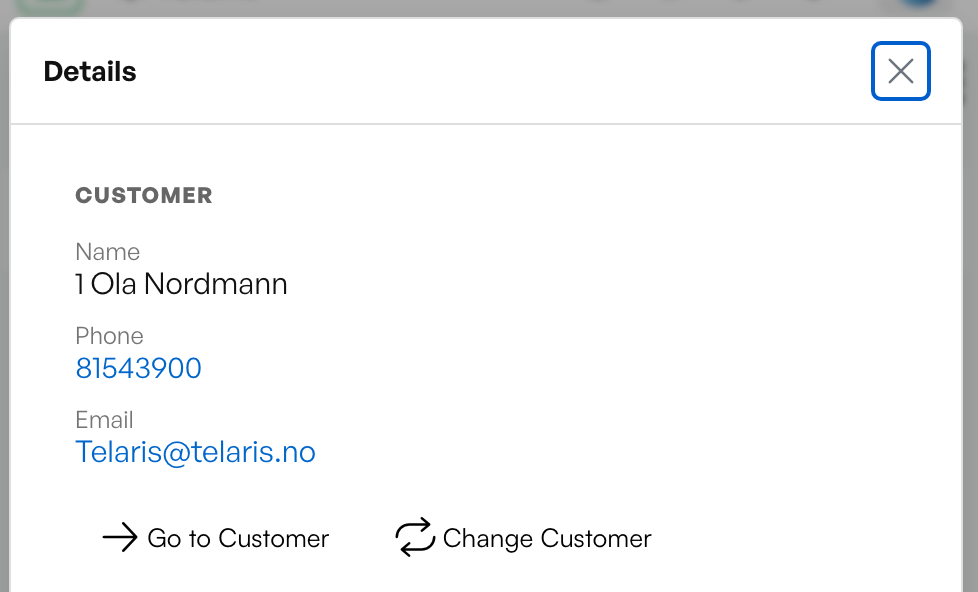
NOTE: Changing customer on an existing order may affect prices and discount groups. Check the order lines after switching.
Edit delivery address
Under the Delivery section you can edit the order phone and delivery address.
Tap Edit to enter a custom address, or tap Customer default to restore the customer's registered address.
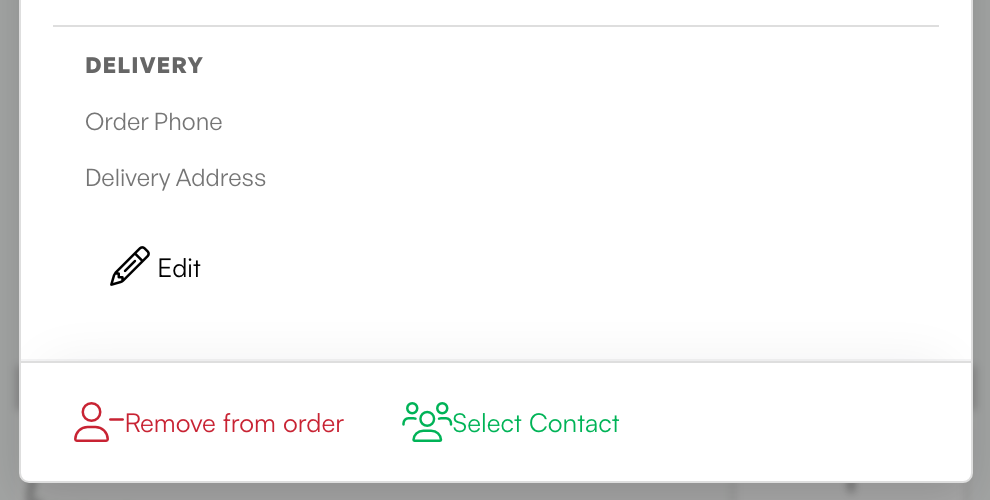
Use "Customer default" if the address has been changed by mistake and you want to reset to the original address.
Guide: Add or change contact person

Was this article helpful?
That’s Great!
Thank you for your feedback
Sorry! We couldn't be helpful
Thank you for your feedback
Feedback sent
We appreciate your effort and will try to fix the article