Importing Batches from Telaris to 24SevenOffice (Finago Office)
This guide describes how accounting batches are exported from Telaris ERP and imported, verified and posted in 24SevenOffice (Finago Office).
TABLE OF CONTENTS
- Importing Batches from Telaris to 24SevenOffice (Finago Office)
- Prerequisites
- Step 1 – Create a Batch in Telaris
- Step 2 – Transfer the Batch to 24SevenOffice
- Step 3 – What Is Exported from Telaris
- Step 4 – Verify and Post in 24SevenOffice
- Common Errors and Tips
- Would You Like This Integration?
Prerequisites
- Telaris ERP is integrated with 24SevenOffice (Finago Office).
- Accounts and the chart of accounts are set up in 24SevenOffice and aligned with Telaris ERP.
- The vouchers in Telaris are ready for transfer.
Step 1 – Create a Batch in Telaris
Go to:
the hamburger menu → Finance → Batches for export
Click Close batch. Each time this is done, a new batch is created within the current month.
NOTE: If you click "Close batch" several times in the same month,
multiple batches are created. Make sure you keep track of which batches should actually be transferred.
Step 2 – Transfer the Batch to 24SevenOffice
Once the batch is created, click Run export in Telaris.
This transfers the batch directly to 24SevenOffice (Finago Office).
Tip: The transfer happens per batch. If several batches have been created,
each batch must be run separately. A batch can only be run once, and should normally appear in 24SO within a few minutes depending on the size of the batch. If it does not appear in 24SO, you can contact our support department.
Step 3 – What Is Exported from Telaris
When a batch is exported from Telaris to 24SevenOffice (Finago Office), the following accounting data is transferred:
- Customers
- Invoice journal
- Payment vouchers
- Cost vouchers
- Any cash settlements from Duell
The vouchers transferred from Telaris also contain project and department information, where this has been used in Telaris.
This makes it possible to follow up the accounts further in 24SevenOffice with correct allocation to project and department.
Tip: Check that projects and departments are correctly set up in 24SevenOffice
before the batches are posted, so that the dimensions are recorded correctly in the accounts.
Step 4 – Verify and Post in 24SevenOffice
In 24SevenOffice, do the following:
Accounting → Posting
Incoming voucher batches are shown on the right-hand side of the screen. The oldest batches are at the bottom of the list.
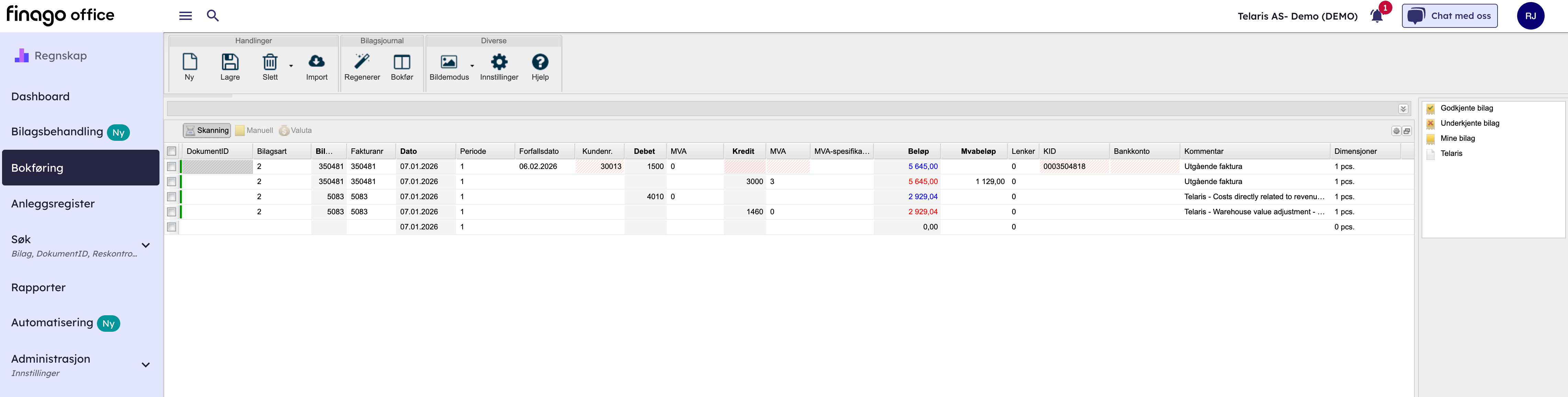
Click the relevant batch (for example Telaris) to display the vouchers included in the batch.
Check the vouchers carefully. When everything has been verified and is correct, click Post to transfer the vouchers to the accounts.
NOTE: Once the batch has been posted, it cannot be posted again.
Make sure to check the vouchers before you post.
Common Errors and Tips
The Batch Does Not Appear in 24SevenOffice
Check that you have clicked Run export in Telaris, and that the export completed without errors.
Multiple Batches in the Same Month
This is because Close batch has been used several times. Make sure to post the correct batch and avoid double posting.
Would You Like This Integration?
Import and follow-up of accounting batches to 24SevenOffice (Finago Office) is provided as a service by Telaris.
Contact us if you would like to get started, or have questions about setup, use or further customisation.
Was this article helpful?
That’s Great!
Thank you for your feedback
Sorry! We couldn't be helpful
Thank you for your feedback
Feedback sent
We appreciate your effort and will try to fix the article