Groups and access
Groups and access for users in Telaris
TABLE OF CONTENTS
Purpose
A group can be used to restrict access to areas in Telaris, or to create a team of people to be used in order planning.
Groups make it easier for the administrator to divide access, delegate tasks and control content.
Setting up a group
A group is set up and managed via 'Settings -> Groups'
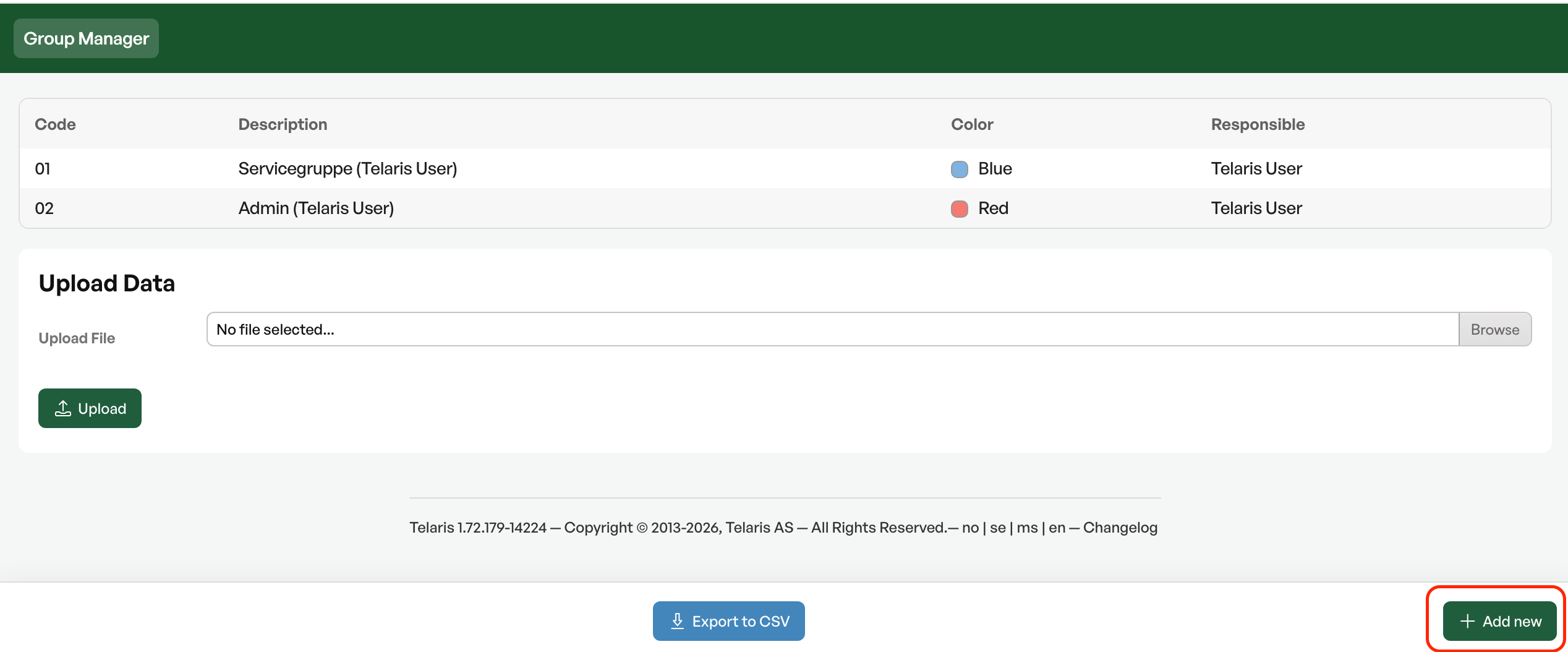
Existing groups are shown in the overview

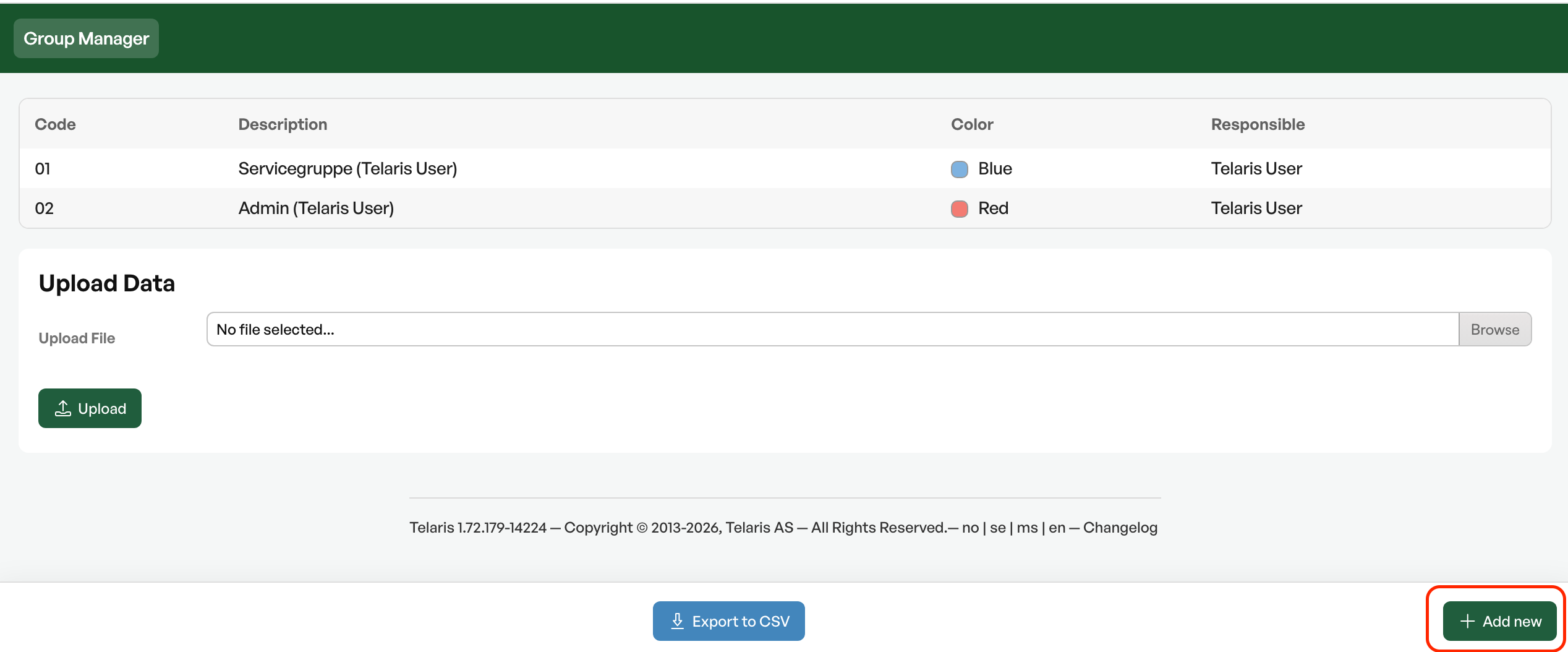
To create a new group, click 'Add new' in the group overview
When you click a group, you see the group's settings on the left and the group's members on the right
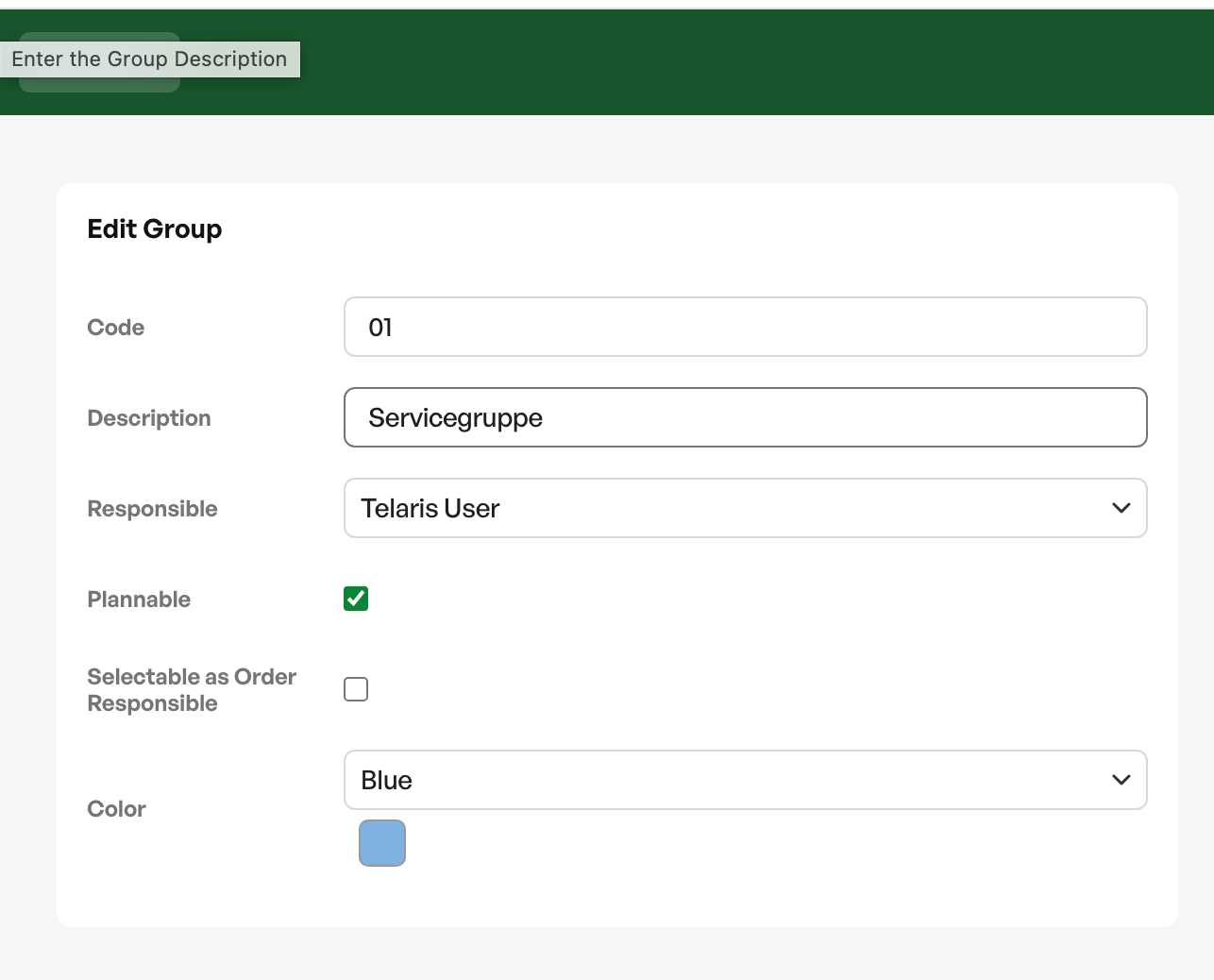
In the group settings you can give the group a code, name and a responsible person.
The 'Plannable' setting makes the group and its members appear in the order planner.
The setting to select the group as order manager lets you assign an entire group as order manager.
Groups can also be colour-coded.
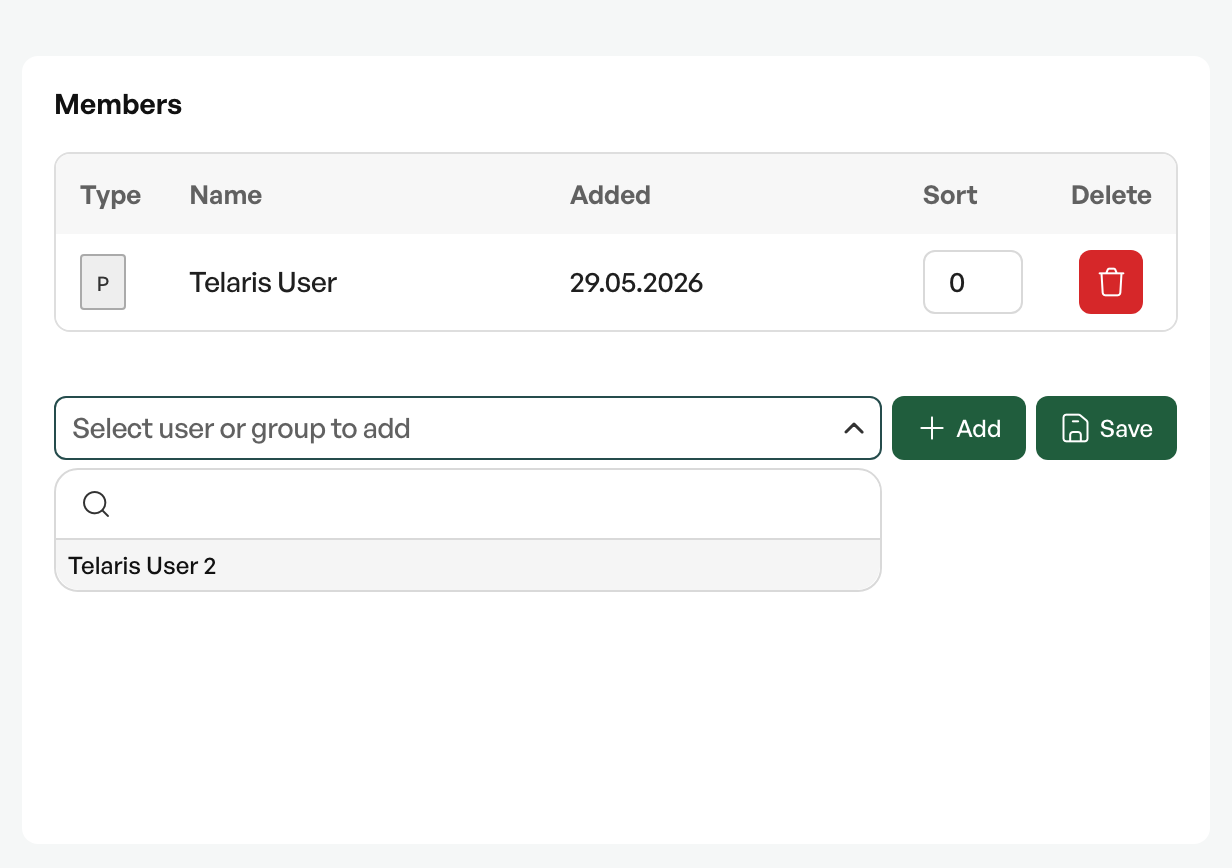
To add members to the group, click 'Select user or group'. From the dropdown you can click the person you want and then click 'Add'.
To remove members, click the red 'X' next to the member's name.
Group for teams
To use a group to gather a team for the order planner, add the desired members to a group that has the 'Plannable' setting enabled. This group is automatically applied to users, and you get a collection of users for use in the order planner and execution.
Groups are often created initially before starting with Telaris
Group for access
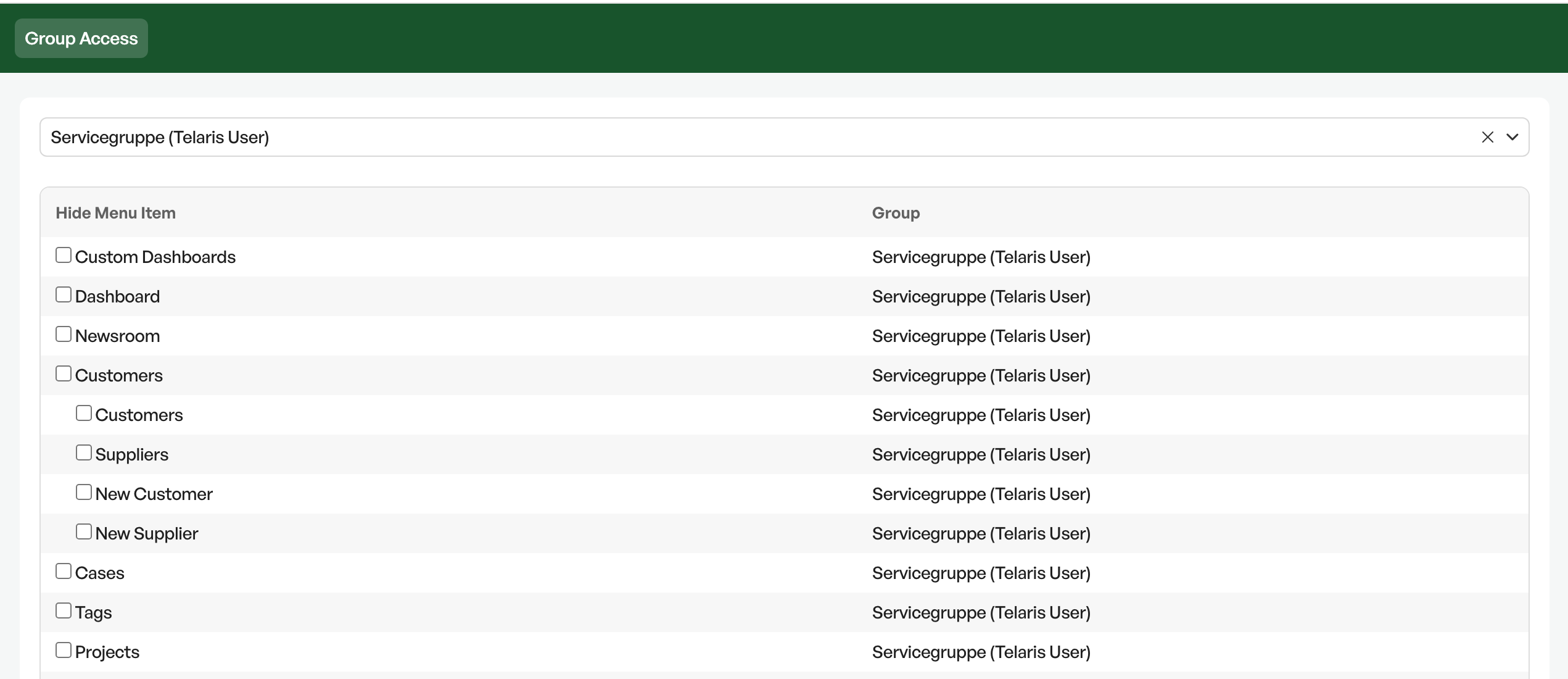
To organise access and choose which areas users can see, instead of giving users access to areas individually.
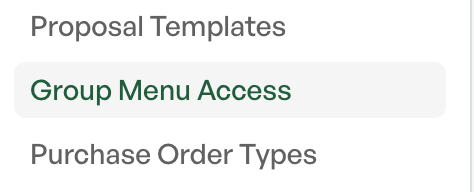
Dashboard and other settings can be hidden and shown for groups.
In an access group, you can use group access to choose what is shown and hidden for the members of the group.
It is also possible to use a group as both a team and access at the same time
Groups are often created during the onboarding phase with Telaris
NB: Group access and visibility may vary based on individual users' user types

Was this article helpful?
That’s Great!
Thank you for your feedback
Sorry! We couldn't be helpful
Thank you for your feedback
Feedback sent
We appreciate your effort and will try to fix the article