Two-factor login
Increase login security by enabling two-factor login on your user
TABLE OF CONTENTS
Purpose
With increased risk in today's online environment, two-factor login is a way to protect yourself against unwanted incidents.
Telaris has added support for two methods:
Note: Individual users must enable two-factor login themselves. Requires that the local system administrator has enabled two-factor login
Two-factor authentication with authenticator app
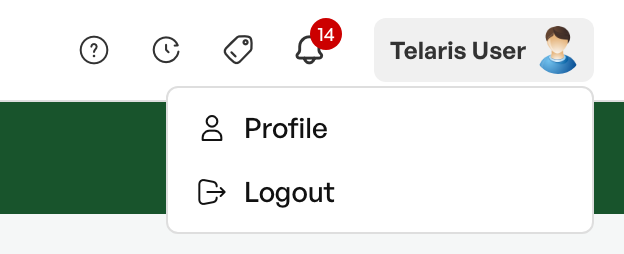
To enable two-factor login with an authenticator app, navigate to 'User profile' in the top right corner.
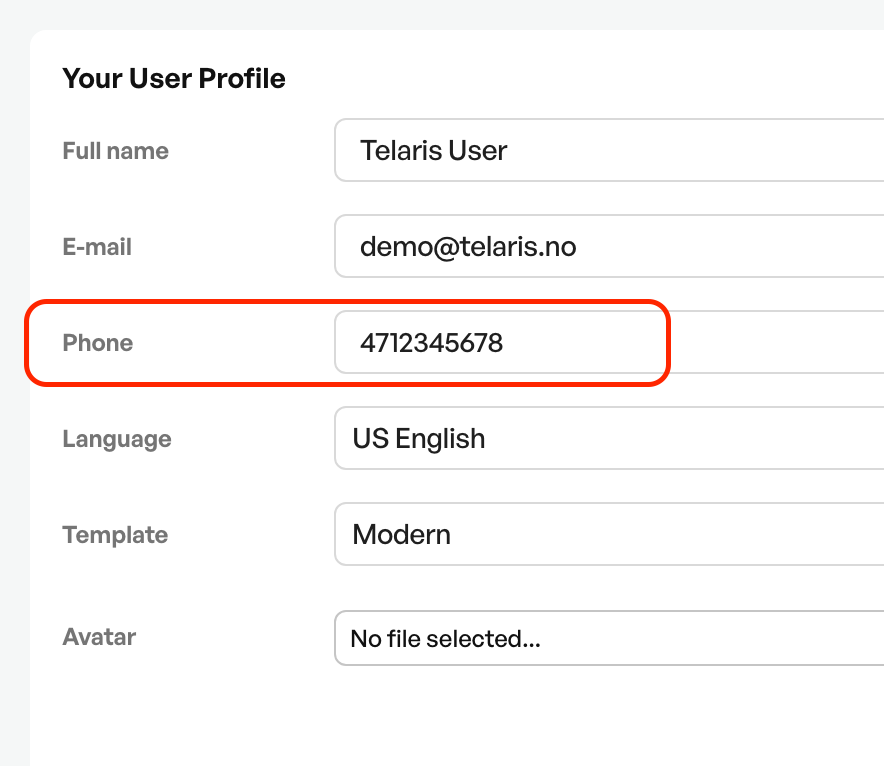
Check that the registered phone number is correct on the user and formatted correctly.
The correct format is "47" without a plus sign in front of the phone number, with no spaces.
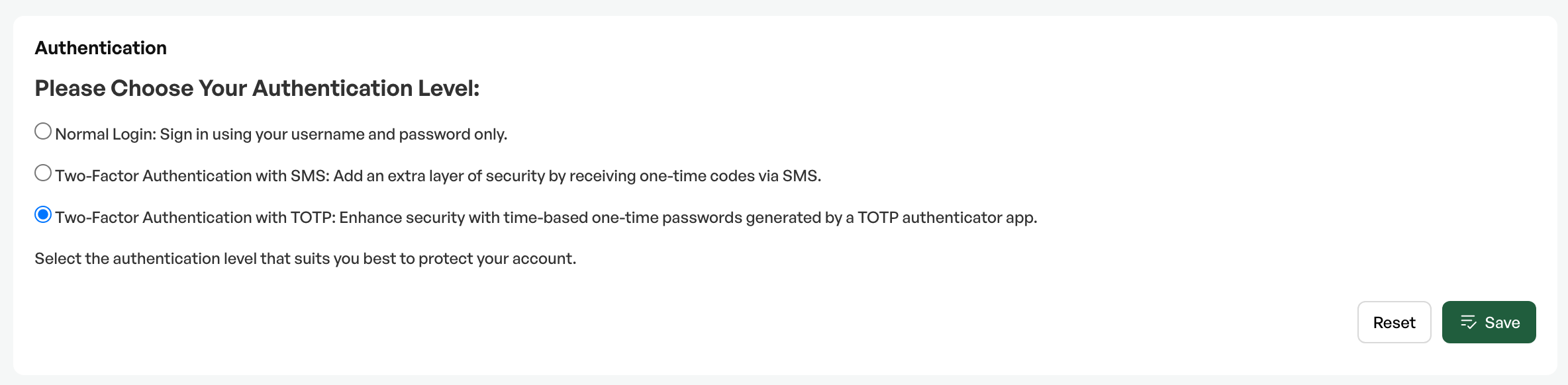
At the bottom of the user profile, tick the radio button for two-factor login with TOTP
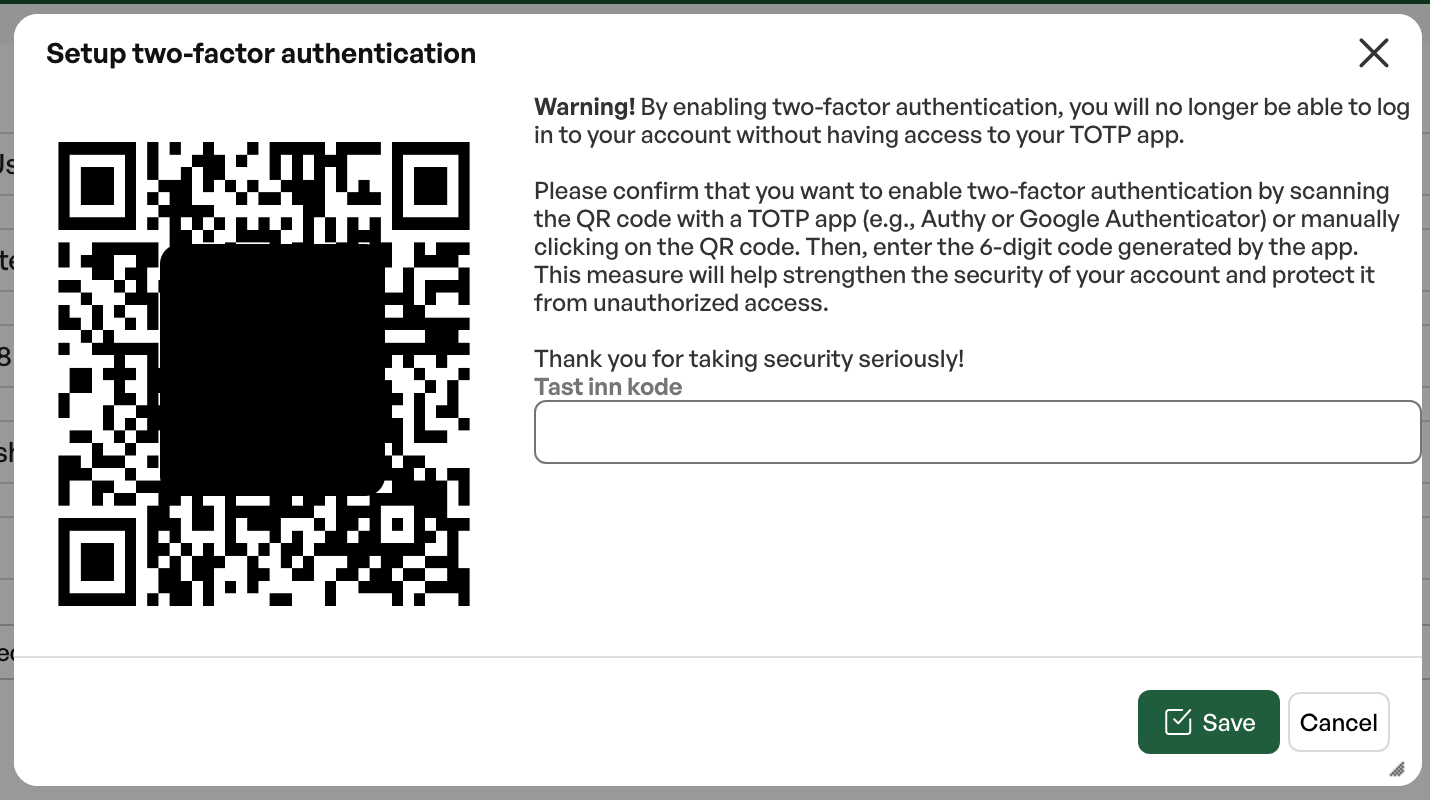
When you save, Telaris opens a dialog showing a QR code.
Follow the instructions in the text and find your preferred TOTP app (authenticator app). Most apps let you scan the QR code with the camera
At your next login to Telaris, you will be required to enter the authentication code from the authenticator app

Was this article helpful?
That’s Great!
Thank you for your feedback
Sorry! We couldn't be helpful
Thank you for your feedback
Feedback sent
We appreciate your effort and will try to fix the article