Order planner
Tool for planning orders and assigning work to performing personnel.
TABLE OF CONTENTS
Purpose
The order planner is a tool for administrators used to organise and distribute work tasks. Here you can assign entire orders or specific order lines to personnel, for example in connection with a service assignment.
When an order is assigned to an employee with access to the service dashboard, it will automatically appear in their work list under assigned tasks.
Setup and groups
For the order planner to work, users must be set up in groups along with the correct settings on order statuses.
Setup - Groups
For the order planner to work, there must be groups with teams/access set up as 'Plannable'.
Guide: Groups for access and teams
Setup - Order statuses
Orders to be shown in the order planner must have an order status that is set up as 'Plannable'. When orders have an order status that is activated to appear in the order planner, they can be selected from the list and assigned to a team or user.
Guide: Order statuses - Overview, create and edit
Using the order planner
After setup, orders and groups will appear in the left column of the order planner.
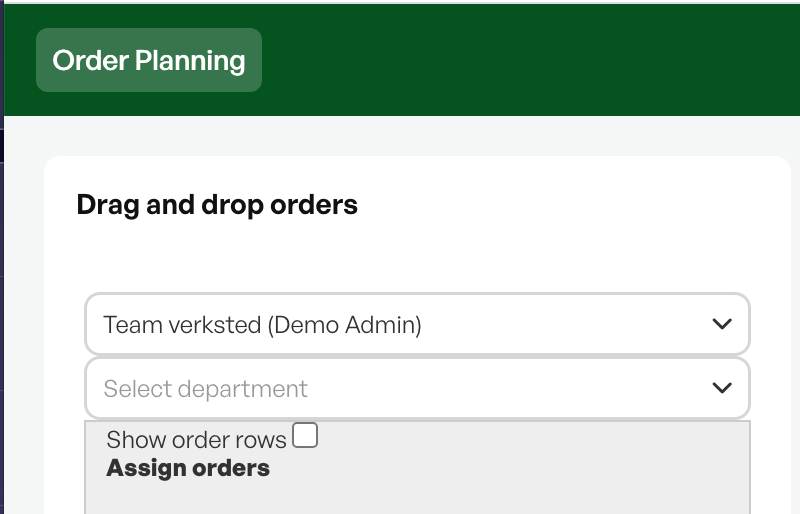
Select group
All groups with access will appear in the dropdown menu.
Assign order
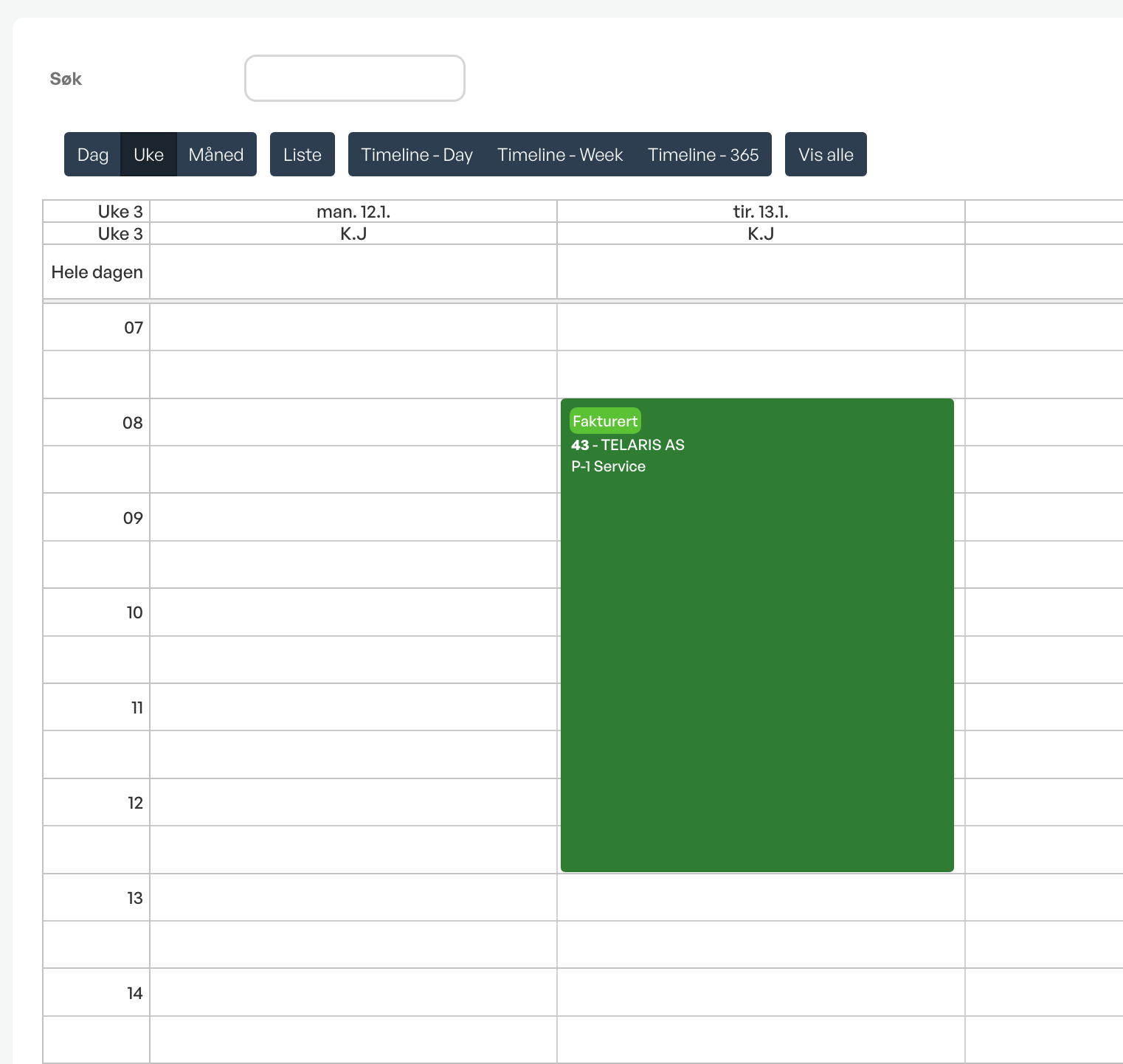
All users in the group will appear in the calendar with initials.
To assign an order to a person, click on the desired order in the 'Unassigned orders' list and drag the order into the calendar to the desired person (drag and drop functionality).
An order assigned to a person will be shown on the order as a performing participant.
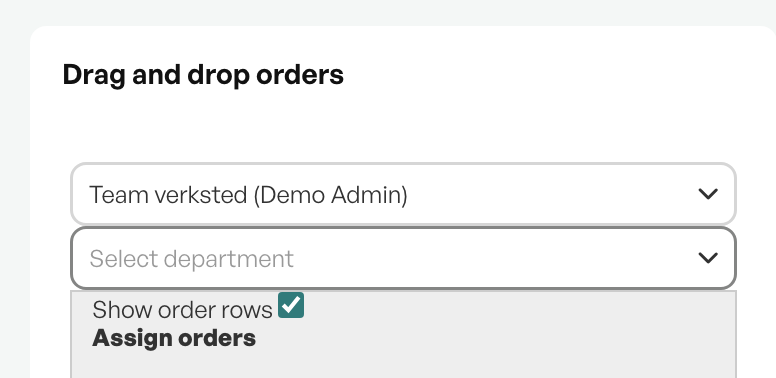
Assign order lines
To assign order lines as tasks, you must check 'Show order lines'.
The order lines available for assignment, which contain time-tracking tasks, will appear in the list and can be assigned to people in the order planner.
Adjust order duration
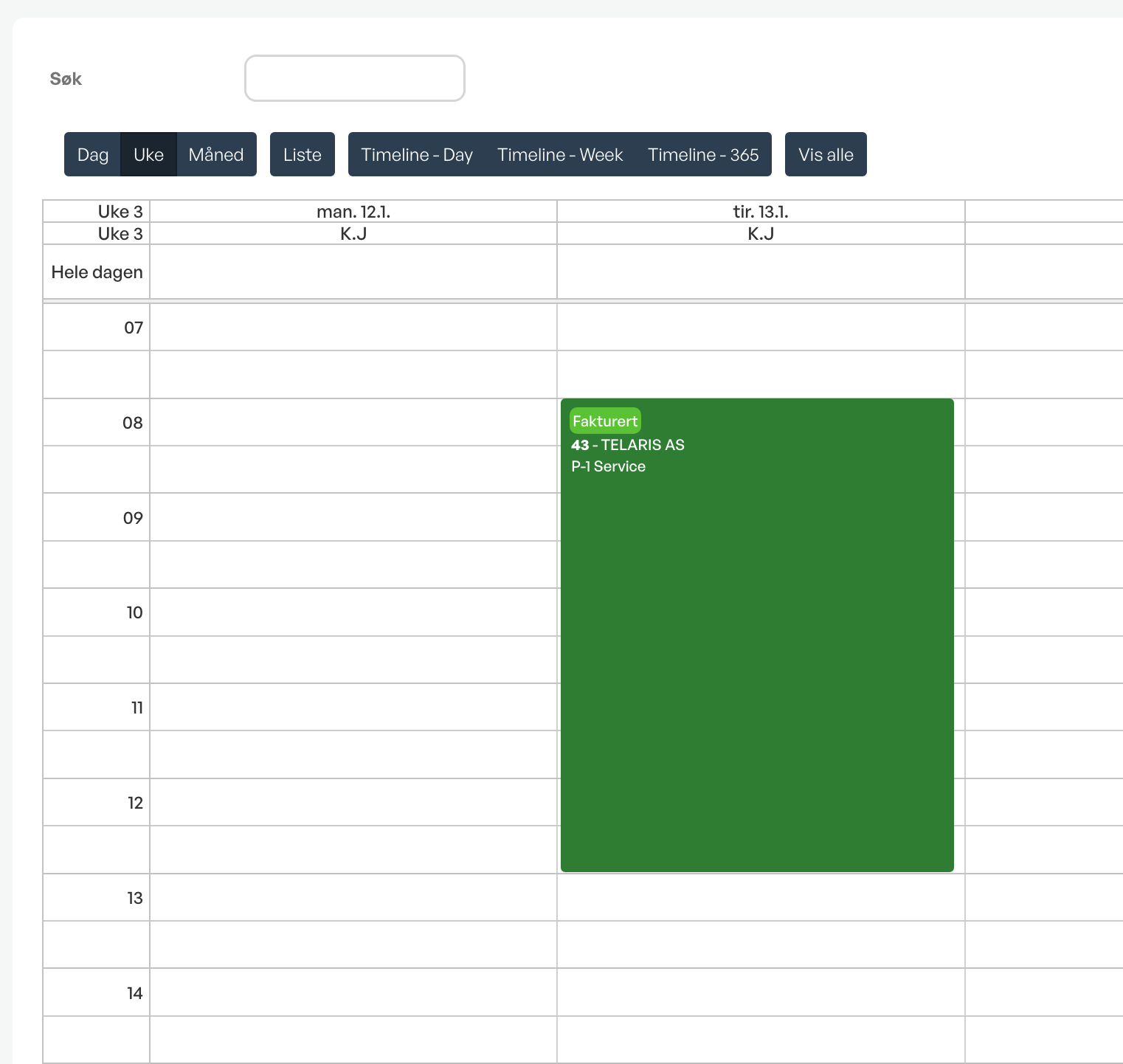
If an order is to be worked on for longer than standard, you can hover over the bottom of the order in the calendar and drag the order down the day for the user it is assigned to.
This will also be reflected in the duration on the order itself.
Options
Right-clicking in the order planner will show several options for an order in the calendar.
Change date
Manual change of time and date on the order from the order planner.
Show only this order
Filters the order calendar so you only see selected orders. Shown in the search box.
Duplicate to..
Option to duplicate the order to multiple performing personnel. These are added to the order as performers.
Remove task
Removes the order from the order planner and puts it back in the "Unassigned" list.
Hold
For the admin of the order planner, marks the order only in the overview to be put on hold. For example for clarifications before the order is worked on.
Cancel
Cancels the right-click.


Was this article helpful?
That’s Great!
Thank you for your feedback
Sorry! We couldn't be helpful
Thank you for your feedback
Feedback sent
We appreciate your effort and will try to fix the article