Acquisition Cost – Allocation of Purchase Costs
User guide for correct handling and allocation of purchase costs in Telaris to ensure accurate inventory value, inventory cost and profit margin.
TABLE OF CONTENTS
Introduction, purpose and setup
This guide gives you an overview of how purchase costs (such as freight and customs duties) are added and allocated to purchase lines to ensure correct inventory cost and reporting.
A way to add and allocate purchase expenses (such as freight and customs duties) to the purchase price, so that the total cost of purchasing an item is tied to the inventory cost.
Used to get a correct calculation of profit margin in connection with sales, and for reporting of inventory cost.
The purchase price and the acquisition cost are reported both separately and combined in inventory cost reports.
Concepts
Purchase price
The price you pay the supplier for the item
Acquisition cost / Landed cost
The cost of getting the item from the supplier to your own warehouse The cost can be tied to two types:
Freight: Shipping costs / freight
Other: Remaining costs such as customs clearance, etc.
Unit cost
Sum of purchase price and acquisition cost
Walkthrough
The first step in using acquisition cost is to create a purchase order
Guide: PurchasingRegistering costs
Add one or more costs to the purchase order, for example freight or customs duties, by clicking the 'Add / allocate costs' button. This shows a list box below the purchase order where you can add costs.
From here you add the number of lines and the total acquisition cost for the purchase order
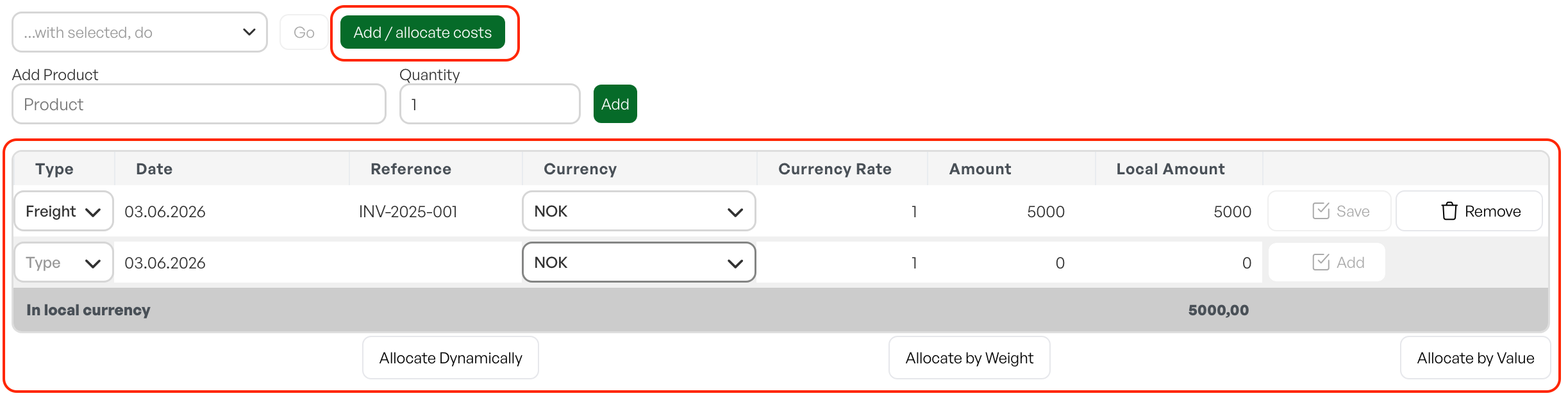
Exchange rate
The system automatically retrieves the exchange rate based on the date of the cost line.

Allocating costs
Allocate the costs to all or selected purchase lines.
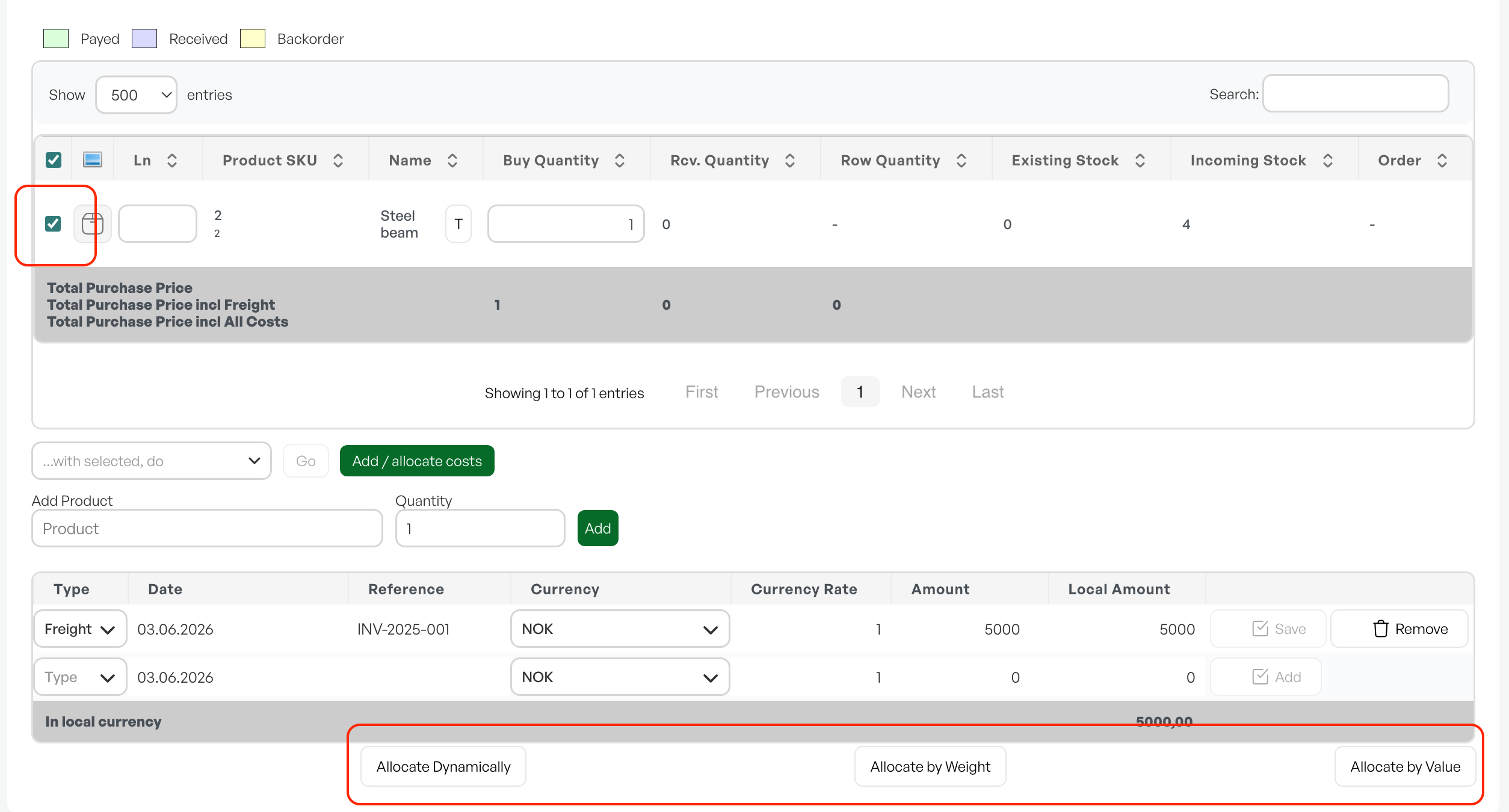
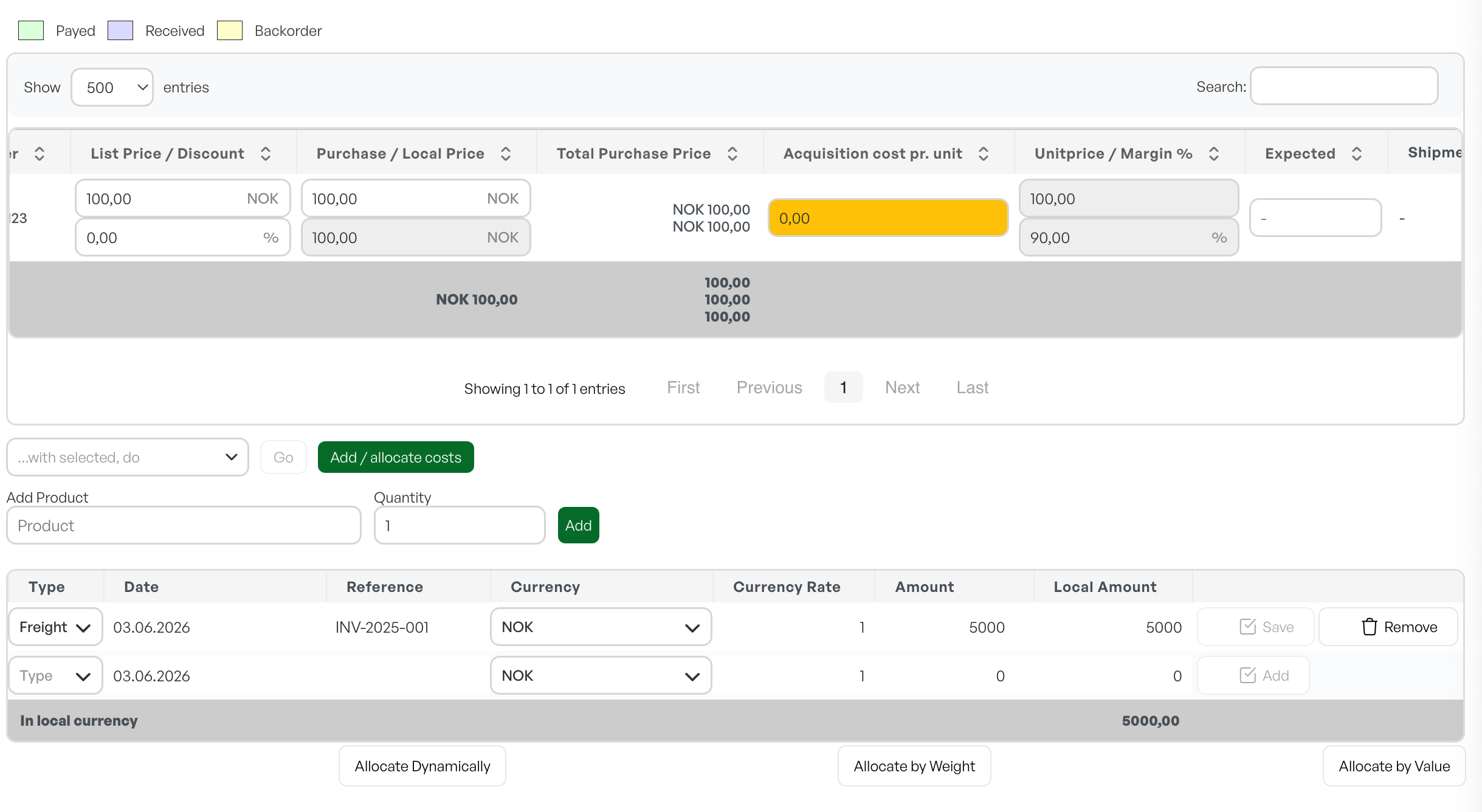
Before freight has been allocated, or if freight lines are changed after allocation, the cost field in the purchase order line is shown in orange to indicate that there are registered costs that have not been allocated to the purchase order lines.
When everything has been allocated, the field has its normal white background.
Corrections
If you change amounts or remove cost lines, you must allocate the costs again. The cost field in the purchase order lines stays orange until the allocation has been done.
The same applies if you want to remove all the costs. In that case you must keep one line with 0 and allocate the cost again.
Documentation
The «Reference» field can be used to enter, for example, the invoice number from accounting for the relevant cost. The cost lines are the documentation of the acquisition cost tied to the purchases.

Reports
The reports that show physical inventory specify purchase price and acquisition cost like this:

Allocation keys
Value
The total acquisition cost is allocated to the unit price based on the products' purchase price
Weight
The total acquisition cost is allocated to the acquisition cost per unit, based on the products' weight specified on the product card. If a product has no weight specified, it gets 0 as its freight share.
Dynamic
The system first allocates the total freight amount proportionally between the sum of all products with weight in one bucket, and the sum of all products without weight in the other bucket. The sum in KRONER of the bucket without weight becomes a share of the total sum of both buckets in kroner, and is then assigned its proportional share of the freight costs.
If you need additional allocation keys, contact Telaris Support
Troubleshooting and common errors
Common errors and how to fix them:
- Orange cost field on the purchase order line: the costs have not been allocated. Click one of the Allocate buttons to allocate.
- Wrong exchange rate: usually caused by the wrong date being used on the cost line. Check the date and update it if necessary.
- Missing weight on the product card: causes the product to get 0 as its freight share when using the Weight allocation key. Enter a weight on the product card to avoid this.
NOTE: Allocation must be done again after changes, including after deletion.

Was this article helpful?
That’s Great!
Thank you for your feedback
Sorry! We couldn't be helpful
Thank you for your feedback
Feedback sent
We appreciate your effort and will try to fix the article