Setting up the ABAX integration
The ABAX integration requires that you contact Telaris for activation. You must have an active ABAX account with API access. This guide describes the setup.
TABLE OF CONTENTS
Prerequisites
- Active ABAX account (test or production environment) with API access.
- Two products in Telaris: one for mileage (price per km) and one for expenses (parking, tolls, ferry).
- Drivers created as personnel in Telaris (the same email as the ABAX user gives an automatic link at first import).
- Vehicles created as tags in Telaris under a dedicated tag type, with the registration number as the tag name (an exact match is used for automatic linking).
- Drivers must have given consent for driving data to be retrieved from ABAX and used in Telaris (obtained by the customer).
Step by step
- Go to Administration → Integrations in Telaris.
- Find ABAX in the list and click to open the settings.
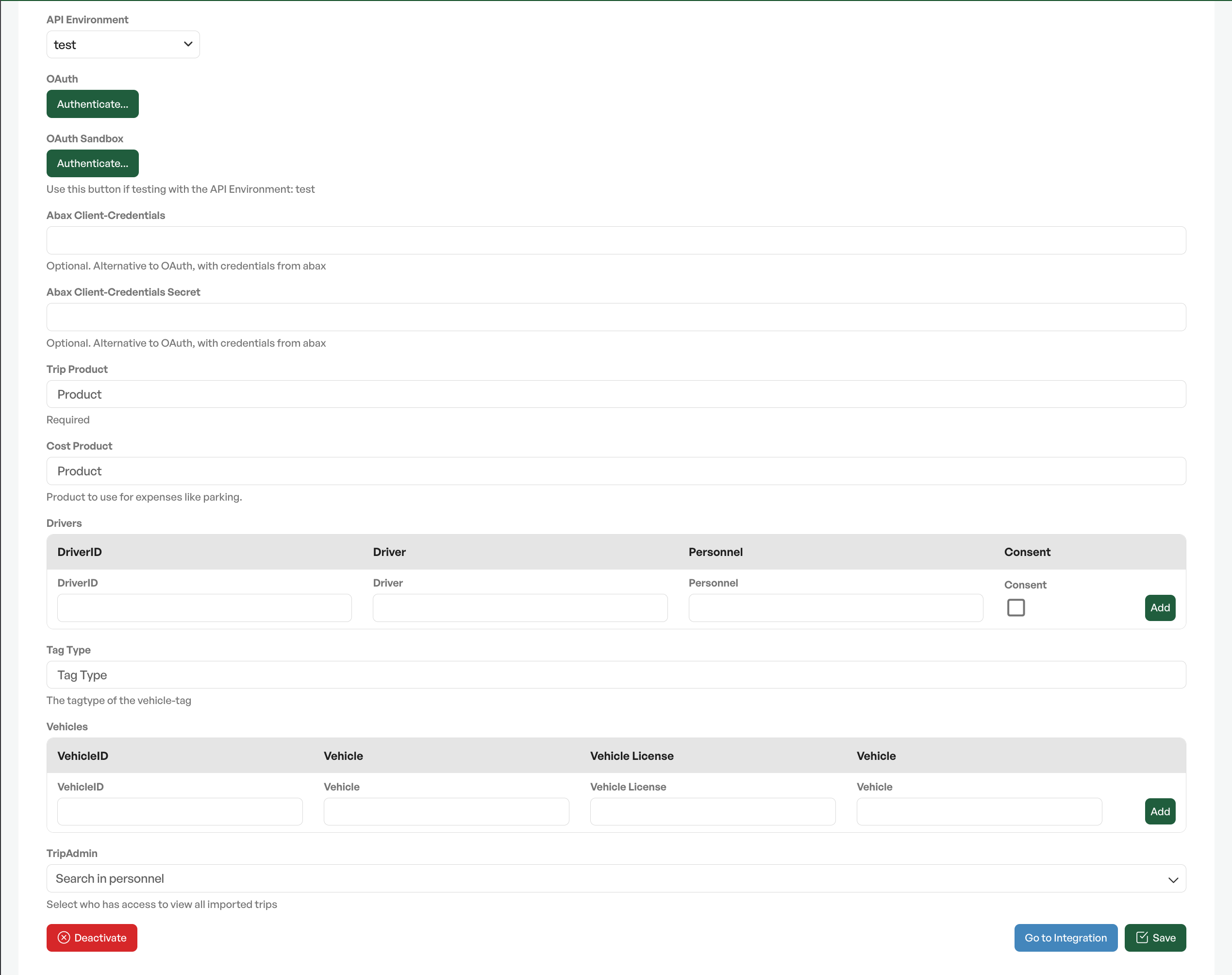
- Select Environment (test for testing, prod for production data).
- Connect to ABAX – either via OAuth («Authenticate», log in with the ABAX account and approve access), or via Client Credentials (enter the ID and secret created at ABAX; requires no user login).
- Set the Trip Product – the product for mileage lines. The price should be set per kilometre. Required.
- Set the Cost Product – the product for expense lines.
- Set the Vehicle tag type (Tag Type) – the tag type you have created for vehicles. Vehicles from ABAX are matched automatically against tags of this type based on registration number.
- Optional: add trip administrators – personnel who should be able to see all drivers' trips.
- Save, and let the first import run (automatically every hour, or trigger it manually by opening the driving log tab on an order).
- After the first import, drivers and vehicles appear in the tables in the setup. Verify links and tick consent (see below).
After activation, the driving log tab becomes available on all orders.
Drivers and consent
Drivers are discovered automatically at import. New drivers are added with consent denied. If the email address matches a person in the personnel register, the link is set automatically. In the driver table (Administration → Integrations → ABAX), the administrator can select the correct person and tick «Consent / Samtykke» to activate import of the driver's trips.
NOTE: The consent checkbox is a technical switch that controls whether Telaris imports trips for the driver. It is the customer's (administrator's) responsibility to ensure that the driver has actually consented to the registration and use of GPS and driving data before the checkbox is set. The responsibility for processing personal data from ABAX lies with the customer, not with Telaris.
Vehicles
Vehicles are discovered automatically at import. For new vehicles, Telaris looks up tags of the selected vehicle tag type where the tag name is identical to the registration number from ABAX:
- If there is exactly one match, the link is set automatically.
- If there are several matches, or no match, no automatic link is set. Then the administrator links the tag manually in the vehicle table.
The vehicle table shows ABAX ID, alias, registration number and linked tag.
Settings
| Setting | Description |
|---|---|
| Environment (test/prod) | Whether the integration uses ABAX's test or production API. |
| OAuth connection | Authorisation via ABAX login. «OAuth» for prod, «OAuth Sandbox» for test. |
| Client Credentials | Alternative authentication with API keys (ID + Secret), without user login. |
| Trip product (Trip Product) | The product for the mileage line. Price per km. Required. |
| Cost product (Cost Product) | The product for expense lines (parking, tolls, ferry). |
| Vehicle tag type (Tag Type) | The tag type that represents vehicles, for automatic matching on registration number. |
| Trip administrators (TripAdmin) | Personnel who can see all drivers' trips. |
Access and permissions
| Role | Permissions |
|---|---|
| Regular user (order handler) | Sees only their own trips. Can add trips to orders and mark completed or removed. |
| Trip administrator | Sees all drivers' trips in the driving log tab. Configured in the setup. |
| Administrator | Access to the integration administration. Configures OAuth, consent per driver, vehicle links and other settings. |

Was this article helpful?
That’s Great!
Thank you for your feedback
Sorry! We couldn't be helpful
Thank you for your feedback
Feedback sent
We appreciate your effort and will try to fix the article