Categories and hierarchy
How to use categories to organise the products in the web shop, build a hierarchy and control how products are shown to customers.
INNHOLDSFORTEGNELSE
Function and setup
Categories control the sorting of products in the web shop; products within a category are shown together in the preview and from menu choices.
At the top is the parent category for web shop products, often called 'Nettbutikk' or similar. This is called the root category, and is set in 'Settings' under 'Webshop' in Telaris
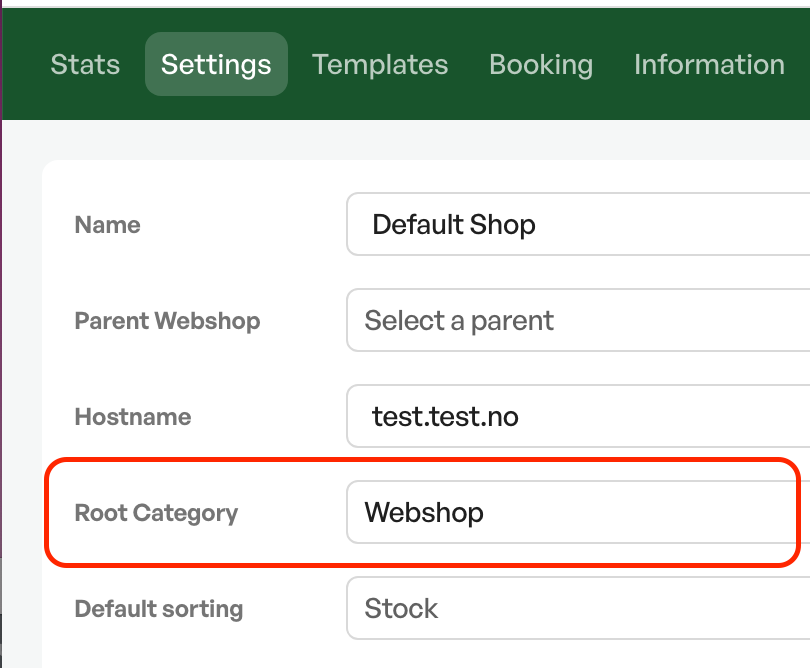
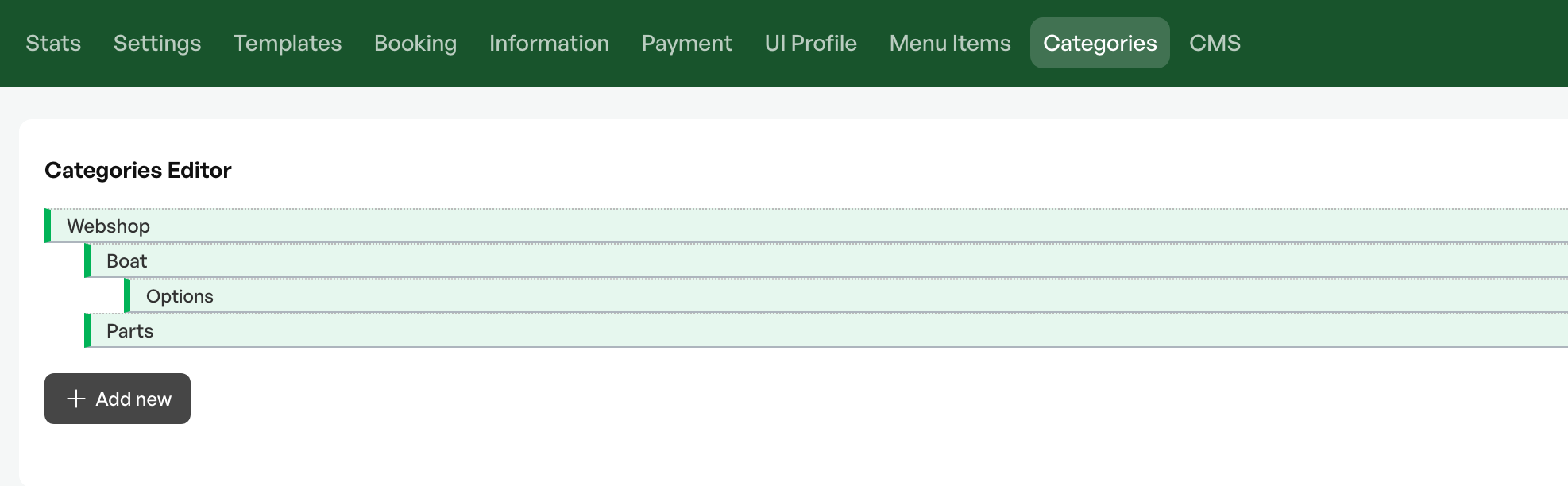
The root category is then found again from 'Categories' in the web shop settings
Creating and administering categories under the root category can also be done from here.
The categories can then also be assigned in levels to create a hierarchy.
Category image
In a category you can upload an image, which can automatically be shown on the category in the product preview.
The image is uploaded inside the selected category.

Remember to make sure the image on the category/categories fits the web shop format
Category settings
In categories you can make several settings on a category, such as making all products in the category available as backorder items, or only available for in-store pickup.
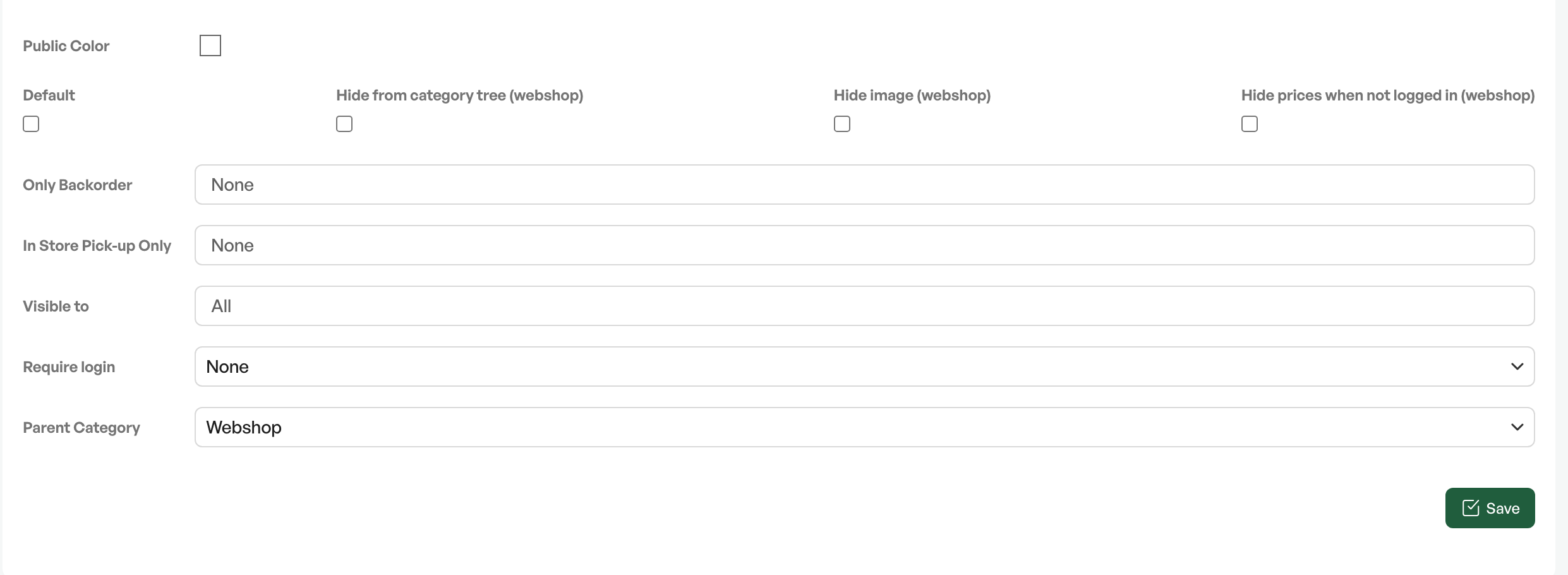
| Public color | N/A |
Default | N/A |
| Hide from the product menu (web shop) | Hides the category from the product category list in the web shop |
| Hide image (web shop) | Hides the category image on the category page. Is linked to the setting 'Show child categories' in 'Settings' in the web shop. |
| Hide prices when not logged in (web shop) | Hides the price on all products belonging to the category for all users who are not logged in to the web shop. If you hide all prices in settings, this setting does not need to be turned on |
| Only backorder | Products in the category can only be ordered. The price button is replaced with an enquiry button |
| In store pick-up only | Products in the category cannot be delivered to the end customer, and can only be ordered with the shipping type 'Hent i butikk' |
Visible to | If several web shops are activated on the instance, you can choose which ones the category should be shown on |
Require login | You must log in to see the category's content |
Parent category | Superior category. 'Parent' or 'Mor' |

Was this article helpful?
That’s Great!
Thank you for your feedback
Sorry! We couldn't be helpful
Thank you for your feedback
Feedback sent
We appreciate your effort and will try to fix the article