Setting a warehouse location inactive
How to take a warehouse location out of use by setting it inactive, without deleting it.
TABLE OF CONTENTS
When to use it
When a warehouse location is no longer to be used, you can set it inactive instead of deleting it. The location then disappears from the selection lists when goods are to be placed, but the location itself and its history are kept. This suits locations that are being phased out or temporarily not in use.
How to set the location inactive
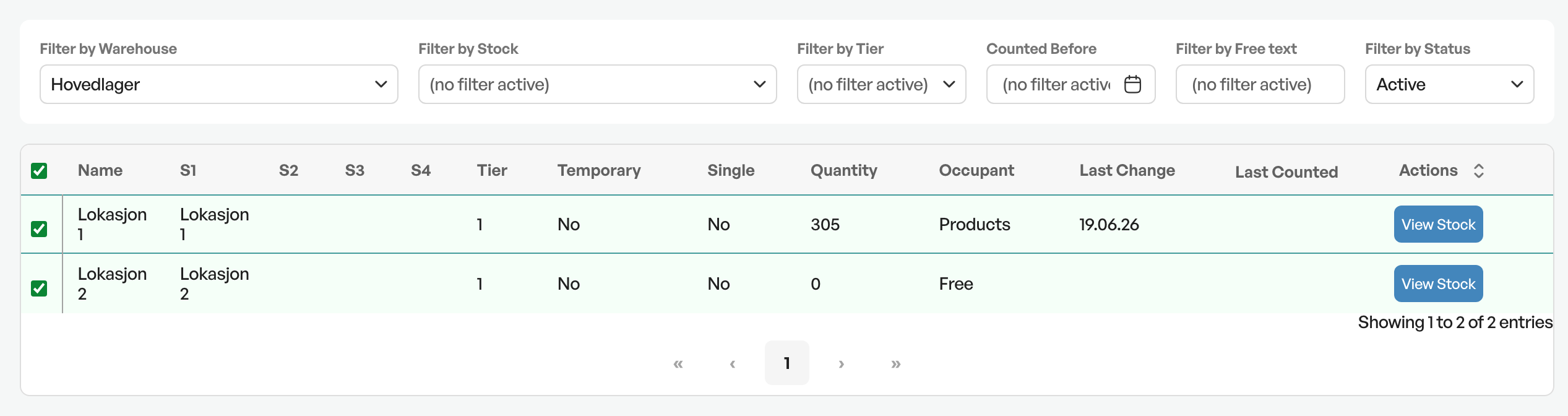
Go to Warehouse and open Locations. The list shows the locations with columns including Quantity and Occupant. Use the search field or the filters at the top to find the location. The Filter by Status filter shows the active locations by default.
Click the location's name to open it. This takes you to the location card.
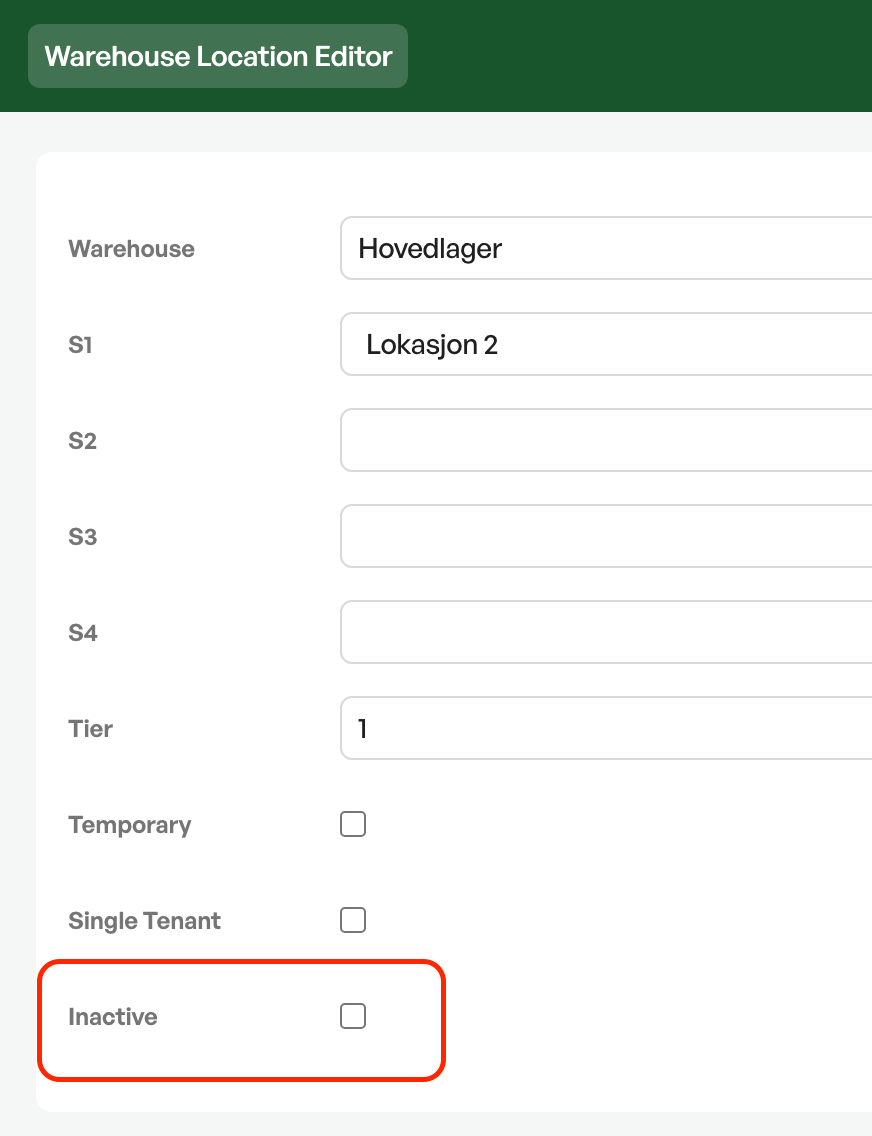
Tick Inactive and click Save. The location is now set inactive and no longer appears when goods are to be placed.
NOTE: Make sure the location is empty, that is, that Quantity is 0, before you set it inactive. That way no goods are left in a location that is out of use.
Reactivating a location
To put the location back into use, find it in Locations. Set the Filter by Status filter to Inactive to show the inactive locations, open the location, untick Inactive and click Save.

Was this article helpful?
That’s Great!
Thank you for your feedback
Sorry! We couldn't be helpful
Thank you for your feedback
Feedback sent
We appreciate your effort and will try to fix the article