Setting up freight types
A freight type determines which carrier and which freight product a consignment uses, how the price is calculated, and which add-ons are available. Here is how to set up a Cargonizer-based freight type.
TABLE OF CONTENTS
Create a freight type
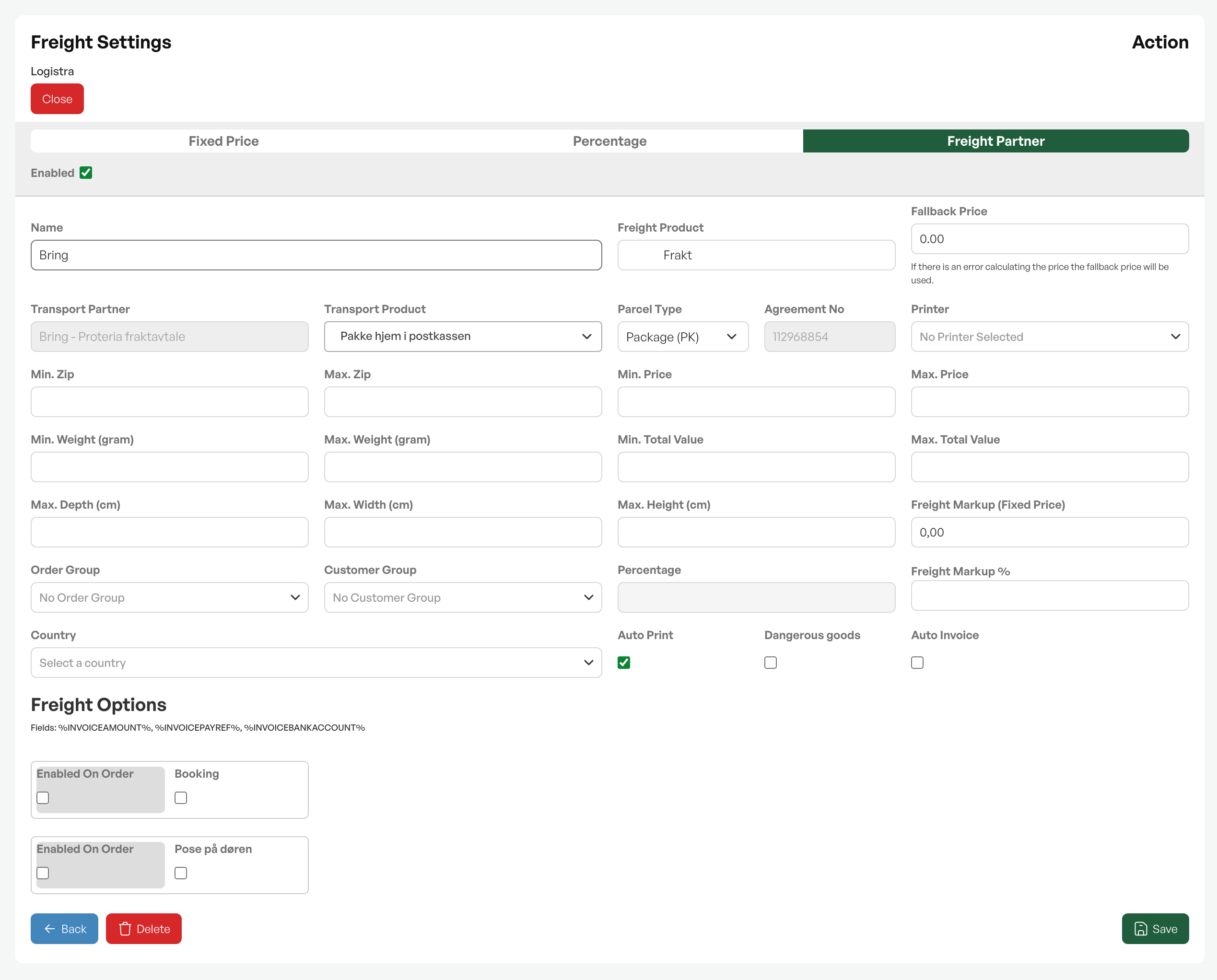
Under Freight settings you create a new freight type, or edit an existing one. Choose Logistra Cargonizer as the freight system, then choose the Cargonizer setting you created in the getting started article. Then choose a carrier, for example Bring, and a freight product, for example Pakke til hentested.
If you want an invoice to be created automatically when freight is added, enable auto-invoicing on the freight type. Save when you are done.
Price calculation

Choose how the price is calculated:
Freight partnerfetches the price from Cargonizer in real time, based on the carrier agreement, packages, weight, dimensions and the recipient's address.
Fixed priceuses a fixed price regardless of Cargonizer.
Percentagecalculates the freight as a percentage of the order value.
For pricing via Cargonizer you can also add a surcharge (percentage and/or a fixed amount) and set a minimum and maximum price. Tip: it is a good idea to also set a fixed price, which is used as a fallback if Cargonizer does not respond.
Freight options (add-ons)
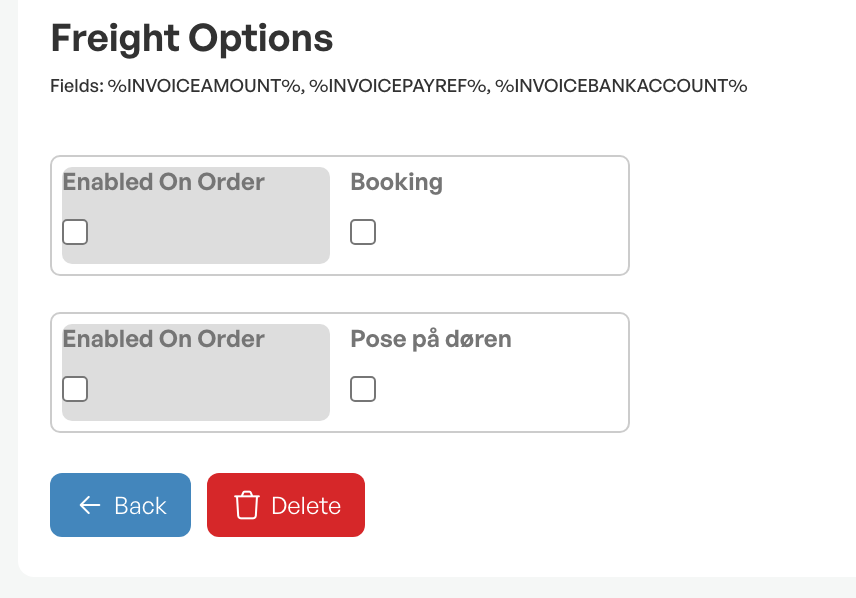
At the bottom of the freight type is the Freight options section. These are additional services fetched dynamically from the carrier agreement and the freight product, for example Booking, ID requirement or Social control. Which ones exist varies from carrier to carrier, and the list can be changed by the carrier.
Each option has two checkboxes.Enabled On Orderdetermines whether the option is shown at all in the freight dialog when a consignment is created from an order. The checkbox next to the option name determines the default value, that is, whether the add-on is on or off by default. The user can change the default per consignment as long as Enabled On Order is active. Some options also have their own fields, for example a choice of ID type.
Tip: Only enable the add-ons you actually use. Each extra option makes the freight dialog more complex for the warehouse staff.

Was this article helpful?
That’s Great!
Thank you for your feedback
Sorry! We couldn't be helpful
Thank you for your feedback
Feedback sent
We appreciate your effort and will try to fix the article