Carrying out a stock count in Telaris
Telaris is set up for a smooth, efficient and digital stock count. The count itself can easily be done on a PC, tablet, mobile phones and various handheld scanners with a screen.
TABLE OF CONTENTS
Stock quantity per location
The stock quantity in Telaris is based on location. This means that the system only accepts one balance per item number per location. The logic sets rules for how the count must be registered so that it appears correctly in Telaris. When you count the same item number several times at a location during the same stock count, you must remember to sum both before you click "ok".
For example, if you have counted 2 units of item X at location 1A, and later in the count you find 3 units of item X at the same location, you must remember to register a total of 5 units at location 1A. As an extra reminder, in Telaris we have added a field called "Last Counted" that is marked in red. The intention here is to remind the person counting that if the item was counted very recently, remember to reconcile with the person responsible for the count regarding the total quantity.

Navigating in the counting window
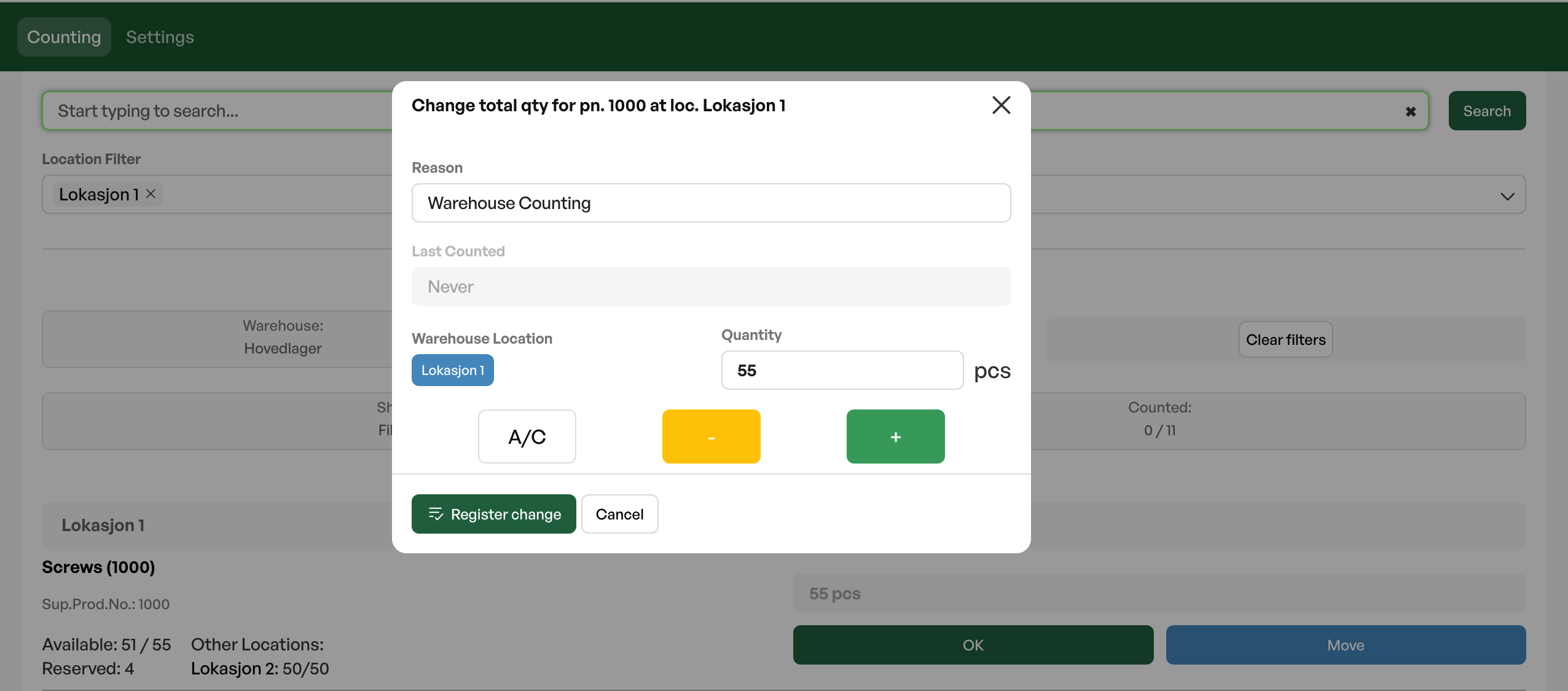
Registering the count result
In the counting window, all the items at the locations in the system are shown at the time of counting.
If there is no discrepancy from the system's balance, you just click "ok"; if there is a +/- discrepancy, you click into the amount and correct it to the right quantity and click "ok". (You can correct the quantity with the arrows, -/+ and by simply entering the correct quantity)
An item must have a default warehouse location defined in the product card for it to appear in the counting window (this also applies to items with zero balance).
Switching warehouse
It is very easy to change warehouse under settings if needed during the count. (The system naturally takes into account if an annual count has been activated on the relevant warehouse. The annual count is described in more detail in another user guide.)
Guide:Managing stock counts in Telaris
Inside a rolling stock count and you switch to a warehouse that has an activated annual count with an associated correction date.
Items/products with zero balance
By default, in Telaris we have chosen to show all items for which you have defined a default location per warehouse, regardless of the balance at the time of the stock count. We have done this because we do not want to show everything registered at the location without any predefined filters, and because there are different needs for annual counts and rolling counts.
It is, however, entirely possible to hide the items with balance 0 if desired; this is done under the settings tab.
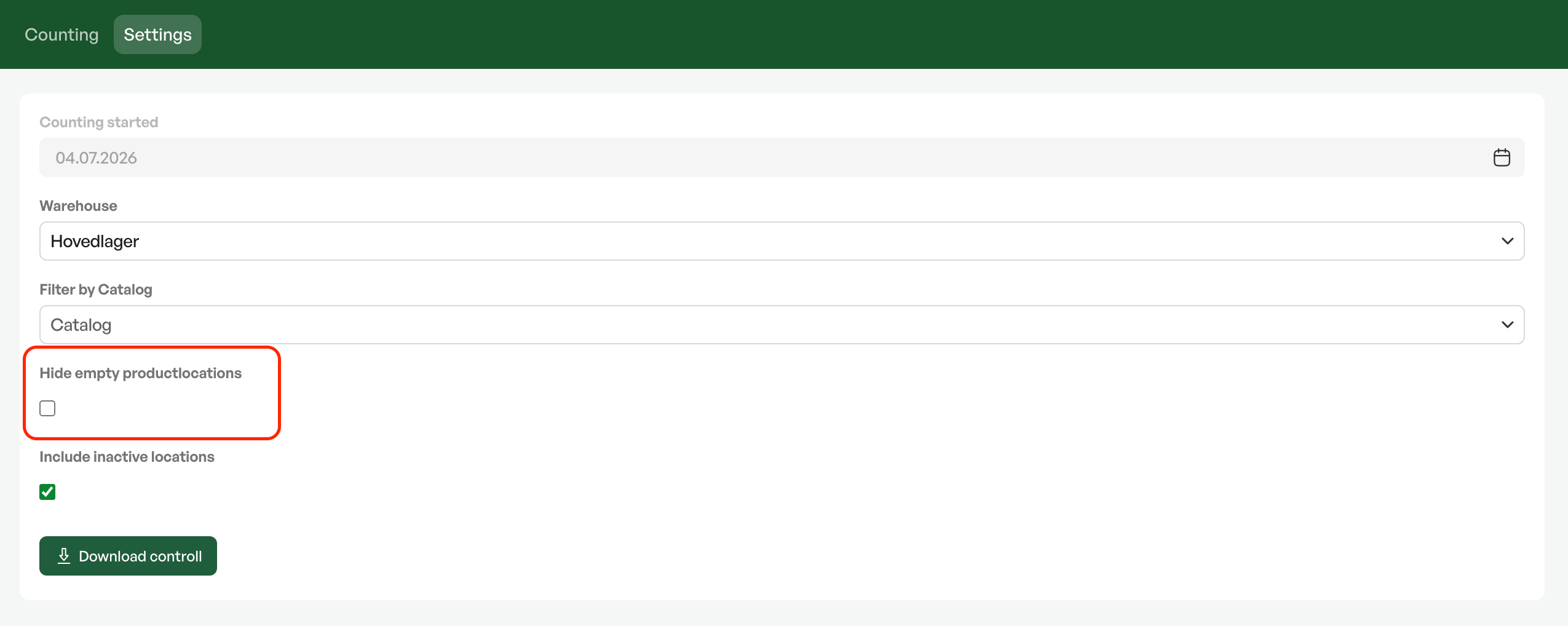
Regarding correcting the value of items with balance 0, see the section "correction"in the user guide:Preparations before a stock count in Telaris
Status during the stock count
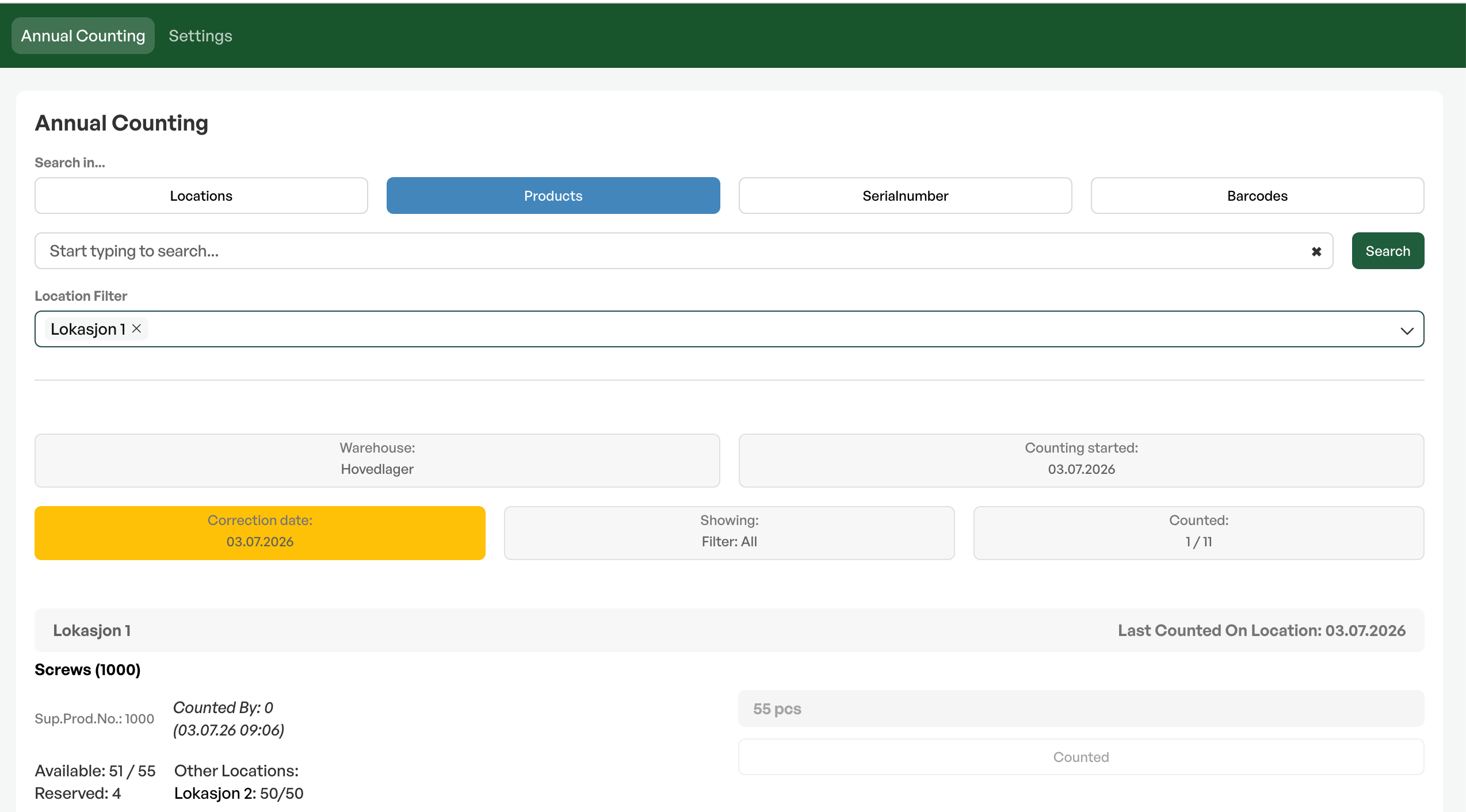
In the counting window itself you always have a good overview of what has been counted and not. The "ok" button turns grey and is marked as "counted" when you have clicked it, to make it clear that the item has already been counted during the ongoing stock count.
How long the button remains like this depends on which stock count you are carrying out:
- Annual count: The button stays grey/counted until you click "stop stock count" under Manage annual count.
- Rolling count: Here you must change the date yourself under "Settings", see more details in the section "rolling stock count" at the bottom of the guideManaging stock counts in Telaris
You also have good options to filter.The field is shown at the top right and can be changed based on the desired view.
The time for "last counted by" is updated continuously, which gives good control over what has been counted when during a stock count.
Counting on paper
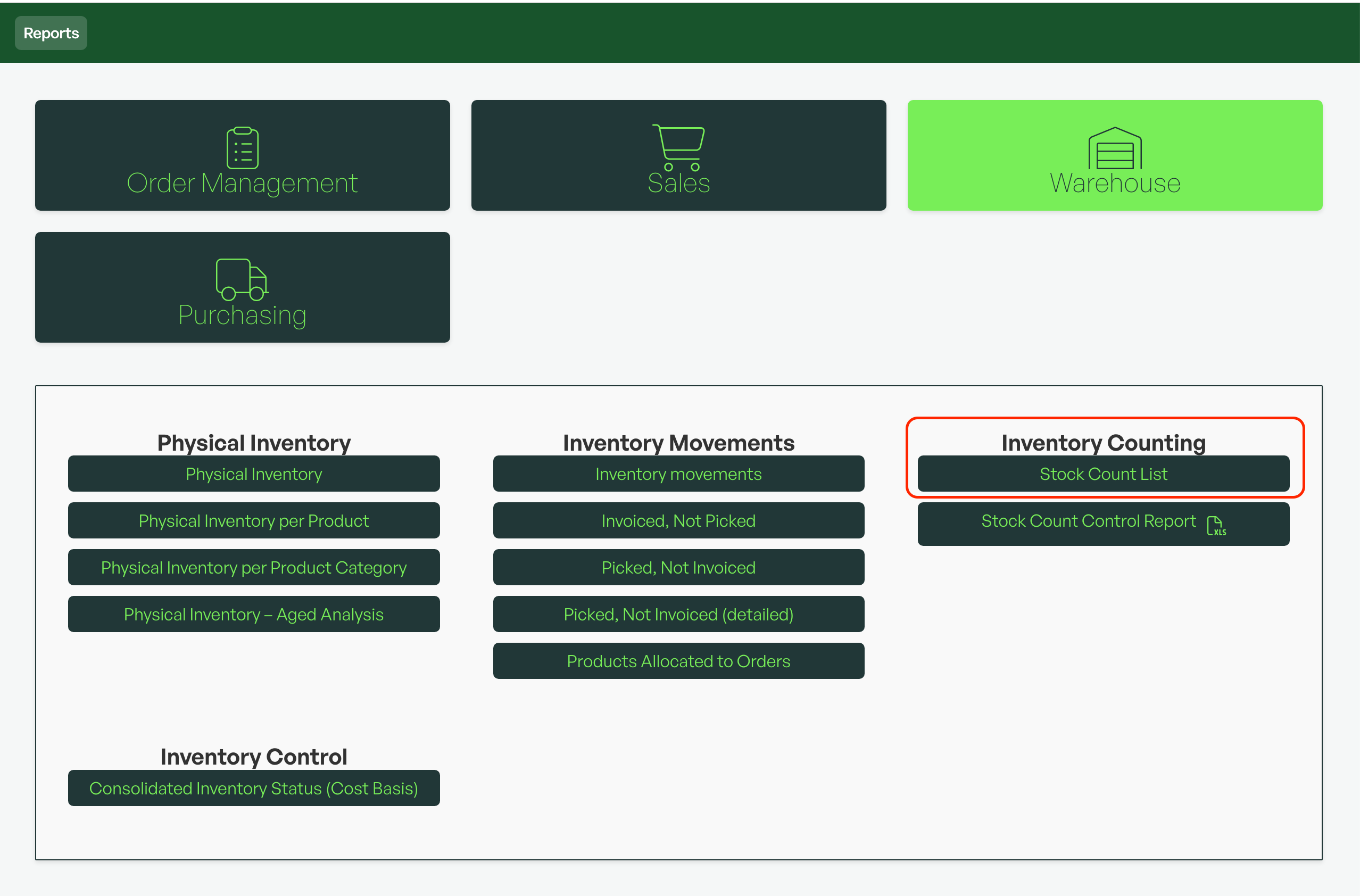
If you do not have the opportunity or wish to carry out the stock count digitally, you must print a count list from the system, count the items and then enter the count results in the counting module.
View reservations
To view reservations on products that are in orders where you cannot count the product, etc.
Click the reserved quantity; in the example below it is the number '2'. A dialog box then opens showing all orders where the product is reserved.
The order number is a link, and you open a new tab with the order.

Change location - Set a new default location
It is possible to set a location as the new default location when moving and when counting by ticking the checkbox on the product. This can be done both when moving and when counting.

Was this article helpful?
That’s Great!
Thank you for your feedback
Sorry! We couldn't be helpful
Thank you for your feedback
Feedback sent
We appreciate your effort and will try to fix the article